How to Control which Apps can Access your Personal Data and device Features in Windows 11

You can control which apps access your personal data and device features in Windows 11 through the built-in Privacy & security settings.
Windows 11 lets you control app permissions in detail. You can manage access to sensitive information like your location, camera, microphone, contacts, and more.
These settings are crucial for protecting your digital privacy. This is especially true since many apps downloaded from the Microsoft Store request extensive permissions by default.
For instance, you can review and toggle permissions for specific apps to access your camera or microphone. You’ll find these options directly within the Settings app under the “Privacy & security” section.
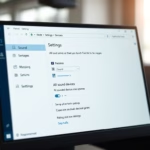
Manage app permissions in Windows 11 through Settings > Privacy & security. Select a capability like Camera or Microphone to see which apps have access and toggle permissions for each. You can also disable a capability for all apps from the top toggle.
How Windows Privacy Settings Work
Windows privacy settings act like guardians for your personal data and device features, such as your location, camera, or microphone.
If you decide to turn off access for a particular app to, say, your microphone, that app won’t be able to use it. This is a clear way to limit an app’s features if you’re worried about its data collection or if it doesn’t need that information to work.
Managing Your Privacy Settings in 🪟 Windows 11
Ready to take the reins? Managing your privacy settings in Windows 11 is something you can do. Here’s how to get started:
Step 1Open the Settings App
Click on the Start button, usually found in the center of your taskbar. From the menu that pops up, select the Settings cog icon. Alternatively, you can press the Windows key + I on your keyboard to open Settings directly.
Step 2Navigate to Privacy & security
Once the Settings window is open, look for Privacy & security in the left-hand sidebar. Click on it to open the main privacy hub.
Step 3Choose a Capability to Manage
In the Privacy & security section, you’ll find a list of capabilities like Location, Camera, and Microphone that you can manage.

Tip: Don’t feel like you have to tackle everything at once! Start with the most sensitive data, like your location or microphone, and work your way through others as you feel comfortable.
Step 4Control App Access
After picking a capability, you can control app access using a toggle switch for all apps, and then adjust permissions for each app individually below.

Warning: Turning off a capability entirely might affect how some apps function. For instance, if you disable location services, map apps or weather apps won’t be able to show you information based on your current whereabouts.
Understanding Desktop Apps and Their Privacy
Desktop apps, often downloaded from websites, are different from Microsoft Store apps and usually don’t appear in Windows privacy settings lists.
The Key Difference: Desktop apps generally won’t appear in the privacy lists within Windows Settings that we just covered. This means the toggles for Location, Camera, Microphone, etc., in Windows Settings won’t control their access to these features. They operate outside of that specific Windows permission system.
Warning: Be extra cautious with desktop apps from unknown sources. Since Windows privacy settings don’t directly manage them, you’re relying on the developer’s own privacy practices. Stick to reputable software providers whenever possible.
Reference:
Summary
In Windows 11, you control app access to personal data and device features like location and camera within the Settings app under Privacy & security.
Where are app permissions in 🪟 Windows 11?
App permissions in Windows 11 are located within the ‘Privacy & security’ section of the Settings app. Here, you can find detailed controls for each app’s access to your personal data and device features, such as location, camera, and microphone.
Should app permissions be on or off?
It’s best to keep app permissions off by default and only enable them for apps you trust and that require specific access for functionality. Regularly review these settings to ensure only necessary permissions are granted, enhancing your privacy and security.
Where are app permissions in settings?
App permissions in Windows 11 are found in the Settings app under ‘Privacy & security.’ Within this section, you can navigate to specific categories like ‘Camera,’ ‘Microphone,’ or ‘Location’ to manage which apps have access to these features.
How do I give myself permission to open WindowsApps?
Accessing the WindowsApps folder typically requires administrator privileges. You can take ownership of the folder through its Properties > Security tab. However, modifying files within WindowsApps is generally not recommended as it can destabilize system applications.
Was this guide helpful?

About the Author
Richard
Tech Writer, IT Professional
Richard, a writer for Geek Rewind, is a tech enthusiast who loves breaking down complex IT topics into simple, easy-to-understand ideas. With years of hands-on experience in system administration and enterprise IT operations, he’s developed a knack for offering practical tips and solutions. Richard aims to make technology more accessible and actionable. He's deeply committed to the Geek Rewind community, always ready to answer questions and engage in discussions.

No comments yet — be the first to share your thoughts!