How to Enable or Disable App Location Requests in Windows 11

You enable or disable app location requests in Windows 11 to control which applications access your device’s location data.
Windows 11 uses a combination of Wi-Fi, cell towers, and GPS to precisely determine your location, enabling apps to offer features like navigation or localized business information.
This tutorial guides you through managing the “Notify when apps request location” setting. You’ll learn how to choose whether you receive a pop-up each time an app needs your location, or how to disable these notifications entirely for a smoother experience.
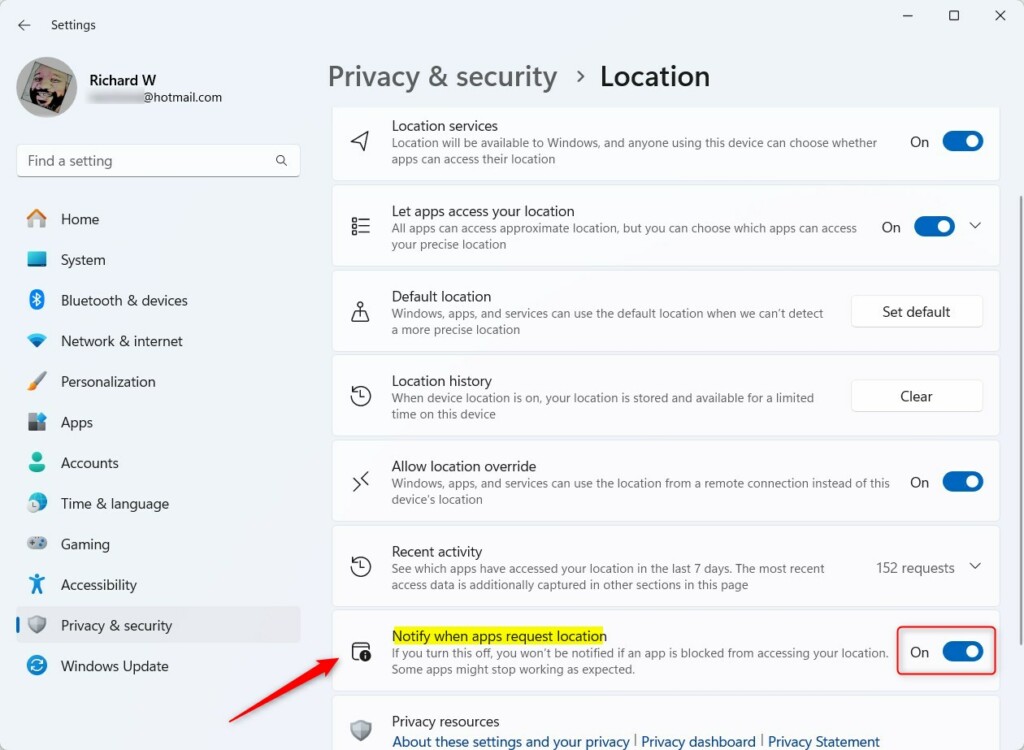
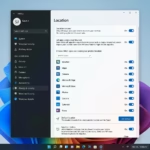
Go to Settings > Privacy & security > Location. Click the switch under “Notify when apps request location” to turn it On or Off. This controls whether you see a pop-up when an app needs your location.
Prerequisites
Before you start, make sure you’re logged in as an administrator. If you’re planning to edit the registry (a core database of settings and configurations for Windows), always create a system restore point first. Incorrectly changing the registry can lead to system problems.
Turn “Notify when apps request location” on or off
Windows 11 lets you control whether you get a heads-up when apps want to use your location, making it easy to manage your privacy.
- Open the Windows Settings app by clicking the Start menu and selecting Settings. You can also press the Windows key + I on your keyboard.
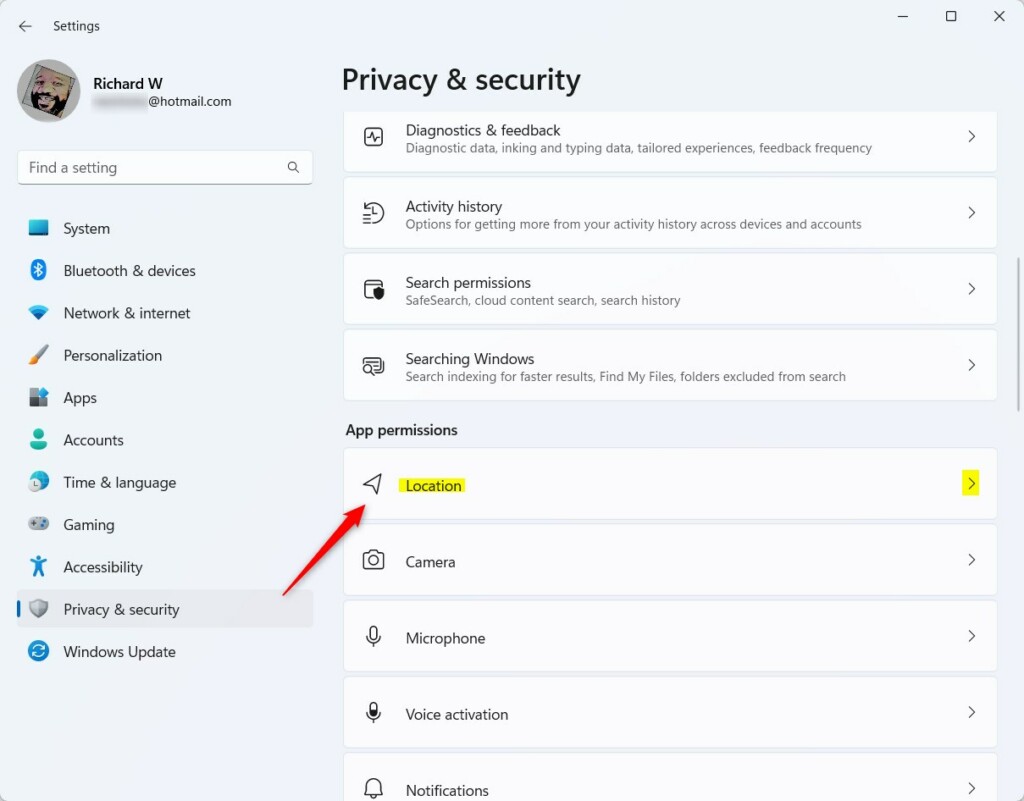
- Click the Privacy & security button on the left side of the window.
- Select the Location tile on the right.
- Look for the “Notify when apps request location” tile.
- Click the switch to turn it On or Off based on your preference.
Close the Settings app when you are finished.
Global vs. Per-App Settings
| Setting Type | Scope | Control Level |
|---|---|---|
| Global | Entire System | Turns all location requests on or off. |
| Per-App | Individual Apps | Allows specific apps access while blocking others. |
Managing Location History and Privacy
Windows keeps a record of your location history. To clear this, go to Settings > Privacy & security > Location and click the Clear button next to Location history. This prevents apps from accessing past location data stored on your device.
Troubleshooting Inaccurate Location
If your Windows 11 location seems inaccurate, check that your Wi-Fi is on, as it helps Windows figure out where you are.
Use Windows Registry to change settings
Changing Windows 11 location settings directly through the Registry Editor is possible, but you’ll need administrator privileges to make these advanced changes.
- Navigate to this path:
HKEY_CURRENT_USER\Software\Microsoft\Windows\CurrentVersion\CapabilityAccessManager\ConsentStore\location - If you do not see the location key, right-click on ConsentStore and create the subkey folder named location.
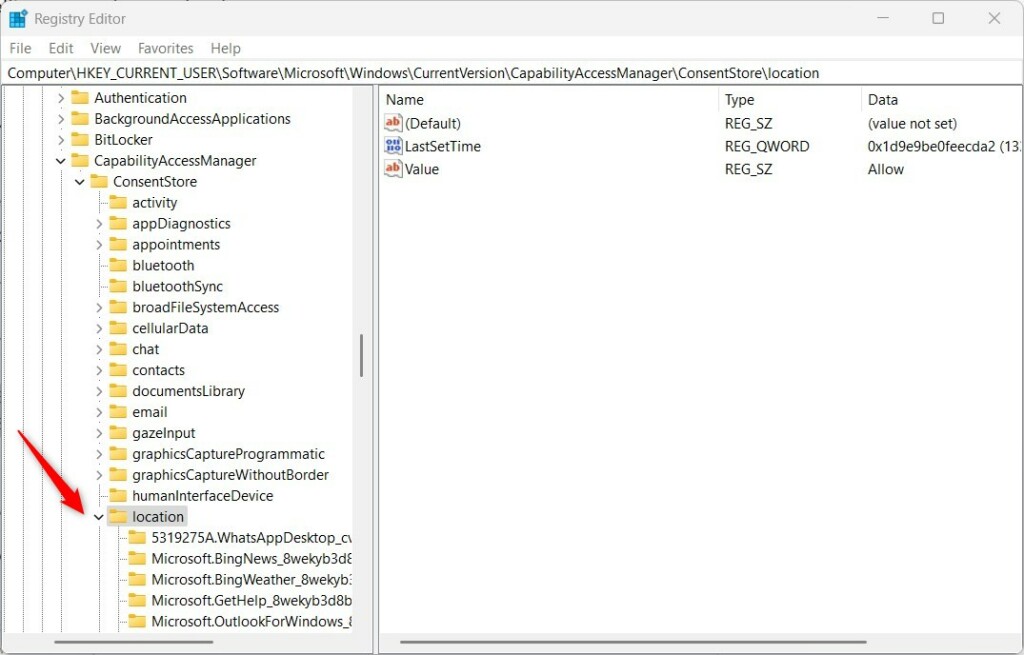
- Right-click in the empty space on the right side of the folder. Select New > DWORD (32-bit) Value.
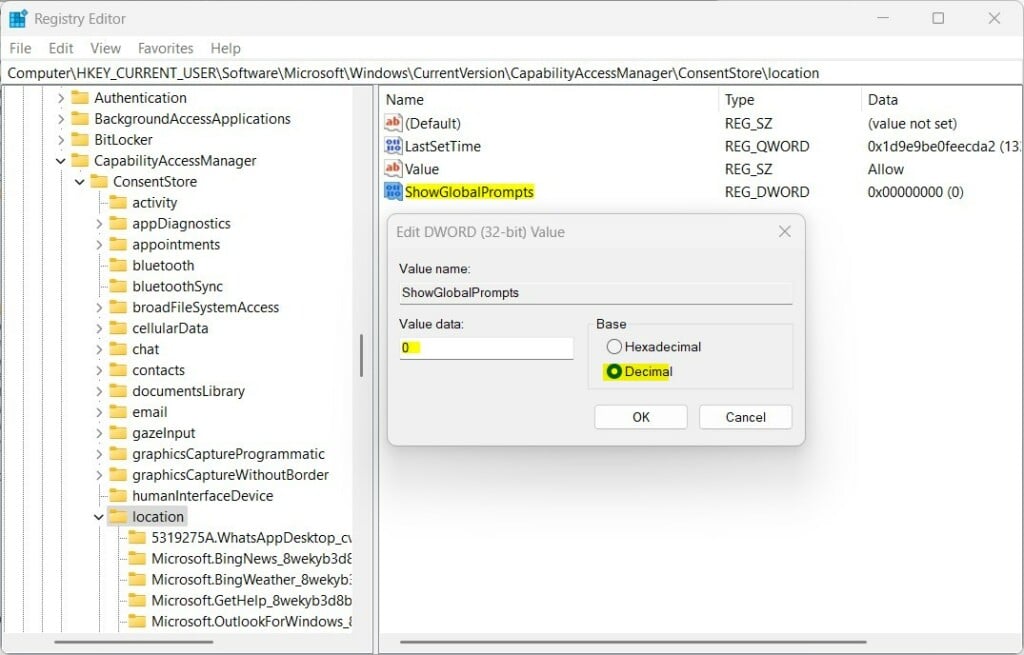
- Name this new item
ShowGlobalPrompts. - Double-click
ShowGlobalPrompts. Make sure the Base is set to Decimal. - Change the Value data:
- Type
1to receive notifications when an app asks for your location. - Type
0to stop these notifications.
- Type
Save your changes and restart your computer to apply the new settings.
Summary
Managing your Windows 11 location notifications helps you control which apps can see your physical location, keeping you informed about your privacy.
Does turning off location services affect Find My Device?
Yes, disabling the master location service will prevent the Find My Device feature from accurately tracking your computer’s location. If you lose your device, you will not be able to see its last known position on a map, which significantly reduces your ability to recover it.
Was this guide helpful?

About the Author
Richard
Tech Writer, IT Professional
Richard, a writer for Geek Rewind, is a tech enthusiast who loves breaking down complex IT topics into simple, easy-to-understand ideas. With years of hands-on experience in system administration and enterprise IT operations, he’s developed a knack for offering practical tips and solutions. Richard aims to make technology more accessible and actionable. He's deeply committed to the Geek Rewind community, always ready to answer questions and engage in discussions.



No comments yet — be the first to share your thoughts!