How to turn Automatically Upgrade to Passkeys on or off in Microsoft Edge

You can turn automatic upgrades to passkeys on or off in Microsoft Edge to manage how your old logins transition to this newer, more secure method.
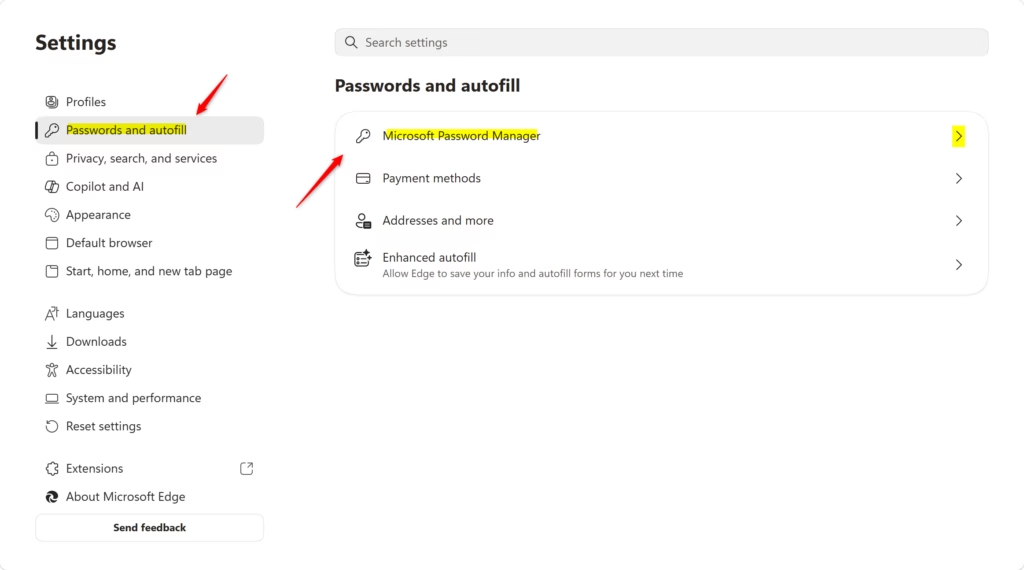
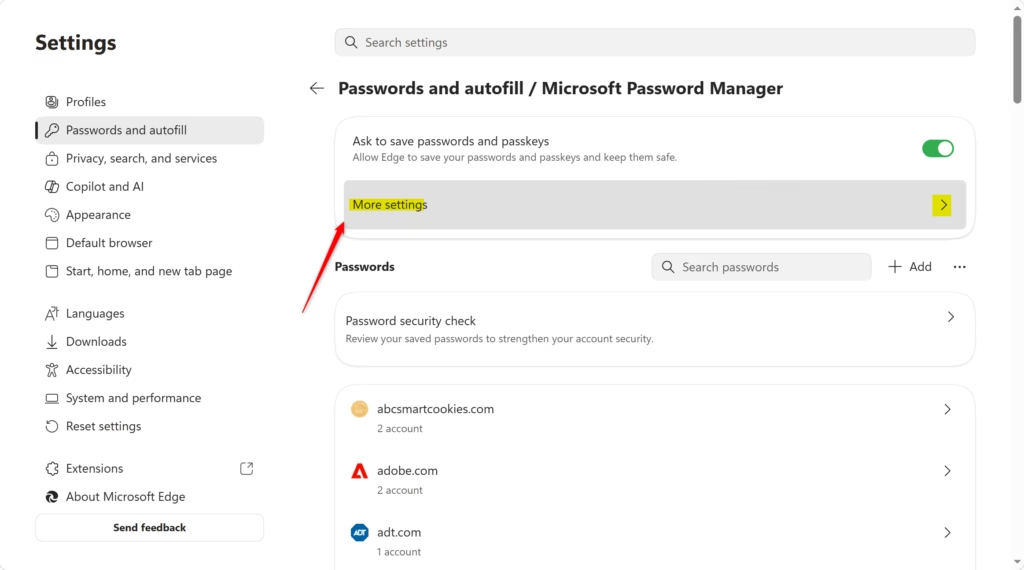
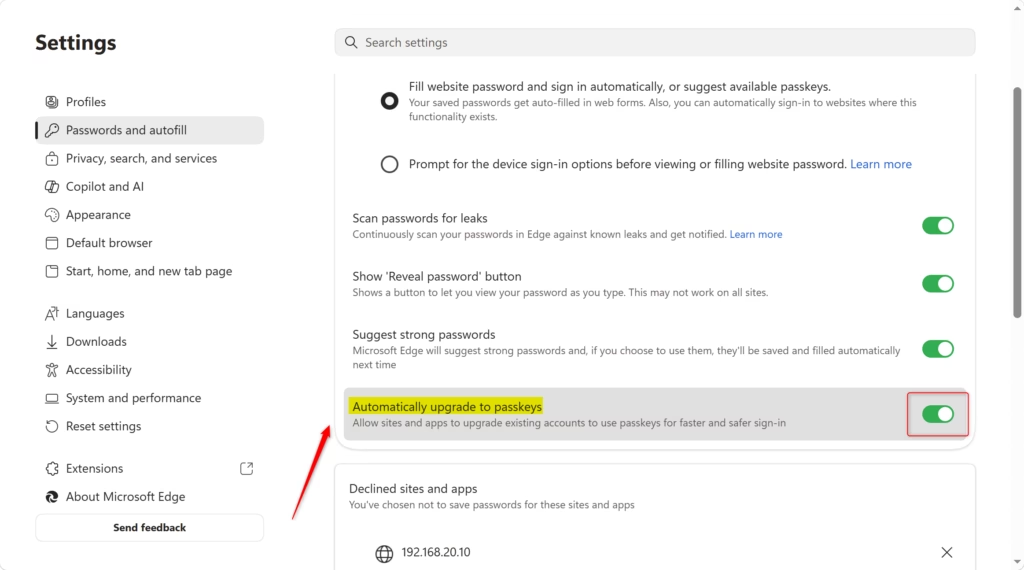
To turn automatic passkey upgrades on or off, go to Settings > Passwords and autofill > Microsoft Password Manager > More settings. Toggle the “Automatically upgrade to passkeys” option to your desired state.
Passkeys are a passwordless way to log in. They use cryptographic key pairs to verify your identity, which offers better security against things like phishing (when someone tries to trick you into giving up your login details) and credential stuffing attacks (where hackers try stolen passwords on many sites).
Since Microsoft Edge version 121, this setting lets your browser suggest or automatically convert saved passwords to passkeys when you visit compatible websites.
When you turn this on, you can start using passkeys for your online accounts faster. It simplifies how you log in and means you’ll rely less on old-fashioned passwords.
Turning it off ensures that Edge will not automatically attempt to upgrade your passwords to passkeys, giving you full manual control over the transition.
Here’s how to change this setting in Microsoft Edge.
- Open Microsoft Edge.
- Click the three dots icon (…) in the top right corner. This is the Settings and more menu. Then, click on Settings.
- In the left menu, click on Passwords and autofill. On the right side, click on Microsoft Password Manager.
If you don’t see a menu on the left, click the three lines icon (☰) in the top left corner. Or, make the Edge window wider.
- Click on More settings.
- Find the option called Automatically upgrade to passkeys. You can turn it On or Off here.
Note: This setting only works if Ask to save passwords and passkeys is turned on.
- You can now close the Settings tab in Microsoft Edge.
Reference:
https://www.microsoft.com/en-us/edge/features/passkeys?form=MT0160
Summary
You can turn the automatic edge passkey upgrade on or off in Microsoft Edge’s settings to control how your accounts handle passkeys, a safer way to log in than passwords.
What is a Microsoft Edge passkey?
A Microsoft Edge passkey is a passwordless way to log in. It uses cryptographic key pairs to verify your identity on websites that support them. This makes logins more secure against things like phishing and credential stuffing attacks, replacing traditional passwords with a simpler, safer experience.
What are the downsides of passkeys?
While passkeys offer better security, potential downsides include the risk of losing access if the device storing the passkey is lost or inaccessible without a backup. Also, compatibility is still growing, meaning not all websites support passkeys yet, requiring users to maintain traditional passwords.
How to get a new Microsoft passkey?
To get a new Microsoft passkey, navigate to a website that supports passkeys. During the login or signup process, choose the option to create a passkey. Microsoft Edge will then guide you through generating and saving the passkey, often using your device’s security features like fingerprint or face recognition.
What is the 🪟 Windows 11 passkey update?
The Windows 11 passkey update, particularly with Microsoft Edge version 121 and later, enables automatic upgrades of saved passwords to passkeys on compatible sites. This feature allows the browser to proactively suggest or convert existing logins, making it simpler to adopt this more secure, passwordless authentication method.
Was this guide helpful?

About the Author
Richard
Tech Writer, IT Professional
Richard, a writer for Geek Rewind, is a tech enthusiast who loves breaking down complex IT topics into simple, easy-to-understand ideas. With years of hands-on experience in system administration and enterprise IT operations, he’s developed a knack for offering practical tips and solutions. Richard aims to make technology more accessible and actionable. He's deeply committed to the Geek Rewind community, always ready to answer questions and engage in discussions.




No comments yet — be the first to share your thoughts!