How to Change Copy-Paste Settings in Microsoft Edge

You can change how Microsoft Edge pastes copied links to remove extra quotation marks.
Microsoft Edge, your default Windows browser, often adds quotation marks around copied URLs by default. This can disrupt your workflow when you need a clean link.
This article shows you how to disable this specific behavior for a smoother copy-paste experience, ensuring your links are always ready to use without edits. Microsoft introduced this as a safeguard, but you can easily turn it off.
Why Does Edge Paste the Page Title Instead of the URL?
Microsoft Edge often pastes the page title instead of just the URL because of a helpful feature called “Smart Copy,” which is designed to give you more context. If you’d rather have the simple web address, you can easily change these copy paste settings in Edge.
If you prefer the old way of copying, you can change your settings. Follow these steps:
- Open Microsoft Edge.
- Click the three horizontal dots (Settings and more) in the top right corner.
- Select Settings.
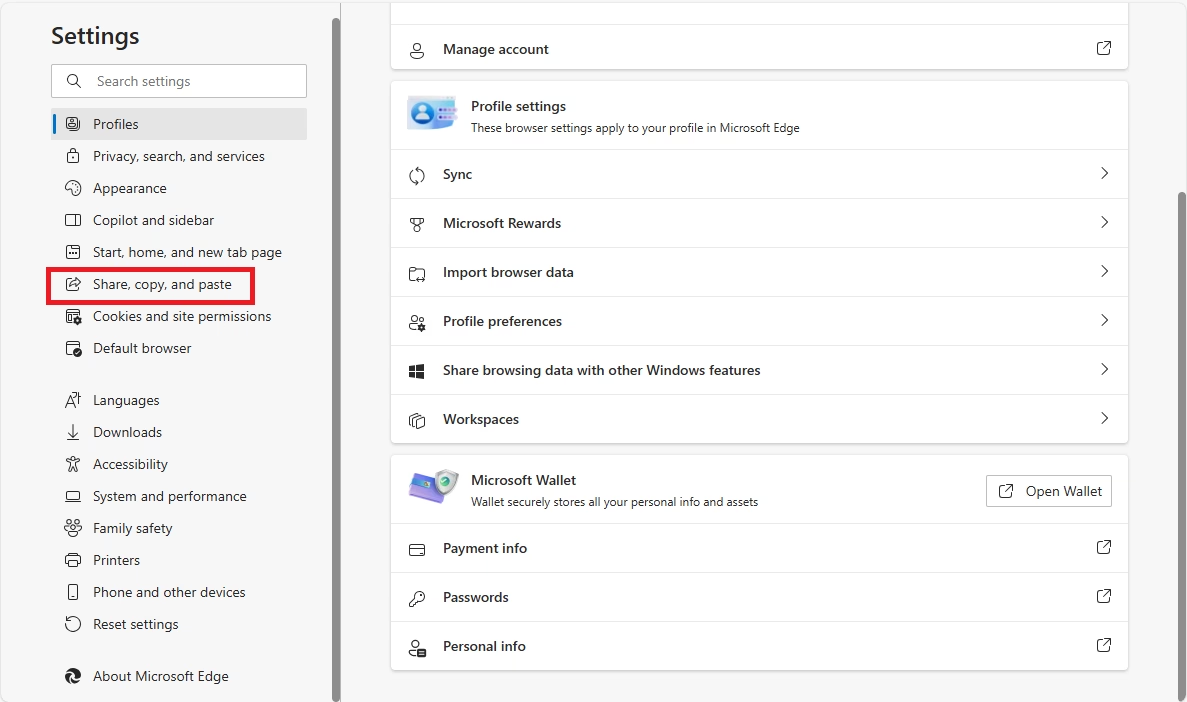
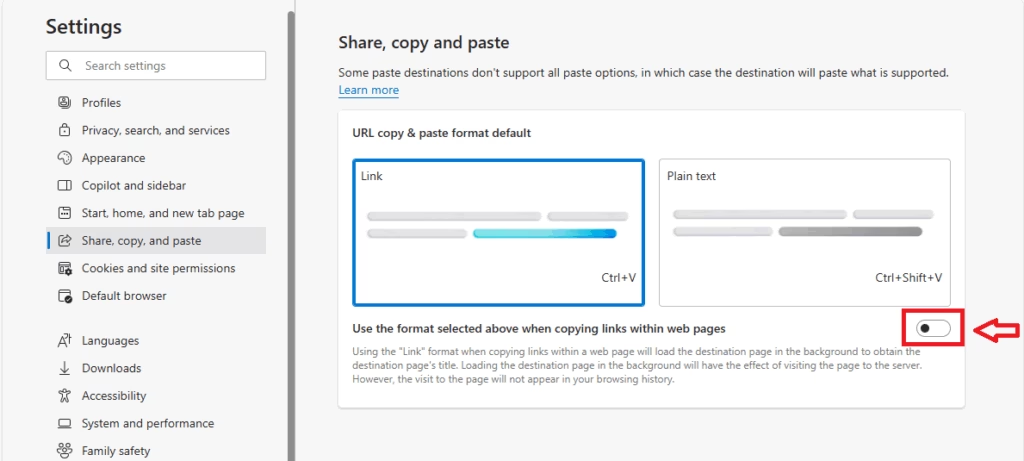
- Depending on your version, look for Share, copy, and paste or Appearance.
- Locate the Change URL copy and paste format toggle.
- Select Plain text to ensure URLs are always copied as raw text.
What Happens When You Change These Settings?
Changing your copy-paste settings in Edge means you can choose whether links get copied as plain text or as a formatted title.
Pro Tip: Use Keyboard Shortcuts
You don’t always need to change your permanent settings. If you want to paste as plain text just once, use the keyboard shortcut Ctrl+Shift+V instead of the standard Ctrl+V. This command strips away formatting, including hyperlinks, and pastes only the raw text.
Troubleshooting Common Copy-Paste Issues
If copy-paste isn’t working right in Microsoft Edge, there are a few simple things you can try to fix it. Often, just restarting the browser can solve the problem, but clearing your cache or checking your browser extensions might also help with these copy paste settings issues.
- Restart the browser: Sometimes background processes hang.
- Clear Cache: Go to Settings > Privacy, search, and services and clear your browsing data.
- Check Extensions: Some extensions interfere with the clipboard. Try disabling them one by one.
- Update Edge: Ensure you are running the latest version by going to Help and feedback > About Microsoft Edge.
Summary
Microsoft Edge’s “Smart Copy” feature turns URLs into page titles by default, but you can change these copy paste settings to get just the URL or paste as plain text. You can adjust this in the browser’s settings, or use a quick keyboard shortcut, Ctrl+Shift+V, to paste without the title.- Edge uses “Smart Copy” to turn URLs into hyperlinked titles by default.
- You can revert to plain text in the Settings menu under Share, copy, and paste or Appearance.
- Use Ctrl+Shift+V to paste as plain text without changing your global settings.
- These settings help you maintain control over how your data is formatted when shared.
- For further details, visit the official Microsoft Support page.
Can I change copy-paste settings for specific websites only?
Right now, Microsoft Edge doesn’t let you set different copy-paste behaviors for individual websites. The setting applies everywhere. You’ll need to manually switch the setting in the browser’s configuration menu if you want to go between link and plain text formats.
Was this guide helpful?

About the Author
Richard
Tech Writer, IT Professional
Richard, a writer for Geek Rewind, is a tech enthusiast who loves breaking down complex IT topics into simple, easy-to-understand ideas. With years of hands-on experience in system administration and enterprise IT operations, he’s developed a knack for offering practical tips and solutions. Richard aims to make technology more accessible and actionable. He's deeply committed to the Geek Rewind community, always ready to answer questions and engage in discussions.



No comments yet — be the first to share your thoughts!