How to Paste as Plain Text from Clipboard History in Windows 11

You can paste as plain text from Clipboard History in Windows 11 using a keyboard shortcut, which helps you bypass unwanted formatting.
When you copy text, Windows 11’s Clipboard History often saves it with its original styling, which is called Rich Text Format (RTF). This can lead to formatting problems when you paste it into new documents.
By using the shortcut Windows key + V, you can access your Clipboard History. From there, select the item you want and then press Windows key + Shift+V. This forces a plain text paste, ensuring your document’s formatting remains consistent.
Press Windows key + V to open Clipboard History. Select the item you want, click the three dots, and choose Paste as Text. Alternatively, use Ctrl+Shift+V in supported applications.
How to use the Windows Clipboard History
Windows 11’s Clipboard History is a handy tool that lets you see and paste items you’ve copied before, making it simple to paste as plain text.
- Place your cursor where you want the text to appear.
- Press the Windows Key + V on your keyboard.
- If prompted, click Turn on to enable the history feature.
- Find the item you want to paste.
- Click the three dots (See more) icon next to the item.
- Select Paste as Text.
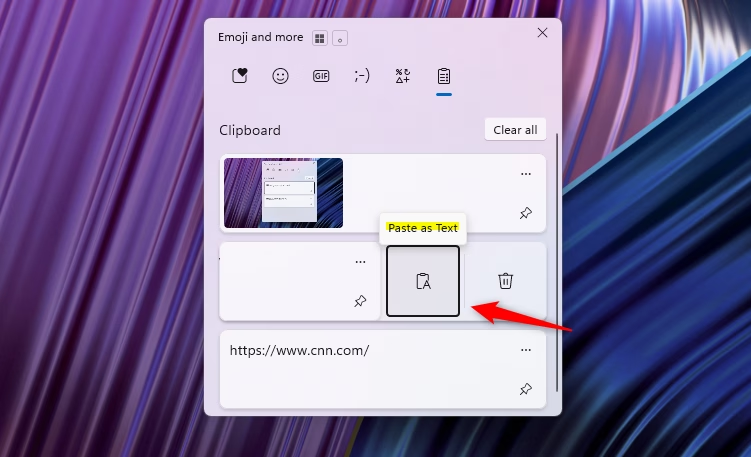
Keyboard Shortcuts for Plain Text
Many apps recognize the shortcut Ctrl+Shift+V, which is the quickest way to remove formatting on the spot. Keep in mind, though, that not every program supports this command. If it doesn’t work, the ⊞ Win+V method is your best backup.
Using PowerToys for Advanced Pasting
Microsoft PowerToys is a free tool for power users. It includes a feature called Text Extractor. You can also use the PowerToys Run feature to manage your clipboard more effectively. This is a great way to handle text if you write a lot.
Troubleshooting: Clipboard History Not Appearing
If pressing ⊞ Win+V does nothing, your history might be disabled. To fix this, follow these steps:
- Open Settings.
- Go to System > Clipboard.
- Toggle the Clipboard history switch to On.
Note: This step requires admin privileges if your computer is managed by an organization.
Summary
Pasting as plain text is essential for professional-looking documents. By using the ⊞ Win+V shortcut and the Paste as Text option, you can remove unwanted formatting. If you need more control, consider installing PowerToys to enhance your Windows 11 productivity.
Why does 🪟 Windows 11 not have a native ‘Paste as Plain Text’ button?
Windows is designed to keep formatting by default, helping you maintain the look of copied content. While there is no single global button, the Clipboard History menu provides a specific option to remove formatting, ensuring you have control over how your text appears when pasted into different applications.
How do I clear my clipboard history in 🪟 Windows 11?
To clear your history, press ⊞ Win+V to open the menu. Click the Clear all button at the top right of the window. This removes all non-pinned items instantly. You can also go to Settings > System > Clipboard and click the Clear button next to Clear clipboard data.
Was this guide helpful?

About the Author
Richard
Tech Writer, IT Professional
Richard, a writer for Geek Rewind, is a tech enthusiast who loves breaking down complex IT topics into simple, easy-to-understand ideas. With years of hands-on experience in system administration and enterprise IT operations, he’s developed a knack for offering practical tips and solutions. Richard aims to make technology more accessible and actionable. He's deeply committed to the Geek Rewind community, always ready to answer questions and engage in discussions.



No comments yet — be the first to share your thoughts!