How to Enable or Disable Clipboard History in Windows 11

You can enable or disable clipboard history in Windows 11 to save multiple copied items for later use.
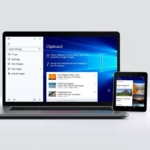
Clipboard history acts like a memory for your clipboard, letting you access a list of text snippets and images you’ve recently copied, not just the single last item. You can access this feature using the Windows key + V shortcut.
Enabling clipboard history, a feature available since Windows 10 version 1809, significantly boosts your productivity by preventing the loss of copied information.
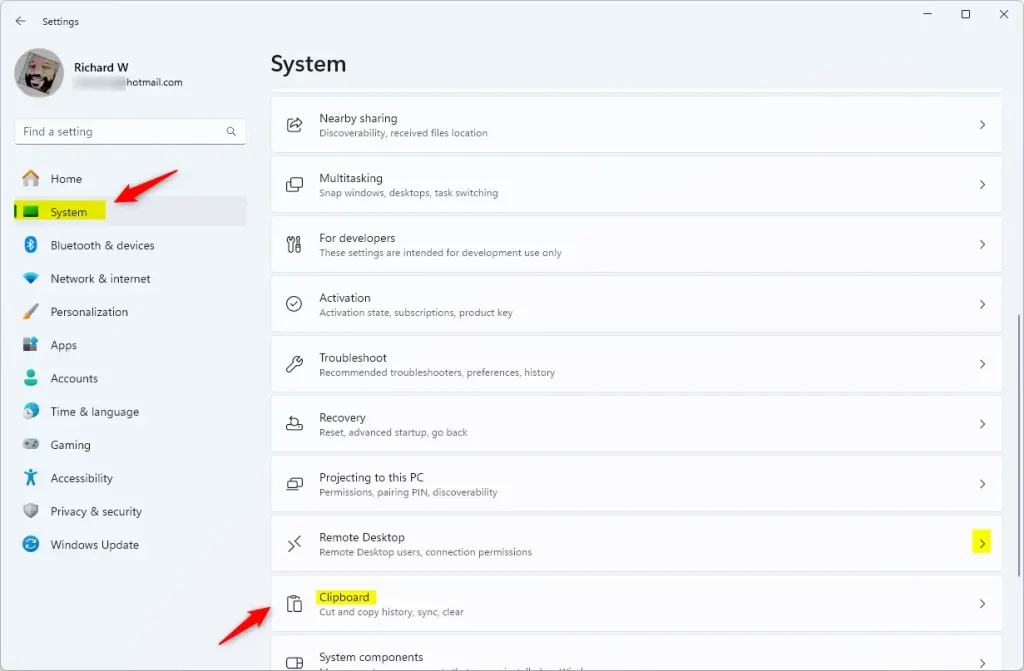
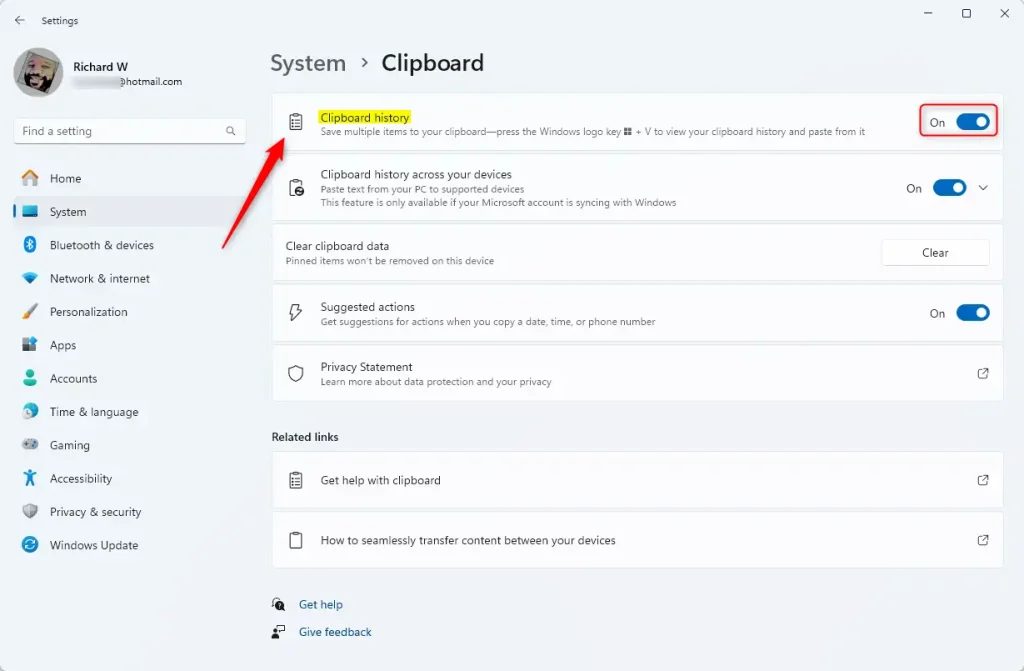
Access clipboard history by pressing ⊞ Win+V. If it’s off, click “Turn on.” You can also manage this setting in Settings > System > Clipboard by toggling “Clipboard history” on or off.
How to Pin and Clear Items
You can keep important items from disappearing by pinning them. Open the history menu with ⊞ Win+V, find your item, and click the Pin icon. To clear an item, click the X next to it. To clear everything, click Clear all at the top of the menu.
Syncing Across Devices
You can sync your clipboard history to other computers using your Microsoft account. This allows you to copy text on one PC and paste it on another. To enable this, go to Settings > System > Clipboard and turn on Sync across your devices.
Troubleshooting Common Issues
| Issue | Solution |
|---|---|
| History not showing | Ensure the feature is enabled in Settings. |
| Sync not working | Verify you are signed in with the same Microsoft account on both PCs. |
| Items disappearing | Pin the items you want to keep; unpinned items are cleared on restart. |
Use the Keyboard Shortcut
- Press the ⊞ Win+V keys on your keyboard.
- If the feature is off, click the Turn on button.
How to Enable Clipboard History via Settings
1. Press ⊞ Win+I to open Settings.
2. Click System, then select Clipboard.
3. Toggle the Clipboard history switch to On.
How to Enable Clipboard History via Registry (User Level)
You can turn clipboard history on or off for just your account using the Windows Registry.
1. Press ⊞ Win+R to open the Run dialog box, type regedit, and press Enter.
2. Navigate to: HKEY_CURRENT_USER\Software\Microsoft\Clipboard
3. Right-click in the right pane and select ‘New’ > ‘DWORD (32-bit) Value’. Then, name it EnableClipboardHistory.
4. Set the value to 1 to enable or 0 to disable.
How to Enable Clipboard History for All Users (Admin Required)
Note: This requires Administrator privileges.
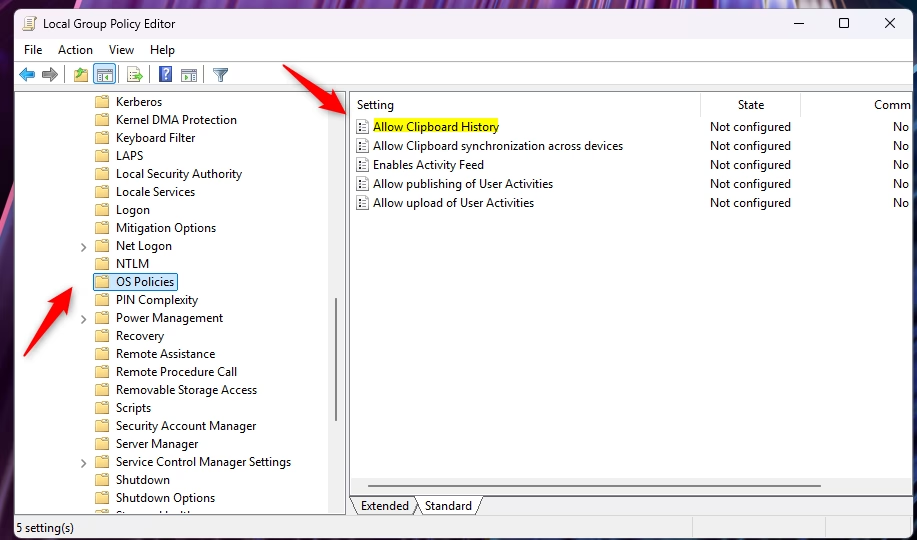
1. Press ⊞ Win+R, type gpedit.msc, and press Enter.
2. Go to Computer Configuration\Administrative Templates\System\OS Policies.
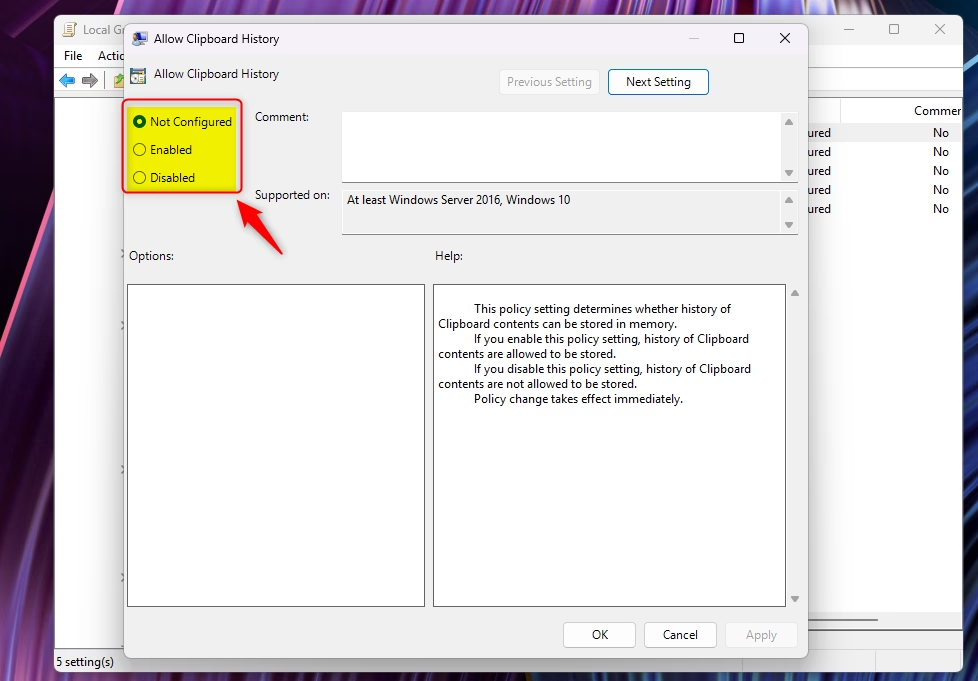
3. Double-click Allow Clipboard History.
4. Select Enabled to turn it on for everyone, or Disabled to turn it off.
Summary
Clipboard history is a powerful tool for managing multiple copied items in Windows 11. By enabling this feature, you can pin frequently used text, sync your clipboard across devices, and speed up your workflow. Remember to manage your privacy by clearing sensitive items regularly.” } ]
Is clipboard history secure?
Clipboard history is generally secure for personal use. However, be careful when copying sensitive information like passwords or credit card numbers. Since these items are stored in your history, anyone with access to your computer could potentially view them. Always clear your history after handling sensitive data.
Was this guide helpful?

About the Author
Richard
Tech Writer, IT Professional
Richard, a writer for Geek Rewind, is a tech enthusiast who loves breaking down complex IT topics into simple, easy-to-understand ideas. With years of hands-on experience in system administration and enterprise IT operations, he’s developed a knack for offering practical tips and solutions. Richard aims to make technology more accessible and actionable. He's deeply committed to the Geek Rewind community, always ready to answer questions and engage in discussions.



[…] Go to Settings > System > Clipboard and turn off Clipboard history if you do not use […]