Enable or Disable Text Prediction in Microsoft Edge

You can enable or disable text prediction in Microsoft Edge to speed up your typing.
Text prediction is a helpful AI feature that suggests the next word or phrase you’re likely to type, appearing as a light gray text. Microsoft Edge, built on the Chromium engine, integrates this tool to assist you.
This feature helps you complete sentences more quickly, allowing you to focus on your content rather than repetitive typing. To accept a suggestion, simply press the Tab or Right Arrow key.
Navigate to Settings > Languages > Writing assistance and toggle the “Use text prediction” option. Alternatively, use the Registry Editor by creating a DWORD value named TextPredictionEnabled under Computer\🗝️HKEY_LOCAL_MACHINE\SOFTWARE\Policies\Microsoft\Edge, setting it to 1 to enable or 0 to disable.
Turn on or off Text Prediction in Edge
You can turn text prediction on or off in Microsoft Edge directly from the browser’s settings menu, making it simple to control this helpful writing feature.
Note: Text prediction is part of the broader Microsoft Editor suite. You may manage these settings under the “Writing assistance” section.
Here is how to do it:
- Open the Microsoft Edge browser.
- Click the three horizontal dots in the top right corner.
- Select Settings.
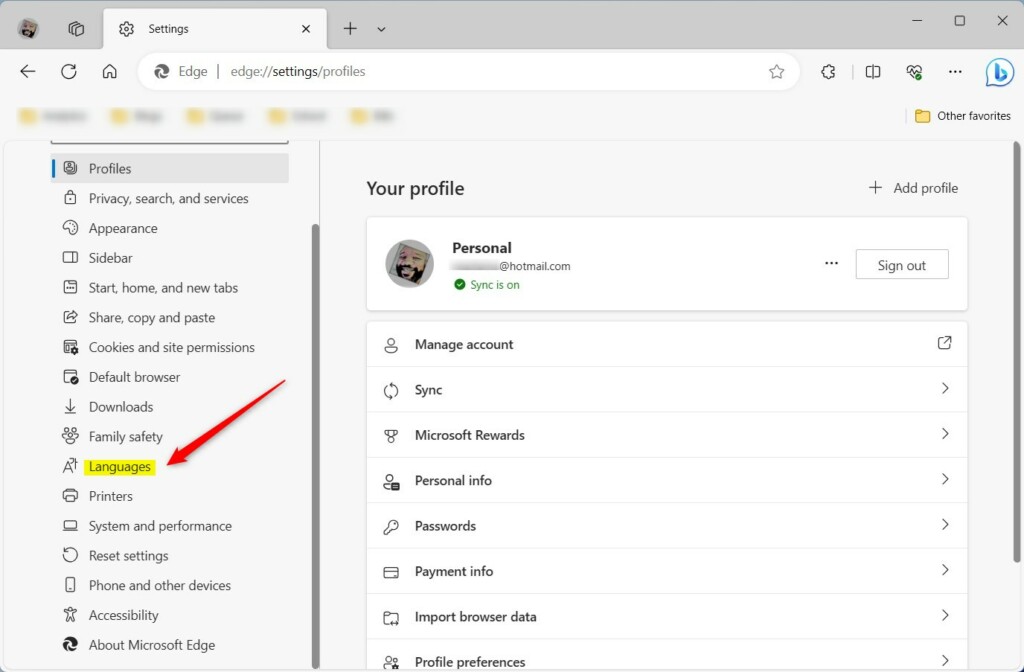
- Select Languages on the left side of the screen.
- Click on Writing assistance.
- Find the “Use text prediction” option. Toggle the switch to On or Off.
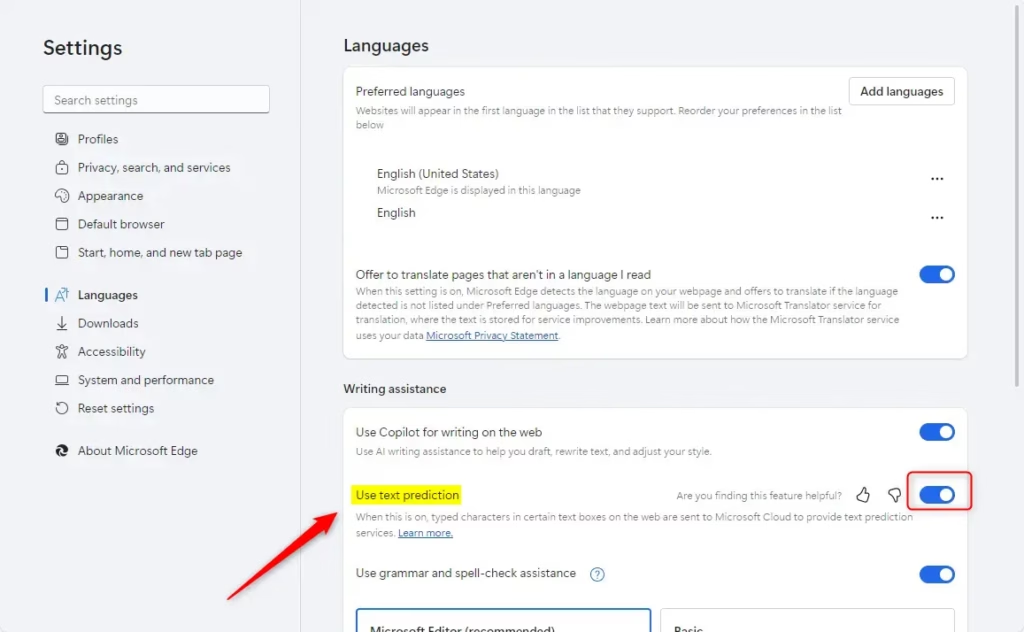
You can close the settings page when you are finished.
Enable / Disable text prediction in Edge (Registry Editor)
If you need more control, like for a work computer, you can change text prediction in Microsoft Edge using the Windows Registry Editor.
First, open the Windows Registry and go to this path:
Computer\🗝️HKEY_LOCAL_MACHINE\SOFTWARE\Policies\Microsoft\Edge
Before you make changes, remember to back up your registry or create a System Restore point, just in case.
- Right-click in the folder, select New, then select DWORD (32-bit) Value.
- Name it TextPredictionEnabled.
- Double-click the name and set the value to 1 to enable it .
- Set the value to 0 to disable it .
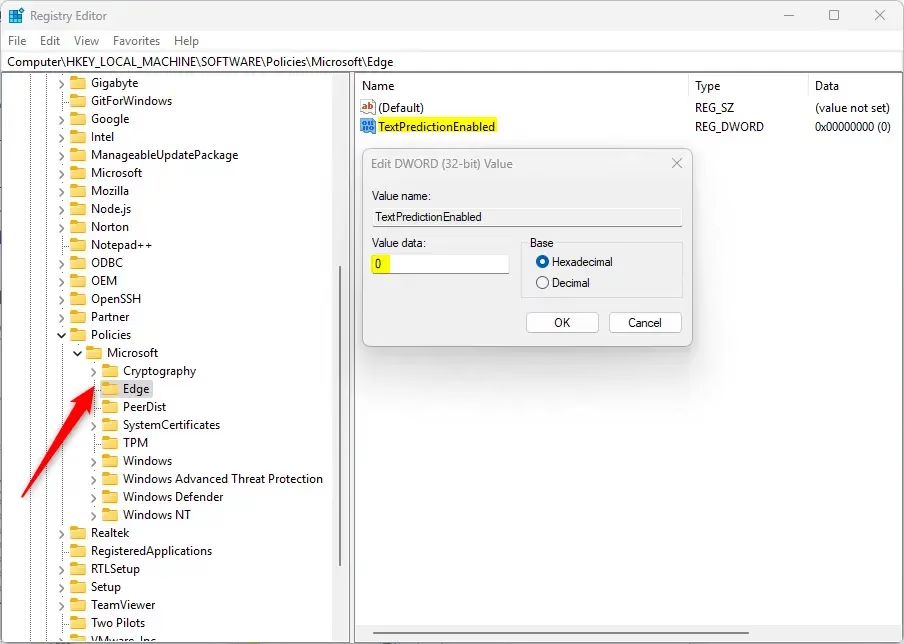
Delete the “TextPredictionEnabled” entry to go back to the default browser behavior. You may need to restart your computer to apply these changes.

That is all there is to it!
Reference:
Conclusion
Changing your text prediction settings in Microsoft Edge is straightforward using either the browser’s main settings or the Registry Editor for wider control.
- Writing Flow: Text prediction helps you finish sentences quickly.
- Settings Menu: You can toggle this feature under Settings > Languages > Writing assistance.
- Registry Editor: This is for enterprise policy enforcement. Always back up your registry before making changes.
- Restart: You may need to reboot your computer for changes to take effect.
How do I turn on predictive text in Microsoft Edge?
Go to Microsoft Edge icon Settings, then Languages to turn on Editor and set your preferences, including adding preferred languages. If text prediction is not already on, you can also turn it on from the same settings area.
Was this guide helpful?

About the Author
Richard
Tech Writer, IT Professional
Richard, a writer for Geek Rewind, is a tech enthusiast who loves breaking down complex IT topics into simple, easy-to-understand ideas. With years of hands-on experience in system administration and enterprise IT operations, he’s developed a knack for offering practical tips and solutions. Richard aims to make technology more accessible and actionable. He's deeply committed to the Geek Rewind community, always ready to answer questions and engage in discussions.


No comments yet — be the first to share your thoughts!