How to Enable or Disable Collections in Microsoft Edge

You can enable or disable Microsoft Edge’s Collections feature to customize how you organize web content.
Collections is a built-in tool in Microsoft Edge that lets you gather, organize, and share web pages, images, and notes into distinct lists, much like a digital scrapbook.
This feature, available since Edge version 81, helps you keep research or personal interests tidy. You can easily add items from any website directly into a collection via the sidebar.
If you don’t use Collections, disabling it can simplify your Edge interface and potentially offer a slight performance boost.
Open Microsoft Edge settings, navigate to “Privacy, search, and security,” then “Search and connected experiences,” and toggle “Save content using Collections.” Restart the browser to apply.
Enable or disable Collections in Edge
You can easily turn the Microsoft Edge Collections feature on or off right from the browser’s settings menu.
Here’s how to do it.
First, open the Microsoft Edge browser.
Then click on Setting and more (Alt+F) 3 horizontal dots button on the top right corner and select Settings.
Select “Privacy, search, and security” on the Settings page on the left.

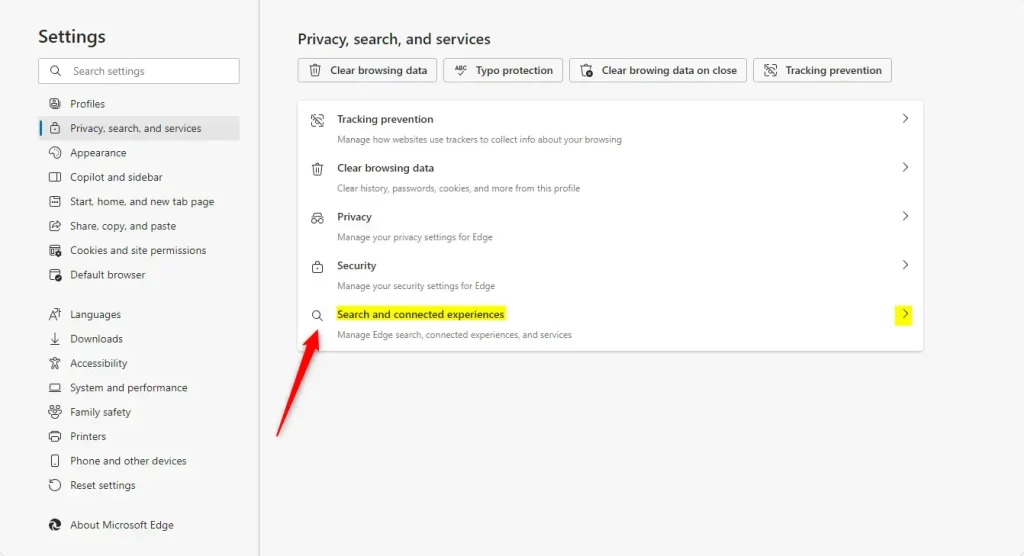
On the “Privacy, search, and services” page, click the “Search and connected experiences” tile to expand it.
Under the Search and connected experiences section, toggle the “Save content using Collections in Microsoft Edge” switch button to enable or disable it.
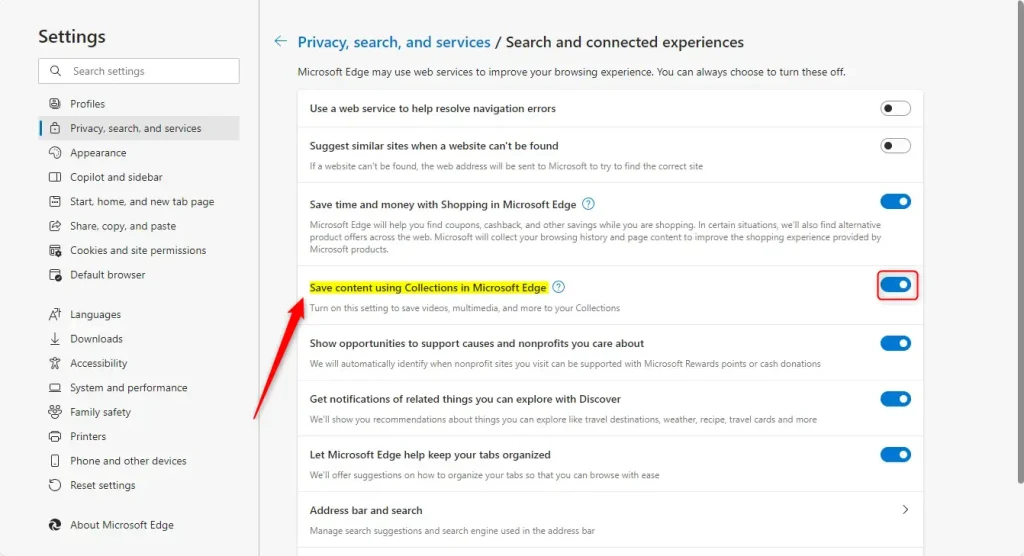
Restart Edge to apply your changes.
Enable or disable the Collections feature using the Windows Registry
For those comfortable with advanced settings, you can control the Microsoft Edge Collections feature using the Windows Registry Editor.
First, open the Windows Registry and navigate to the folder key path below.
Before you make any changes, it’s a good idea to back up your registry or create a System Restore point, just in case.
ComputerHKEY_LOCAL_MACHINESOFTWAREPoliciesMicrosoftEdge
Right-click on ‘Edge’, then select ‘New’ > ‘DWORD (32-bit) Value’. Name this new DWORD ‘EdgeCollectionsEnabled’.
Double-click ‘EdgeCollectionsEnabled’ and set its value to 0 to disable the ‘Collections’ feature.
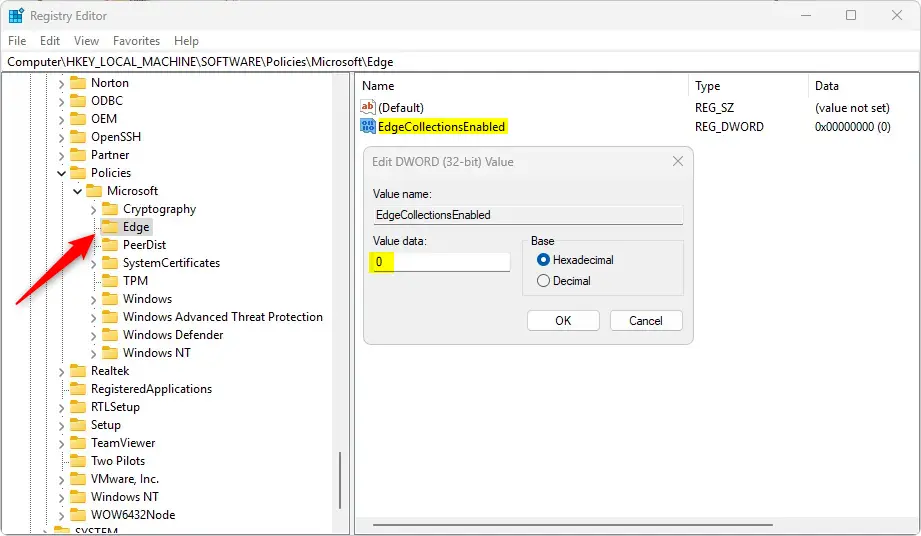
To re-enable it, delete the ‘EdgeCollectionsEnabled’ name you created.
EdgeCollectionsEnabled
You may have to reboot your computer to apply the changes.
That should do it!
Reference:
Conclusion:
Enabling or disabling the Collections feature in Microsoft Edge allows users to customize their browsing experience according to their needs. Here are the key takeaways:
- Organize Web Content: Collections make gathering and categorizing information from multiple sources easier.
- Improved Collaboration: Sharing saved collections can enhance teamwork and project discussions.
- Easy Management: Users can quickly revisit their saved content without navigating browser history.
- Customization Options: Users can enable or disable the feature to suit their preferences and streamline their browser interface.
- Registry Editor: For advanced users, the Windows Registry offers another method to toggle the Collections feature.
By following these steps, you can easily manage the Collections feature in Microsoft Edge and tailor your browsing experience.
What is the difference between bookmarks and collections in Edge?
Bookmarks in most browsers only show the title of the website and its tab icon. Collections automatically give you large thumbnails as preview, which helps you better identify the contents of the site. After all, these are sites you saved for later and “haven't” actually read (Reference).
Was this guide helpful?

About the Author
Richard
Tech Writer, IT Professional
Richard, a writer for Geek Rewind, is a tech enthusiast who loves breaking down complex IT topics into simple, easy-to-understand ideas. With years of hands-on experience in system administration and enterprise IT operations, he’s developed a knack for offering practical tips and solutions. Richard aims to make technology more accessible and actionable. He's deeply committed to the Geek Rewind community, always ready to answer questions and engage in discussions.




No comments yet — be the first to share your thoughts!