
You can make text bigger in Microsoft Edge by adjusting the browser’s zoom level. You can do this for individual websites or for all of them at once. Zooming allows you to enlarge or shrink content on web pages, making it easier to read.
This feature is especially helpful if you find default text sizes too small or if you’re viewing high-resolution displays. You can set a default zoom level for all websites, like 125%, which helps make reading comfortable everywhere you go online.
Open Microsoft Edge and go to the website you wish to adjust. Then, access the browser’s settings to find the zoom controls. You can also use keyboard shortcuts for quick adjustments.
Increase text size by going to Settings > Appearance > Fonts and selecting a larger option from the “Font size” dropdown. You can also use Ctrl + Plus (+) to zoom in on specific pages.
Why Make Text Bigger?
Making text bigger in Microsoft Edge makes browsing more comfortable and easier on your eyes, especially if you have vision challenges or are using a smaller screen.
What Happens When You Make Text Bigger?
When you make text bigger in Edge, the browser adjusts the text size on most websites automatically, so you don’t have to zoom every page.
Step 1Open Edge and Go to Settings
To make text bigger in Microsoft Edge, first open the browser and click the three dots in the top right corner to access the ‘Settings and more’ menu, then select ‘Settings’ to open the main settings page.
A menu will pop up. Scroll down this menu until you find the word “Settings.” Click on “Settings.” This will take you to the browser’s main settings page.
Step 2Find Appearance Settings
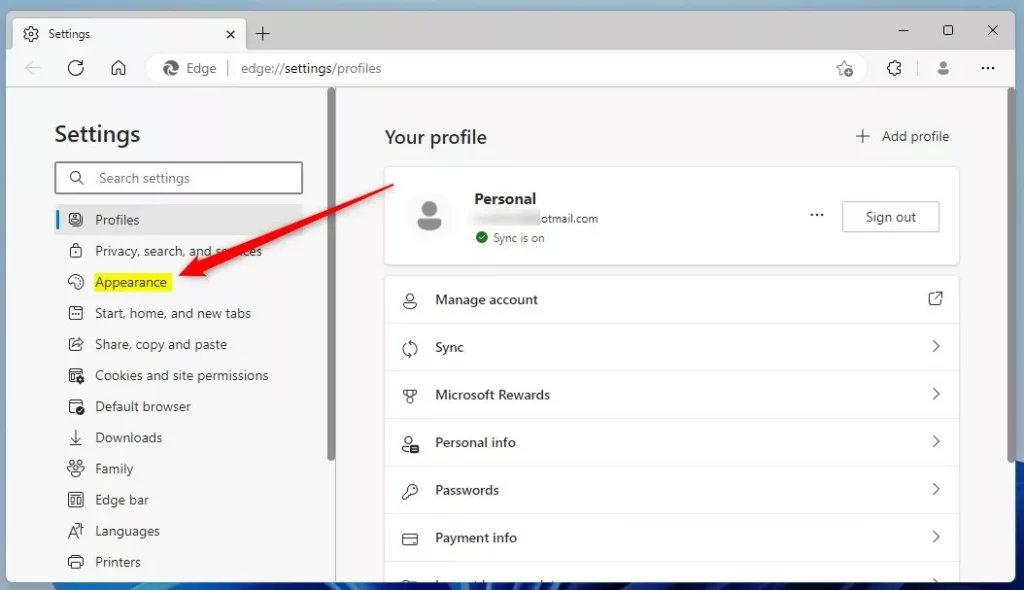
Once you’re in the Edge settings, look for the ‘Appearance’ option on the left-hand side menu and click it to find all the visual settings, including where you can change the text size.
This will show you all the visual options in the main part of the window. You can change things like themes and your homepage. You will also see options for fonts.
Step 3Adjust Your Font Size
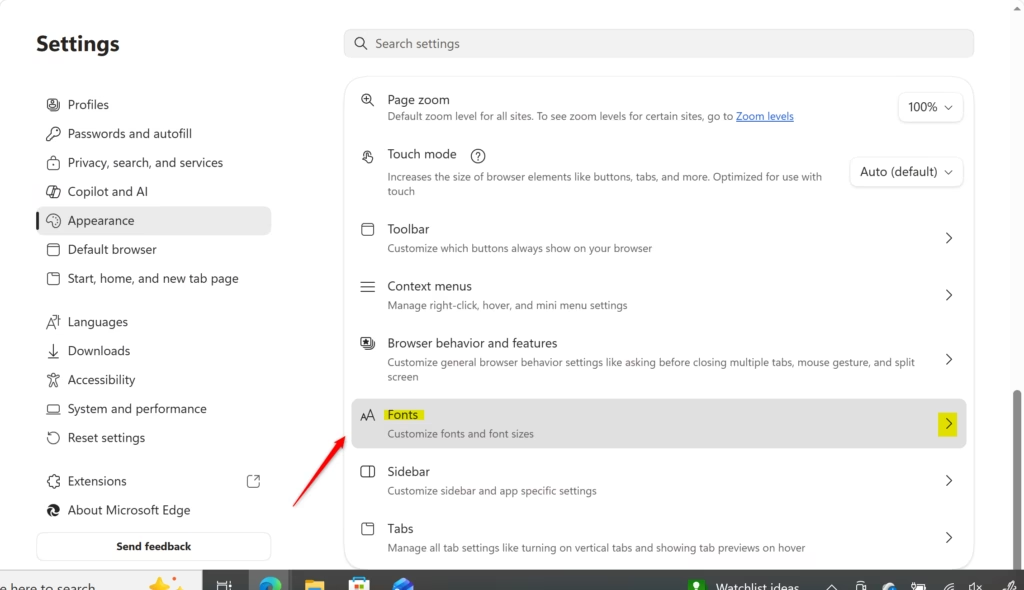
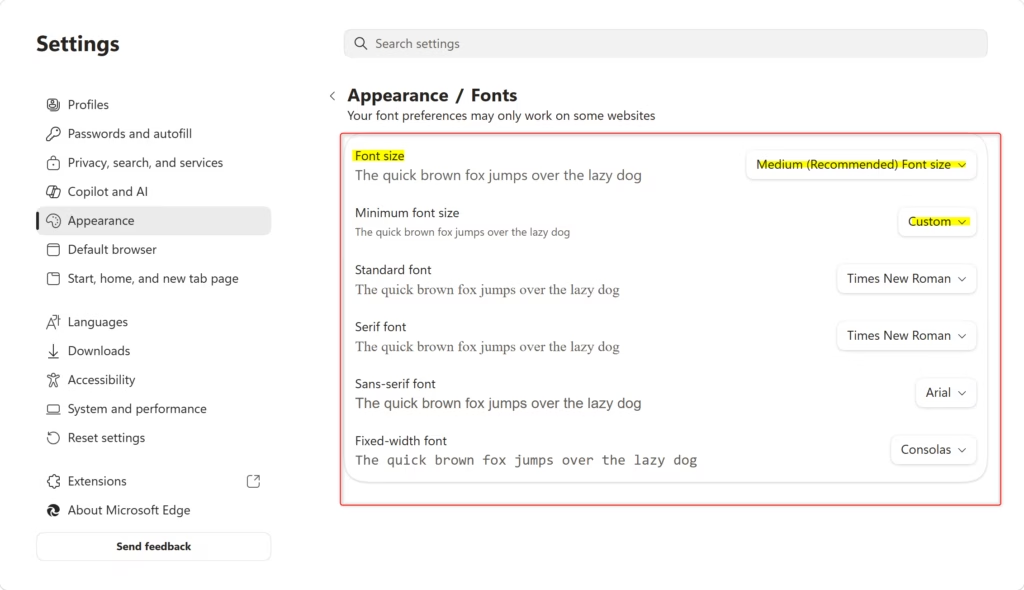
Within the Appearance settings, click on ‘Fonts’ and then use the ‘Font size’ dropdown menu to change your edge text size to whatever feels most comfortable for you.
You’ll see a “Font size” setting with a dropdown menu next to it. Click it to reveal options like “Small,” “Medium,” “Large,” and “Very large.”
Choose the size that feels best for you. As you pick a new size, the text in the settings page itself will change. This gives you a live preview of how text will look.
Tip: Finding Your Perfect Size
Finding your perfect text size in Edge involves trying different options like ‘Medium’ or ‘Large’ and testing them on websites you visit often.
Step 4Customize Fonts Further (Optional)
If you want to customize fonts even more, Edge lets you pick specific fonts for different kinds of text, like Serif or Sans-Serif, to further adjust how things look on the page.
You can choose different fonts for different text types. For instance, pick a font for “Serif” text (these have small decorative lines on the ends of letters, like in Times New Roman) and another for “Sans-serif” text (these don’t have those lines, like Arial).
This setting is separate from the main font size. If a website attempts to use very small text, this ensures your chosen minimum size is always applied.
Reference:
https://support.microsoft.com/en-us/edge/increase-default-text-size-in-microsoft-edge
Summary
Making text bigger in Microsoft Edge is easy: go to Settings > Appearance > Fonts to adjust the default size for better readability and less eye strain.
How do I adjust the font size on Edge?
You can adjust font size in Edge using the zoom feature by clicking the three dots, selecting ‘Zoom’, and choosing a larger percentage, or by using Ctrl + ‘+’ to zoom in.
How do I adjust text font size?
To adjust text font size in Microsoft Edge, use the browser’s zoom settings. Access ‘Settings and more’ (three dots), go to ‘Zoom’, and select a higher percentage. Keyboard shortcuts Ctrl + ‘+’ and Ctrl + ‘-‘ offer quick adjustments for immediate readability improvements.
How to change size in Microsoft Edge?
To change the size of content in Microsoft Edge, utilize the zoom function. Click the three dots for ‘Settings and more,’ then select ‘Zoom’ to choose a larger percentage. Alternatively, use Ctrl + ‘+’ to increase the size and Ctrl + ‘-‘ to decrease it.
How do I reset the font on Edge?
To reset the font size on Edge, zoom back to 100%. Click the three dots for ‘Settings and more,’ find the ‘Zoom’ option, and select ‘100%.’ You can also achieve this by pressing Ctrl+0 (zero) on your keyboard.
Was this guide helpful?

About the Author
Richard
Tech Writer, IT Professional
Richard, a writer for Geek Rewind, is a tech enthusiast who loves breaking down complex IT topics into simple, easy-to-understand ideas. With years of hands-on experience in system administration and enterprise IT operations, he’s developed a knack for offering practical tips and solutions. Richard aims to make technology more accessible and actionable. He's deeply committed to the Geek Rewind community, always ready to answer questions and engage in discussions.




No comments yet — be the first to share your thoughts!