How to Change Mouse Key Speed Using CTRL and SHIFT in Windows 11

Access Mouse Keys speed control by opening Settings, going to Accessibility, then Mouse. Enable the “Hold the Ctrl key to speed up and Shift key to slow down” option to adjust pointer movement speed with these keys.
What Are Mouse Keys?
Mouse Keys in Windows 11 let you use your number keys to move the mouse pointer and click, which is super helpful if a regular mouse or touchpad is difficult for you to use.
For instance, pressing the 5 key clicks, the + key double-clicks, and other number keys move your pointer up, down, left, or right.
Why Use CTRL and SHIFT to Control Mouse Speed?
You can make the pointer move faster or slower by holding down the CTRL or SHIFT key while using Mouse Keys. This gives you more control. But first, you need to turn on the option that lets you do this.
How to Turn On “Hold CTRL to Speed Up and SHIFT to Slow Down”
- Open Windows Settings:
- Click the Start menu (Windows icon) and select Settings, or
- Press Windows key + I on your keyboard.
- In the Settings window, click Accessibility on the left side.
- Scroll down and click on Mouse to open the mouse accessibility options.
- Turn on the Mouse keys toggle switch.
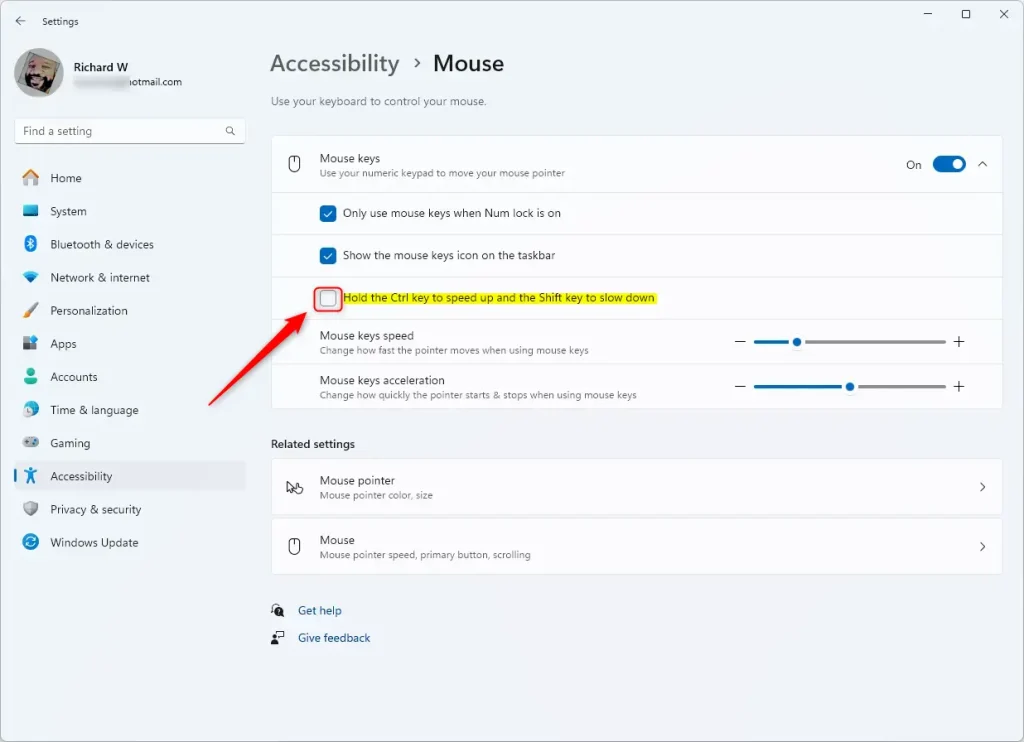
- Check or uncheck the box for “Hold the Ctrl key to speed up and Shift key to slow down” to enable or disable this feature.
You can change how fast your mouse pointer moves using the number keys in Windows 11 by turning on a special setting that lets you use CTRL to speed up and SHIFT to slow down.
And this checkbox is the one that controls speed with CTRL and SHIFT:
Once you’ve made your selection, you can close the Settings app.
Summary
In Windows 11, you can easily control your mouse pointer speed using the number keys with CTRL to speed up and SHIFT to slow down, making it simpler to use your computer if a mouse is tricky.
What are the 4 cursor control keys?
The four main cursor control keys, often called arrow keys, are the ones that move your pointer up, down, left, and right. These are usually found together in a group on your keyboard.
Was this guide helpful?

About the Author
Richard
Tech Writer, IT Professional
Richard, a writer for Geek Rewind, is a tech enthusiast who loves breaking down complex IT topics into simple, easy-to-understand ideas. With years of hands-on experience in system administration and enterprise IT operations, he’s developed a knack for offering practical tips and solutions. Richard aims to make technology more accessible and actionable. He's deeply committed to the Geek Rewind community, always ready to answer questions and engage in discussions.



No comments yet — be the first to share your thoughts!