How to Browse with HTTPS-First Mode in Microsoft Edge

HTTPS-First Mode in Microsoft Edge automatically encrypts your browsing connection (makes your data unreadable to others). This protects your passwords, payment information, and personal data from hackers. When you turn on this feature, Edge tries to load every website using HTTPS (the secure version) instead of HTTP (which doesn’t encrypt your data).
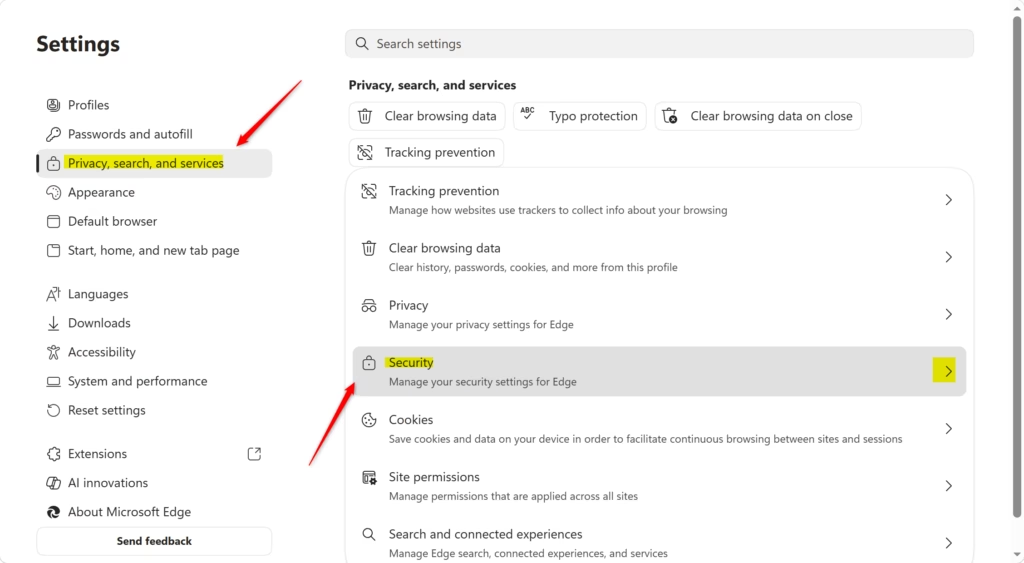
To enable HTTPS-First Mode, go to Settings > Privacy, search, and services, then scroll to Security and turn on “Automatically switch to more secure connections.” This ensures Microsoft Edge prioritizes secure HTTPS connections for your browsing.
What HTTPS-First Mode Actually Does
HTTPS-First Mode protects you without requiring you to think about it. This feature automatically upgrades your connection to HTTPS whenever you visit a website. If the site supports it and you type ‘http://’ in the address bar, Edge converts that to a secure connection behind the scenes.
By default, Edge only shows warnings for public websites. If you manually type in an HTTP address or you’re visiting a private or internal company site using HTTP, you won’t see a warning. You can change this behavior to be more cautious if you want.
Important: Some websites—particularly older sites or internal company networks—might not support HTTPS. If you rely on those sites, warnings might appear. So you’ll want to think about whether that site really needs your sensitive information.
Checking If HTTPS-First Mode Is Enabled
HTTPS-First Mode comes turned on by default in Microsoft Edge. But it’s worth verifying that your settings are configured the way you want them. When enabled, Edge automatically upgrades insecure connections and warns you about unsafe sites.
Good news: it’s already working for you. But let’s confirm your settings are set up right.
- Open Microsoft Edge. Launch the browser from your taskbar or Start menu.
- Click the menu button in the upper-right corner. This is the three-dot icon (labeled “Settings and more”) at the top right of your browser window.
- Select Settings from the dropdown menu. This opens your Edge preferences in a new tab.
- Navigate to Privacy, search, and services. Look for this option in the left sidebar of the Settings page.
- Scroll down to the Security section. This is where all your connection security options live.
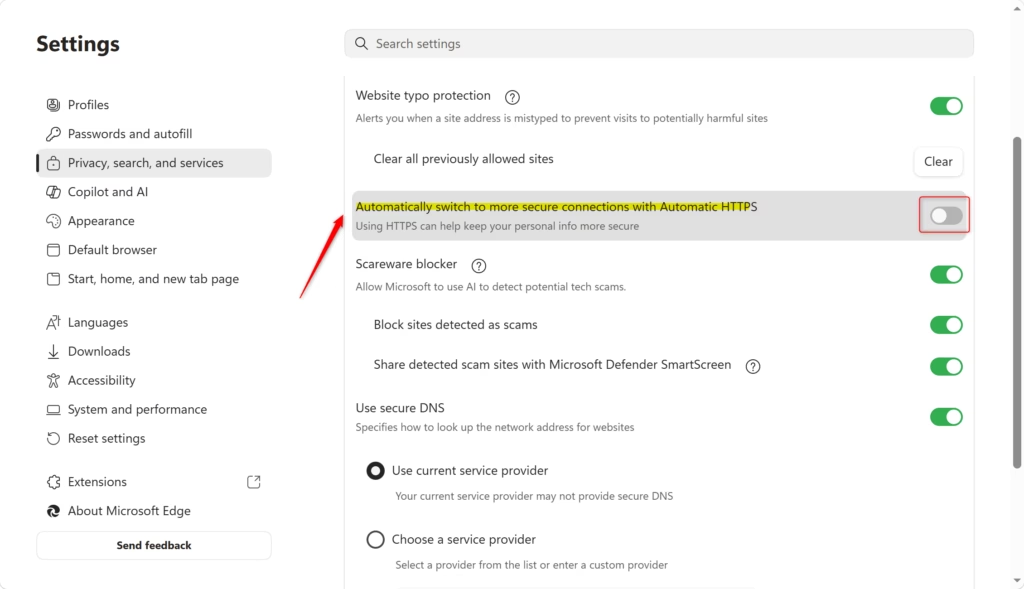
- Look for “Automatically switch to more secure connections with Automatic HTTPS.” This toggle controls whether Edge warns you about unsafe sites. It should be turned on (the switch should be blue and to the right).

Tip: Can’t find it? Scroll down—the Security section sometimes hides below the fold depending on your screen size.
Choosing Your Security Level
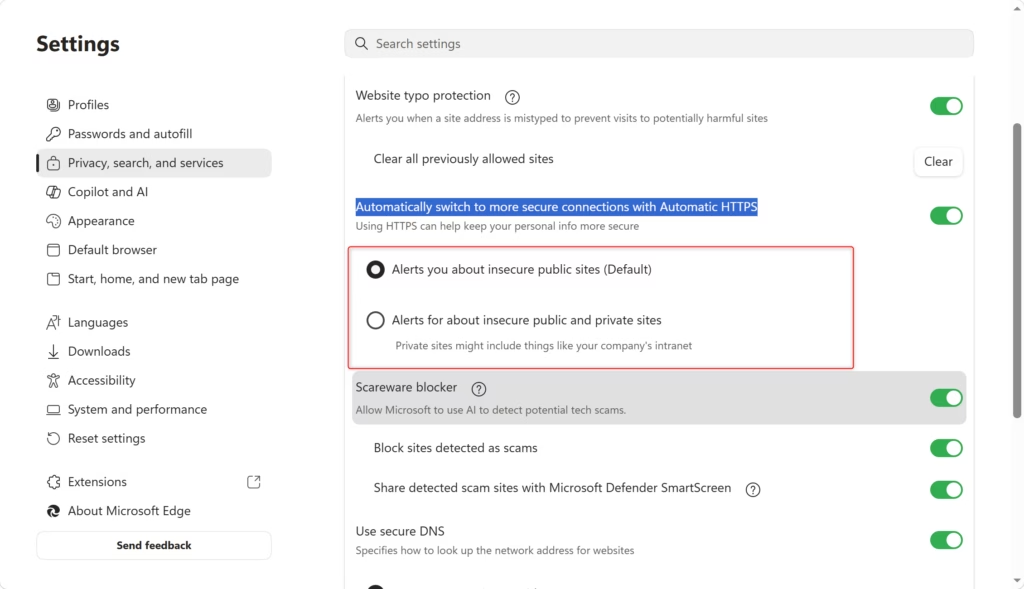
Once you’ve confirmed that alerts are enabled, you can decide how aggressive you want HTTPS-First Mode to be. Microsoft Edge gives you two options. Which one you choose depends on your specific situation.
Option 1Default Setting (Recommended for Most People)
This option alerts you about insecure connections on public websites only. When you select this—which is already the default—Edge warns you if you try to visit a public HTTP website. But if you manually type “http://” in the address bar or you’re visiting a private internal network site, you won’t see warnings.
This setting balances security with practicality. Most public websites support HTTPS now. So you’ll rarely see warnings. You also avoid unnecessary alerts when accessing private networks or older services that haven’t been upgraded to HTTPS yet.
When to use this: Choose this if you browse the public internet regularly and occasionally need to access internal company sites or older services that use HTTP.
Option 2Maximum Security Setting
This option elevates your protection by showing warnings for insecure connections on both public and private sites. If you’re working with internal company networks or services that run on HTTP, you’ll get warnings for those too. This includes manually entered HTTP URLs.
The trade-off is that you’ll see more warnings overall. Every insecure connection gets flagged. So you’ll need to make conscious decisions about whether to proceed or not.
When to use this: Choose this if you work in a security-sensitive field, regularly handle sensitive personal or financial data, or if you want maximum protection regardless of convenience.
How to Change Your Setting
- Stay in the Security section of Settings. You should already be here from the previous steps.
- Find the two alert options below “Automatically switch to more secure connections with Automatic HTTPS.” You’ll see radio buttons next to each option.
- Select the radio button next to your preferred security level. The default option is selected by default. But you can click to switch to the more aggressive setting if you prefer.
- Close the Settings tab when you’re done. Your preference saves automatically.
Warning: If you turn off “Automatically switch to more secure connections with Automatic HTTPS” entirely, both of these options will become grayed out (unavailable). You’d turn off HTTPS-First Mode protection entirely. We don’t recommend this unless you have a very specific reason.
Reference:
Summary
HTTPS-First Mode works best when you set it and forget it. Microsoft Edge already has it enabled by default. This means you’re getting protection right now. Security works best when it doesn’t require you to remember anything.
Take five minutes to verify your settings match what you want. For most people, the default configuration is perfect. For those who work with sensitive data or want maximum protection, that aggressive option is available. Either way, you’ll see that padlock icon appear more often—that’s the sign your data is protected.
How to turn on HTTPS first mode?
HTTPS-First Mode is enabled by default in Microsoft Edge. To verify it's on, open Edge Settings, go to Privacy, search, and services, then scroll to Security. Look for HTTPS-First Mode and ensure it's toggled on. You can choose between warnings for all sites or public sites only.
How to bypass Err_SSL_Version_or_Cipher_Mismatch in Edge?
This error indicates the website uses outdated SSL/TLS encryption. You cannot safely bypass this error as it protects your security. Instead, contact the website owner to report the issue. They should update their SSL certificate to modern, secure standards for proper encryption.
How do I enable HTTPS only mode in Edge?
HTTPS-First Mode is Microsoft Edge's HTTPS-only feature, enabled by default. Access it via Settings > Privacy, search, and services > Security > HTTPS-First Mode. Toggle it on and select your preferred warning level: all sites or public sites only for maximum protection.
What does Ctrl+K do in Edge?
Ctrl+K in Microsoft Edge opens the address bar and automatically selects any existing text, allowing you to quickly search or type a new URL. It's a faster alternative to clicking the address bar manually and provides instant access to your search or navigation needs.
Was this guide helpful?

About the Author
Richard
Tech Writer, IT Professional
Richard, a writer for Geek Rewind, is a tech enthusiast who loves breaking down complex IT topics into simple, easy-to-understand ideas. With years of hands-on experience in system administration and enterprise IT operations, he’s developed a knack for offering practical tips and solutions. Richard aims to make technology more accessible and actionable. He's deeply committed to the Geek Rewind community, always ready to answer questions and engage in discussions.




No comments yet — be the first to share your thoughts!