
You can translate videos in Microsoft Edge using its built-in AI-powered translation tool, which offers real-time audio dubbing and subtitles.
This feature helps you understand foreign language content directly in your browser. It breaks down language barriers for global news, educational videos, and streaming media.
When you enable translation, Edge downloads a language model. This model processes everything locally on your device, keeping your data private.
For optimal performance, this on-device translation requires your PC to have at least 12 GB of RAM.
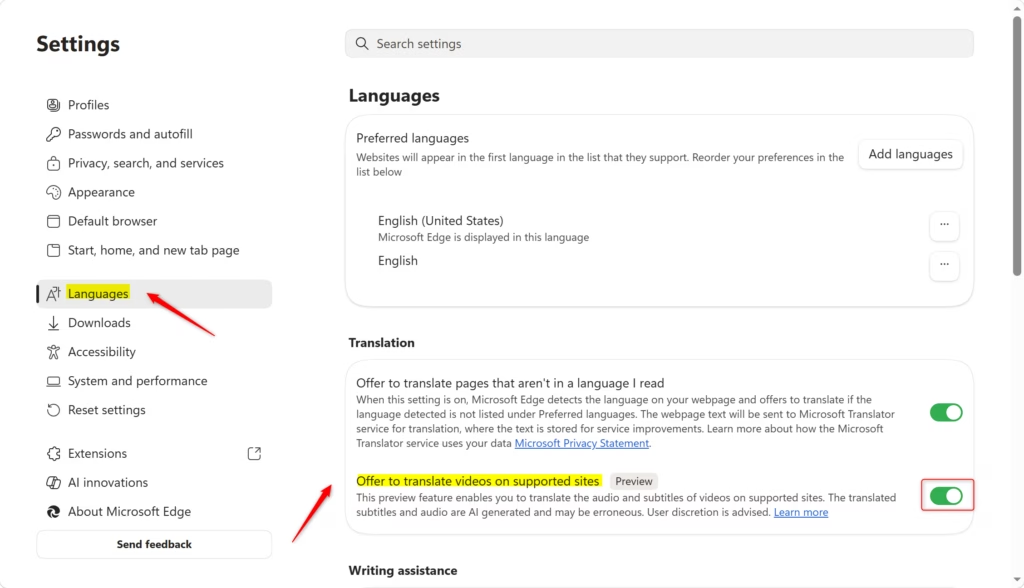
Microsoft Edge translates videos using its built-in AI tool for real-time dubbing and subtitles. To enable this, go to Settings, then Languages, and toggle “Offer to translate videos on supported sites” on or off.
How to Turn Video Translation On or Off in Microsoft Edge
There are a couple of ways to manage this feature.
Option 1For Your User Account
You can turn video translation on or off just for your own user account in Microsoft Edge by changing a simple setting.
- Open the Microsoft Edge browser.
- Click the three dots icon (…) in the top right corner. This is the “Settings and more” menu.
- Click on Languages in the menu on the left.
- Look for the Translation section.
- You will see an option that says “Offer to translate videos on supported sites“. Toggle this switch to On or Off, depending on what you want. This is the default setting.
- You can now close the Settings tab.
Option 2For All Users (Requires Administrator Access)
To translate videos in Edge for everyone on your computer, you’ll need administrator access to change a setting that applies to all user accounts.
It involves adjusting a policy setting within Microsoft Edge, which is done through the Windows Registry Editor (a system tool for managing settings).
Why change this? This allows you to enforce the translation setting for all users on the computer, not just yourself.
What happens when done? The chosen setting for offering video translation will be applied to all user accounts on the PC.
First, open the Registry Editor. You can do this by searching for “regedit” in the Windows search bar and pressing Enter. You might see a warning asking if you want to allow the app to make changes; click Yes.
Note: Editing the registry incorrectly can cause problems. Be careful and follow these steps exactly.
In the Registry Editor, navigate to this path:
HKEY_LOCAL_MACHINE\SOFTWARE\Policies\Microsoft\FVE
If the FVE folder isn’t visible on the left, you’ll need to create it. Right-click the Microsoft folder, select New, then Key, and name it FVE.
Once you’ve selected this new key, look to the right pane. Here, you’ll create or update specific values:
- To Always Enable Offer to Translate Videos:
- Right-click in the empty space on the right.
- Select New, then DWORD (32-bit) Value.
- Name the new value
LiveVideoTranslationEnabled. - Double-click on
LiveVideoTranslationEnabled. - Set the Value data to
1and click OK.
- To Disable Offer to Translate Videos:
- Right-click in the empty space on the right.
- Select New, then DWORD (32-bit) Value.
- Name the new value
LiveVideoTranslationEnabled. - Double-click on
LiveVideoTranslationEnabled. - Set the Value data to
0and click OK.
- To Use the Default Setting (User Choice):
- If the
LiveVideoTranslationEnabledvalue exists, right-click on it and select Delete. - Confirm the deletion if prompted.
- If the
After making these changes, close the Registry Editor. You might need to restart Microsoft Edge for the changes to take effect.
Summary
Microsoft Edge has a built-in tool that can translate videos, offering real-time audio dubbing and subtitles right on your device.
Was this guide helpful?

About the Author
Richard
Tech Writer, IT Professional
Richard, a writer for Geek Rewind, is a tech enthusiast who loves breaking down complex IT topics into simple, easy-to-understand ideas. With years of hands-on experience in system administration and enterprise IT operations, he’s developed a knack for offering practical tips and solutions. Richard aims to make technology more accessible and actionable. He's deeply committed to the Geek Rewind community, always ready to answer questions and engage in discussions.




No comments yet — be the first to share your thoughts!