How to Repair Microsoft Edge in Windows 11

You repair Microsoft Edge in Windows 11 by resetting its app data and reinstalling its files. This process resolves common browser issues like crashing, slow loading, or freezing.
Microsoft Edge is the default browser for Windows 11. When it malfunctions, a repair function can often fix it without deleting your saved bookmarks or passwords.
The repair process effectively reinstalls Edge’s core files, like performing a quick refresh. For example, users reported successfully fixing login errors in February 2024 through this repair method.
You can get your Edge browser running smoothly again with this simple troubleshooting step.
Repair Microsoft Edge by opening Settings, selecting Apps, then Installed apps. Find Microsoft Edge, click the three dots, choose Modify, and click Repair. This process fixes common issues without deleting your bookmarks or passwords.
Prerequisites: Before You Start
Before you repair Microsoft Edge, make sure your computer is ready. You’ll need a good internet connection to download any needed files and should close all Edge programs using Task Manager.
- Check Internet: You need an active connection to download new files.
- Close Processes: Open Task Manager (Ctrl+Shift+Esc), find all Microsoft Edge processes, and click End Task.
- Clear Cache: If the browser opens, clear your cache by pressing Ctrl+Shift+Del.
- Update Windows: Ensure your system is up to date via Settings > Windows Update.
How to Repair Microsoft Edge via Settings
You can repair Microsoft Edge using Windows Settings to fix most browser issues without losing your data. Just open Settings, go to Apps, find Microsoft Edge, and then pick ‘Modify’ and ‘Repair’.
- Open the Settings app by pressing Windows key + I.
windows 11 new settings button - Select Apps from the left sidebar.
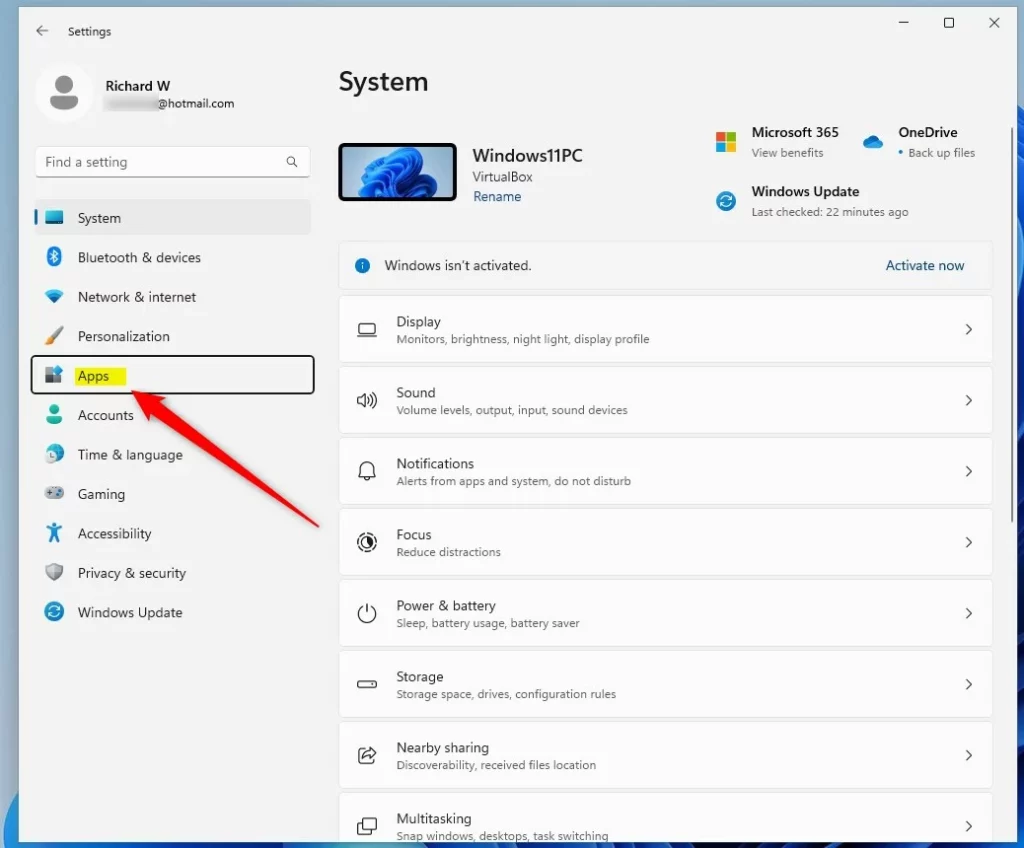
windows 11 settings apps on menu - Click Installed apps.
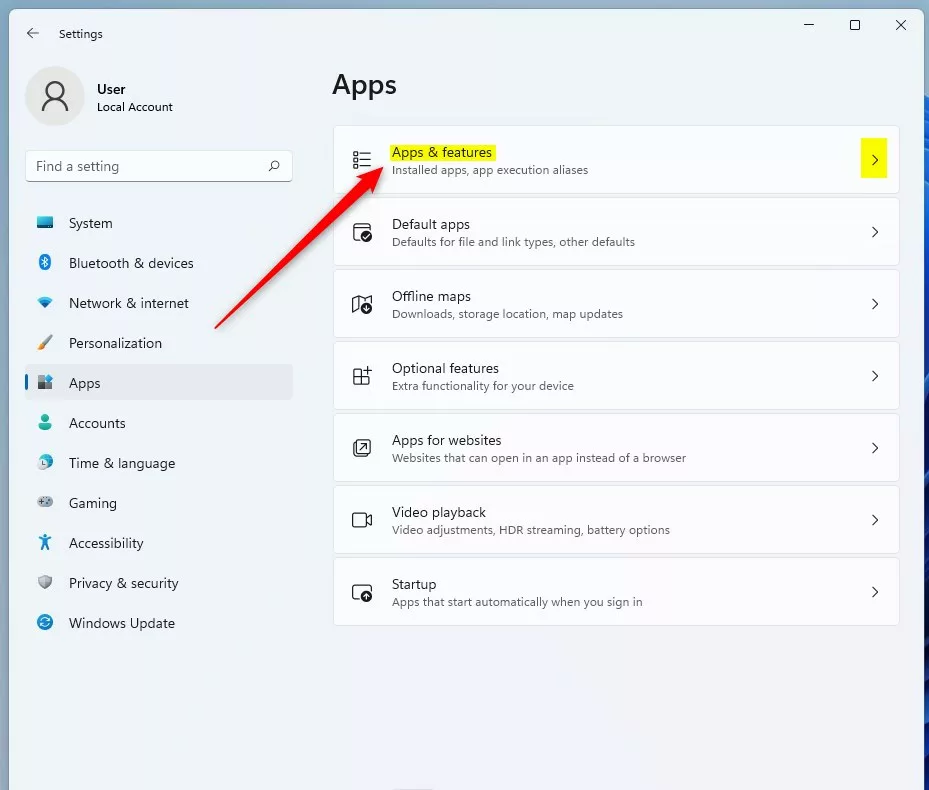
windows 11 apps and features tile - Find Microsoft Edge in the list.
- Click the three dots next to the name and select Modify.

windows 11 repair microsoft edge browser - Click the Repair button. [REQUIRES ADMIN PRIVILEGES]. Click Yes if prompted.

windows 11 repair microsoft edge button - Wait for the process to finish.
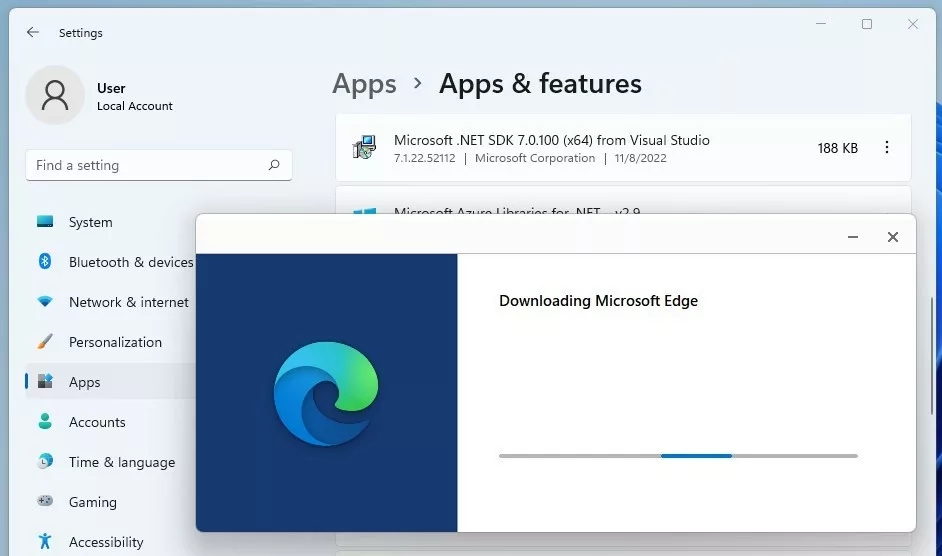
windows 11 repair microsoft edge download - Edge will restart automatically.
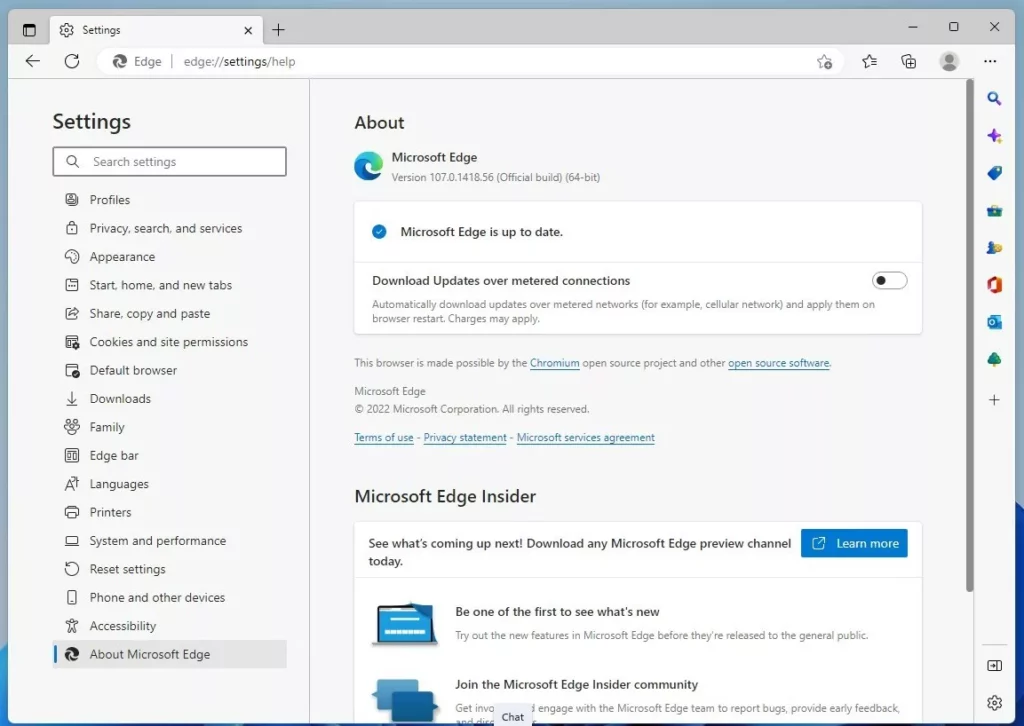
windows 11 repair microsoft edge about page
Difference Between Repair, Reset, and Reinstall
It is important to know which tool to use:
- Repair: Replaces missing or corrupted files. Keeps your data.
- Reset: Clears your settings, extensions, and cookies. Keeps your bookmarks and passwords.
- Reinstall: Removes the browser entirely and installs a fresh version. Use this if the repair fails.
Advanced Troubleshooting
Using PowerShell to Reinstall
If the standard repair fails, you can use PowerShell. [REQUIRES ADMIN PRIVILEGES].
winget repair Microsoft.Edge
Using System File Checker
Windows might have system-wide corruption. [REQUIRES ADMIN PRIVILEGES].
sfc /scannow
Manual Reinstallation
If all else fails, download the official installer from the Microsoft Edge website and run it manually.
Summary
Repairing Microsoft Edge is an easy way to fix browser crashes or slow performance using Windows Settings, and it won’t delete your saved info. While the built-in repair often works, tougher problems might need other steps like using PowerShell or reinstalling.
Will repairing Microsoft Edge delete my bookmarks and passwords?
No, repairing Microsoft Edge does not delete your personal data. It only replaces corrupted application files. Your bookmarks, saved passwords, and browsing history are stored in your user profile folder, which remains unaffected by the repair process. You can safely perform this action without losing your information.
Why does the Microsoft Edge repair button appear greyed out?
The Microsoft Edge repair button might be greyed out if you don’t have admin rights or if Edge is still running. Make sure you’re logged in as an administrator and close all Edge programs through Task Manager before trying again.
Was this guide helpful?

About the Author
Richard
Tech Writer, IT Professional
Richard, a writer for Geek Rewind, is a tech enthusiast who loves breaking down complex IT topics into simple, easy-to-understand ideas. With years of hands-on experience in system administration and enterprise IT operations, he’s developed a knack for offering practical tips and solutions. Richard aims to make technology more accessible and actionable. He's deeply committed to the Geek Rewind community, always ready to answer questions and engage in discussions.


[…] The Microsoft Edge browser is the default browser in Windows 11. However, users can switch to their preferred or favorite browser anytime. Edge is based on Chromium, similar to Google Chrome and other Chromium-based browsers today. […]
[…] The Microsoft Edge browser is the default browser in Windows 11. However, users can switch to their preferred or favorite browser anytime. Edge is based on Chromium, similar to Google Chrome and other Chromium-based browsers today. […]
[…] The Microsoft Edge browser is the default browser in Windows 11. However, users can switch to their preferred or favorite browser anytime. Edge is based on Chromium, similar to Google Chrome and other Chromium-based browsers today. […]
[…] The Microsoft Edge browser is the default browser in Windows 11. However, users can switch to their preferred or favorite browser anytime. Edge is based on Chromium, similar to Google Chrome and other Chromium-based browsers today. […]
[…] The Microsoft Edge browser is the default browser in Windows 11. However, users can switch to their preferred or favorite browser anytime. Edge is based on Chromium, similar to Google Chrome and other Chromium-based browsers today. […]
[…] The Microsoft Edge browser is the default browser in Windows 11. However, users can switch to their preferred or favorite browser anytime. Edge is based on Chromium, similar to Google Chrome and other Chromium-based browsers today. […]
[…] The Microsoft Edge browser is the default browser in Windows 11. However, users can switch to their preferred or favorite browser anytime. Edge is based on Chromium, similar to Google Chrome and other Chromium-based browsers today. […]
[…] The Microsoft Edge browser is the default browser in Windows 11. However, users can switch to their preferred or favorite browser anytime. Edge is based on Chromium, similar to Google Chrome and other Chromium-based browsers today. […]
[…] The Microsoft Edge browser is the default browser in Windows 11. However, users can switch to their preferred or favorite browser anytime. Edge is based on Chromium, similar to Google Chrome and other Chromium-based browsers today. […]
[…] The Microsoft Edge browser is the default browser in Windows 11. However, users can switch to their preferred or favorite browser anytime. Edge is based on Chromium, similar to Google Chrome and other Chromium-based browsers today. […]
[…] The Microsoft Edge browser is the default browser in Windows 11. However, users can switch to their preferred or favorite browser anytime. Edge is based on Chromium, similar to Google Chrome and other Chromium-based browsers today. […]
[…] The Microsoft Edge browser is the default browser in Windows 11. However, users can switch to their preferred or favorite browser anytime. Edge is based on Chromium, similar to Google Chrome and other Chromium-based browsers today. […]
[…] The Microsoft Edge browser is the default browser in Windows 11. However, users can switch to their preferred or favorite browser anytime. Edge is based on Chromium, similar to Google Chrome and other Chromium-based browsers today. […]
[…] The Microsoft Edge browser is the default browser in Windows 11. However, users can switch to their preferred or favorite browser anytime. Edge is based on Chromium, similar to Google Chrome and other Chromium-based browsers today. […]
[…] The Microsoft Edge browser is the default browser in Windows 11. However, users can switch to their preferred or favorite browser anytime. Edge is based on Chromium, similar to Google Chrome and other Chromium-based browsers today. […]
[…] The Microsoft Edge browser is the default browser in Windows 11. However, users can switch to their preferred or favorite browser anytime. Edge is based on Chromium, similar to Google Chrome and other Chromium-based browsers today. […]
[…] Microsoft Edge browser is the default browser in Windows 11. However, users can switch to their preferred or favorite […]
[…] Microsoft Edge is the default browser in Windows 11. However, users can switch to their preferred or favorite browser anytime. Edge is based on Chromium, similar to Google Chrome and other Chromium-based browsers today. […]
[…] Microsoft Edge is the default browser in Windows 11. However, users can switch to their preferred or favorite browser anytime. Edge is based on Chromium, similar to Google Chrome and other Chromium-based browsers today. […]
[…] Microsoft Edge is the default browser in Windows 11. However, users can switch to their preferred or favorite browser anytime. Edge is based on Chromium, similar to Google Chrome and other Chromium-based browsers today. […]
[…] Microsoft Edge is the default browser in Windows 11. However, users can switch to their preferred or favorite browser anytime. Edge is based on Chromium, similar to Google Chrome and other Chromium-based browsers today. […]
[…] Microsoft Edge is the default browser in Windows 11. However, users can switch to their preferred or favorite browser anytime. Edge is based on Chromium, similar to Google Chrome and other Chromium-based browsers today. […]
[…] Microsoft Edge is the default browser in Windows 11. However, users can switch to their preferred or favorite browser anytime. Edge is based on Chromium, similar to Google Chrome and other Chromium-based browsers today. […]
[…] Microsoft Edge is the default browser in Windows 11. However, users can switch to their preferred or favorite browser anytime. Edge is based on Chromium, similar to Google Chrome and other Chromium-based browsers today. […]
[…] Microsoft Edge is the default browser in Windows 11. However, users can switch to their preferred or favorite browser anytime. Edge is based on Chromium, similar to Google Chrome and other Chromium-based browsers today. […]
[…] Microsoft Edge is the default browser in Windows 11. However, users can switch to their preferred or favorite browser anytime. Edge is based on Chromium, similar to Google Chrome and other Chromium-based browsers today. […]
[…] Microsoft Edge is the default browser in Windows 11. However, users can switch to their preferred or favorite browser anytime. Edge is based on Chromium, similar to Google Chrome and other Chromium-based browsers today. […]
[…] Microsoft Edge is the default browser in Windows 11. However, users can switch to their preferred or favorite browser anytime. Edge is based on Chromium, similar to Google Chrome and other Chromium-based browsers today. […]
[…] Microsoft Edge is the default browser in Windows 11. However, users can switch to their preferred or favorite browser anytime. Edge is based on Chromium, similar to Google Chrome and other Chromium-based browsers today. […]
[…] Microsoft Edge is the default browser in Windows 11. However, users can switch to their preferred or favorite browser anytime. Edge is based on Chromium, similar to Google Chrome and other Chromium-based browsers today. […]
[…] Microsoft Edge is the default browser in Windows 11. However, users can switch to their preferred or favorite browser anytime. Edge is based on Chromium, similar to Google Chrome and other Chromium-based browsers today. […]
[…] Microsoft Edge is the default browser in Windows 11. However, users can switch to their preferred or favorite browser anytime. Edge is based on Chromium, similar to Google Chrome and other Chromium-based browsers today. […]
[…] Microsoft Edge is the default browser in Windows 11. However, users can switch to their preferred or favorite browser anytime. Edge is based on Chromium, similar to Google Chrome and other Chromium-based browsers today. […]
[…] This post shows students and new users steps to turn Sleeping Tabs on or off when using the Microsoft Edge browser. […]
[…] This post shows students and new users steps to turn PC gaming on or off with efficiency mode when using the Microsoft Edge browser. […]
[…] Microsoft Edge is the default browser in Windows 11. However, users can switch to their preferred or favorite browser anytime. Edge is based on Chromium, similar to Google Chrome and other Chromium-based browsers today. […]
[…] Microsoft Edge browser is the default browser in Windows 11. However, users can switch to their preferred or favorite […]
[…] Microsoft Edge is the default browser in Windows 11. However, users can switch to their preferred or favorite browser anytime. Edge is based on Chromium, similar to Google Chrome and other Chromium-based browsers today. […]
[…] Microsoft Edge is the default browser in Windows 11. However, users can switch to their preferred or favorite browser anytime. Edge is based on Chromium, similar to Google Chrome and other Chromium-based browsers today. […]
[…] Microsoft Edge is the default browser in Windows 11. However, users can switch to their preferred or favorite browser anytime. Edge is based on Chromium, similar to Google Chrome and other Chromium-based browsers today. […]
[…] Microsoft Edge is the default browser in Windows 11. However, users can switch to their preferred or favorite browser anytime. Edge is based on Chromium, similar to Google Chrome and other Chromium-based browsers today. […]
[…] Microsoft Edge is the default browser in Windows 11. However, users can switch to their preferred or favorite browser anytime. Edge is based on Chromium, similar to Google Chrome and other Chromium-based browsers today. […]
[…] Microsoft Edge is the default browser in Windows 11. However, users can switch to their preferred or favorite browser anytime. Edge is based on Chromium, similar to Google Chrome and other Chromium-based browsers today. […]
[…] Microsoft Edge is the default browser in Windows 11. However, users can switch to their preferred or favorite browser anytime. Edge is based on Chromium, similar to Google Chrome and other Chromium-based browsers today. […]
[…] Microsoft Edge is the default browser in Windows 11. However, users can switch to their preferred or favorite browser anytime. Edge is based on Chromium, similar to Google Chrome and other Chromium-based browsers today. […]
[…] Microsoft Edge is the default browser in Windows 11. However, users can switch to their preferred or favorite browser anytime. Edge is based on Chromium, similar to Google Chrome and other Chromium-based browsers today. […]
[…] Microsoft Edge is the default browser in Windows 11. However, users can switch to their preferred or favorite browser anytime. Edge is based on Chromium, similar to Google Chrome and other Chromium-based browsers today. […]
[…] Microsoft Edge is the default browser in Windows 11. However, users can switch to their preferred or favorite browser anytime. Edge is based on Chromium, similar to Google Chrome and other Chromium-based browsers today. […]
[…] Microsoft Edge is the default browser in Windows 11. However, users can switch to their preferred or favorite browser anytime. Edge is based on Chromium, similar to Google Chrome and other Chromium-based browsers today. […]
[…] Microsoft Edge is the default browser in Windows 11. However, users can switch to their preferred or favorite browser anytime. Edge is based on Chromium, similar to Google Chrome and other Chromium-based browsers today. […]
[…] Microsoft Edge is the default browser in Windows 11. However, users can switch to their preferred or favorite browser anytime. Edge is based on Chromium, similar to Google Chrome and other Chromium-based browsers today. […]
[…] Microsoft Edge is the default browser in Windows 11. However, users can switch to their preferred or favorite browser anytime. Edge is based on Chromium, similar to Google Chrome and other Chromium-based browsers today. […]
[…] The Microsoft Edge browser is the default browser in Windows 11. However, users can switch to their preferred or favorite browser anytime. Edge is based on Chromium, similar to Google Chrome and other Chromium-based browsers today. […]
[…] The Microsoft Edge browser is the default browser in Windows 11. However, users can switch to their preferred or favorite browser anytime. Edge is based on Chromium, similar to Google Chrome and other Chromium-based browsers today. […]
[…] The Microsoft Edge browser is the default browser in Windows 11. However, users can switch to their preferred or favorite browser anytime. Edge is based on Chromium, similar to Google Chrome and other Chromium-based browsers today. […]
[…] Microsoft Edge is the default browser in Windows 11. However, users can switch to their preferred or favorite browser anytime. Edge is based on Chromium, similar to Google Chrome and other Chromium-based browsers today. […]
[…] Microsoft Edge is the default browser in Windows 11. However, users can switch to their preferred or favorite browser anytime. Edge is based on Chromium, similar to Google Chrome and other Chromium-based browsers today. […]
[…] The Microsoft Edge browser is the default browser in Windows 11. However, users can switch to their preferred or favorite browser anytime. Edge is based on Chromium, similar to Google Chrome and other Chromium-based browsers today. […]
[…] Microsoft Edge is the default browser in Windows 11. However, users can switch to their preferred or favorite browser anytime. Edge is based on Chromium, similar to Google Chrome and other Chromium-based browsers today. […]
[…] Microsoft Edge is the default browser in Windows 11. However, users can switch to their preferred or favorite browser anytime. Edge is based on Chromium, similar to Google Chrome and other Chromium-based browsers today. […]
[…] The Microsoft Edge browser is the default browser in Windows 11. However, users can switch to their preferred or favorite browser anytime. Edge is based on Chromium, similar to Google Chrome and other Chromium-based browsers today. […]
[…] The Microsoft Edge browser is the default browser in Windows 11. However, users can switch to their preferred or favorite browser anytime. Edge is based on Chromium, similar to Google Chrome and other Chromium-based browsers today. […]
[…] The Microsoft Edge browser is the default browser in Windows 11. However, users can switch to their preferred or favorite browser anytime. Edge is based on Chromium, similar to Google Chrome and other Chromium-based browsers today. […]
[…] the steps to turn on or off Advanced graphics with Microsoft Defender Application Guard for the Microsoft Edge browser in Windows […]
[…] the steps to turn on or off print files from the Microsoft Defender Application Guard for the Microsoft Edge browser in Windows […]
[…] Microsoft Edge is the default browser in Windows 11. However, users can switch to their preferred or favorite browser anytime. Edge is based on Chromium, similar to Google Chrome and other Chromium-based browsers today. […]
[…] The Microsoft Edge browser is the default browser in Windows 11. However, users can switch to their preferred or favorite browser anytime. Edge is based on Chromium, similar to Google Chrome and other Chromium-based browsers today. […]
[…] The Microsoft Edge browser is the default browser in Windows 11. However, users can switch to their preferred or favorite browser anytime. Edge is based on Chromium, similar to Google Chrome and other Chromium-based browsers today. […]
[…] Microsoft Edge is the default browser in Windows 11. However, users can switch to their preferred or favorite browser anytime. Edge is based on Chromium, similar to Google Chrome and other Chromium-based browsers today. […]
[…] Microsoft Edge is the default browser in Windows 11. However, users can switch to their preferred or favorite browser anytime. Edge is based on Chromium, similar to Google Chrome and other Chromium-based browsers today. […]
[…] a web browser developed by Google that runs on multiple platforms. It shares the same codebase as Microsoft Edge, making the two browsers nearly identical in their basic […]
[…] a web browser developed by Google that runs on multiple platforms. It shares the same codebase as Microsoft Edge, making the two browsers nearly identical in their basic […]
[…] a web browser developed by Google that runs on multiple platforms. It shares the same codebase as Microsoft Edge, making the two browsers nearly identical in their basic […]
[…] Microsoft Edge is the default browser in Windows 11. However, users can switch to their preferred or favorite browser anytime. Edge is based on Chromium, similar to Google Chrome and other Chromium-based browsers today. […]
[…] Microsoft Edge is the default browser in Windows 11. However, users can switch to their preferred or favorite browser anytime. Edge is based on Chromium, similar to Google Chrome and other Chromium-based browsers today. […]
[…] Microsoft Edge is the default browser in Windows 11. However, users can switch to their preferred or favorite browser anytime. Edge is based on Chromium, similar to Google Chrome and other Chromium-based browsers today. […]
[…] a web browser developed by Google that runs on multiple platforms. It shares the same codebase as Microsoft Edge, making the two browsers nearly identical in their basic […]
[…] a web browser developed by Google that runs on multiple platforms. It shares the same codebase as Microsoft Edge, making the two browsers nearly identical in their basic […]
[…] a web browser developed by Google that runs on multiple platforms. It shares the same codebase as Microsoft Edge, making the two browsers nearly identical in their basic […]
[…] a web browser developed by Google that runs on multiple platforms. It shares the same codebase as Microsoft Edge, making the two browsers nearly identical in their basic […]
[…] a web browser developed by Google that runs on multiple platforms. It shares the same codebase as Microsoft Edge, making the two browsers nearly identical in their basic […]
[…] a web browser developed by Google that runs on multiple platforms. It shares the same codebase as Microsoft Edge, making the two browsers nearly identical in their basic […]
[…] a web browser developed by Google that runs on multiple platforms. It shares the same codebase as Microsoft Edge, making the two browsers nearly identical in their basic […]
[…] a web browser developed by Google that runs on multiple platforms. It shares the same codebase as Microsoft Edge, making the two browsers nearly identical in their basic […]
[…] browser developed by Google that runs on multiple platforms. It shares the same codebase as Microsoft Edge, making the two browsers nearly identical in their basic […]
[…] a web browser developed by Google that runs on multiple platforms. It shares the same codebase as Microsoft Edge, making the two browsers nearly identical in their basic […]
[…] a web browser developed by Google that runs on multiple platforms. It shares the same codebase as Microsoft Edge, making the two browsers nearly identical in their basic […]
[…] a web browser developed by Google that runs on multiple platforms. It shares the same codebase as Microsoft Edge, making the two browsers nearly identical in their basic […]
[…] a web browser developed by Google that runs on multiple platforms. It shares the same codebase as Microsoft Edge, making the two browsers nearly identical in their basic […]
[…] a web browser developed by Google that runs on multiple platforms. It shares the same codebase as Microsoft Edge, making the two browsers nearly identical in their basic […]
[…] Microsoft Edge is the default browser in Windows 11. However, users can switch to their preferred or favorite browser anytime. Edge is based on Chromium, similar to Google Chrome and other Chromium-based browsers today. […]
[…] a web browser developed by Google that runs on multiple platforms. It shares the same codebase as Microsoft Edge, making the two browsers nearly identical in their basic […]
[…] Microsoft Edge is the default browser in Windows 11. However, users can switch to their preferred or favorite browser anytime. Edge is based on Chromium, similar to Google Chrome and other Chromium-based browsers today. […]
[…] Microsoft Edge is the default browser in Windows 11. However, users can switch to their preferred or favorite browser anytime. Edge is based on Chromium, similar to Google Chrome and other Chromium-based browsers today. […]
[…] Microsoft Edge is the default browser in Windows 11. However, users can switch to their preferred or favorite browser anytime. Edge is based on Chromium, similar to Google Chrome and other Chromium-based browsers today. […]
[…] Microsoft Edge is the default browser in Windows 11. You can switch to their preferred or favorite browser if you want to use a different one. Edge is based on Chromium, which is the same technology used by Google Chrome and many other web browsers. […]
[…] Microsoft Edge browser is the default browser in Windows 11. However, users can switch to their preferred or […]
[…] Microsoft Edge browser is the default browser in Windows 11. But you can switch to preferred or favorite browser whenever you want. Edge is based on Chromium, which is the same code that powers Google Chrome and many other browsers today. […]
[…] Microsoft Edge browser is the default browser in Windows 11. However, users can switch to their preferred or […]
[…] Microsoft Edge browser is the default browser in Windows 11. You can switch to their preferred or favorite browser if you want to use a different one. Edge is based on Chromium, which is the same technology used by Google Chrome and many other browsers. […]
[…] Microsoft Edge browser is the default browser in Windows 11. You can switch to their preferred or favorite browser to a different browser anytime if you prefer. Edge works similarly to Google Chrome and other browsers built on Chromium technology. […]
[…] Microsoft Edge browser is the default browser in Windows 11. However, users can switch to their preferred or favorite browser anytime. Edge is based on Chromium, similar to Google Chrome and other Chromium-based browsers today. […]
[…] article explains how to install or remove Microsoft Defender Application Guard for the Microsoft Edge browser in Windows […]
[…] Edge Microsoft Edge browser is the default browser for Windows 11. You can switch to their preferred or favorite browser […]
[…] Edge Microsoft Edge browser is the default web browser for Windows 11. While you can switch to their preferred or favorite […]
[…] The Microsoft Edge browser is the default browser in Windows 11. However, users can switch to their preferred or favorite browser anytime. Edge is based on Chromium, similar to Google Chrome and other Chromium-based browsers today. […]
[…] to Re-Sync Microsoft Edge Browser […]
[…] Microsoft Edge browser is the default browser in Windows 11 and 12. However, users can switch to their preferred or […]
[…] Edge Microsoft Edge browser is the default browser for Windows 11. Most people use it every day, but you can switch to their […]
[…] Edge Microsoft Edge browser is the default browser for Windows. You can switch to their preferred or favorite browser […]
[…] Microsoft Edge browser is the default browser for Windows 11 and 12. You can switch to their preferred or favorite […]
[…] Edge Microsoft Edge browser is the web browser built into Windows 11. You can also switch to their preferred or favorite […]
[…] How to Repair Microsoft Edge in Windows 11 […]