
This tutorial will show you how to delete saved website passwords in Microsoft Edge for your account in Windows 11.
Open Microsoft Edge, click the three-dot menu, select Settings, then Passwords and autofill. Open Microsoft Password Manager, find the website, click Del, and confirm. This removes the password from all synced devices if sync is enabled.
Why Delete Saved Passwords?
You might want to delete saved passwords in Microsoft Edge for better security or privacy, especially if you’ve used a public computer or shared your device. Removing old or unused login details helps protect your online accounts from unauthorized access.
When you visit a website that needs a login, Microsoft Edge asks if you want to save your username and password. Next time you visit, the browser fills in your account info automatically.
If you no longer want a saved password for a website in Microsoft Edge, you can delete it.
What Happens When You Delete?
When you delete a saved password in Microsoft Edge, it’s permanently removed from your browser. If you’re signed into Edge with your Microsoft account and have password syncing turned on, deleting a password on one device will remove it from all your other devices too.
References:
View or edit your passwords in Microsoft Password Manager – Microsoft Support Learn how to view or edit passwords saved in Microsoft Edge using the Microsoft password manager.
View and delete browser history in Microsoft Edge – Microsoft Support Learn how to view and delete your browser history and other history in Microsoft Edge.
Here’s How:
Deleting saved passwords in Microsoft Edge is straightforward. Open the browser, click the three-dot menu, go to Settings, then Passwords and autofill, and finally open the Microsoft Password Manager to find and remove the specific password you no longer need.
- Open Microsoft Edge.
- Click or tap on the Settings and more (Alt+F) 3 dots menu icon, and click or tap on Settings.
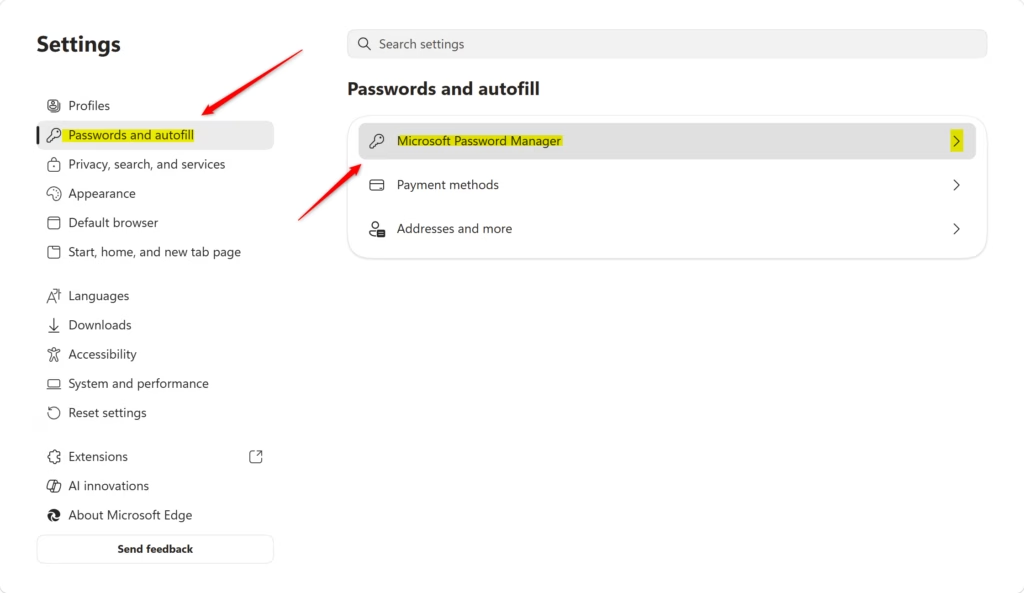
- Click or tap on Passwords and autofill in the left pane, and click or tap on Microsoft Password Manager in the right pane.
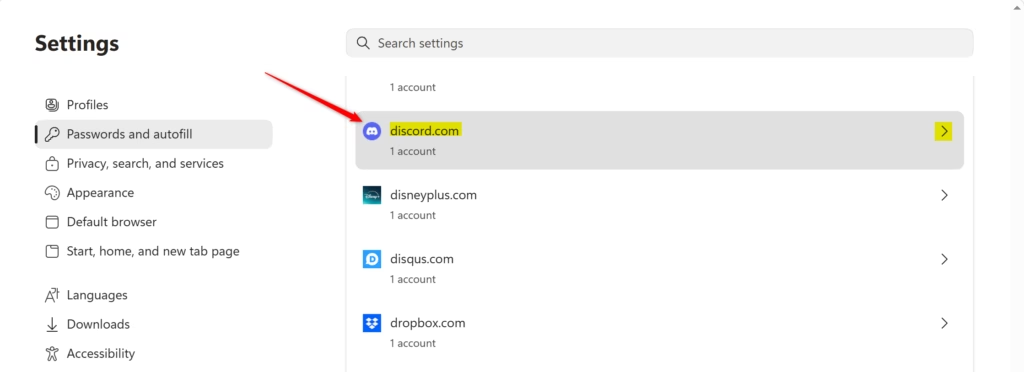
- Under Passwords, click or tap on the website you want to delete its saved password for.
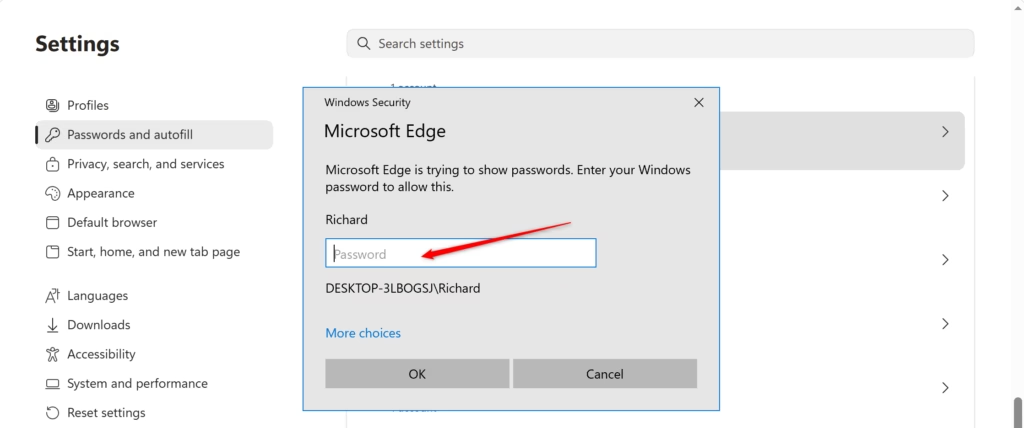
- [Requires admin privileges] Enter your Windows account credentials to authenticate yourself and approve showing passwords.
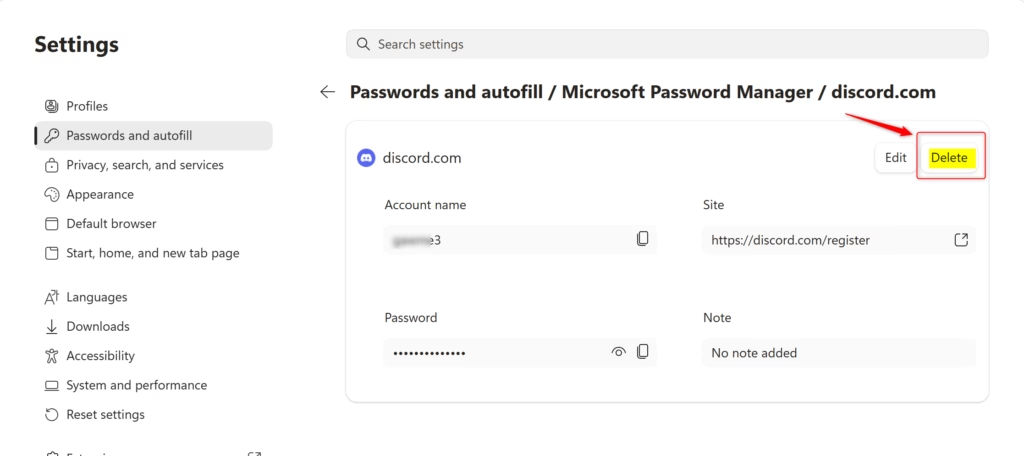
- Click or tap on Delete.
- Click or tap on Delete to confirm.
- When finished, you can either close the Settings tab or Microsoft Edge.
Summary
Deleting saved passwords in Microsoft Edge helps manage your account security by removing old or unneeded login details. You can easily do this by going to Settings, then Passwords and autofill, and using the Microsoft Password Manager to find and delete specific entries.
How do I remove saved passwords in Microsoft Edge?
You can remove saved passwords in Microsoft Edge by opening the browser and clicking the three-dot menu. Then, go to Settings, select Profiles, and click on Passwords to find the list of saved logins and delete them individually.
How do I clear stored passwords?
Clearing stored passwords in Microsoft Edge involves going to the Settings menu. From there, navigate to Profiles, select Passwords, and you can delete individual saved passwords or use the ‘Clear browsing data’ option for a more comprehensive cleanup.
How to clear cached passwords in Edge?
Clearing cached passwords in Edge is done through the Privacy settings. Go to Settings, then Privacy, search, and services, and select ‘Clear browsing data.’ Choose a time range and make sure ‘Passwords’ is checked before clicking ‘Clear now.’
How do I edit saved passwords on Edge?
Editing saved passwords on Edge is simple. Open Edge Settings, go to Profiles, and click on Passwords. Find the website entry you need to change, click the three dots next to it, select ‘Edit,’ update your details, and then click ‘Save.’
Was this guide helpful?
100% of readers found this helpful (1 votes)

About the Author
Richard
Tech Writer, IT Professional
Richard, a writer for Geek Rewind, is a tech enthusiast who loves breaking down complex IT topics into simple, easy-to-understand ideas. With years of hands-on experience in system administration and enterprise IT operations, he’s developed a knack for offering practical tips and solutions. Richard aims to make technology more accessible and actionable. He's deeply committed to the Geek Rewind community, always ready to answer questions and engage in discussions.



No comments yet — be the first to share your thoughts!