How to Enable or Disable Autofill Passwords and Passkeys in Microsoft Edge on Windows 11

You can enable or disable autofill passwords and passkeys in Microsoft Edge on Windows 11 by adjusting browser settings.
Edge’s password autofill saves your login details, like usernames and passwords, so it can fill them in automatically on websites you visit. Passkeys offer a more secure way to log in without using a password.
This guide walks you through the steps to control these features within Microsoft Edge, whether you’re using Windows 11 or even Windows 10.
To enable or disable autofill passwords and passkeys in Microsoft Edge, go to Settings > Passwords and autofill > Microsoft Password Manager. Toggle “Fill website password and sign in automatically” or “Prompt for the device sign-in” as needed. You can also disable it entirely by turning off the “Autofill passwords and passkeys” toggle.
Why This Matters
Microsoft Edge can save your passwords for you, filling them in automatically when you visit websites to save you time.
What You Should Know
Microsoft Edge keeps your passwords safe by storing them in an encrypted way on your computer, and they can sync across your devices if you’re signed in with your Microsoft account.
You can also manually add passwords to the password manager in Microsoft Edge.
Edge gives you three ways to protect your saved passwords:
- Fill in passwords automatically (easiest, but less secure)
- Ask for your device password before filling passwords (medium security)
- Use a custom primary password (highest security)
Reference: Additional privacy for your saved passwords – Microsoft Support
Option 1For Your Account Only
Turn On or Off Autofill Passwords in Microsoft Edge
- Open Microsoft Edge.
- Click the three dots menu (Settings and more) at the top right. Click Settings.
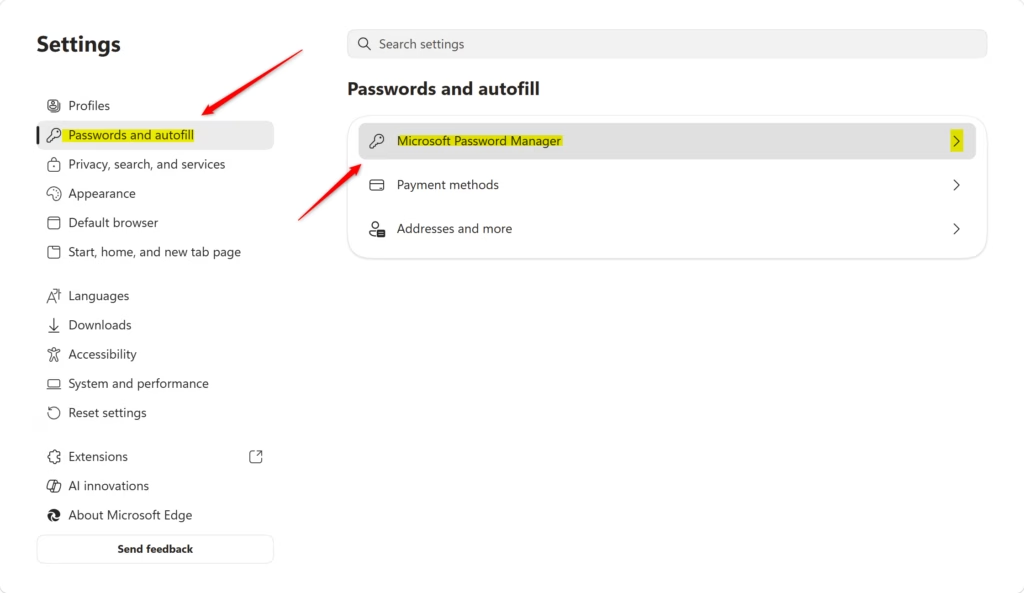
- Click Passwords and autofill in the left sidebar. Click Microsoft Password Manager on the right side.
To turn edge autofill passwords on or off, first open Microsoft Edge and click the three dots menu in the top right corner to open Settings.
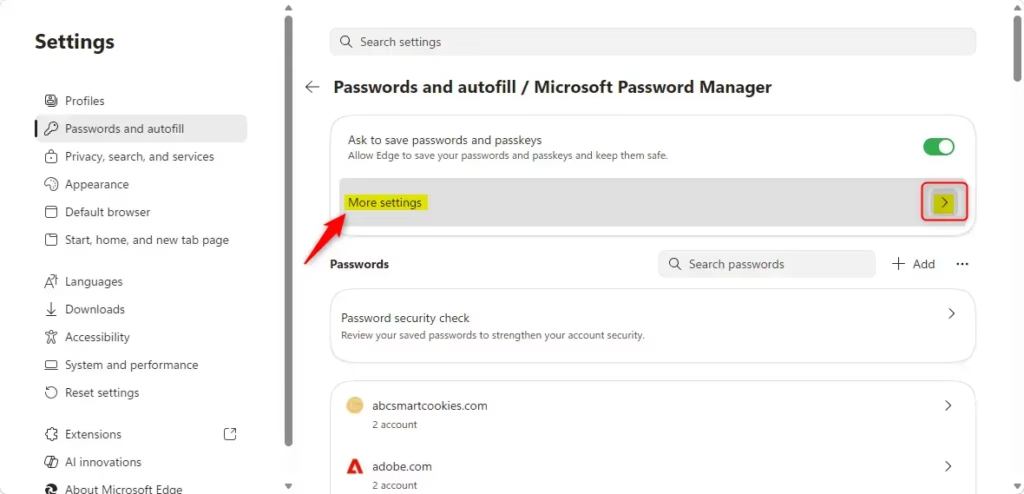
- Click More settings.
Option A: Fill Passwords Automatically (Default)
Choosing to fill passwords automatically in Microsoft Edge is the quickest way to log into websites, as Edge will enter your username and password for you without any extra steps.
What happens? Edge will fill in your username and password automatically when you visit a website.
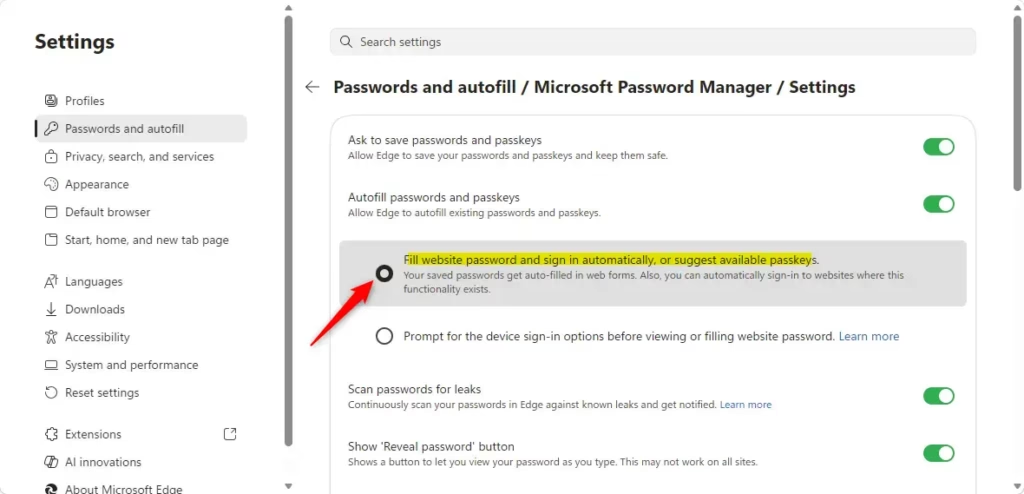
- Select Fill website password and sign in automatically, or suggest available passkeys.
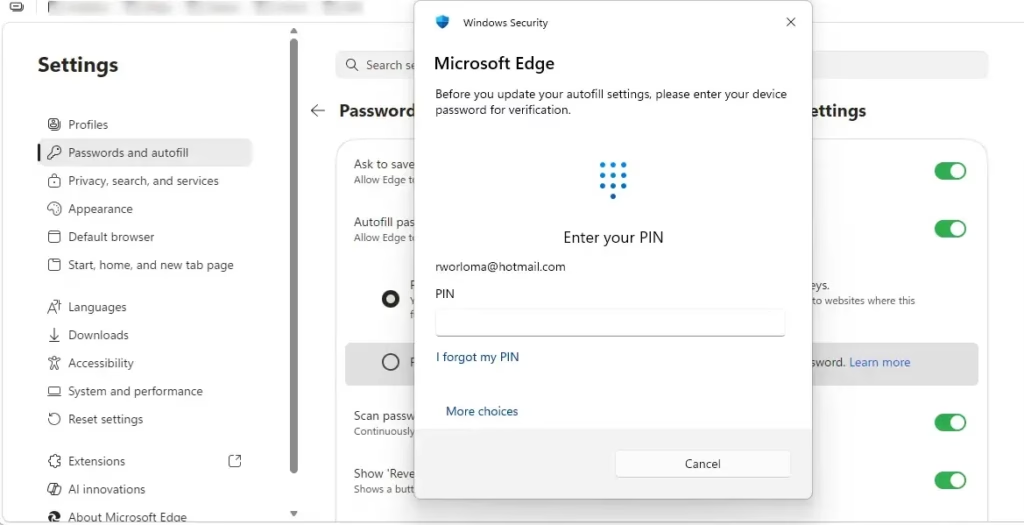
- If Windows Security asks for your device password, enter it.
- Close the Settings tab when done.
Option B: Ask for Device Sign-In Before Filling
Asking for your device sign-in before filling passwords adds an extra layer of security, meaning someone can’t use your saved passwords without entering your Windows password or using your fingerprint first.
What happens? Before Edge fills in a password, it asks you to enter your Windows password or use your fingerprint.
- Select Prompt for the device sign-in options before viewing or filling website password.
- If Windows Security asks for your device password, enter it.
- Choose from the dropdown menu:
- Always ask permission (asks every time)
- Ask permission once per browsing session (default — asks once per session)
- Close the Settings tab when done.
Option C: Use a Custom Primary Password
Using a custom primary password offers the strongest protection for your saved passwords in Microsoft Edge, as you must enter this special password before Edge will fill in any login details.
What happens? Edge asks you to create a custom password. You must enter this password before Edge will fill in any saved passwords.
- Select Prompt for the custom primary password before viewing or filling website password.
- If Windows Security asks for your device password, enter it.
- Type in a new primary password and click Create.
- Choose from the dropdown menu:
- Always ask permission (asks every time)
- Ask permission once per browsing session (default — asks once per session)
- Close the Settings tab when done.
Turn Off Autofill Passwords using Registry
Why turn this off? You might want to type in passwords manually for extra security.
What happens? Edge will not save or fill in passwords anymore.
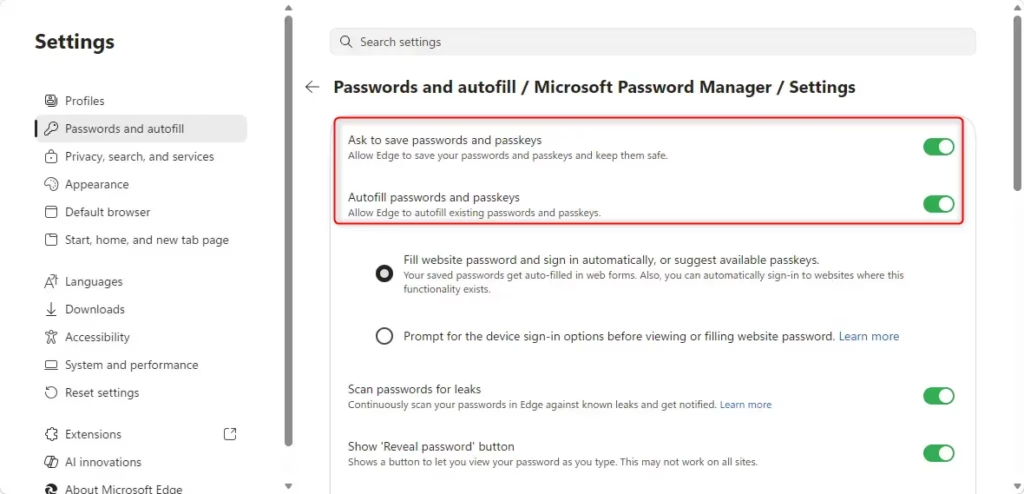
- Turn off the toggle for Autofill passwords and passkeys.
- Close the Settings tab when done.
Option 2For All Users on Your Computer
Admin privileges required.
This section requires administrator privileges. It uses the Group Policy for Microsoft Edge, so you’ll need to be signed in as an administrator to proceed.
Always Enable With Automatic Fill
What happens? All users must have autofill turned on. Passwords fill in automatically. Users cannot turn this off.
Open Windows Terminal as an administrator and run this command:
reg add "HKEY_LOCAL_MACHINE\SOFTWARE\Policies\Microsoft\Edge" /v PrimaryPasswordSetting /t REG_DWORD /d 0 /f
Always Enable With Device Sign-In Prompt
What happens? All users must have autofill turned on. Edge asks for device sign-in before filling passwords. Users cannot turn this off but can choose how often to be asked.
reg add "HKEY_LOCAL_MACHINE\SOFTWARE\Policies\Microsoft\Edge" /v PrimaryPasswordSetting /t REG_DWORD /d 1 /f
Always Enable With Custom Primary Password
When you always enable the custom primary password setting, all users on the computer must use autofill, and Edge will always ask for the primary password before filling any passwords, preventing users from turning it off.
Click the Download button below to download the registry file, then follow the steps at step 7.
reg add "HKEY_LOCAL_MACHINE\SOFTWARE\Policies\Microsoft\Edge" /v PrimaryPasswordSetting /t REG_DWORD /d 2 /f
Disable Autofill for All Users
What happens? All users cannot use autofill. Passwords will not be saved or filled in automatically. Users cannot turn this on.
Open Windows Terminal as an administrator and run this command:
reg add "HKEY_LOCAL_MACHINE\SOFTWARE\Policies\Microsoft\Edge" /v PrimaryPasswordSetting /t REG_DWORD /d 3 /f
Allow User Choice (Default)
What happens? This is the standard setting. Each user can turn autofill on or off in their own settings.
reg delete "HKEY_LOCAL_MACHINE\SOFTWARE\Policies\Microsoft\Edge" /v PrimaryPasswordSetting /f
Summary
Microsoft Edge offers easy ways to save and fill passwords, giving you choices between the fastest automatic fill, medium security with device sign-in, or the highest security with a custom primary password.
Where to find autofill passwords on Edge?
You can find your saved edge autofill passwords in Microsoft Edge by going to Settings, then clicking on Passwords in the left sidebar, where you can view, edit, or delete your saved login details.
Why won't Microsoft Edge autofill passwords?
Microsoft Edge might not autofill passwords if the settings to ‘Offer to save passwords’ or ‘Sign in automatically’ are turned off, or if there are issues with your Microsoft account sign-in or browser data.
Is Microsoft autofill being discontinued?
No, Microsoft autofill is not being discontinued. Microsoft continues to support and update its built-in password manager within the Edge browser. While Microsoft previously offered a standalone Autofill app for mobile, the core password management functionality remains a central, active feature integrated directly into the Microsoft Edge browser experience.
How to stop Edge from autofilling passwords?
To stop Edge from autofilling passwords, open Settings, go to Profiles, and select Passwords. Toggle off the ‘Offer to save passwords’ and ‘Sign in automatically’ options. This prevents the browser from prompting to save new credentials or automatically filling in your login information on websites you visit.
Was this guide helpful?

About the Author
Richard
Tech Writer, IT Professional
Richard, a writer for Geek Rewind, is a tech enthusiast who loves breaking down complex IT topics into simple, easy-to-understand ideas. With years of hands-on experience in system administration and enterprise IT operations, he’s developed a knack for offering practical tips and solutions. Richard aims to make technology more accessible and actionable. He's deeply committed to the Geek Rewind community, always ready to answer questions and engage in discussions.




No comments yet — be the first to share your thoughts!