How to Turn Enhanced Security On or Off with Microsoft Edge

You can turn Microsoft Edge’s Enhanced Security Mode on or off to control its level of protection against potentially dangerous websites.
Enhanced Security Mode is a feature in Microsoft Edge. It automatically uses tougher security settings to keep you safe from harmful websites.
Microsoft Edge’s Enhanced Security Mode offers three levels: Basic, Balanced, and Strict. The Balanced setting is enabled by default on Windows 11 and helps block most risky sites without breaking everyday browsing.
You can adjust this setting to better suit your browsing habits, ensuring a balance between security and site compatibility.
To turn Enhanced Security on or off in Microsoft Edge, open Settings, navigate to Privacy, search, and services, and then find “Enhance your security on the web” in the Security section. You can then toggle it on or off and select your preferred mode: Balanced or Strict.
What Does “Enhanced Security” Do?
Microsoft Edge’s Enhanced Security feature acts like a digital bodyguard for your browser, offering stronger protection against online threats that try to exploit website weaknesses.
One key action is how it handles JavaScript, the language that makes websites interactive. Your browser typically uses a process called Just-In-Time (JIT) compilation for JavaScript, which quickly translates code into a language computers understand, speeding things up. However, this speed can sometimes create an opening for attackers.
Enhanced Security can turn off JIT compilation for JavaScript. Think of this like closing a potential entry point for attackers. It also adds extra Windows protections to your browser. These include:
- Hardware-enforced Stack Protection: This means your computer’s hardware helps stop bad code from taking over important parts of your browser.
- Arbitrary Code Guard (ACG): This acts like a security guard. It stops unknown code from running in your browser’s memory.
These protections make Microsoft Edge more robust against online threats. The browser intelligently applies these stricter rules to unfamiliar sites or those you visit infrequently, learning your browsing habits and adjusting for better protection without you needing to micromanage it.
Choose Your Protection Level: Balanced vs. Strict
When you turn on Enhanced Security, you can choose how strong it should be. Microsoft Edge has two modes:
Balanced Mode (Recommended)
Balanced mode is the best setting for most users because it adds extra security to websites you don’t visit often, while letting your favorite, everyday sites work without interruption.
What to expect: Most websites will work as usual. You get better protection for new places without much change to your daily browsing. You might see a small shield or a “Secure” sign near the address bar when this mode is active for a site.
Tip: If you are new to Enhanced Security, start with Balanced mode. You can make it stronger later if you want.
Strict Mode
Strict mode offers the highest level of protection in Microsoft Edge by applying enhanced security settings to every single website you visit, giving you the best defense against online dangers.
What to expect: While it offers the best defense, Strict mode can sometimes cause problems with some websites. Parts of a site might not load, or some features might not work. This is because the stricter security might get in the way of how some websites are built.
Warning: Strict mode is not recommended for everyday browsing for most people. You might need to change settings or add exceptions for sites you use often, which can be annoying. If you don’t want to change settings or deal with website issues, use Balanced mode.
How to Turn Enhanced Security On or Off
You can easily turn Microsoft Edge’s Enhanced Security feature on or off, and choose your preferred mode, by going into the browser’s settings menu.
- Open Microsoft Edge.
- Click the three dots (…) in the top-right corner. This is the “Settings and more” menu.
- Choose “Settings” from the list.
- On the left side, click “Privacy, search, and services.”
- Scroll down to the “Security” section.
- Find “Enhance your security on the web.” Make sure the switch next to it is “On.”
- Below that, you can choose your mode. Click the dropdown menu and pick “Balanced” or “Strict.”
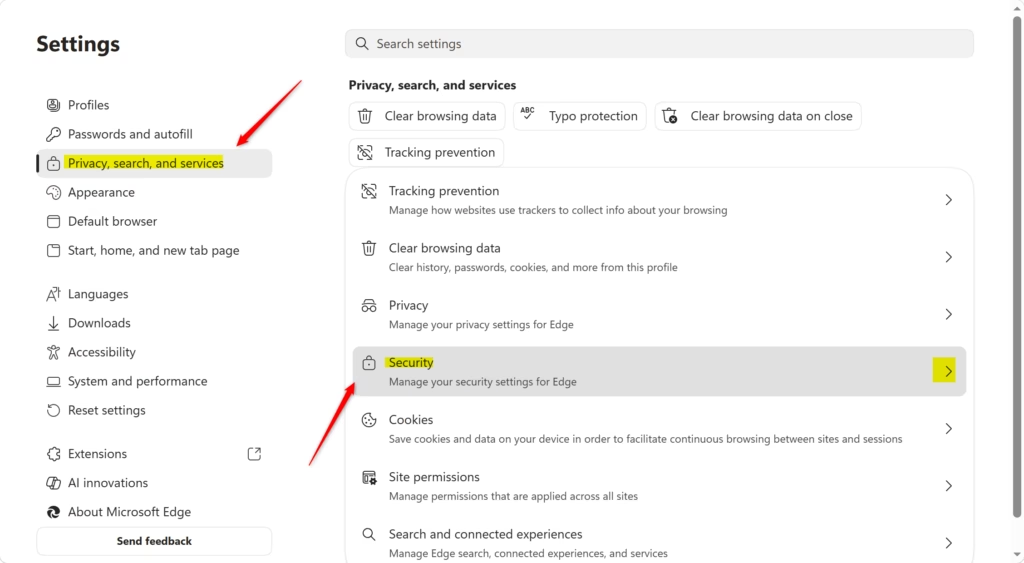
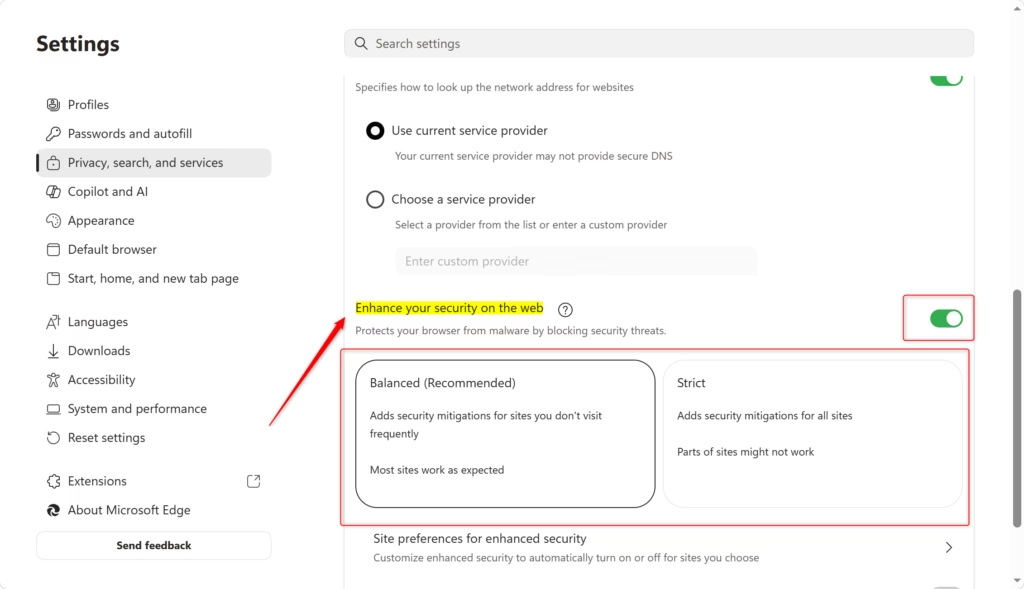
Practical Tip: If a website doesn’t work right after turning on Enhanced Security, you can often fix it by adding it to an exception list. This lets you keep the feature on for most of your browsing but makes sure important sites work.
Making Exceptions: When a Site Needs Special Treatment
Microsoft Edge lets you create exception lists for its Enhanced Security feature, allowing you to make specific websites always use extra protection or never use it at all.
You can tell Microsoft Edge to *always* use enhanced security for a specific site, or to *never* use it for that site.
How to Add a Site to an Exception List:
- Follow steps 1-5 from the section above to get to the “Security” settings page.
- Make sure “Enhance your security on the web” is “On.”
- Below where you choose the mode, click on “Site preferences for enhanced security.”
- You will see two lists: “Never use enhanced security for these sites” and “Always use enhanced security for these sites.”
- To add a site to a list, click the “Add site” button next to the list you want.
- Type the full website address (URL) in the box. For example:
https://www.example.com - Click “Add.”
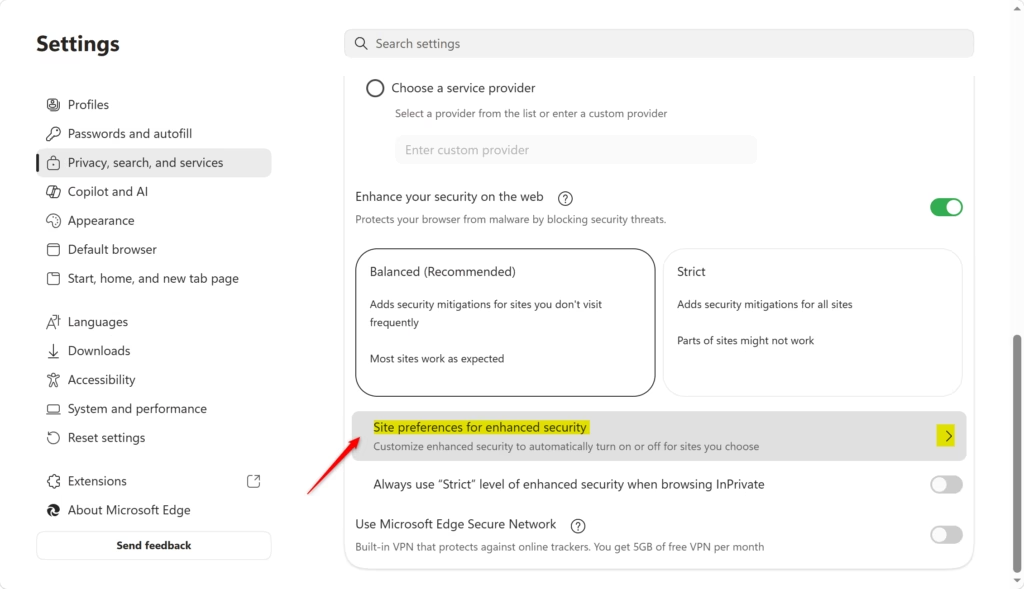
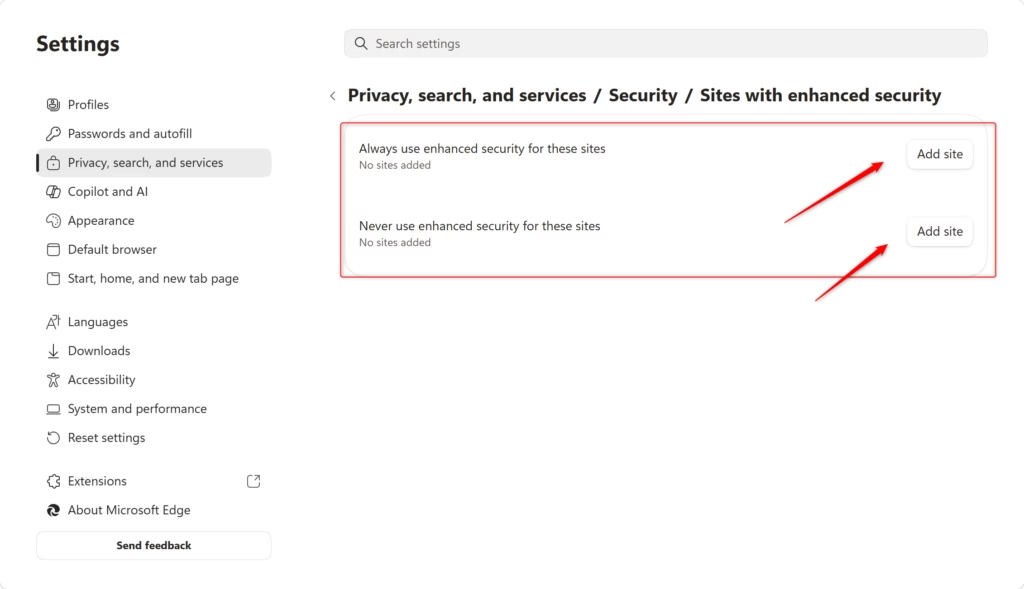
Adding a specific website to an exception list in Microsoft Edge’s Enhanced Security settings is straightforward, letting you control if a site always or never gets extra protection.
Editing or Removing Sites from Exception Lists:
You can easily edit or remove websites from your Microsoft Edge Enhanced Security exception lists by revisiting the site preferences page in the browser’s settings.
- Go back to the “Site preferences for enhanced security” page in Edge’s settings.
- Find the website you want to manage in either the “Never use” or “Always use” list.
- Next to the website’s address, click the “More actions” icon (it usually looks like three dots).
- You will see options to “Edit” the address or “Remove” the site from the list.
Important Note: When you turn off Enhanced Security for a site directly from the website itself (by clicking the “Added security” icon in the address bar), Edge automatically adds it to the “Never use enhanced security for these sites” list. This is a quick way to fix a problem if you see one right away.
Reference:
https://support.microsoft.com/en-us/edge/enhance-your-security-on-the-web-with-microsoft-edge
Summary
Microsoft Edge’s Enhanced Security feature provides better online protection through settings like Balanced mode for most sites and Strict mode for maximum defense, with options to manage exceptions.
What is the enhanced security mode in Microsoft Edge?
Microsoft Edge’s Enhanced Security Mode automatically applies stricter security settings to protect you from malicious websites. It offers Basic, Balanced, and Strict levels, with Balanced enabled by default to block risky sites without hindering everyday browsing.
Is Microsoft Edge security warning legit?
Yes, Microsoft Edge security warnings are generally legitimate. They are designed to alert you to potentially dangerous websites or downloads that could harm your device or compromise your data. Always heed these warnings and proceed with caution.
What is Microsoft Enhanced security?
Microsoft Enhanced Security is a feature that strengthens your browser’s defenses against attacks, particularly those exploiting JavaScript vulnerabilities. It can disable Just-In-Time (JIT) compilation for JavaScript, closing potential entry points for attackers, and integrates additional Windows protections.
How do I turn on enhanced security?
To turn on enhanced security in Microsoft Edge, navigate to Settings > Privacy, search, and services. Under ‘Security,’ select your preferred level: Balanced (default) or Strict. For more granular control, you can explore advanced security options within the browser settings.
Was this guide helpful?

About the Author
Richard
Tech Writer, IT Professional
Richard, a writer for Geek Rewind, is a tech enthusiast who loves breaking down complex IT topics into simple, easy-to-understand ideas. With years of hands-on experience in system administration and enterprise IT operations, he’s developed a knack for offering practical tips and solutions. Richard aims to make technology more accessible and actionable. He's deeply committed to the Geek Rewind community, always ready to answer questions and engage in discussions.


No comments yet — be the first to share your thoughts!