How to Turn Enhanced Security On or Off with Microsoft Edge

You can turn Microsoft Edge’s Enhanced Security Mode on or off to control its level of protection against potentially dangerous websites.
Enhanced Security Mode is a feature within the Microsoft Edge browser that automatically applies stricter security settings to help protect you from malicious sites.
Microsoft Edge’s Enhanced Security Mode offers three levels: Basic, Balanced, and Strict. The Balanced setting is enabled by default on Windows 11 and helps block most risky sites without breaking everyday browsing.
You can adjust this setting to better suit your browsing habits, ensuring a balance between security and site compatibility.
What Does “Enhanced Security” Do?
When you turn on Enhanced Security, it helps protect your browser from attacks. These attacks often try to find weak spots in how websites use code.
One thing it does is change how JavaScript works. JavaScript makes websites interactive. Typically, your browser uses a process called Just-In-Time (JIT) compilation for JavaScript. This process quickly translates the code into computer language, which speeds things up. However, this speed can sometimes create an opening for attackers.
Enhanced Security can turn off JIT compilation for JavaScript. This is like closing a possible entry point for attackers. It also adds extra Windows protections to your browser. These include:
- Hardware-enforced Stack Protection: This means your computer’s hardware helps stop bad code from taking over important parts of your browser.
- Arbitrary Code Guard (ACG): This acts like a security guard. It stops unknown code from running in your browser’s memory.
These protections make Microsoft Edge stronger against online threats. The browser smartly uses these tougher rules for sites it doesn’t know or sites you don’t visit much. It learns how you browse and adjusts. This gives you more protection without you having to think about it.
Choose Your Protection Level: Balanced vs. Strict
When you turn on Enhanced Security, you can choose how strong it should be. Microsoft Edge has two modes:
Balanced Mode (Recommended)
This is good for most people. Balanced mode adds extra security to websites you don’t visit often or are new. Your favorite sites, the ones you use every day, are usually left alone so they work fine.
What to expect: Most websites will work as usual. You get better protection for new places without much change to your daily browsing. You might see a small shield or a “Secure” sign near the address bar when this mode is active for a site.
Tip: If you are new to Enhanced Security, start with Balanced mode. You can make it stronger later if you want.
Strict Mode
This is the strongest option. When you use Strict mode, Microsoft Edge uses enhanced security for all websites you visit. This gives you the most protection from threats.
What to expect: While it offers the best defense, Strict mode can sometimes cause problems with some websites. Parts of a site might not load, or some features might not work. This is because the stricter security might get in the way of how some websites are built.
Warning: Strict mode is not recommended for everyday browsing for most people. You might need to change settings or add exceptions for sites you use often, which can be annoying. If you don’t want to change settings or deal with website issues, use Balanced mode.
How to Turn Enhanced Security On or Off
Ready to control your browser’s security? Here’s how to turn Enhanced Security on or off and pick your mode:
- Open Microsoft Edge.
- Click the three dots (…) in the top-right corner. This is the “Settings and more” menu.
- Choose “Settings” from the list.
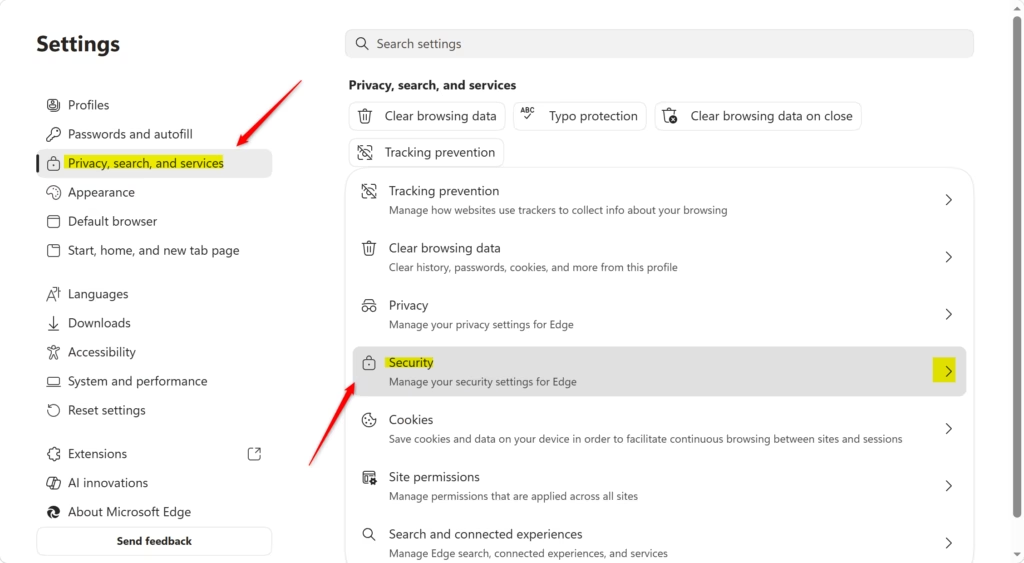
- On the left side, click “Privacy, search, and services.”
- Scroll down to the “Security” section.
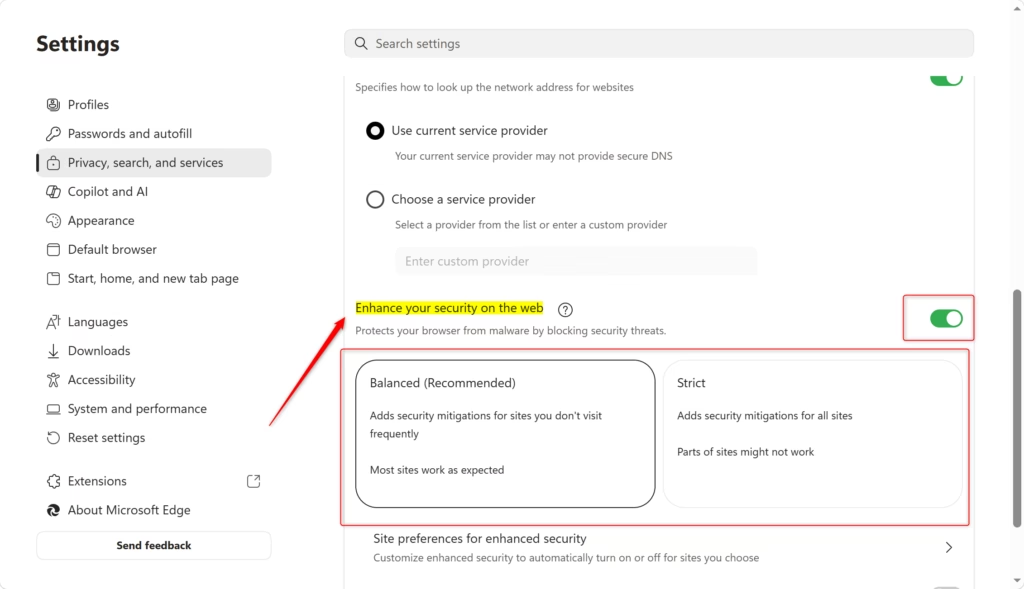
- Find “Enhance your security on the web.” Make sure the switch next to it is “On.”
- Below that, you can choose your mode. Click the dropdown menu and pick “Balanced” or “Strict.”

Practical Tip: If a website doesn’t work right after turning on Enhanced Security, you can often fix it by adding it to an exception list. This lets you keep the feature on for most of your browsing but makes sure important sites work.
Making Exceptions: When a Site Needs Special Treatment
Sometimes, even with Balanced mode, a website might not work correctly. Or, you might want to make sure a specific site *always* has extra protection, even if you visit it often. Exception lists are useful for this.
You can tell Microsoft Edge to either *always* use enhanced security for a site or *never* use it for that site.
How to Add a Site to an Exception List:
- Follow steps 1-5 from the section above to get to the “Security” settings page.
- Make sure “Enhance your security on the web” is “On.”
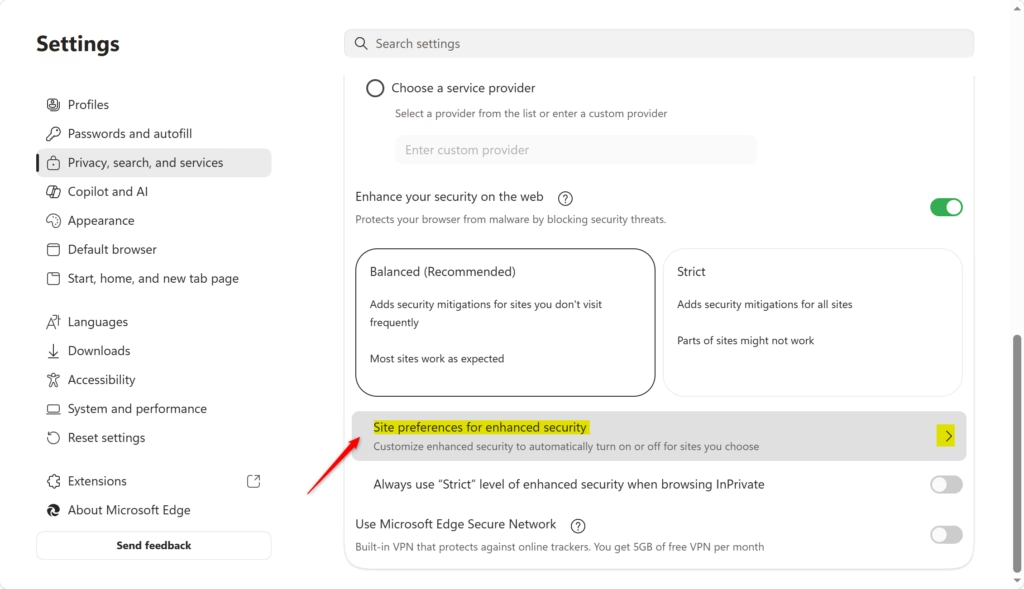
- Below where you choose the mode, click on “Site preferences for enhanced security.”
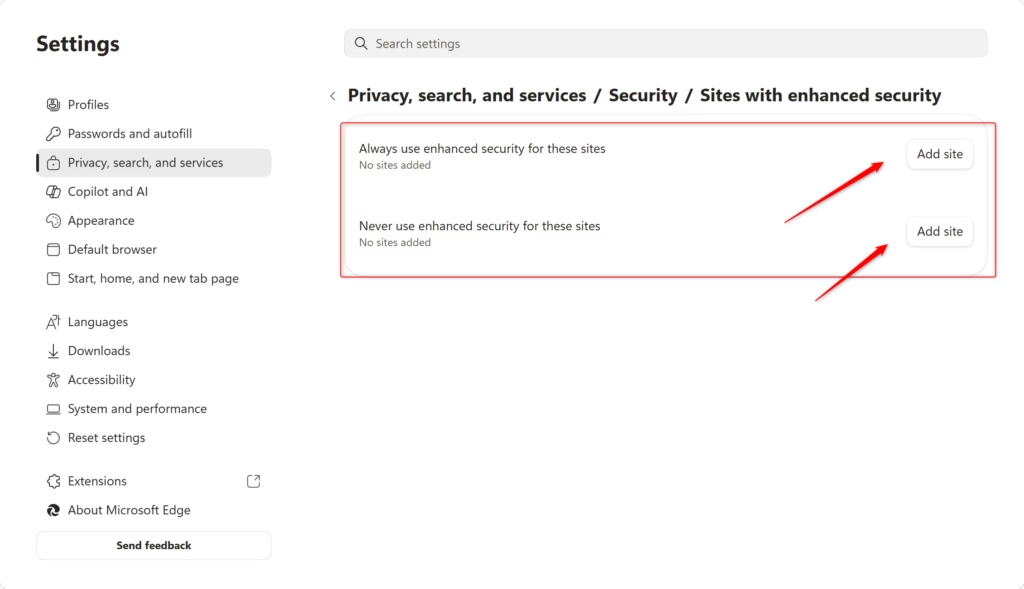
- You will see two lists: “Never use enhanced security for these sites” and “Always use enhanced security for these sites.”
- To add a site to a list, click the “Add site” button next to the list you want.
- Type the full website address (URL) in the box. For example:
https://www.example.com - Click “Add.”
Example: If your online bank website doesn’t load well with Balanced mode, you can add its address to the “Never use enhanced security for these sites” list. If you visit a forum you think might be risky, you can add it to the “Always use enhanced security for these sites” list.
Editing or Removing Sites from Exception Lists:
Need to change an exception? Here’s how:
- Go back to the “Site preferences for enhanced security” page in Edge’s settings.
- Find the website you want to manage in either the “Never use” or “Always use” list.
- Next to the website’s address, click the “More actions” icon (it usually looks like three dots).
- You will see options to “Edit” the address or “Remove” the site from the list.
Important Note: When you turn off Enhanced Security for a site directly from the website itself (by clicking the “Added security” icon in the address bar), Edge automatically adds it to the “Never use enhanced security for these sites” list. This is a quick way to fix a problem if you see one right away.
Reference:
https://support.microsoft.com/en-us/edge/enhance-your-security-on-the-web-with-microsoft-edge
Summary
Enhanced Security in Microsoft Edge is a feature that protects you from online threats by using stronger security settings. You can choose between “Balanced” mode, which protects unknown sites while letting your favorites work normally, and “Strict” mode, which applies stronger protections to all sites but might cause some sites to not work correctly. You can also create exception lists to control how Enhanced Security applies to specific websites. This feature helps keep your browsing safer without requiring constant manual adjustments.
Was this guide helpful?

About the Author
Richard
Tech Writer, IT Professional
Richard, a writer for Geek Rewind, is a tech enthusiast who loves breaking down complex IT topics into simple, easy-to-understand ideas. With years of hands-on experience in system administration and enterprise IT operations, he’s developed a knack for offering practical tips and solutions. Richard aims to make technology more accessible and actionable. He's deeply committed to the Geek Rewind community, always ready to answer questions and engage in discussions.

No comments yet — be the first to share your thoughts!