Windows 11 Taskbar: What is the Task view Feature

Windows 11 Task view is a feature that lets you see all your open applications and virtual desktops at a glance.
Think of it as a central hub. It helps you quickly switch between programs and manage different workspaces efficiently on your PC.
It’s like a visual overview, similar to Alt+Tab, but with more advanced organization features. For example, you can create up to three virtual desktops in Windows 11 to keep different tasks separate.
Task view appears as an icon on your Windows 11 taskbar, typically next to the Start button. Activating it reveals a clean, organized display of your current windows, making it easy to find what you need.
Task view shows all your open applications and virtual desktops. Click the overlapping rectangles icon on the taskbar or press Windows key + Tab to open it. You can then switch between windows or manage multiple workspaces.
1Finding and Opening Task View
The Windows Task View button is easy to spot on your taskbar, usually found between the Search icon and the Start button, and it looks like two overlapping rectangles.
| 1. Widgets | 2. Start | 3. Search | 4. Task view | 5. Applications | 6. System tray |
Here’s how you can bring up Task view:
- Click the Task View Icon: The most direct way is to simply click on that little icon on your taskbar. It’s usually the fourth icon from the left if you’re using the default centered alignment in Windows 11.
- Use a Keyboard Shortcut: For those who love keyboard shortcuts (and who doesn’t love being a power user?), you can press the
Windows key + Tabsimultaneously. This is a super quick way to bring up Task view without even touching your mouse.
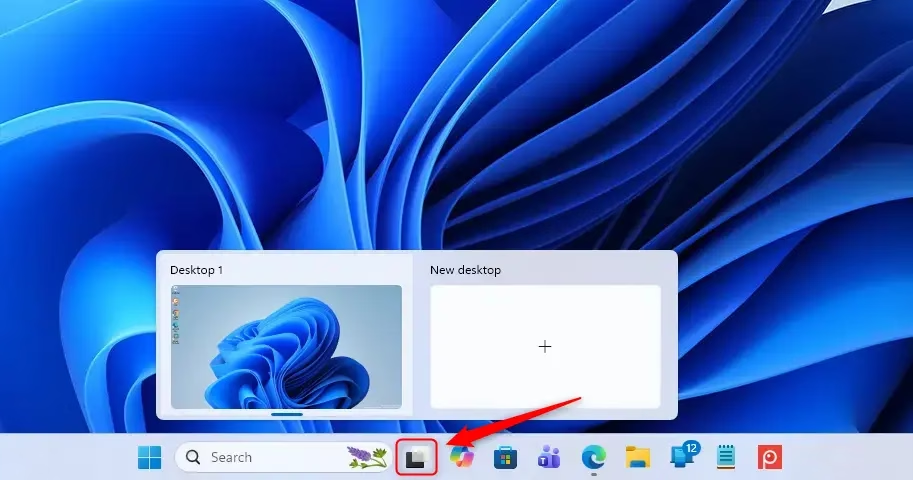
Pro Tip: If you don’t see the Task view icon on your taskbar, don’t worry! It might be hidden. We’ll cover how to show or hide it later in this guide.
2What You See When Task View Opens
When you open Windows Task View, your screen shows a clear overview of all your open apps and windows as small pictures at the top.
Here’s a breakdown of what you’ll typically see:
- Thumbnails of Open Windows: At the top of the Task view screen, you’ll see a row of thumbnails, each representing an application or document that is currently open. These are your active tasks! Clicking on any of these thumbnails will immediately switch you to that specific window. It’s like having a visual menu of all your open programs.
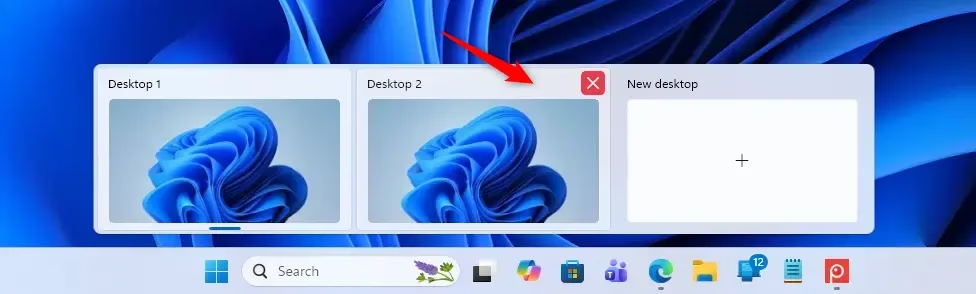
- Multiple Desktops: This is where Task view really shines for power users. Below the thumbnails of your open windows, you’ll likely see a section labeled “Desktops.” By default, you’ll have “Desktop 1.” This feature allows you to create multiple virtual desktops. Think of each desktop as a separate workspace. You can drag different apps to different desktops to keep your work organized. For example, you could have one desktop for work-related tasks, another for personal browsing, and yet another for gaming.
- “New desktop” Button: To the right of your existing desktops (usually labeled “Desktop 1,” “Desktop 2,” etc.), you’ll find a button that says “+ New desktop.” Clicking this is how you create a fresh, empty workspace.
Warning: While Task view is fantastic for organization, don’t go overboard creating dozens of desktops unless you have a specific workflow that demands it. Too many can become just as confusing as too many open windows!
3How to Use Task View for Multitasking
Task view isn’t just about seeing what’s open; it’s about actively managing your workflow. Here’s how you can leverage it:
Switching Between Open Applications
Switching between your open apps is simple with Windows Task View; just click the Task View icon or press Windows key + Tab to see all your windows.
- Open Task View: Click the Task view icon or press
Windows key + Tab. - Select Your App: Look at the thumbnails at the top. Find the one you want and click it.
- You’re There! Windows will instantly switch you to that application.
Practical Tip: If an app has multiple windows open (like several Word documents), hovering over its thumbnail in Task view might show you individual instances of those documents, allowing you to pick the exact one you need.
Managing Multiple Desktops
Windows Task View makes managing multiple desktops easy, letting you create new, blank desktops with a click and move your apps between them.
- Create a New Desktop: Open Task view (
Windows key + Tab). Click the “+ New desktop” button. A new, blank desktop will appear. - Move Apps Between Desktops:
Alternatively, you can often click and drag an application’s thumbnail directly to another desktop listed at the bottom of the Task view screen.
- Open Task view.
- Hover over an open application’s thumbnail.
- Right-click on the thumbnail.
- You’ll see an option like “Move to” followed by your available desktops. Select the desktop you want to move it to.
- Switch Between Desktops:
- Open Task view.
- Click on the desktop you want to switch to from the list at the bottom.
- You can also use the keyboard shortcut
Ctrl + Windows key + Left ArroworCtrl + Windows key + Right Arrowto cycle between your desktops.
- Close a Desktop: If you no longer need a virtual desktop, open Task view, hover over the desktop you want to close, and click the ‘X’ that appears in the corner of its thumbnail.
Warning: When you close a desktop, all the applications running on it will be moved to the desktop to its left. Make sure you’ve saved your work!
Power User Tip: Assigning specific apps to specific desktops can make your workflow incredibly smooth. For instance, keep your communication apps (like Teams or Slack) on Desktop 2, and your creative apps on Desktop 3. This way, you can quickly switch contexts without getting distracted by unrelated windows.
4Showing or Hiding the Task View Button
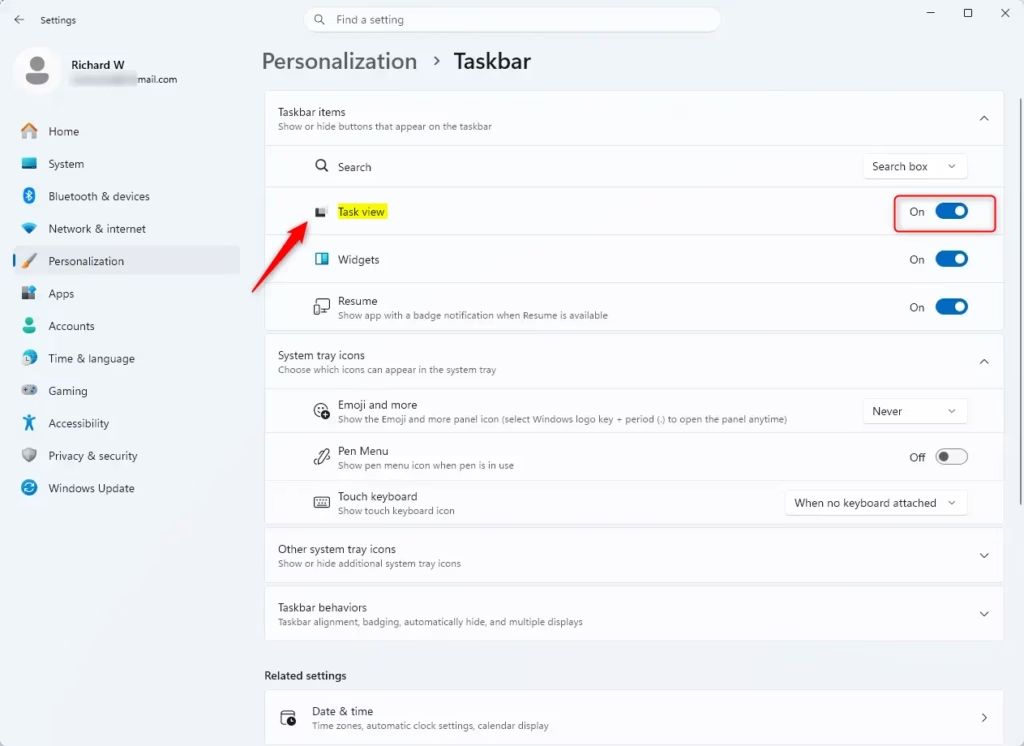
You can easily show or hide the Windows Task View button on your taskbar by going into Taskbar settings.
- Right-click on an empty space on your taskbar.
- Select “Taskbar settings” from the context menu that appears.
- In the Taskbar settings window, look for “Taskbar items.”
- You’ll see a toggle switch for “Task view.” Turn it On if you want the icon to appear, or Off if you want it hidden.
Convenience Tip: Even if you hide the Task view button, you can always still use the Windows key + Tab shortcut to access the feature. So, hiding it doesn’t mean losing access!
Conclusion
The Windows Task View feature is a helpful tool for managing your open apps and organizing your computer with multiple desktops.
How do I open Task View in Windows?
You can open Task View in Windows by clicking the Task View icon on your taskbar, typically located between the Search icon and the Start button. It usually appears as two overlapping rectangles. Alternatively, you can press the Windows key + Tab shortcut on your keyboard.
What does Shift F10 do?
Shift+F10 is a keyboard shortcut that typically opens the context menu for the selected item in Windows, similar to right-clicking with a mouse. It does not directly interact with the Task View feature itself but is a general Windows shortcut.
How do I change the taskbar to classic view?
Windows 11's taskbar cannot be reverted to the classic Windows 10 view directly through settings. However, you can adjust alignment to the left and disable some newer features like centered icons to achieve a more traditional look and feel.
Should Task View be on or off?
Task View is a helpful feature for managing multiple applications and virtual desktops. Keeping it enabled allows for quick switching and organization. Disabling it removes the Task View icon from the taskbar, which might hinder efficient multitasking for some users.
Was this guide helpful?

About the Author
Richard
Tech Writer, IT Professional
Richard, a writer for Geek Rewind, is a tech enthusiast who loves breaking down complex IT topics into simple, easy-to-understand ideas. With years of hands-on experience in system administration and enterprise IT operations, he’s developed a knack for offering practical tips and solutions. Richard aims to make technology more accessible and actionable. He's deeply committed to the Geek Rewind community, always ready to answer questions and engage in discussions.

No comments yet — be the first to share your thoughts!