Windows 11 Taskbar: What is the Search Feature

Windows 11’s Taskbar search feature helps you quickly find apps, files, settings, and even web results right from your taskbar.
This tool helps you find anything on your computer without digging through menus or windows. Think of it as a mini-search engine built right into your PC’s main navigation bar.
For example, type “Settings” to instantly open the Windows 11 Settings app. It only takes a few seconds. It also shows recent and frequently used apps to help you launch your favorites faster.
The Windows 11 taskbar search feature is a built-in tool for finding apps, files, settings, and web results. Click the search box or magnifying glass icon on the taskbar and start typing your query to see suggestions. Select an item to open it or view search results.
Finding What You Need with Windows Search
Windows Search on your taskbar is a built-in tool that helps you quickly find apps, files, settings, and even web results without opening a browser.
| 1. Widgets | 2. Start | 3. Search | 4. Task view | 5. Applications | 6. System tray |
Using the Search Box on Your Taskbar
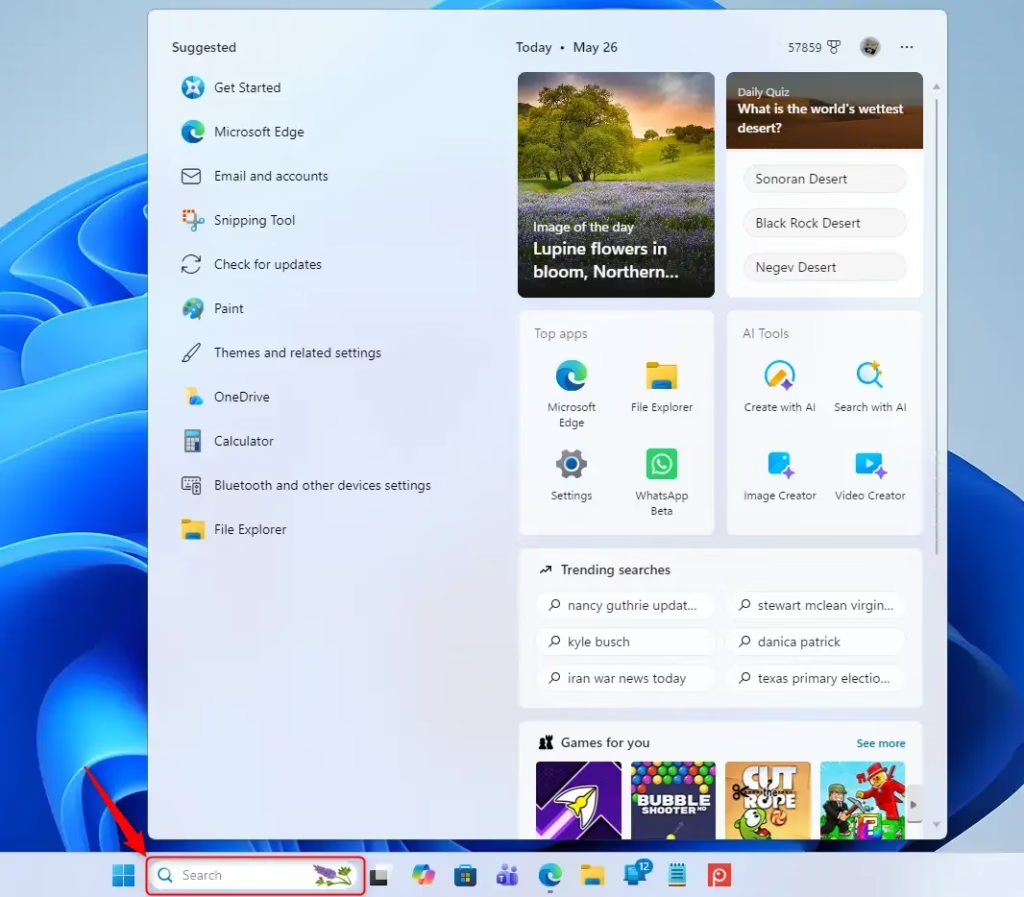
To use the search feature on your Windows 11 taskbar, simply look for the search box, which is often next to the Start button, or a magnifying glass icon if the box isn’t visible.- Look for the Search Box: You’ll usually see a search box right on your taskbar, often next to the Start button. If you don’t see a box, you might see a magnifying glass icon.
- Start Typing: Just click in the search box (or on the icon) and start typing what you’re looking for. As you type, Windows will show you a list of suggestions. These can be apps, documents, settings, or even web results pulled from Microsoft Bing.
- Select Your Result: Click on the item you want from the list, and Windows will either open the app, file, or setting, or take you to the web search result.
Using the Keyboard Shortcut
You can open the Windows taskbar search quickly using your keyboard by pressing the Windows key and the S key at the same time.
- Press the Keys: Press the Windows key + S on your keyboard at the same time.
- Type and Select: This will bring up the same search box you see on the taskbar. Type your query and select your result just like you would from the taskbar itself.
Searching from the Start Menu
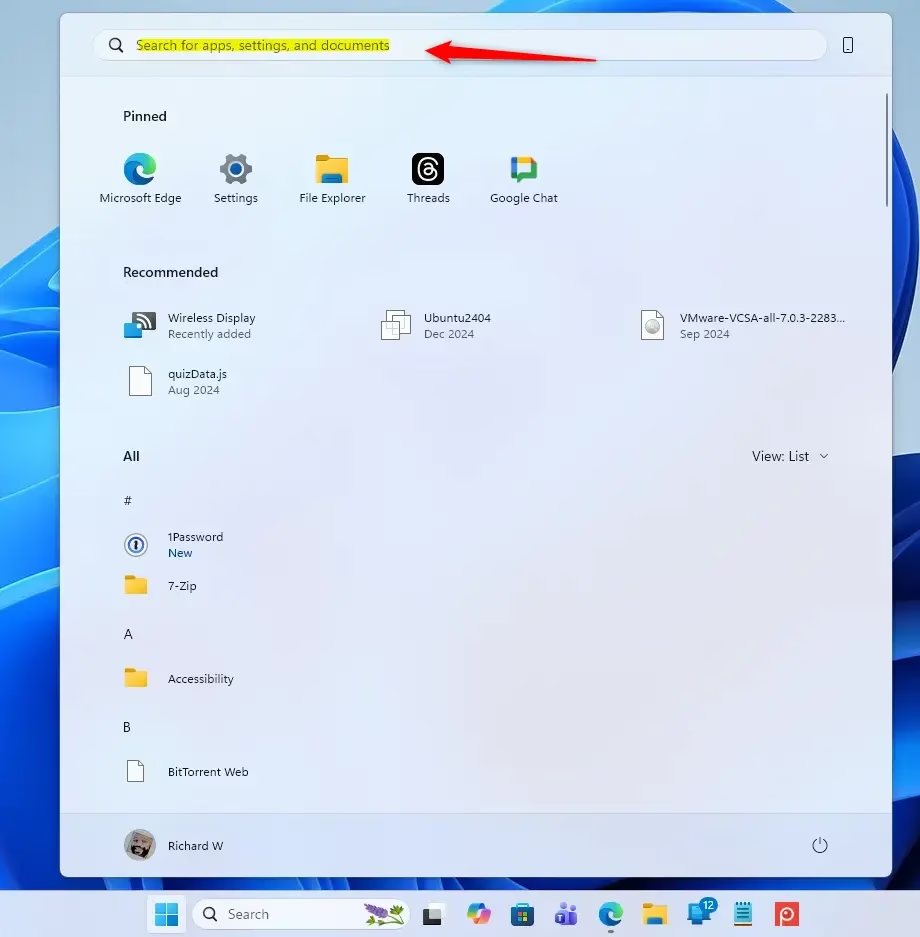
Searching from the Windows 11 Start menu is simple: just open the Start menu by clicking its icon or pressing the Windows key, and then start typing your search query.
- Open Start: Click the Start button or press the Windows key on your keyboard.
- Start Typing: As soon as the Start menu opens, you can begin typing your search query. Results will appear in the Start menu window.
- Choose Your Item: Click on the result you want to open.
Customizing How Search Appears
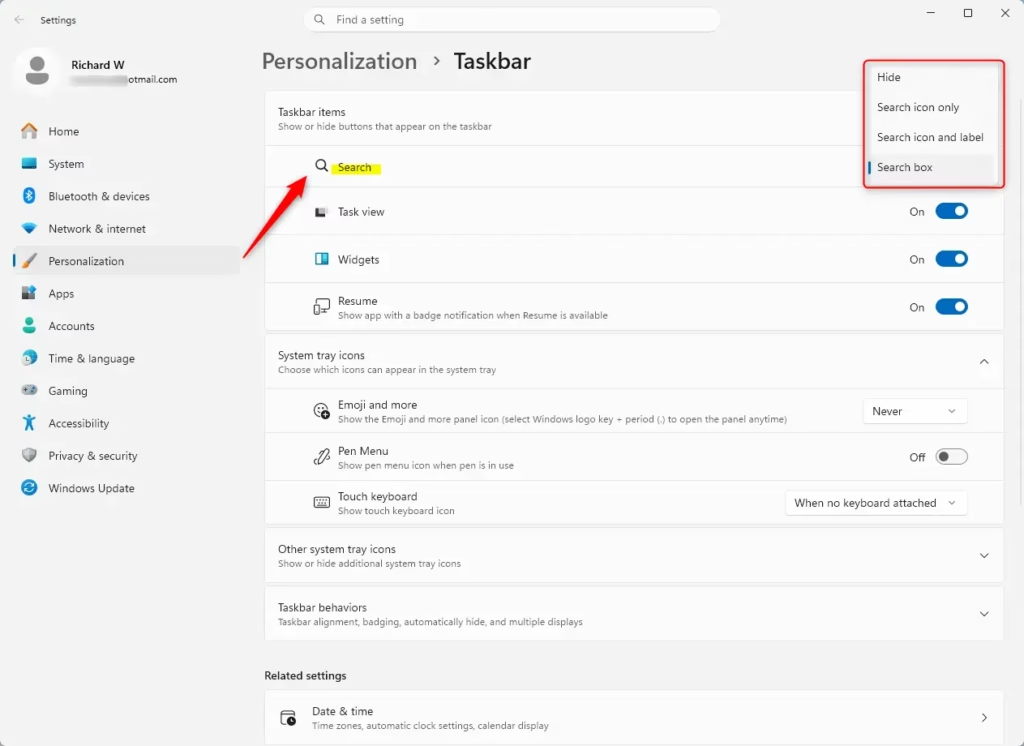
You can change how the search feature looks on your Windows 11 taskbar, choosing between a full search box or just a magnifying glass icon, by going into Taskbar settings.
- Right-Click the Taskbar: Find an empty spot on your taskbar and right-click on it.
- Select Taskbar Settings: A menu will pop up. Choose “Taskbar settings.”
- Find Taskbar Items: In the Taskbar settings window, look for a section called “Taskbar items.”
- Configure Search: You’ll see an option for “Search.” Click the dropdown menu next to it. You have a few choices:
- Search box: This shows the full text box where you can type.
- Search icon and label: This displays a small magnifying glass icon with the word “Search” next to it.
- Search icon only: This shows just the magnifying glass icon.
- Hide: This will completely remove the search feature from your taskbar.
Practical Tip: If you search often, keeping the “Search box” visible is the quickest way to find your results. If you’re trying to save space or prefer using the keyboard shortcut (Windows key + S), then “Search icon only” or even “Hide” might be better for you.
Warning: If you choose to “Hide” the search feature, remember you’ll need to use the keyboard shortcut (Windows key + S) or the Start menu to search. Make sure you’re comfortable with those methods before hiding the taskbar option!
Reference:
Conclusion
Mastering the taskbar search means you’ll spend less time hunting for files and apps, and more time using them. Experiment with the different display options to find what feels most natural for your daily computer use. Happy searching!
How do you search on the taskbar?
Click the search box or magnifying glass icon on your Windows 11 taskbar and start typing your query. Windows Search instantly shows relevant apps, files, settings, and web results, allowing quick access to what you need without opening separate applications.
How to fix taskbar search not working in 🪟 Windows 10?
To fix Windows 10 taskbar search, try restarting Windows Explorer using Task Manager. You can also run the Search and Indexing troubleshooter in Settings or check for Windows updates. Sometimes, rebuilding the search index can resolve the issue.
How do I activate the search bar?
You’ll usually see the search bar on the Windows 11 taskbar, next to the Start button. If you only see a magnifying glass icon, click it to open the search box. Clicking into the box or icon activates it, letting you start typing.
How do I bring back the search bar in 🪟 Windows 11?
If the search bar is missing in Windows 11, right-click the taskbar, choose ‘Taskbar settings,’ then expand the ‘Taskbar behaviors’ section. Look for an option related to the search icon or box and select ‘Show search icon’ or ‘Show search box’ to restore it.
Was this guide helpful?

About the Author
Richard
Tech Writer, IT Professional
Richard, a writer for Geek Rewind, is a tech enthusiast who loves breaking down complex IT topics into simple, easy-to-understand ideas. With years of hands-on experience in system administration and enterprise IT operations, he’s developed a knack for offering practical tips and solutions. Richard aims to make technology more accessible and actionable. He's deeply committed to the Geek Rewind community, always ready to answer questions and engage in discussions.




No comments yet — be the first to share your thoughts!