How to Enable Shortened Time on Windows 11 Taskbar

You can enable a shortened time and date display on your Windows 11 taskbar to save space and achieve a cleaner look.
This feature transforms the default, longer time and date format into a more compact version, which is particularly useful if your taskbar already feels crowded. For example, instead of seeing “1:59 PM” and “6/22/2024,” you’ll see “1:59” and “6/22.”
This functionality is currently available in Windows 11 builds within the Beta Channel, such as build 22635.3790. You’ll need a tool like ViveTool to activate this hidden option.
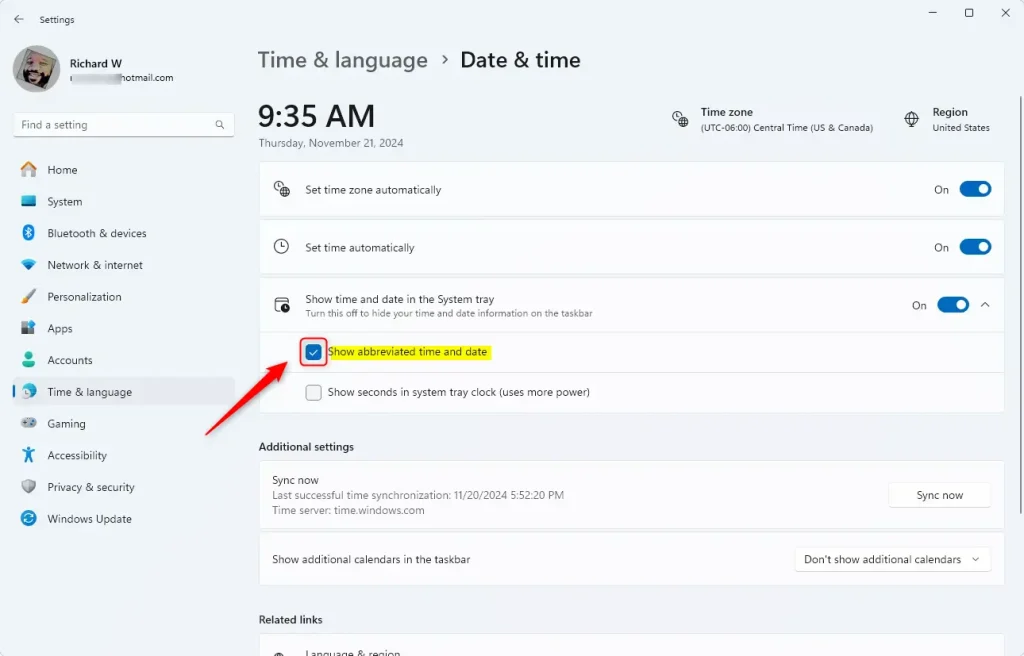
Enable the shortened time and date by using ViveTool with the command vivetool /enable /id:48525682. Afterward, navigate to Settings > Personalization > Taskbar > Taskbar behaviors, expand “Show time and date,” and check “Show abbreviated time and date.” Alternatively, modify the ShowShortenedDateTime value in the Windows Registry.
Enable or Disable Shortened Time and Date on the Taskbar in Windows
You can turn on a handy hidden feature in Windows 11 to show a shorter version of the time and date right on your taskbar.
First, read the post below to get ViveTool set up on Windows 11.
Unlock Hidden Features in Windows 11 with ViVeTool
Once you have ViveTool downloaded, run the following command to enable the hidden feature that displays a shortened version of the date and time:
vivetool /enable /id:48525682
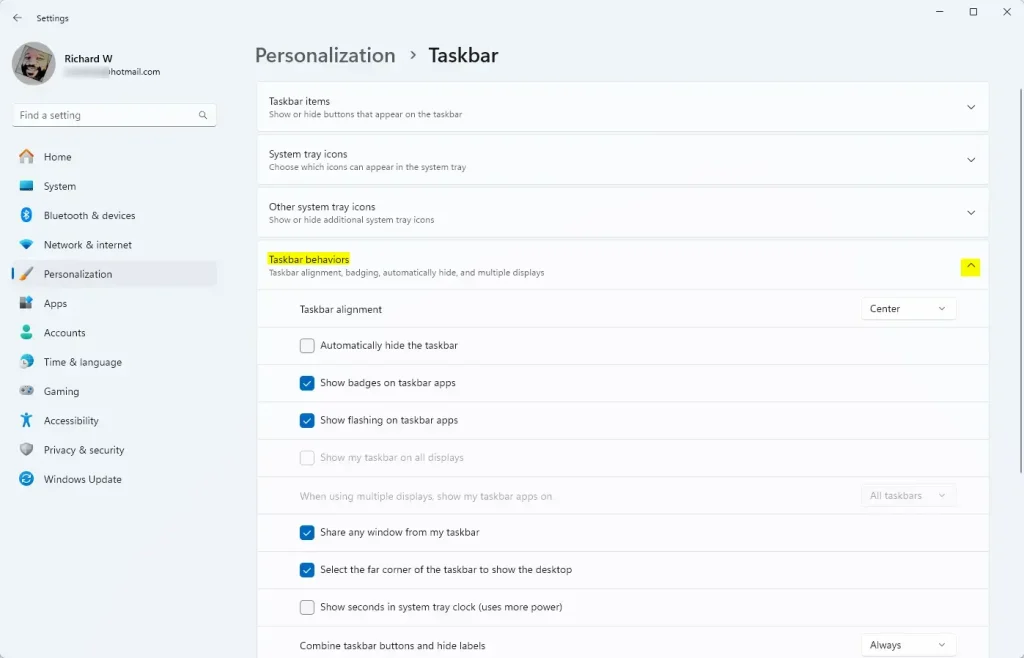
After enabling it, go to Settings > Personalization and select the Taskbar tile on the right.
Select the Taskbar behaviors tile in the Taskbar settings pane to expand it.
Next, expand the “Show time and date in the System tray” tile. Check or uncheck the box next to “Show abbreviated time and date” to turn it on or off.
Close the Settings app when you’re finished.
Show Shortened Time and Date on Taskbar Using Windows Registry
You can also change how your time and date look on the Windows 11 taskbar by using the Registry Editor to show a shortened version.
First, open the Windows Registry Editor with administrator privileges. [Requires Admin Privileges]
Then, navigate to the following registry key.
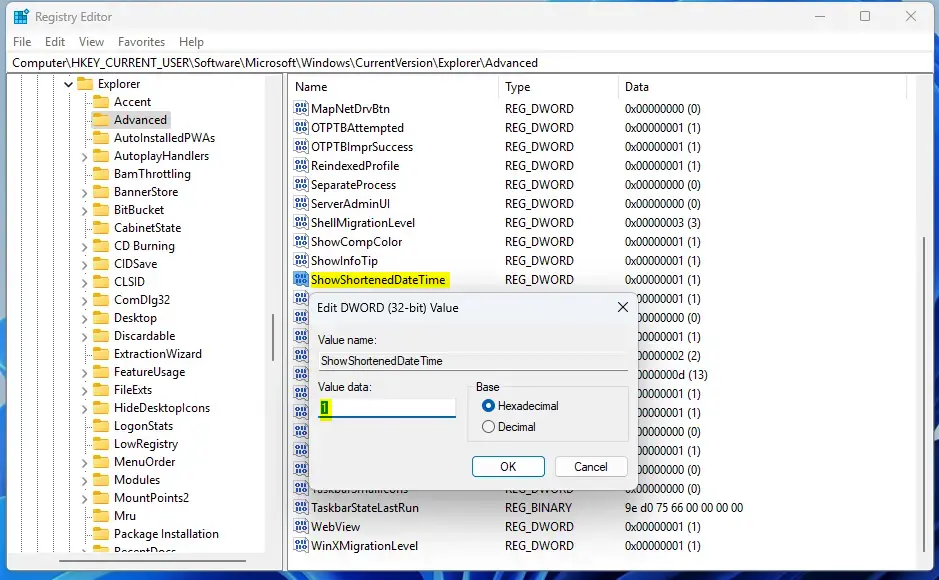
Computer\HKEY_CURRENT_USER\Software\Microsoft\Windows\CurrentVersion\Explorer\Advanced
In the right pane of the key, double-click the value named ShowShortenedDateTime (REG_DWORD) to change it.
Type `1` to show the shortened time and date on your taskbar. Type `0` to go back to the standard time and date format.
If you don’t see an item called “ShowShortenedDateTime,” right-click in an empty space and choose ‘New’ > ‘DWORD (32-bit) Value’. Then, name it “ShowShortenedDateTime” and set its value to `1` to enable it or `0` to disable it.
You might need to restart your computer for the changes to take effect.
That’s it!
Summary
Windows 11 now has a hidden option to show a shorter time and date on your taskbar, which you can turn on or off.
Users can use ViVeTool to turn on this feature with the command vivetool /enable /id:48525682.
You can also use the Windows Registry Editor to change the shortened time and date display on the taskbar. Change the ShowShortenedDateTime value in the registry path HKEY_CURRENT_USER\Software\Microsoft\Windows\CurrentVersion\Explorer\Advanced.
Whether you use ViVeTool or the Windows Registry, this guide gives you the steps you need to customize the time and date display on your Windows 11 taskbar.
How do I show abbreviated time and date in 🪟 Windows 11?
How do you show an abbreviated date and time? Head to Settings > Personalization > Taskbar. Expand Taskbar behaviors and toggle Show shortened time and date. If you don't see this in settings, abbreviate date and time settings via Registry Editor.
How to get seconds on 🪟 Windows 11 taskbar Clock?
And then go into time and language. And then in time and language you want to click on date. And time. And then you want to click the option that says show time and date in the system tray.
Was this guide helpful?

About the Author
Richard
Tech Writer, IT Professional
Richard, a writer for Geek Rewind, is a tech enthusiast who loves breaking down complex IT topics into simple, easy-to-understand ideas. With years of hands-on experience in system administration and enterprise IT operations, he’s developed a knack for offering practical tips and solutions. Richard aims to make technology more accessible and actionable. He's deeply committed to the Geek Rewind community, always ready to answer questions and engage in discussions.



No comments yet — be the first to share your thoughts!