How to Enable or Disable Regedit in Windows 11

You can enable or disable the Registry Editor (regedit.exe) in Windows 11 to control access to critical system settings.
The Windows Registry is a vital database holding configuration information for Windows and its applications. Disabling regedit.exe is a security measure that prevents unauthorized users from making potentially harmful changes to these settings.
For instance, disabling Registry Editor blocks access to sensitive areas like 🗝️HKEY_LOCAL_MACHINE, safeguarding your system’s core configurations. When disabled, users attempting to open regedit.exe will see a message indicating administrator-imposed restrictions.
You can enable or disable Registry Editor access using Group Policy Editor, Registry Editor itself, or PowerShell. For Pro versions, use gpedit.msc to navigate to User Configuration > Administrative Templates > System and set “Prevent access to registry editing tools.” For Home versions, modify the “DisableRegistryTools” DWORD value in the registry.
Method 1Use Group Policy Editor
Windows Pro users can disable Regedit using the Group Policy Editor, a straightforward method that blocks access to the registry editing tool for everyone on the computer.
Why use this method? This is the safest approach for Windows Pro users. What happens? It applies a system-wide policy that blocks access.
Requires admin privileges.
- Press ⊞ Win+R, type
gpedit.msc, and hit Enter. - Navigate to: User Configuration > Administrative Templates > System.
- Find Prevent access to registry editing tools on the right.
- Double-click it and select Enabled to block access or Disabled to allow it.
gpedit.msc (this opens the Group Policy Editor), and hit Enter.Click OK and restart your computer to apply the changes.
Method 2Use Registry Editor
For Windows Home users, you can disable Regedit by making a small change directly in the Registry Editor itself, which tells Windows to stop the tool from opening.
Why use this method? This works on Windows Home editions where Group Policy is unavailable. What happens? You manually create a key that tells Windows to block the tool.
Requires admin privileges.
- Open the Registry Editor by searching for
regeditin the Start menu. - Go to:
HKEY_CURRENT_USER\SOFTWARE\Microsoft\Windows\CurrentVersion\Policies\System. - If the System folder is missing, right-click Policies, select New > Key, and name it System.
- Right-click in the empty space, select New > DWORD (32-bit) Value, and name it DisableRegistryTools.
- Double-click it and set the value to 2 to disable, or 0 to enable.
regedit, and hit Enter.HKEY_CURRENT_USER\SOFTWARE\Microsoft\Windows\CurrentVersion\Policies.DisableRegistryTools.DisableRegistryTools and set its Value data to 1 to disable access or 0 to enable it .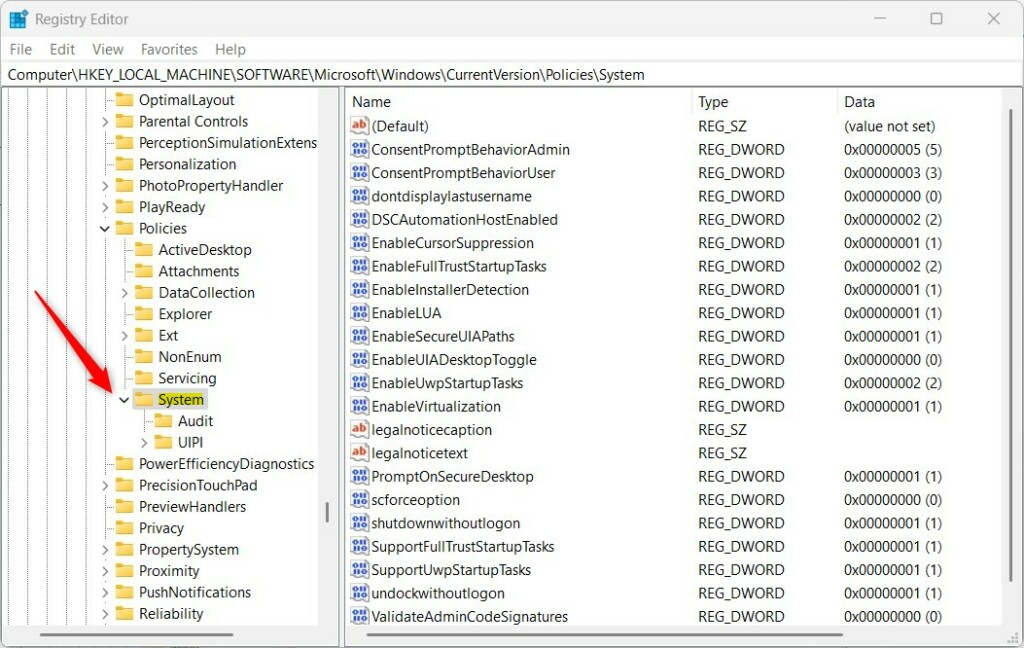
Method 3Use PowerShell
You can quickly disable Regedit in Windows 11 using a simple PowerShell command that immediately updates the system to block access to the registry editing tool.
Why use this method? This is the quickest way to toggle access. What happens? The command instantly updates the registry database.
Requires admin privileges.
- Right-click the Start button and select Terminal (Admin) or PowerShell (Admin).
- To disable access, run:
Set-ItemProperty -Path HKCU:\Software\Microsoft\Windows\CurrentVersion\Policies\System -Name DisableRegistryTools -Value 2 -Force - To enable access, run:
Remove-ItemProperty -Path HKCU:\Software\Microsoft\Windows\CurrentVersion\Policies\System -Name DisableRegistryTools -Force
reg add "HKCU\Software\Microsoft\Windows\CurrentVersion\Policies\System" /v DisableRegistryTools /t REG_DWORD /d 1 /freg delete "HKCU\Software\Microsoft\Windows\CurrentVersion\Policies\System" /v DisableRegistryTools /fTroubleshooting Access Denied Errors
If you see an ‘Access Denied’ message when trying to open Regedit in Windows 11, it usually means malware or another admin has blocked it, and you’ll need admin rights to fix this.
If you see an ‘Access Denied’ error, it often means a virus or a previous administrator has restricted your account. First, check if you have local administrator rights. If you’re a standard user, you won’t be able to change these settings without an administrator’s password. If you suspect malware, run a full scan with Windows Security or a reputable antivirus tool, as malicious software often disables the registry to prevent you from removing it.
Summary
You can manage Registry Editor access using Group Policy, the Registry itself, or PowerShell. Group Policy is best for Pro users, while Registry edits work on all versions. Always use caution when editing the registry. For more information, visit the official Microsoft documentation on security policies.
Why is my Registry Editor disabled?
Your Registry Editor is likely disabled because an administrator enabled a policy to restrict access, or a malware infection has locked it to prevent you from cleaning your system. You can attempt to re-enable it using the PowerShell or Group Policy methods described above if you have administrative rights.
Can I enable Regedit if I am not an administrator?
No, you cannot enable the Registry Editor if you are a standard user. These settings are protected by User Account Control (UAC). You must have administrative privileges to modify system-wide registry keys or group policies. Contact your system administrator if you need access to these tools for legitimate work.
Does disabling Regedit affect system performance?
No, disabling the Registry Editor does not affect your computer’s performance. It simply prevents the graphical interface from opening. The registry database itself continues to function normally in the background, allowing Windows and your installed applications to read and write the settings they need to run your system correctly.
Was this guide helpful?

About the Author
Richard
Tech Writer, IT Professional
Richard, a writer for Geek Rewind, is a tech enthusiast who loves breaking down complex IT topics into simple, easy-to-understand ideas. With years of hands-on experience in system administration and enterprise IT operations, he’s developed a knack for offering practical tips and solutions. Richard aims to make technology more accessible and actionable. He's deeply committed to the Geek Rewind community, always ready to answer questions and engage in discussions.




[…] Registry Editor in Windows is crucial for managing the operating system’s configuration settings. It provides […]