Windows 11 Taskbar: What is the Search Feature

The Windows 11 Taskbar Search feature lets you quickly find apps, files, settings, and even web results directly from your taskbar.
This built-in tool is your primary gateway to locating anything on your computer, eliminating the need to navigate through multiple menus or windows. Think of it as a mini-search engine integrated right into your PC’s main navigation bar.
For instance, you can type “Settings” into the search bar to instantly access the Windows 11 Settings app, a process that takes mere seconds. It also displays recent and frequently used apps to expedite launching your favorites.
Finding What You Need with Windows Search
Okay, let’s talk about finding stuff. Windows Search is a super handy tool built right into your taskbar, and it’s designed to help you locate files, applications, settings, and even web results pulled from Microsoft Bing (that’s Microsoft’s search engine) without needing to open a browser.

| 1. Widgets | 2. Start | 3. Search | 4. Task view | 5. Applications | 6. System tray |
Using the Search Box on Your Taskbar
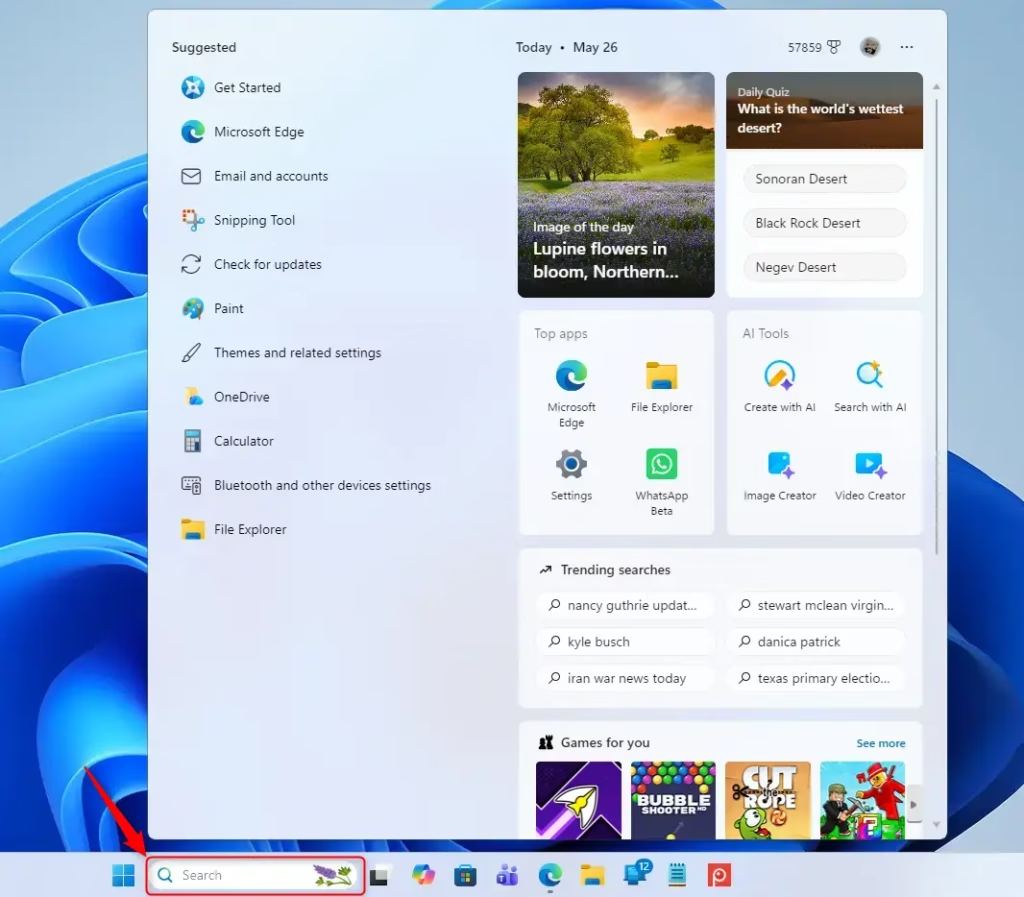
- Look for the Search Box: You’ll usually see a search box right on your taskbar, often next to the Start button. If you don’t see a box, you might see a magnifying glass icon.
- Start Typing: Just click in the search box (or on the icon) and start typing what you’re looking for. As you type, Windows will show you a list of suggestions. These can be apps, documents, settings, or even web results pulled from Microsoft Bing.
- Select Your Result: Click on the item you want from the list, and Windows will either open the app, file, or setting, or take you to the web search result.
Using the Keyboard Shortcut
Prefer using your keyboard? There’s a quicker way:
- Press the Keys: Press the Windows key + S on your keyboard at the same time.
- Type and Select: This will bring up the same search box you see on the taskbar. Type your query and select your result just like you would from the taskbar itself.
Searching from the Start Menu
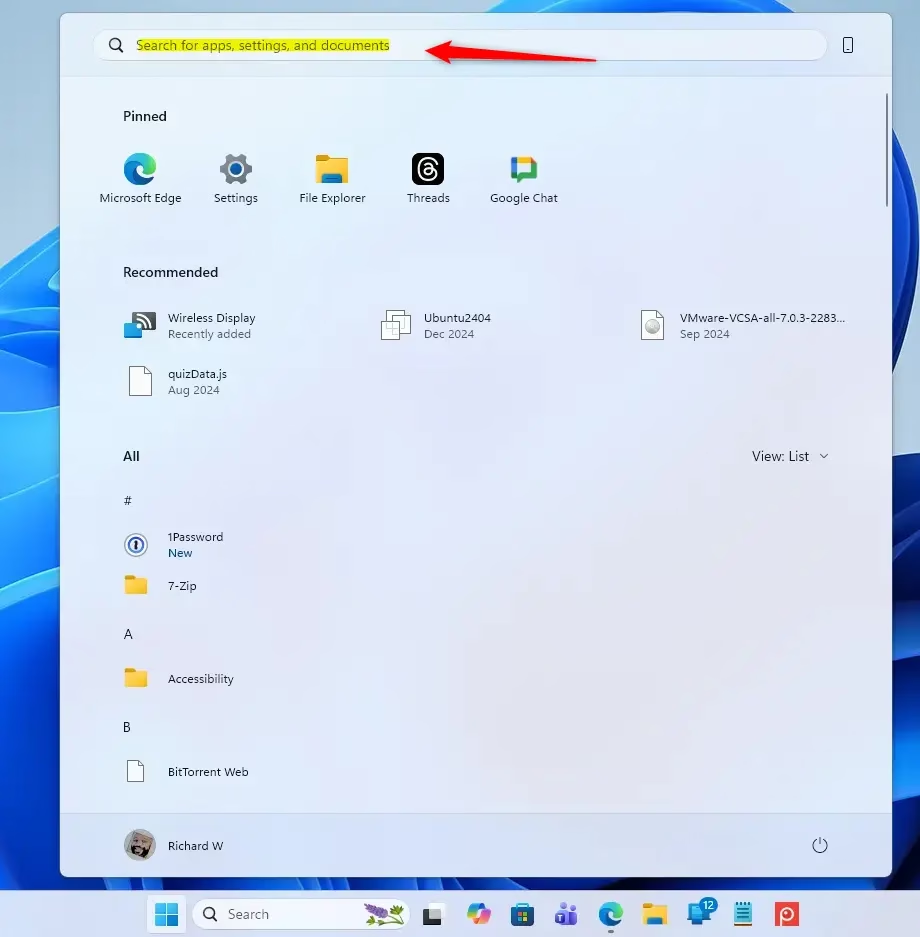
You can also initiate a search directly from the Start menu. It works pretty much the same way:
- Open Start: Click the Start button or press the Windows key on your keyboard.
- Start Typing: As soon as the Start menu opens, you can begin typing your search query. Results will appear in the Start menu window.
- Choose Your Item: Click on the result you want to open.
Customizing How Search Appears
Sometimes, the search box can take up a bit of space, or maybe you prefer just the icon. You can change how the search feature shows up on your taskbar:
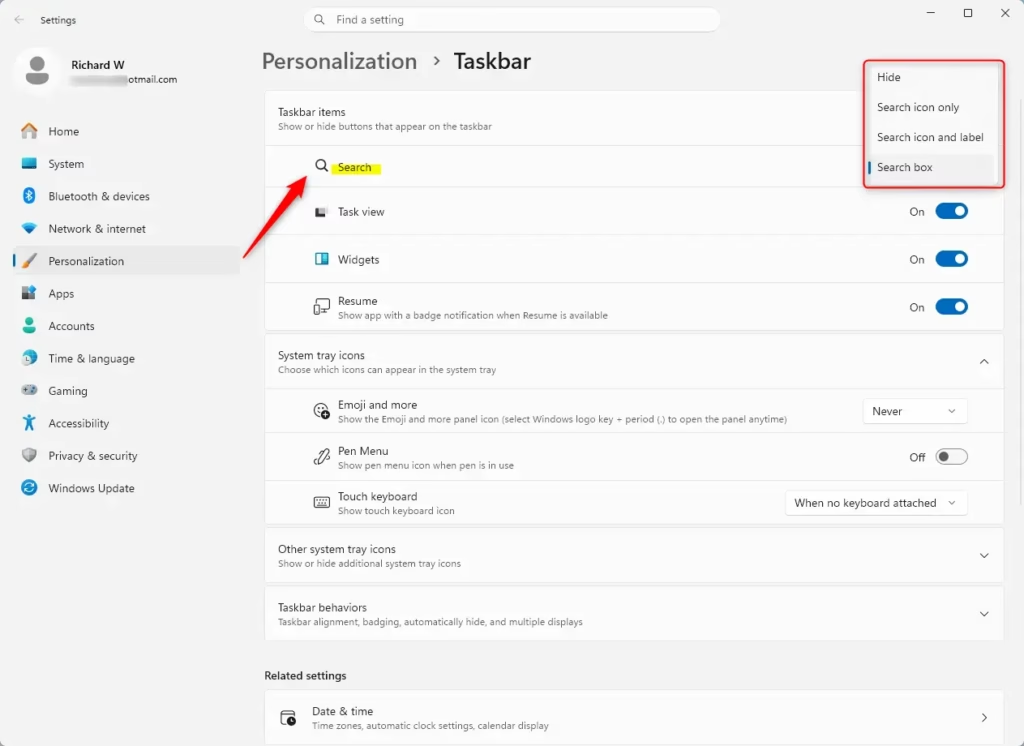
- Right-Click the Taskbar: Find an empty spot on your taskbar and right-click on it.
- Select Taskbar Settings: A menu will pop up. Choose “Taskbar settings.”
- Find Taskbar Items: In the Taskbar settings window, look for a section called “Taskbar items.”
- Configure Search: You’ll see an option for “Search.” Click the dropdown menu next to it. You have a few choices:
- Search box: This shows the full text box where you can type.
- Search icon and label: This displays a small magnifying glass icon with the word “Search” next to it.
- Search icon only: This shows just the magnifying glass icon.
- Hide: This will completely remove the search feature from your taskbar.
Practical Tip: If you’re someone who uses search constantly, keeping the “Search box” visible is the fastest way to get to your results. If you’re trying to save space or prefer using the keyboard shortcut (Windows key + S), then “Search icon only” or even “Hide” might be better for you.
Warning: If you choose to “Hide” the search feature, remember that you’ll need to use the keyboard shortcut (Windows key + S) or open the Start menu to search for things. Make sure you’re comfortable with those methods before hiding the taskbar option!
Reference:
Conclusion
Mastering the search function on your Windows taskbar means you’ll spend less time hunting for files and apps and more time actually using them. Experiment with the different display options to find what feels most natural for your daily computer use. Happy searching!
Was this guide helpful?

About the Author
Richard
Tech Writer, IT Professional
Richard, a writer for Geek Rewind, is a tech enthusiast who loves breaking down complex IT topics into simple, easy-to-understand ideas. With years of hands-on experience in system administration and enterprise IT operations, he’s developed a knack for offering practical tips and solutions. Richard aims to make technology more accessible and actionable. He's deeply committed to the Geek Rewind community, always ready to answer questions and engage in discussions.



No comments yet — be the first to share your thoughts!