
You can stop Microsoft Edge from starting automatically in Windows 11 using Task Manager or Windows Settings.
Microsoft Edge is the default web browser for Windows 11, and sometimes it launches when you start your PC even if you don’t plan to use it right away. This behavior is usually controlled by startup app settings.
This guide will show you how to take back control of your startup applications. You’ll learn to disable Edge’s automatic launch so your computer starts up just the way you like it.
Disable automatic app restarts in Windows 11 Settings. Go to Accounts > Sign-in options and turn off “Automatically save my restartable apps when I sign out.” This prevents Edge and other apps from launching on startup.
Why Does Edge Start Automatically?
Microsoft Edge might start automatically on your Windows 11 PC because Windows is designed to reopen apps you were using after you restart your computer.
Imagine this: you’re working on something in a program, and the power goes out. Wouldn’t it be great if that program opened again with your work exactly where you left off when the power returns? That’s the idea. But for a browser like Edge, you might prefer to open it yourself, when you want to. You might not want it to greet you every time you log in.
The good news is that Windows has a setting for this. It’s not hidden away. We will show you exactly where to find it and what to do.
Step 1Go to Your Windows Sign-in Options
To stop Edge from starting automatically, you need to go to your Windows 11 Sign-in options, which you can find in the Settings app.
- Open Windows Settings. You can do this in a couple of easy ways. The most common way is to click the Start button (the Windows logo, usually in the bottom-left corner) and then click the gear icon. Or, you can press the Windows key + I on your keyboard at the same time. This is a useful shortcut!
- Go to Accounts. Once the Settings window is open, look for the option called “Accounts”. It usually has a person icon next to it. Click on it.
- Find Sign-in Options. Inside the Accounts section, you will see a menu on the left side. Scroll down and click on “Sign-in options”. This is where you manage what loads when you log into your PC.
Tip: If you forget how to open Settings, type “Settings” into the Start menu search bar. Windows will usually show it as the top result.
Step 2Control Apps That Restart Automatically
In the Sign-in options, look for the setting that lets you control apps that restart automatically when you log in.
- Find the “Automatically save my restartable apps…” setting. Scroll down the list of options on the Sign-in options page. Look for a setting that sounds like the title above. Microsoft might change the exact words a little, but it’s about apps that can reopen automatically.
- Turn the setting OFF. You will see a switch next to this option. If it says “On”, click it to change it to “Off”.
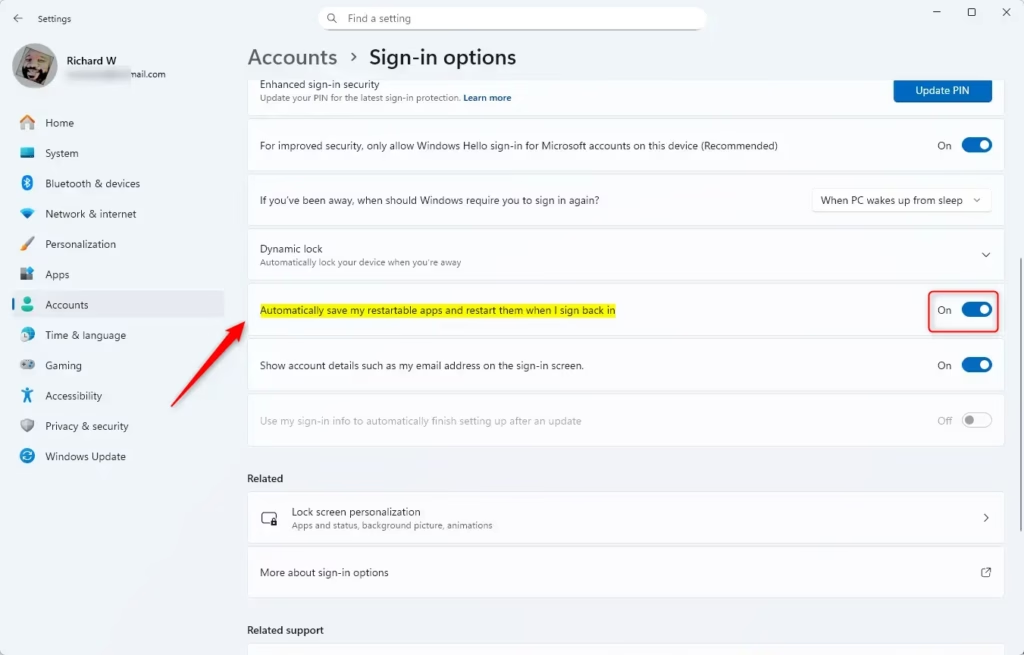
What does this do? When this setting is On, Windows tries to remember which apps were running when you last signed out or shut down your computer. If those apps can be restarted, Windows will open them again the next time you sign in. This includes Microsoft Edge, especially if it was open when you last closed your session.
Reference:
https://support.microsoft.com/en-us/edge/stop-microsoft-edge-from-starting-automatically
Summary
You can stop Microsoft Edge from starting automatically in Windows 11 by adjusting your sign-in settings, giving you a clean desktop right when you log in.
How do I disable Microsoft Edge autostart?
You can stop Microsoft Edge from starting automatically in Windows 11 using Task Manager or Windows Settings. Navigate to the Startup apps section in Settings, find Microsoft Edge, and toggle its switch to ‘Off’. Alternatively, in Task Manager, go to the ‘Startup’ tab, right-click Edge, and select ‘Disable’.
Is it okay to disable msedge on startup?
Yes, it’s generally okay to disable msedge on startup if you don’t want Microsoft Edge to launch automatically when you boot your PC. Disabling it only prevents it from opening at startup; you can still open and use Edge manually whenever you need it.
How to make Microsoft Edge stop auto opening?
To stop Microsoft Edge from auto-opening, access your Windows 11 Startup settings. Locate Microsoft Edge in the list of startup applications and switch its toggle to the ‘Off’ position. This prevents the browser from launching automatically every time you start your computer.
Why is Microsoft Edge set to open automatically on startup?
Microsoft Edge may be set to open automatically on startup to ensure a seamless user experience, particularly for apps that can resume your work. This feature aims to reopen applications with your previous session intact after a restart or unexpected shutdown.
Was this guide helpful?
0% of readers found this helpful (1 votes)

About the Author
Richard
Tech Writer, IT Professional
Richard, a writer for Geek Rewind, is a tech enthusiast who loves breaking down complex IT topics into simple, easy-to-understand ideas. With years of hands-on experience in system administration and enterprise IT operations, he’s developed a knack for offering practical tips and solutions. Richard aims to make technology more accessible and actionable. He's deeply committed to the Geek Rewind community, always ready to answer questions and engage in discussions.



No comments yet — be the first to share your thoughts!