How to Disable Edge Tabs in Alt + Tab on Windows 11

This guide explains how to hide Microsoft Edge tabs when you use the Alt+Tab shortcut in Windows 11.
Why do this?
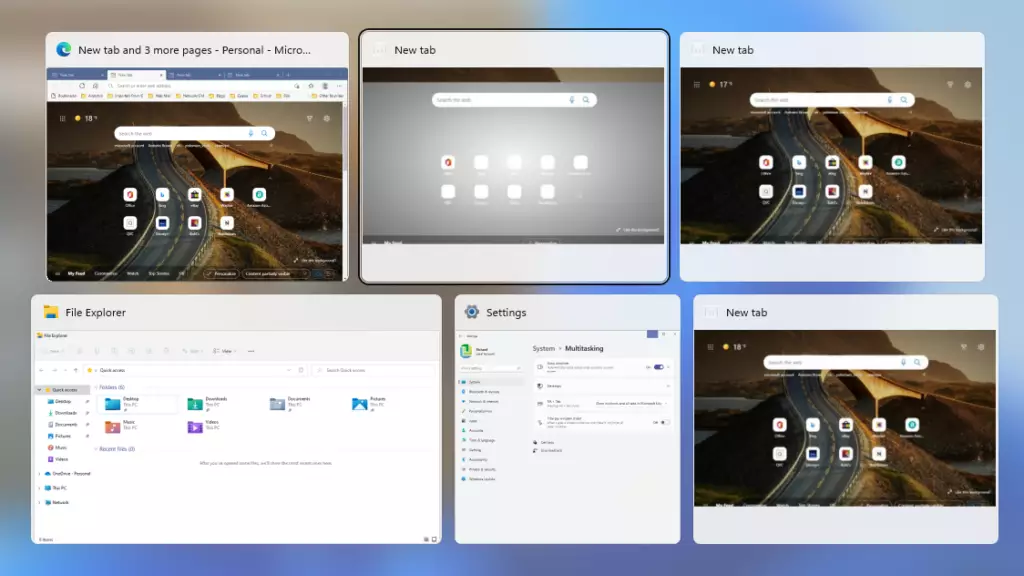
When you press Alt+Tab, Windows shows your open programs. By default, it also shows your recent web browser tabs. This can make the list feel messy and hard to read. Changing this setting helps you focus only on the programs you are actually using.
What happens when done?
Once you change this setting, your Alt+Tab screen will only show open app windows. It will ignore your browser tabs, making your screen switching much faster and cleaner.
To change these settings, follow these steps:
- Open the Settings app on your computer. You can do this by pressing the Windows key + I on your keyboard, or by clicking Start and then Settings.
- In the System menu, click on the Multitasking button.
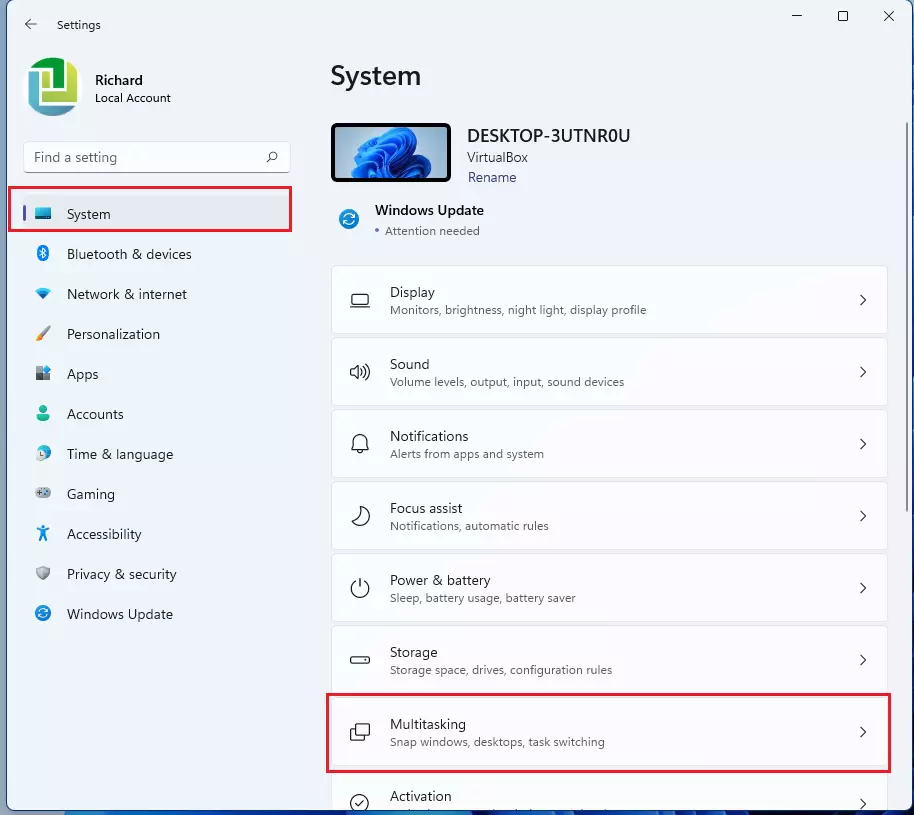
- Find the section labeled Alt+Tab. Click the drop-down menu next to it.
- Select Open windows only from the list.
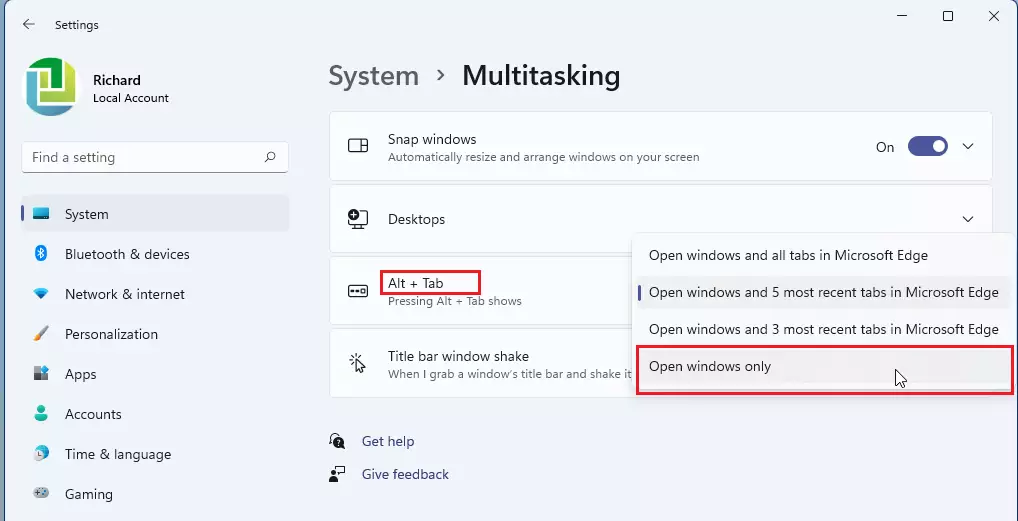
You can now close the Settings app. Your changes take effect immediately.
Summary
- Windows 11 defaults to showing your 5 most recent Edge tabs when you press Alt+Tab.
- You can change this behavior in the Multitasking section of your Windows Settings.
- Choosing Open windows only removes the clutter of browser tabs from your task switcher.
- This setting is perfect for users who want a simple and clean way to switch between apps.
Was this guide helpful?

About the Author
Richard
Tech Writer, IT Professional
Richard, a writer for Geek Rewind, is a tech enthusiast who loves breaking down complex IT topics into simple, easy-to-understand ideas. With years of hands-on experience in system administration and enterprise IT operations, he’s developed a knack for offering practical tips and solutions. Richard aims to make technology more accessible and actionable. He's deeply committed to the Geek Rewind community, always ready to answer questions and engage in discussions.



No comments yet — be the first to share your thoughts!