Disable Microsoft Edge Search Bar in Windows 11

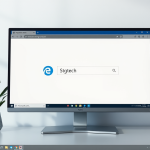
You disable the Microsoft Edge Desktop Search Bar in Windows 11 to remove the web search widget from your desktop.
This Edge desktop search bar is a small tool that lets you quickly search the web or launch websites directly from your Windows 11 desktop. For some, it’s a handy shortcut, but many users want a cleaner desktop space.
You can remove this search bar feature, often seen appearing on builds like Windows 11 22H2 and later, using the Windows Registry Editor.
Open the Windows Registry Editor and navigate to the specified Edge key. Create a new DWORD value named SearchbarAllowed and set its data to 0 to disable the search bar. A reboot may be required for the changes to take effect.
Disable the Edge search bar
You can disable the Microsoft Edge search bar in Windows 11 by making a simple change in the Windows Registry.
First, open the Windows Registry and navigate to the folder key path below.
ComputerHKEY_LOCAL_MACHINESOFTWAREPoliciesMicrosoftEdge
Right-click on Edge, then go to New > DWORD (32-bit) Value. Name this new DWORD SearchbarAllowed.
Double-click SearchbarAllowed and change its value to 0. This will disable the Edge search bar in Windows.
If the Edge search bar is disabled and you want to enable it again, delete both value names listed in the space.
SearchbarAllowed
WebWidgetAllowed
You might need to reboot your computer for the changes to take effect.
That should do it!
Conclusion:
Disabling the Microsoft Edge Desktop Search Bar in Windows 11 is a process you can accomplish through the Windows Registry. Here’s what you need to remember:
- Access the Registry: Open the Windows Registry Editor and navigate to the appropriate key path.
- Create a DWORD: Right-click on the Edge folder and create a new DWORD (32-bit) value named
SearchbarAllowed. - Set the Value: Change the value of
SearchbarAllowedto0to disable the search bar. - Delete Values to Re-enable: If you wish to enable the search bar again, delete the
SearchbarAllowedandWebWidgetAllowedvalues. - Reboot Required: A system reboot may be necessary for the changes to take effect.
By following these steps, you can manage the functionality of the Edge search bar to fit your preferences.
How do I remove the brown box on the Microsoft Edge icon?
A brown box over your Windows Desktop icons can be caused by an issue with Windows Explorer. To resolve this, restart Windows Explorer: Press Windows key + E. Press Ctrl+Alt+Del and select Task Manager.
How do I deactivate the Windows Search bar?
Type services.msc in the search bar at the top of the Start menu. Click ‘Services’ in the list of results. The Windows Services window will open, showing you a list of all the services available to run on your computer.
Was this guide helpful?

About the Author
Richard
Tech Writer, IT Professional
Richard, a writer for Geek Rewind, is a tech enthusiast who loves breaking down complex IT topics into simple, easy-to-understand ideas. With years of hands-on experience in system administration and enterprise IT operations, he’s developed a knack for offering practical tips and solutions. Richard aims to make technology more accessible and actionable. He's deeply committed to the Geek Rewind community, always ready to answer questions and engage in discussions.


No comments yet — be the first to share your thoughts!