How to Manage Microsoft Edge Desktop Search Bar in Windows 11

You can manage the Microsoft Edge desktop search bar in Windows 11 to customize how you access web searches and favorite sites.
This desktop search bar for Edge is a convenient widget that appears on your Windows 11 desktop, allowing quick access to Bing searches and pinned website shortcuts without opening the browser.
It’s a built-in feature you can enable and reposition anywhere on your screen. For example, you can easily drag it to the top for immediate access while working on other applications.
Access the Edge desktop search bar settings within the Edge browser. Open Edge, click the three-dot menu, select More tools, then Launch search bar to display it. You can close it or set it to auto-launch from its own three-dot menu.
Launch Edge Desktop Search Bar
The Microsoft Edge desktop search bar lets you quickly search the web right from your computer’s desktop, without needing to open the full Edge browser first. To get it showing, you’ll first need to open the Edge browser itself.
Here’s how to do it.
First, open the Microsoft Edge browser.
Then, click the Settings and more button (it looks like three horizontal dots, or you can press Alt+F) in the top right corner. From the menu that appears, select More tools, then choose Launch search bar.
Your Edge desktop search bar will then appear.

If the search bar gets hidden behind other windows on your screen, you can bring it to the front. Use this keyboard shortcut: press ⊞ Win+Shift+F.
Press the Win + Shift + F keys.
Close the desktop search bar
If you’re finished using the Microsoft Edge desktop search bar, closing it is simple and only takes a few clicks. Just click the three dots on the search bar itself, then choose ‘Close search bar’ from the menu that pops up.
To do that, click the Settings and more (3 dots) button on the desktop search bar. Then, click “Close search bar” on the context menu.
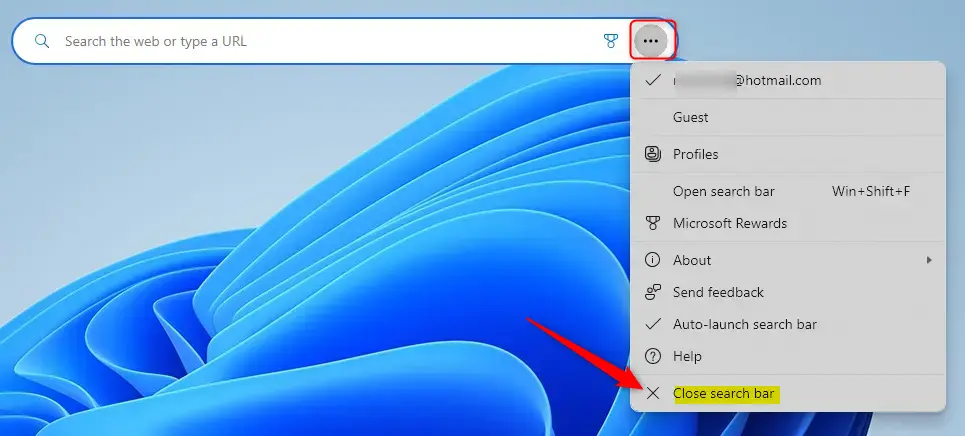
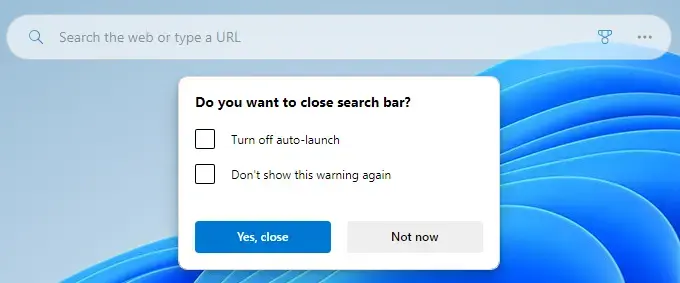
When prompted, click the Yes button to confirm.
Launch the Edge search bar at startup
You can set the Microsoft Edge desktop search bar to show up automatically every time you start your computer. To do this, click the three dots on the search bar and then pick ‘Auto-launch search bar’ from the menu.
To do that, click the Settings and more (3 dots) button on the desktop search bar. Then, select “Auto-launch search bar” from the text menu.
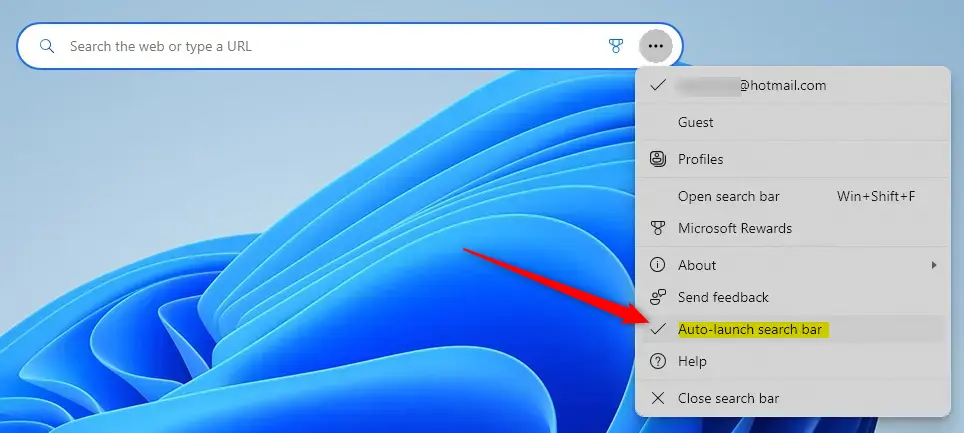
A check mark appears next to “Auto-launch search bar,” indicating it’s turned on. Clicking it again removes the check mark and disables auto-launch.
That should do it!
Conclusion:
You can make your browsing experience in Windows 11 much smoother by managing the Microsoft Edge desktop search bar. Here are the key takeaways:
- Easy Launching: You can quickly access the Edge search bar from your desktop, saving time when searching the web.
- Customizable Position: The search bar can be dragged anywhere on your desktop, allowing for personalized placement.
- Keyboard Shortcuts: Use ⊞ Win+Shift+F to bring the search bar to the front if it gets hidden.
- Simple Closing: Easily close the search bar when not in use via the context menu.
- Auto-launch Feature: Set the search bar to launch automatically at startup for consistent accessibility.
- User-Friendly: The interface is designed to be intuitive, making it easy for users to manage their search needs efficiently.
Overall, the Edge desktop search bar provides a convenient way to streamline your web searching process directly from your desktop.
How do I change the search bar in Edge?
Go to Privacy, search, and services. Then, select Search and connected services, followed by Address bar and search. Finally, choose your preferred search engine from the Search engine used in the address bar menu.
Was this guide helpful?

About the Author
Richard
Tech Writer, IT Professional
Richard, a writer for Geek Rewind, is a tech enthusiast who loves breaking down complex IT topics into simple, easy-to-understand ideas. With years of hands-on experience in system administration and enterprise IT operations, he’s developed a knack for offering practical tips and solutions. Richard aims to make technology more accessible and actionable. He's deeply committed to the Geek Rewind community, always ready to answer questions and engage in discussions.


No comments yet — be the first to share your thoughts!