How to Add or Remove Languages in Microsoft Edge Browser

You add or remove languages in Microsoft Edge to control how websites display and how spell-check functions.
Microsoft Edge, Microsoft’s web browser, allows you to manage a list of preferred languages. This list dictates which languages Edge prioritizes for translating webpages and for checking your spelling. You can add multiple languages to cater to your diverse browsing needs.
The language positioned at the top of your preferred list is the one Edge uses for its own menus and user interface. Ensure your primary language is always set as the top choice for a seamless experience.
For instance, adding German lets you easily read German websites and ensures Edge correctly checks your German spelling, even if your primary language is English.
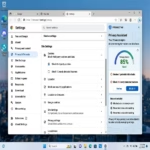
Go to Settings > Languages. Click “Add languages” to add new ones, then select them from the list. To remove a language, click the three dots next to it and select “Remove.
Supported Languages in Microsoft Edge
Microsoft Edge supports a wide range of languages, often over 100. This ensures users worldwide can browse comfortably. Microsoft regularly updates the list of supported languages. You can find the most current list on the official Microsoft Edge documentation website.
Troubleshooting Language Issues
If Microsoft Edge keeps adding languages you don’t want or translating pages incorrectly, there are a few simple fixes.
Browser vs. System Language Settings
Your Microsoft Edge browser language and your computer’s system language are separate things.
Using the Translator Extension
For more advanced translation needs, you can use the Microsoft Translator extension. This extension can be added to Edge and offers more control over translations, including translating selected text or entire documents. It’s a great tool if you frequently work with multiple languages.
Summary
Changing the languages in Microsoft Edge is easy and helps you browse the web just how you like it.
Reference: Microsoft
How do I change the display language of Microsoft Edge?
To change the display language, go to Edge Settings, then Languages. Add your desired language to the preferred list and move it to the top. Edge will then use this language for its menus and interface.
Can I add multiple languages to Microsoft Edge?
Yes, you can add multiple languages to Microsoft Edge. Go to Settings > Languages and use the ‘Add languages’ button to add as many as you need. You can then set your preferred order.
How does Microsoft Edge choose its language?
Microsoft Edge typically defaults to your computer’s system language. However, you can override this by adding and prioritizing languages directly within the Edge browser settings.
What languages does Microsoft Edge support?
Microsoft Edge supports a large number of languages, often over 100. The exact list is updated by Microsoft and can be found on their official documentation pages.
Was this guide helpful?

About the Author
Richard
Tech Writer, IT Professional
Richard, a writer for Geek Rewind, is a tech enthusiast who loves breaking down complex IT topics into simple, easy-to-understand ideas. With years of hands-on experience in system administration and enterprise IT operations, he’s developed a knack for offering practical tips and solutions. Richard aims to make technology more accessible and actionable. He's deeply committed to the Geek Rewind community, always ready to answer questions and engage in discussions.


[…] When you use the Microsoft Edge browser, you can reorder your language preferences, get Microsoft Edge to offer translations, and see Microsoft Edge in a specific language. […]
[…] Edge uses your device’s display language by default. You can add more languages to help the browser understand your needs. When you add a new display language to Microsoft Edge, […]