How to Change Display Language in Microsoft Edge

You change your Microsoft Edge display language directly within the browser’s settings menu.
Microsoft Edge is the default browser for Windows, and its display language controls the text for all its buttons, menus, and settings panels. This function is distinct from the “Offer to translate pages” feature, which only affects the content of websites you visit.
Navigating your browser in your preferred language significantly improves usability. You can add multiple languages to Edge, making it easier to understand and interact with the browser interface.
After selecting a new language, you must restart Microsoft Edge. Once restarted, all browser elements will appear in your chosen language.
Change the Microsoft Edge display language by going to Settings > Languages. Click the three dots next to your desired language in the Preferred languages section and select “Display Microsoft Edge in this language,” then restart the browser.
Change the language Edge is displayed in
You can change the language Microsoft Edge uses for menus and settings by adding new languages and picking your favorite one, making it easier to use.
Follow these steps:
- Open the Microsoft Edge browser.
- Click the Settings and more (three dots) menu in the top right corner.
- Select Settings.
- On the left sidebar, click Languages.

- On the right, find the Preferred languages section.
- Click the three dots next to the language you want to use.
- Select Display Microsoft Edge in this language.
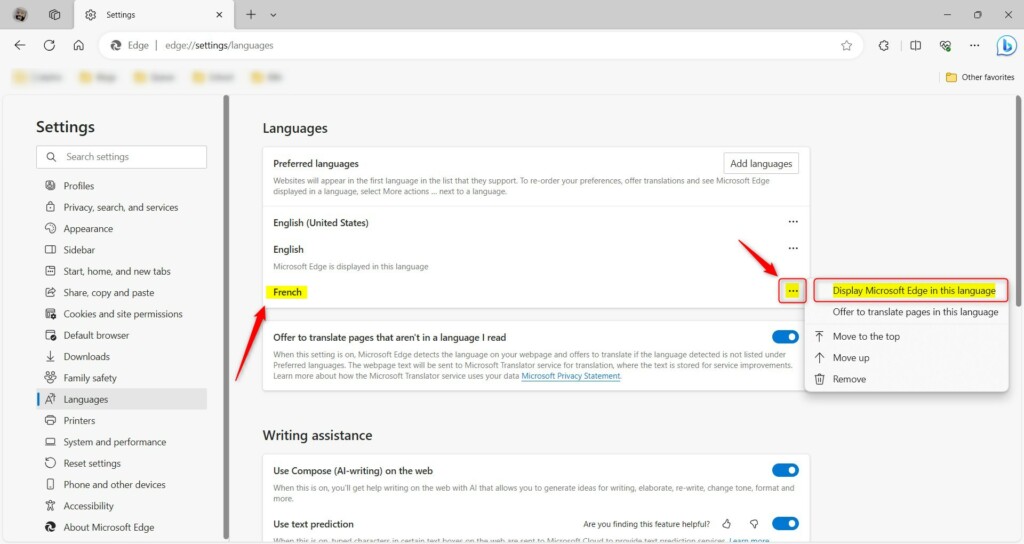
Edge will ask you to restart. Click the Restart button to save your changes.
Using Edge’s Built-in Translation and AI Features
Microsoft Edge makes browsing the web easier by helping you understand different languages with its built-in translation tool and smart AI features.
You can also use the integrated AI features. Highlight any text on a website, and the AI sidebar can summarize, rewrite, or explain the content in your preferred language. This makes browsing the global web much faster and more convenient.
Conclusion
Customizing your language settings makes browsing more comfortable. By adding languages, you can switch your interface and use AI tools to bridge the gap between different languages. Following these steps means your browser will work exactly how you want it to.
How do I change the default language in edge?
Go to Settings and more. > Settings. . Select Languages from the Settings menu.
How do you put edge in English?
Language just tap on add languages. Option from here choose any language as you want if I select Bengali. And then click on add option. And that way you can add your own language on each browser.
How do I switch my browser back to English?
Once you're in settings look at the left sidebar. And click on languages. Now click on add languages. From here you'll see a complete list of available languages.
Was this guide helpful?

About the Author
Richard
Tech Writer, IT Professional
Richard, a writer for Geek Rewind, is a tech enthusiast who loves breaking down complex IT topics into simple, easy-to-understand ideas. With years of hands-on experience in system administration and enterprise IT operations, he’s developed a knack for offering practical tips and solutions. Richard aims to make technology more accessible and actionable. He's deeply committed to the Geek Rewind community, always ready to answer questions and engage in discussions.




[…] you add a new language to Edge, the language you added appears at the bottom of the list of Preferred languages already set for Microsoft […]