Allow Websites to Access your Language Preferences in Windows 11

Windows 11 lets you allow websites to access your preferred language settings directly, making your browsing experience more seamless.
This feature leverages the language preferences you’ve set on your PC to automatically display websites in a language you understand without requiring manual selection.
Starting with Windows 11, this built-in functionality ensures that sites like news portals or e-commerce platforms can detect your linguistic choice, often saving you the step of navigating a site’s language options.
You can control this setting easily, ensuring you share only the languages you want websites to know.
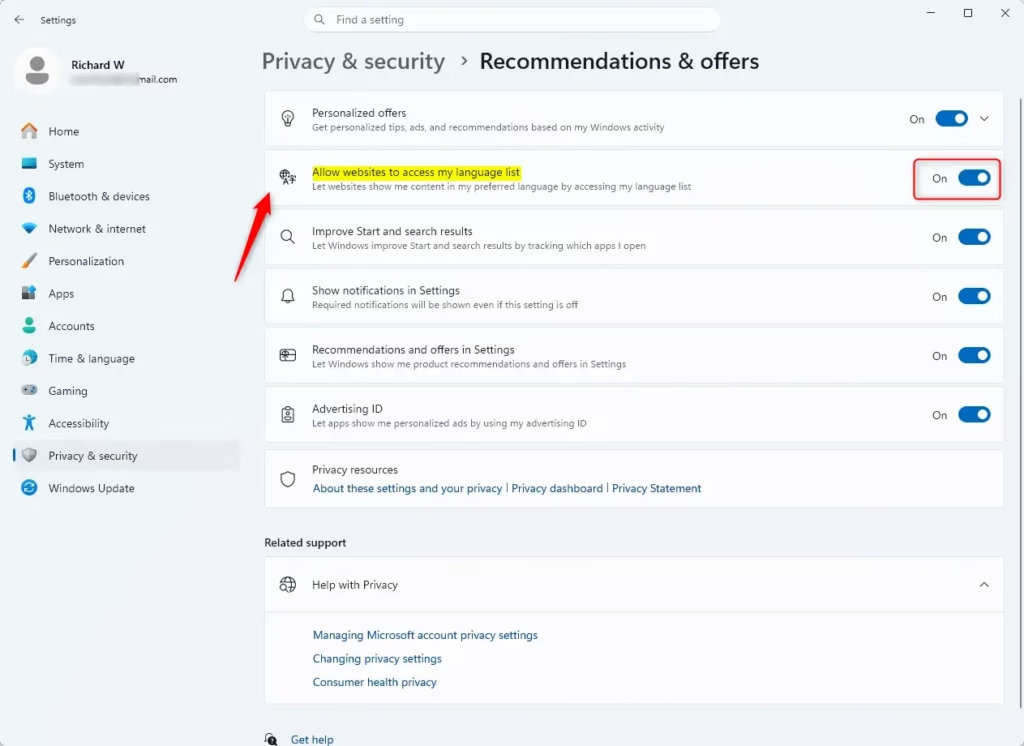
Enable this setting in Windows Settings under Privacy & security > General. Toggle the switch for “Let websites show me locally relevant content by accessing my language list” to On. This allows websites to automatically display content in your preferred language.
How Windows Shares Your Language List
Windows 11 can tell websites you visit which languages you prefer, making it easier for them to show you content in the right language.
This feature is meant to be helpful. But like all privacy settings, you should know how it works. You should also be able to turn it off if you want. Microsoft wants you to control what information is shared. So, if you want websites to find your language preferences automatically, here’s how.
Steps to Let Websites See Your Language
Ready to manage this setting? You’ll find it in your Windows 11 privacy and security options. Here’s how:
Open Windows Settings
First, open the Settings app. Click the Start button (it looks like the Windows logo and is usually in the middle of your taskbar). You’ll see a list of options; look for the Settings icon, which often looks like a gear, and click it to open the Settings window.To change your language sharing settings, you first need to open the Windows Settings app.
Go to Privacy & Security
In the Settings window, look at the left side. You’ll see a list of categories. Click on Privacy & security. This is where you control how Windows handles your data and privacy.Find Recommendations & offers Settings
In the Privacy & security section, scroll down. Find Recommendations & offers. Click it. This section contains some of the main privacy settings for Windows 11.Inside Windows Settings, go to the Privacy & security section and find the Recommendations & offers settings to adjust language sharing.
Find the Language List Setting
You are in the right place! Look for a setting about websites and your language. Look for a setting that says something like, “Let websites show me locally relevant content by accessing my language list.” You will see a switch next to it.Adjust the Toggle Switch
To turn this on, make sure the switch next to the language list setting is On. If it’s Off, click the switch to turn it On. If it’s already On and you want to turn it off, click it to make it Off.You can turn on or off the feature that lets websites access your language preferences by adjusting the toggle switch in the settings.

Summary
Letting Windows 11 share your language preferences with websites helps them automatically display content in your preferred language, improving your browsing experience.
How do I change the language preference in 🪟 Windows 11?
To change language preferences in Windows 11, go to Settings > Time & language > Language & region. Under 'Preferred languages,' you can add, remove, or reorder languages. This list tells websites your language choices, enhancing your browsing experience automatically.
How do I get additional display languages?
To get additional display languages in Windows 11, navigate to Settings > Time & language > Language & region. Click 'Add a language' under 'Preferred languages.' Select your desired language and choose 'Install' to download and add it to your system's language options.
Can I change the 🪟 Windows 11 language after installation?
Yes, you can change the Windows 11 display language after installation. Go to Settings > Time & language > Language & region. Under 'Windows display language,' select your preferred language from the dropdown menu. You may need to sign out and back in for changes to take effect.
How do I change the default language?
To change the default language in Windows 11, go to Settings > Time & language > Language & region. Under 'Windows display language,' select your desired language from the dropdown. This sets the default language for Windows features, apps, and most settings.
Was this guide helpful?

About the Author
Richard
Tech Writer, IT Professional
Richard, a writer for Geek Rewind, is a tech enthusiast who loves breaking down complex IT topics into simple, easy-to-understand ideas. With years of hands-on experience in system administration and enterprise IT operations, he’s developed a knack for offering practical tips and solutions. Richard aims to make technology more accessible and actionable. He's deeply committed to the Geek Rewind community, always ready to answer questions and engage in discussions.


No comments yet — be the first to share your thoughts!