How to Enable or Disable Bing Chat and Web Search in Windows 11

You can enable or disable Bing Chat and web search integration in Windows 11 to manage Microsoft Copilot’s functionality.
Microsoft Copilot is an AI assistant built into Windows 11, providing quick access to information and document summarization from your taskbar.
This AI integration, which expanded significantly with the Windows 11 version 23H2 update, allows you to leverage AI for productivity or opt for a purely local search experience.
Controlling these settings helps you personalize your Windows 11 interface and decide how much AI-powered assistance you want readily available.
Disable Bing Chat and web search in Windows 11 by opening Registry Editor and navigating to 🗝️HKEY_CURRENT_USER\Software\Microsoft\Windows\CurrentVersion\Search. Create a DWORD value named BingSearchEnabled and set it to 0 to disable.
System Requirements and Updates
Your Windows 11 PC needs to be up to date to use features like Bing Chat.
How to Enable or Disable Copilot and Web Search
If you prefer a cleaner interface, you can disable these features. Note: This process requires admin privileges.
Method 1Using the Registry Editor
You can turn off Bing Chat in Windows 11 using the Registry Editor.Method 2Using Group Policy (For Advanced Users)
Advanced users can turn off Bing Chat suggestions in Windows 11 through Group Policy.
- Navigate to:
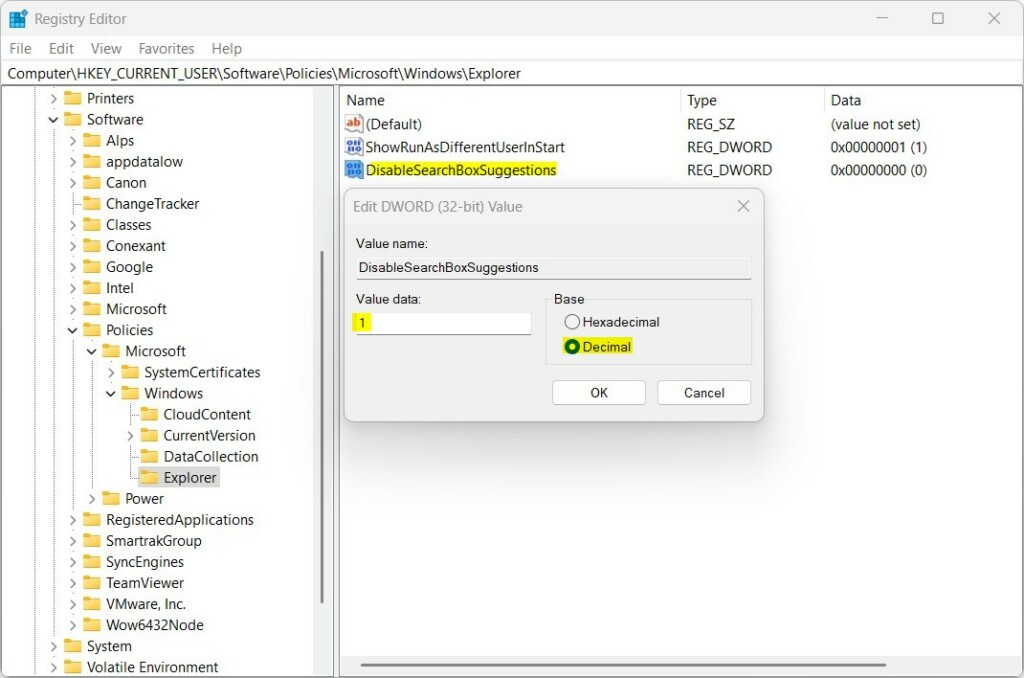
HKEY_CURRENT_USER\Software\Policies\Microsoft\Windows\Explorer - If the
Explorerkey is missing, create it under theWindowsfolder. - Create a new DWORD value named
DisableSearchBoxSuggestionsand set it to1to turn off suggestions.
Restart your computer or the Windows Explorer process to apply these changes.
Summary
You’ve learned how to manage Bing Chat and web search in Windows 11.
Is Bing Chat in 🪟 Windows 11 free to use?
Yes, Microsoft Copilot and the integrated Bing Chat features in Windows 11 are free to use for all users with a Microsoft account. While there are premium tiers for advanced enterprise features, the standard AI-powered search and chat capabilities are included as part of the Windows 11 operating system updates.
What is the difference between Bing Chat and Copilot in 🪟 Windows 11?
Bing Chat was the initial branding for Microsoft’s AI search interface. Microsoft has rebranded this experience to Microsoft Copilot. They are essentially the same underlying AI technology, but Copilot is more deeply integrated into the Windows 11 shell, allowing it to control system settings and interact with open applications.
Can I remove the Bing Chat button from my taskbar?
Yes, you can easily remove the Copilot or Bing Chat button. Right-click on an empty space on your taskbar, select Taskbar settings, and toggle the switch for Copilot to the Off position. This is the safest way to hide the icon without modifying system registry files.
Was this guide helpful?

About the Author
Richard
Tech Writer, IT Professional
Richard, a writer for Geek Rewind, is a tech enthusiast who loves breaking down complex IT topics into simple, easy-to-understand ideas. With years of hands-on experience in system administration and enterprise IT operations, he’s developed a knack for offering practical tips and solutions. Richard aims to make technology more accessible and actionable. He's deeply committed to the Geek Rewind community, always ready to answer questions and engage in discussions.

No comments yet — be the first to share your thoughts!