How to Disable Bing Search Suggestions in Windows 11

You disable Bing search suggestions in Windows 11 to prevent web results from cluttering your local file and application searches.
Windows 11 automatically integrates Bing search into the Start menu, often displaying web results alongside your documents and programs when you start typing.
This feature aims to broaden your search but can disrupt finding what you need locally. For example, searching for “project” might bring up Bing results for “project management software” instead of your own project files.
Disabling Bing search suggestions ensures your Windows 11 search bar exclusively shows locally stored files and apps, making your PC’s internal search much faster and more focused.
Disable Bing search suggestions in Windows 11 by opening Group Policy Editor and enabling “Turn off display of recent search entries in the File Explorer search box,” or by editing the Registry to set 🗝️HKEY_CURRENT_USER\SOFTWARE\Policies\Microsoft\Windows\Explorer\DisableSearchBoxSuggestions to 1. Restart your PC after making changes.
Understanding Search Suggestions vs. Browser Settings
Windows search suggestions and your web browser settings are separate things, so disabling Bing search suggestions in the Windows 11 Start menu won’t affect your browser like Microsoft Edge.
Using Local Group Policy Editor
You can disable Bing search suggestions on Windows 11 using the Local Group Policy Editor, a tool that’s typically available on Pro and Enterprise versions of the operating system.
- Open the Start menu, search for “Edit group policy,” and select it. Start menu
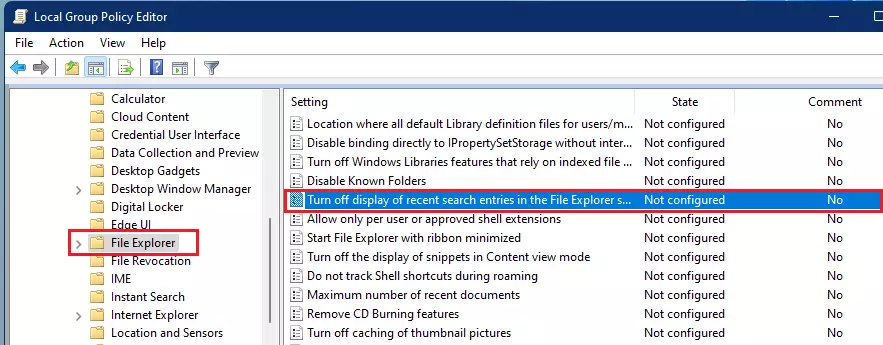
- In the window that opens, follow this path on the left: User Configuration > Administrative Templates > Windows Components > File Explorer.
- On the right side, find the item named “Turn off display of recent search entries in the File Explorer search box.”
- Double-click it to open.
- Select the Enabled option. This stops the web suggestions.
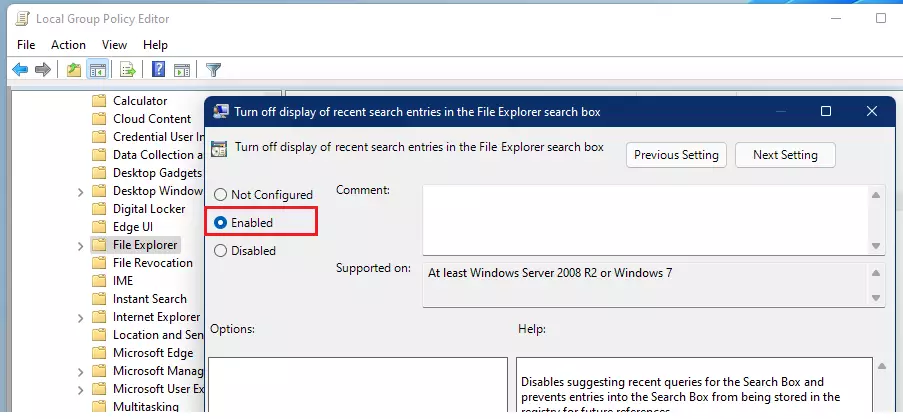
- Click OK, then restart your computer to finish.
Using Windows Registry (Admin Privileges Required)
To disable Bing search suggestions using the Windows Registry, you’ll need administrator privileges and it’s wise to back up your registry first, as this method involves making system changes.
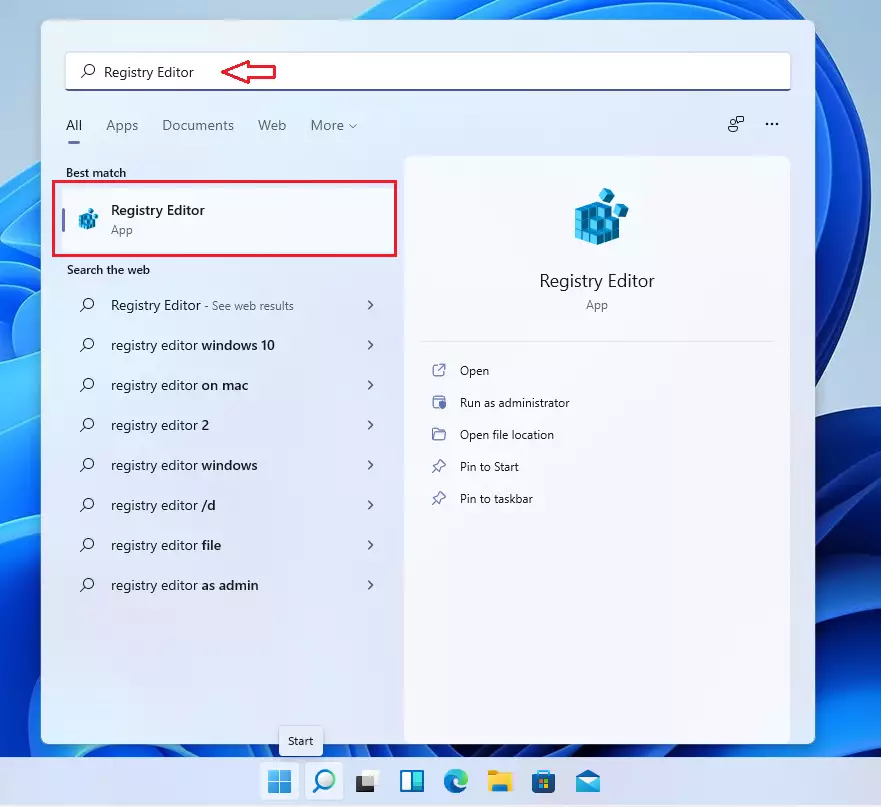
- Press the Windows key + R, type
regedit, and press Enter to open the Registry Editor. open the Registry
- In the address bar at the top, paste this path:
HKEY_CURRENT_USER\SOFTWARE\Policies\Microsoft\Windows
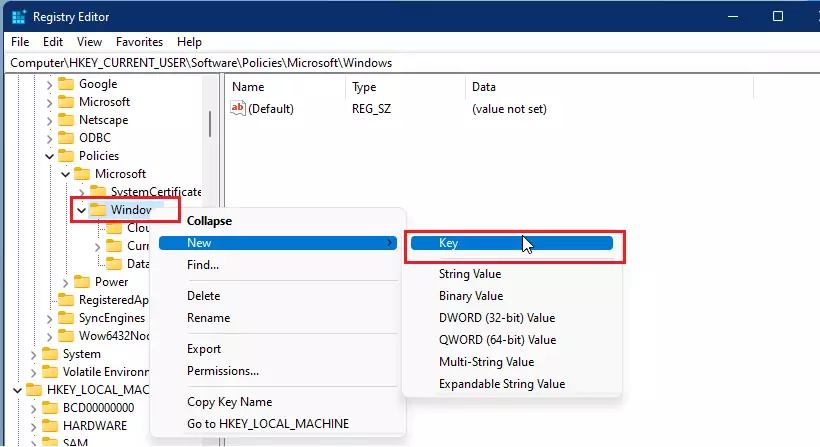
- Right-click the Windows folder on the left, select New, and click Key.
- Name this new key
Explorerand press Enter.
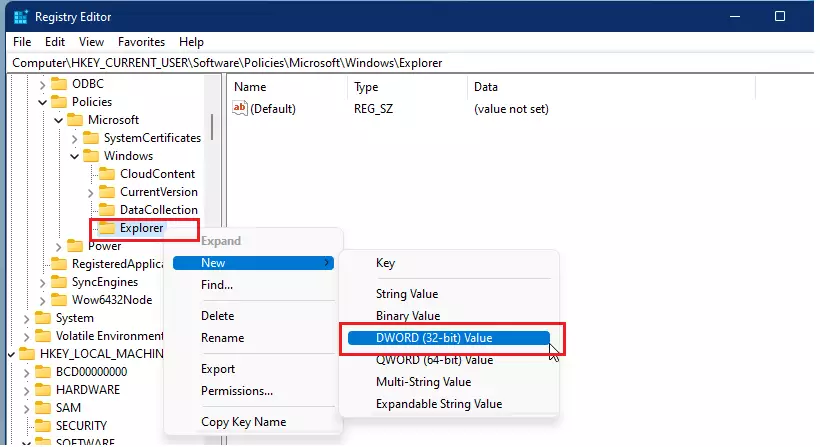
- Right-click your new Explorer key, select New, and choose DWORD (32-bit) Value.
- Name the new value
DisableSearchBoxSuggestionsand press Enter. - Double-click
DisableSearchBoxSuggestionsand change the “Value data” from0to1.
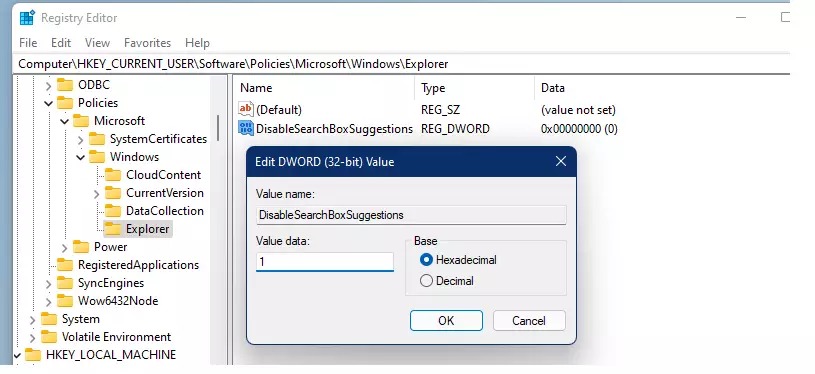
- Click OK and restart your computer to apply the changes.
Summary Comparison
| Method | Best For | Difficulty |
|---|---|---|
| Group Policy | Pro/Enterprise Users | Easy |
| Registry Editor | Home Users | Moderate |
Summary
You can remove distracting Bing search suggestions from your Windows 11 Start menu by using either the Group Policy Editor or the Windows Registry, ensuring your searches focus only on local files.- Goal: Remove distracting Bing search suggestions from your Windows 11 Start menu.
- Methods: You can use the Group Policy Editor or the Windows Registry.
- Result: Your computer will only display local file results, making searches faster and cleaner.
- Final Step: Always restart your computer after applying these settings to ensure they take effect.
Why do Bing search suggestions keep coming back?
Bing search suggestions often return after major Windows updates. These updates can reset system policies or registry keys to their default state. If you use the Registry method, you may need to re-apply the setting if Windows overwrites your custom configuration during a system patch.
Does disabling Bing suggestions improve privacy?
Yes, disabling these suggestions improves privacy. By turning off web results in your local search, you prevent your search terms from being sent to Microsoft servers. This keeps your local file searches private and ensures that your activity is not tracked or used for personalized web advertising.
Was this guide helpful?

About the Author
Richard
Tech Writer, IT Professional
Richard, a writer for Geek Rewind, is a tech enthusiast who loves breaking down complex IT topics into simple, easy-to-understand ideas. With years of hands-on experience in system administration and enterprise IT operations, he’s developed a knack for offering practical tips and solutions. Richard aims to make technology more accessible and actionable. He's deeply committed to the Geek Rewind community, always ready to answer questions and engage in discussions.



No comments yet — be the first to share your thoughts!