How to Repair the Windows 11 Start Menu

The Start menu is the heart of your Windows 11 experience. It acts as the gateway to your apps, settings, and files. When it stops working, you lose access to your primary navigation tool. Repairing it ensures your system remains functional and responsive.
Restart Windows Explorer via Task Manager, run SFC and DISM commands in an administrator Command Prompt, or re-register the Start Menu components using PowerShell. These steps refresh system files and shell experience hosts to fix most Start menu issues.
What happens when done?
Completing these steps refreshes the Windows shell components (the parts of Windows that manage the user interface and programs). This clears out temporary glitches and restores the Start menu to its default, working state. Your personal files remain safe, but the interface will feel like new.
How to fix a frozen Start menu without restarting your PC
Sometimes the Windows Explorer process gets stuck. You can restart it without rebooting your entire PC.
1. Press Ctrl+Shift+Esc to open Task Manager.
2. Click More details if the window is small.
3. Find Windows Explorer in the list of processes.
4. Right-click it and select Restart.
Repairing system files with SFC and DISM
If your Windows 11 Start Menu isn’t working right, corrupted system files might be the cause, and you can repair Windows 11 Start Menu issues using built-in tools like SFC and DISM to scan and fix them.
You’ll need administrator privileges for this step:
1. Press the Windows key, type cmd, right-click Command Prompt, and select Run as administrator.
2. Type the following command and press Enter:
sfc /scannow
3. If that does not work, run this command to repair the Windows image:
DISM /Online /Cleanup-Image /RestoreHealth
Re-registering the Start Menu via PowerShell
When the Start Menu is still broken after checking system files, you can re-register Windows 11 Start Menu components using PowerShell to fix unresponsive issues.
You’ll need administrator privileges for this step:
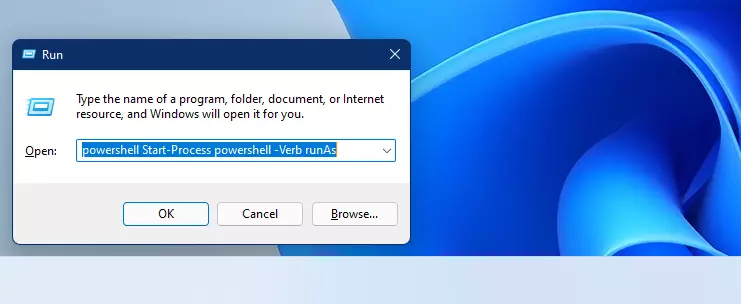
1. Press Ctrl+Shift+Esc to open Task Manager, click File > Run new task, type powershell, check Create this task with administrative privileges, and click OK.
2. Copy and paste this command to fix your user account:
Get-AppxPackage Microsoft.Windows.ShellExperienceHost | Foreach {Add-AppxPackage -DisableDevelopmentMode -Register "$($_.InstallLocation)AppXManifest.xml"}
3. If you need to fix it for all users, use this command:
Get-AppxPackage -AllUsers Microsoft.Windows.ShellExperienceHost | Foreach {Add-AppxPackage -DisableDevelopmentMode -Register "$($_.InstallLocation)AppXManifest.xml"}
Can a corrupted user profile prevent the Start menu from opening?
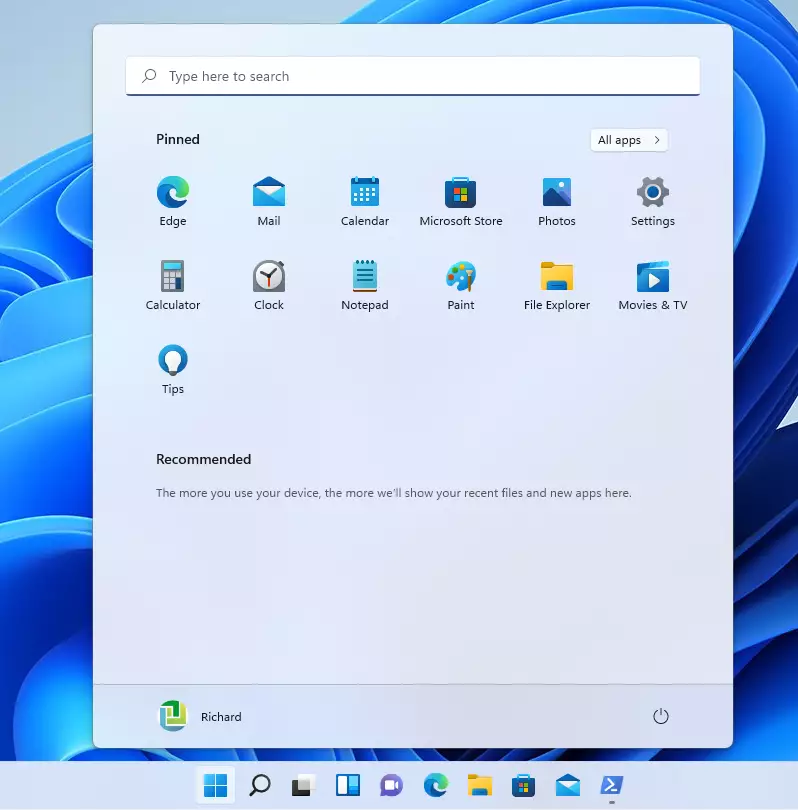
Yes, a corrupted user profile can definitely stop the Windows 11 Start Menu from opening, and you can check if this is the problem by creating a new local user account.
Summary
To fix your Windows 11 Start Menu, you can repair system files, restart Windows Explorer, or re-register the Start Menu using PowerShell, which covers most common issues.
Why does my Start Menu work in Safe Mode but not normal mode?
If the Start menu works in Safe Mode, a third-party app or a background driver is likely causing the conflict. Safe Mode loads only essential files, bypassing non-critical software that might be breaking the Windows shell experience. Try performing a clean boot to identify the problematic software.
Does a Windows Update usually cause Start Menu issues?
Yes, occasionally a Windows 11 update can introduce bugs that affect the shell experience. If your issues started immediately after an update, try uninstalling the most recent update via Settings > Windows Update > Update history > Uninstall updates to see if the functionality returns to normal.
Was this guide helpful?

About the Author
Richard
Tech Writer, IT Professional
Richard, a writer for Geek Rewind, is a tech enthusiast who loves breaking down complex IT topics into simple, easy-to-understand ideas. With years of hands-on experience in system administration and enterprise IT operations, he’s developed a knack for offering practical tips and solutions. Richard aims to make technology more accessible and actionable. He's deeply committed to the Geek Rewind community, always ready to answer questions and engage in discussions.



No comments yet — be the first to share your thoughts!