How to Add and Remove Folders in the Windows 11 Start Menu

You add and remove folders in the Windows 11 Start Menu to create quick shortcuts for your frequently accessed files and apps. The Windows 11 Start Menu features a dedicated section at the bottom for pinning custom folders, complementing the default system folders like Documents, Downloads, and Pictures.
This customization allows you to open essential folders directly from the Start Menu, saving you valuable time by eliminating the need to search or navigate through File Explorer. You can pin up to five custom folders to this section.
Open Settings, then go to Personalization, click Start, and select Folders. Turn the toggle On to add a folder or Off to remove it from the Start menu.
How to Add or Remove Folders on the Start Menu
Adding or removing folders from your Windows 11 Start menu lets you keep your favorite files and apps right where you can see them.
- Open Settings: Click the Start menu button (Windows icon) at the bottom center of your screen, then click Settings. Or press
Windows key + Ion your keyboard to open Settings quickly. - In the Settings window, click on Personalization on the left side.
- Next, click Start on the right side to open Start menu settings.
- Now, click the Folders section to see which folders you can add or remove.
Open Personalization > Start in Settings.
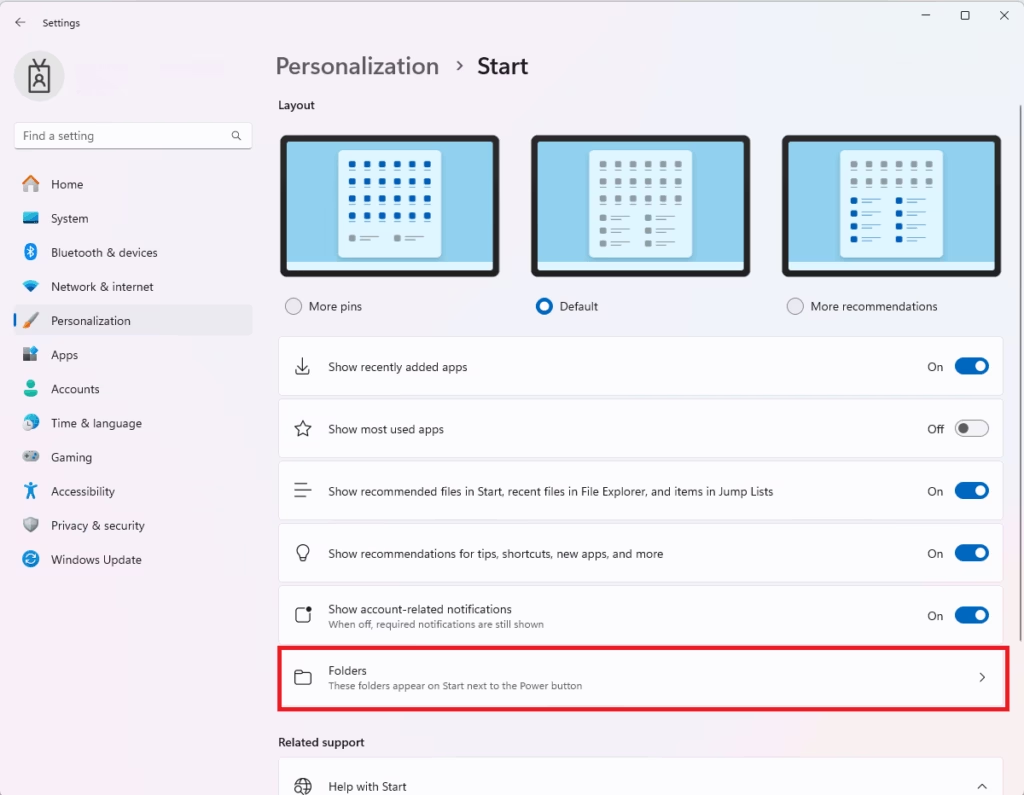
Select which folders to show on the Start menu.
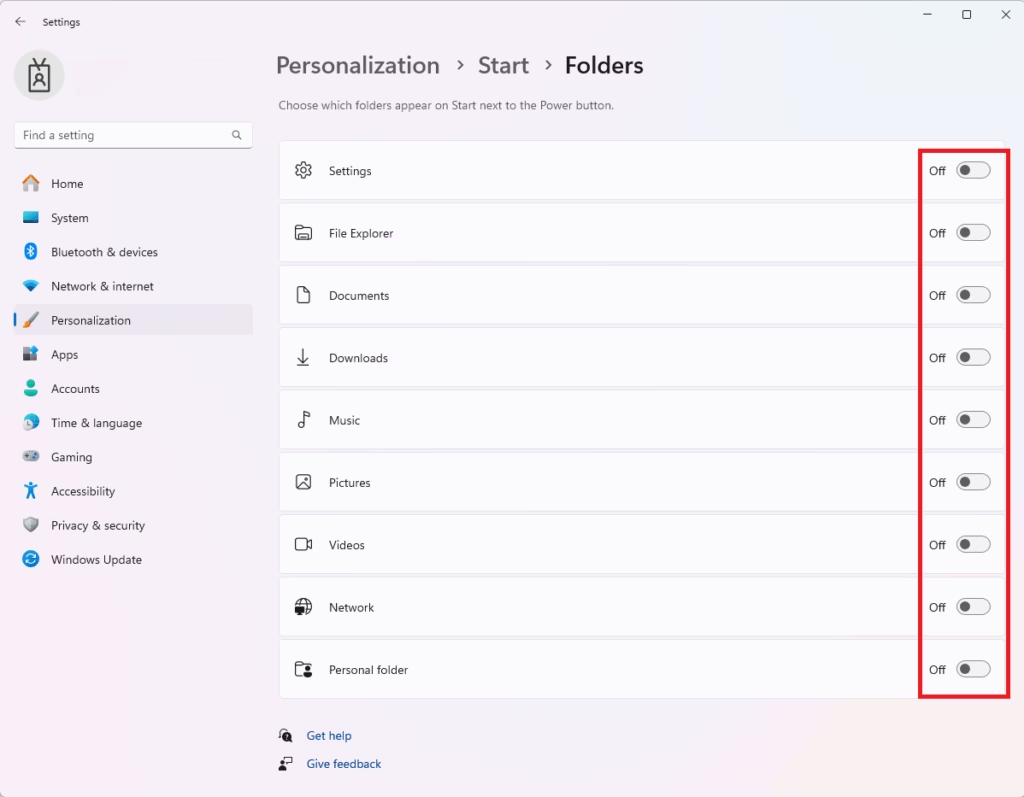
You’ll see toggle buttons next to folder names like Documents, Downloads, Music, Pictures, and more.
- To add a folder: Turn the toggle On next to the folder you want to see.
- To remove a folder: Turn the toggle Off next to the folder you don’t want to see.
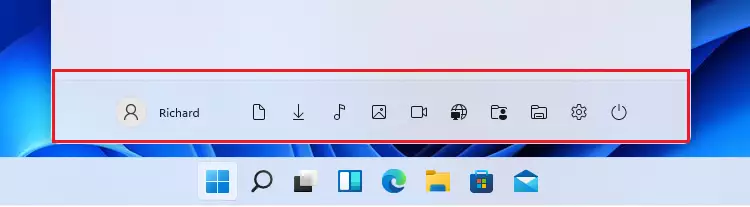
What happens? Once you’re done, open the Start menu to see your selected folders right next to the Power button.
Tip: In the Start menu, you can also right-click a folder shortcut and choose Personalize this list to open the folder settings quickly.

Summary
Organizing your Windows 11 Start menu with custom folders makes it faster to find what you need.- You can add or remove folder shortcuts from the Start menu in Windows 11 to access your files faster.
- Use the Settings app under Personalization > Start > Folders to make changes.
- Organizing your Start menu saves time and keeps things simple.
- Customize it to fit the way you work best.
- Update your folder shortcuts anytime if your needs change.
- Now you know how to make your Start menu more useful by adding or removing folders.
How to get rid of folders in Start menu 🪟 Windows 11?
Summary: Category folders in the Windows 11 Start menu are a built-in feature and can’t be removed. The only workaround is switching to List view or pinning apps.
Was this guide helpful?

About the Author
Richard
Tech Writer, IT Professional
Richard, a writer for Geek Rewind, is a tech enthusiast who loves breaking down complex IT topics into simple, easy-to-understand ideas. With years of hands-on experience in system administration and enterprise IT operations, he’s developed a knack for offering practical tips and solutions. Richard aims to make technology more accessible and actionable. He's deeply committed to the Geek Rewind community, always ready to answer questions and engage in discussions.

No comments yet — be the first to share your thoughts!