Home Windows How to Customize the ‘All’ Apps View in…
Windows

How to Customize the ‘All’ Apps View in Windows 11 Start Menu

Richard
Written byRichardTech Writer, IT Professional
Feb 22, 2025 Updated Apr 17, 2026 3 min read Reviewed Mar 20, 2026

This guide explains how to change how your programs are listed in the Windows 11 Start menu.

The Start menu is the main hub for opening your apps, settings, and system tools on Windows 11. You can open it by clicking the Windows icon on your taskbar or by pressing the Windows key on your keyboard.

The menu is split into three parts: Pinned Apps, Recommended, and All Apps.

Why do this? Windows now offers new ways to look at your app list, including a grid view and a category view. This helps you find your favorite programs faster.

What happens when done? You will be able to switch between a standard list, a grid of icons, or categories based on how you use your apps.

Enable the New App Views

Microsoft includes hidden features in Windows that you can turn on using a tool called ViVeTool. To use this, you must first learn how to download and use the tool by following this guide: https://geekrewind.com/how-to-enable-or-disable-hidden-features-with-vivetool-in-windows-11/

Once you have the tool ready, follow these steps:

  1. Open the Command Prompt or Windows Terminal with admin privileges.
  2. Type the following command and press Enter: vivetool /enable /id:48433719,47205210,49221331
  3. Restart your computer to save the changes.

After your computer restarts, click the Start menu and select the All button.

Windows 11 start menu change

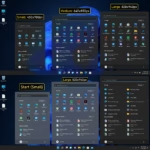
On the “All” apps page, you will see a new drop-down menu. You can choose from these options:

  • Name list: The default view.
  • Name grid: Shows your apps as a grid of icons.
  • Category: Groups your apps into folders based on how you use them.
Windows 11 start menu change view

Summary

Customizing your “All” apps view makes it easier to navigate your software. By using the command vivetool /enable /id:48433719,47205210,49221331, you can unlock grid and category layouts. These views help you organize your workspace to fit your personal style.

Reference: Microsoft

How do I customize the 'All' apps view in Windows 11?

To customize the 'All' apps view in Windows 11, you need to enable the feature using ViVeTool. After downloading ViVeTool, run the command 'vivetool /enable /id:48433719,47205210,49221331' in Command Prompt or Windows Terminal, then restart your computer.


What are the new views available for the 'All' apps section in Windows 11?

Windows 11 now offers two new views for the 'All' apps section: grid view and category view. The grid view displays apps alphabetically in a grid format, while the category view groups apps by usage into different categories.


Can I switch back to the default view after customizing the 'All' apps?

Yes, you can easily switch back to the default view at any time. Simply use the drop-down menu on the 'All' page view to select the 'Name list' option, which is the default setting.


What is ViVeTool and how do I use it?

ViVeTool is a utility that allows users to enable or disable hidden features in Windows 11. To use it, download ViVeTool, open it in Command Prompt or Windows Terminal, and run the appropriate command to enable the desired features.


Is it safe to use ViVeTool to enable features in Windows 11?

Yes, using ViVeTool is generally safe as it is a widely used tool among Windows enthusiasts. However, it's recommended to follow instructions carefully and ensure you are using the latest version of Windows to avoid any compatibility issues.

Was this guide helpful?

Tags: #Windows 11
Richard

About the Author

Richard

Tech Writer, IT Professional

Richard, the owner and lead writer at Geek Rewind, is a tech enthusiast passionate about simplifying complex IT topics. His years of hands-on experience in system administration and enterprise IT operations have honed his ability to provide practical insights and solutions. Richard aims to make technology more accessible and actionable. He's deeply committed to the Geek Rewind community, always ready to answer questions and engage in discussions.

Leave a Reply

Your email address will not be published. Required fields are marked *

Exit mobile version