How to Customize the ‘All’ Apps View in Windows 11 Start Menu

You customize the ‘All’ apps view in the Windows 11 Start menu by enabling new display options in the Settings app.
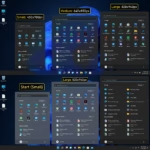
You can customize the ‘All’ apps view by enabling hidden features with ViVeTool. Open Command Prompt as admin, run the command vivetool /enable /id:48433719,47205210,49221331, and restart your PC. After restarting, the Start menu’s ‘All’ apps section will offer Name list, Name grid, or Category views.
Windows 11’s Start menu organizes your applications, and the ‘All apps’ section is where you find everything installed. Previously, this was just a simple list, but Windows 11 introduced new ways to see your apps.
Starting with Windows 11 build 22621.1344 (released in March 2023), you can choose between a standard alphabetical list, a grid of app icons, or even view apps organized by category.
These options help you locate your programs much faster. You can switch between these views directly from the Start menu’s ‘All apps’ screen.
Was this guide helpful?

About the Author
Richard
Tech Writer, IT Professional
Richard, a writer for Geek Rewind, is a tech enthusiast who loves breaking down complex IT topics into simple, easy-to-understand ideas. With years of hands-on experience in system administration and enterprise IT operations, he’s developed a knack for offering practical tips and solutions. Richard aims to make technology more accessible and actionable. He's deeply committed to the Geek Rewind community, always ready to answer questions and engage in discussions.


No comments yet — be the first to share your thoughts!