How to Disable Command Prompt in Windows 11

You can disable Command Prompt in Windows 11 to enhance system security and prevent unauthorized access or malicious commands.
Command Prompt, also known as cmd.exe, is a command-line interpreter application for Windows that allows you to execute commands and scripts.
Disabling this tool, especially on shared or public computers, is a smart move. For instance, a user could accidentally or intentionally run a script that compromises your Windows 11 system.
This guide shows you how to easily prevent Command Prompt from opening, adding a crucial security layer to your PC.
You can disable the Command Prompt using either the Group Policy Editor or the Registry Editor. For Group Policy, navigate to User Configuration > Administrative Templates > System and enable “Prevent access to the command prompt.” For the Registry Editor, go to 🗝️HKEY_CURRENT_USER\Software\Policies\Microsoft\Windows\System and create a DWORD value named DisableCMD, setting its value to 1 or 2.
What happens when you disable the Command Prompt?
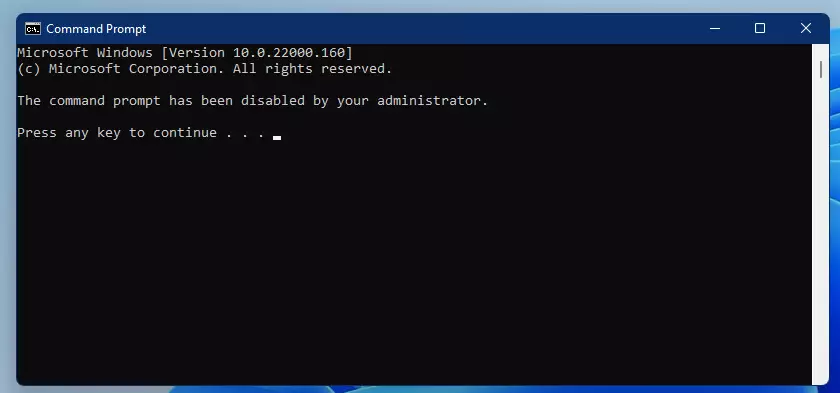
When you disable Command Prompt, Windows blocks the app from opening. Trying to run a command will show an error message. This also prevents many script files from running, helping keep your computer safe from malicious software.
Comparison: Registry vs. Group Policy
| Method | Best For | Difficulty |
|---|---|---|
| Group Policy | Windows 11 Pro/Enterprise | Easy |
| Registry Editor | Windows 11 Home | Advanced |
How to disable Command Prompt using Group Policy (Pro/Enterprise)
Windows 11 Pro and Enterprise users can disable Command Prompt using the Group Policy Editor, which stops anyone from opening the command line tool.
- Press ⊞ Win+R, type gpedit.msc, and press Enter.
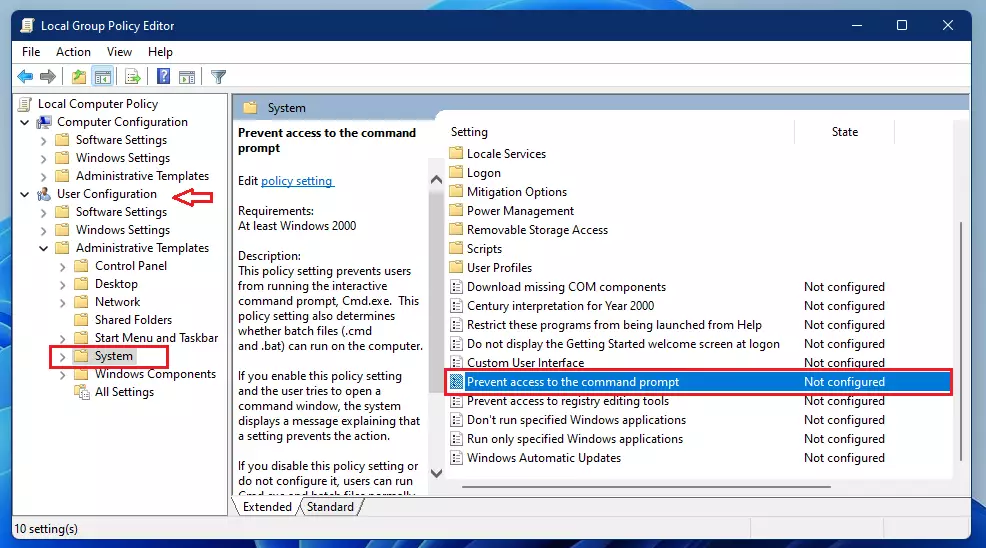
- Navigate to User Configuration > Administrative Templates > System.
3. Find Prevent access to the command prompt and double-click it.
4. Select Enabled. You can also choose to disable scripts here too.
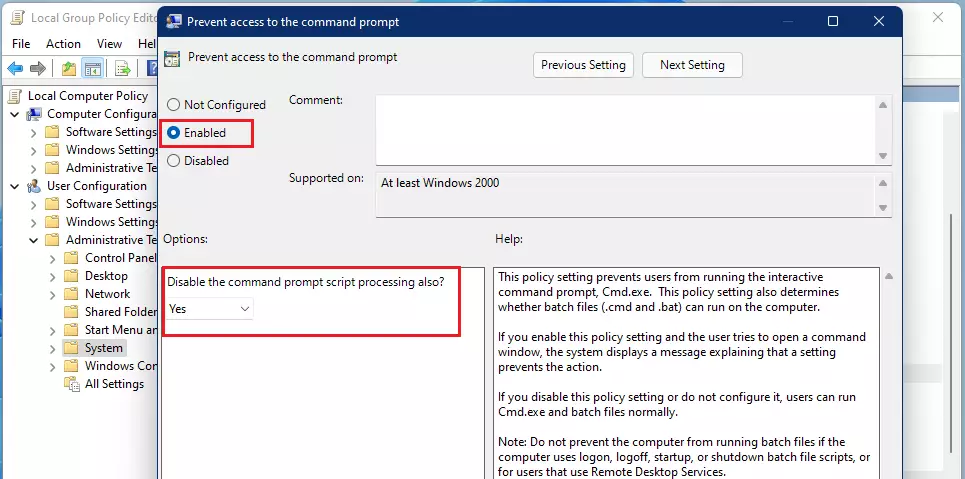
5. Click OK. If it doesn’t take effect immediately, restart your computer.
How to disable Command Prompt via Registry Editor
Windows 11 Home users can disable Command Prompt by making changes in the Registry Editor, a more technical method for blocking access to the command line.
1. Press ⊞ Win+R, type regedit, and press Enter.
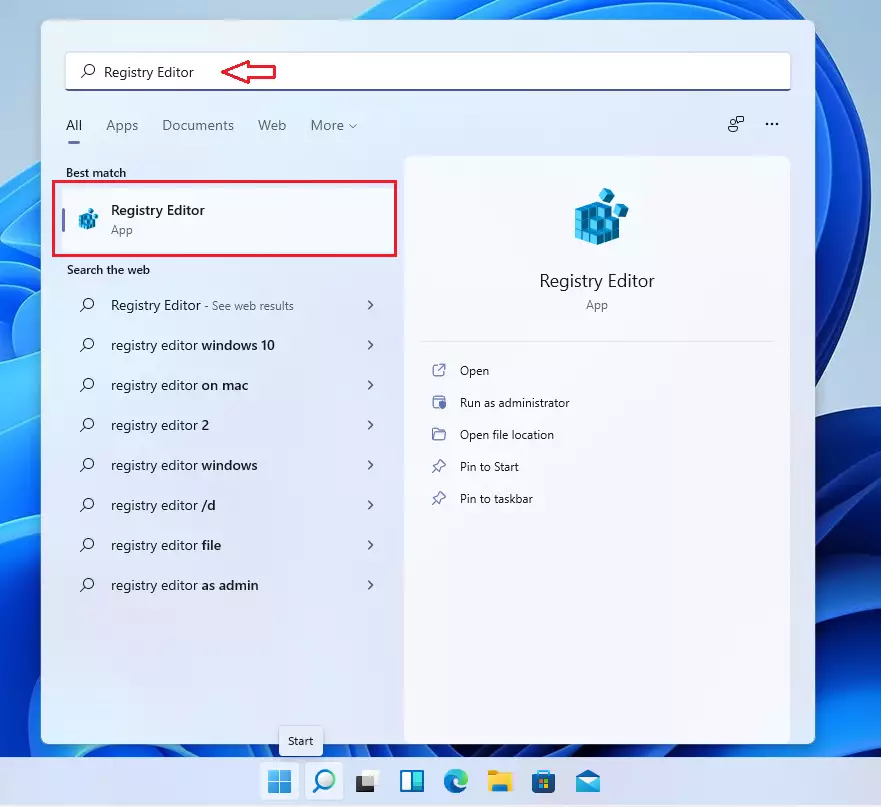
2. Navigate to the following path:
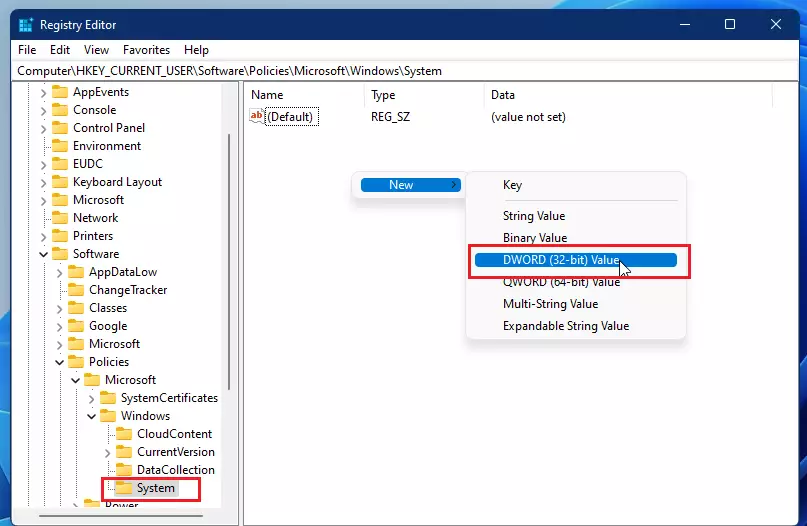
HKEY_CURRENT_USER\Software\Policies\Microsoft\Windows\System
3. Right-click in the empty space, then select New > DWORD (32-bit) Value.
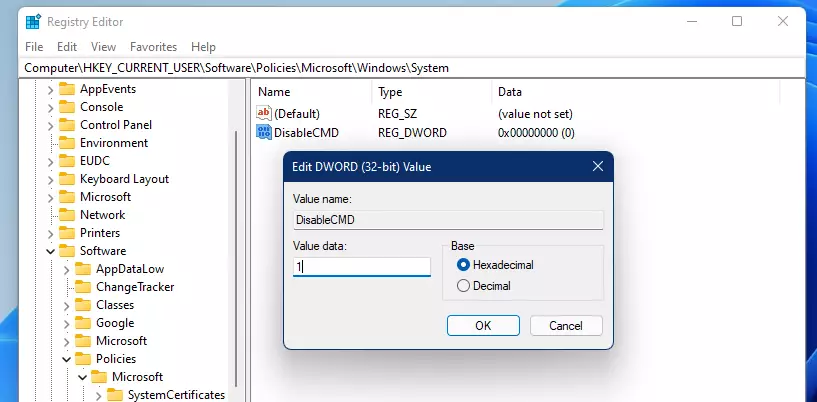
4. Name the new value DisableCMD.
DisableCMD
5. Double-click DisableCMD and set its value to `1` to block everything, or `2` to block only the prompt.
Pro Tip: Testing the Restriction
Before you lock yourself out, create a new standard user account on your PC. Apply the changes to that account first to ensure you can still access your main administrator account if something goes wrong.
Summary
Disabling Command Prompt on your Windows 11 PC adds an extra layer of security. You can choose between the Group Policy Editor for Pro/Enterprise versions or the Registry Editor for Home versions. Remember, these changes can be undone by an administrator.
Does disabling Command Prompt affect PowerShell?
Yes, disabling Command Prompt this way often blocks access to other command-line tools like PowerShell. This is because both tools use similar underlying system connections, and the policy aims to stop you from getting around restrictions by just switching terminals.
Can a user with Administrator privileges bypass this restriction?
Yes. A user with administrator permissions can reverse the Group Policy or Registry changes to regain access. These restrictions are mainly meant to stop standard users from making unauthorized changes, not to permanently lock out someone with full system control.
Why is the Group Policy Editor missing from my 🪟 Windows 11 Home edition?
The Group Policy Editor is a professional management tool only found in Windows 11 Pro, Enterprise, and Education editions. Microsoft leaves it out of the Home edition to keep things simpler for everyday users, meaning Home users will need to use Registry Editor for these changes.
Will this prevent system updates from running scripts?
Generally, no. Windows system updates run with high-level system permissions that typically bypass user-level restrictions. These policies apply at the user account level, meaning they stop you from running manual scripts, but they shouldn’t interfere with the automated background processes needed for Windows to update correctly.
Was this guide helpful?

About the Author
Richard
Tech Writer, IT Professional
Richard, a writer for Geek Rewind, is a tech enthusiast who loves breaking down complex IT topics into simple, easy-to-understand ideas. With years of hands-on experience in system administration and enterprise IT operations, he’s developed a knack for offering practical tips and solutions. Richard aims to make technology more accessible and actionable. He's deeply committed to the Geek Rewind community, always ready to answer questions and engage in discussions.



No comments yet — be the first to share your thoughts!