How to Hide or Show Recent Files on Start Menu in Windows 11

You can hide or show recent files on your Windows 11 Start menu by adjusting a single setting.
Your Windows 11 Start menu has a “Recommended” section (sometimes called “Recent” in certain builds) that shows files you’ve recently opened. This feature helps you quickly jump back into your work.
Disabling this option prevents those files from appearing in the Start menu, but it won’t affect how recent files are displayed elsewhere on your PC.
Open Settings, go to Personalization, then Start, and toggle “Show recent and suggested files” on or off. This setting controls whether recently accessed files appear in the Start menu’s Recommended section.
Option 1Using the Settings App
You can quickly show or hide recent files on your Windows 11 Start menu right from the Settings app, making it simple to manage what appears when you open the Start menu.
- Open the Settings app. You can do this by pressing the Windows key + I on your keyboard.
- On the left side, click on Personalization. Then, on the right side, click on Start.
- Look for the Layout options section. You will see a setting called Show recent and suggested files.
- Check the box next to this setting if you want to show recent files (this is the default). Uncheck the box if you want to hide recent files.
- You can now close the Settings window if you wish.
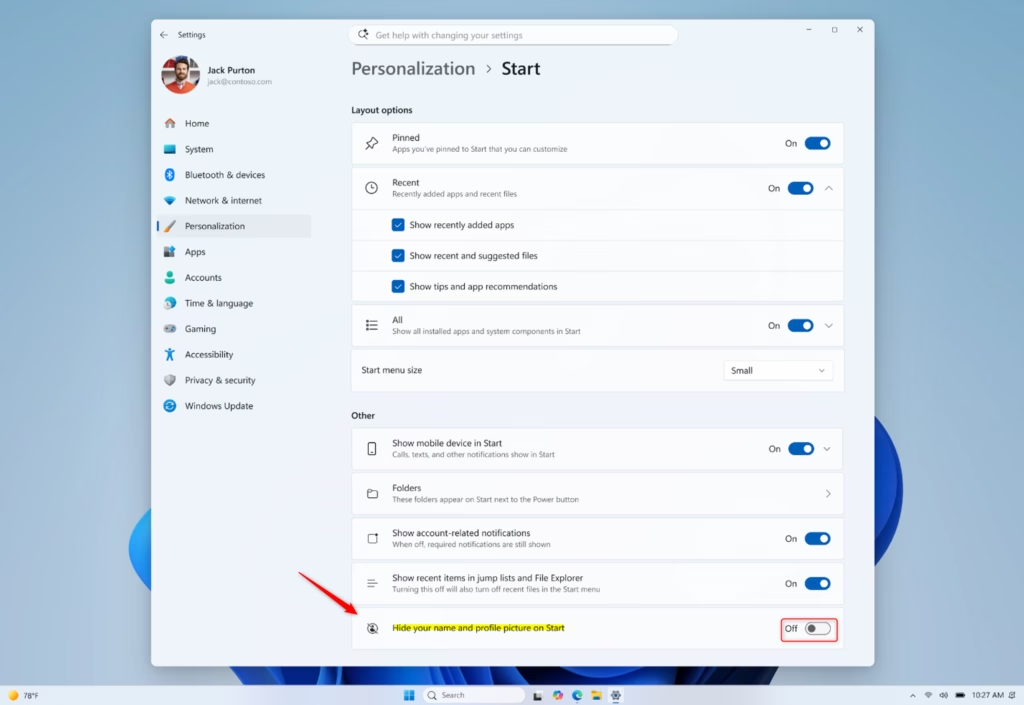
Why do this? This lets you control what appears in the Start menu to keep it tidy or easily find your recent work.
What happens when done? Files you have recently opened will either show up in the Start menu’s “Recent” or “Recommended” section, or they will be hidden from that section.
Option 2Using the Registry Editor
This method is for those comfortable with advanced system tools and requires administrator permissions to make changes.
To Show Recent Files on the Start Menu (Default)
Showing recent files on your Windows 11 Start menu is easy using the Registry Editor, which lets you control this setting directly.
- First, you need to open the Registry Editor. Search for “regedit” in the Windows search bar and open it. You might be asked for administrator permission.
- Navigate to the following path in the Registry Editor:
HKEY_CURRENT_USER\Software\Microsoft\Windows\CurrentVersion\Explorer\Advanced - Look for a value named
Start_TrackDocs. - Double-click on
Start_TrackDocs. - Make sure the Value data is set to
1. - Click OK.
To Hide Recent Files on the Start Menu
Hiding recent files from your Windows 11 Start menu involves a simple adjustment within the Registry Editor, giving you control over your Start menu’s privacy.
- Open the Registry Editor by searching for “regedit” and opening it. You might need administrator permission.
- Go to this path:
HKEY_CURRENT_USER\Software\Microsoft\Windows\CurrentVersion\Explorer\Advanced - Find the value named
Start_TrackDocs. - Double-click on
Start_TrackDocs. - Change the Value data to
0. - Click OK.
Why do this? Some people prefer a cleaner Start menu because they don’t want recent files showing up automatically, perhaps for privacy reasons or just to keep things tidy.
What happens when done? After changing the registry value and restarting your computer or logging out and back in, the recent files will be hidden from the Start menu’s “Recent” or “Recommended” section.
Reference:
Summary
You can choose to show or hide recent files on your Windows 11 Start menu using either the Settings app or the Registry Editor.
How do I turn on recent files in 🪟 Windows 11?
To turn on recent files in Windows 11, open Settings (Windows key + I), navigate to Personalization, then Start. Under the ‘Layout options’ section, ensure the ‘Show recent and suggested files’ box is checked. This will display recently accessed files in the Start menu’s Recommended section.
How do I turn off recent files in 🪟 Windows 11?
To turn off recent files in Windows 11, open Settings (Windows key + I), go to Personalization, and then click on Start. In the ‘Layout options’ section, uncheck the box next to ‘Show recent and suggested files’. This will hide recently accessed files from the Start menu.
Why aren’t my recent files showing up?
Recent files may not be showing up in your Windows 11 Start menu if the ‘Show recent and suggested files’ setting is turned off. Check this setting in Settings > Personalization > Start. Ensure the box is checked to enable the display of recent files.
How do I see more than 20 recent files?
Windows 11’s Start menu does not offer a direct setting to display more than 20 recent files. The ‘Show recent and suggested files’ option controls whether recent files appear at all, but it doesn’t allow for customization of the quantity displayed.
Was this guide helpful?

About the Author
Richard
Tech Writer, IT Professional
Richard, a writer for Geek Rewind, is a tech enthusiast who loves breaking down complex IT topics into simple, easy-to-understand ideas. With years of hands-on experience in system administration and enterprise IT operations, he’s developed a knack for offering practical tips and solutions. Richard aims to make technology more accessible and actionable. He's deeply committed to the Geek Rewind community, always ready to answer questions and engage in discussions.

No comments yet — be the first to share your thoughts!