How to Add and Remove Quick Access Folders on Navigation Pane of File Explorer in Windows 11

You can add and remove Quick Access folders from the File Explorer navigation pane in Windows 11 to customize your workflow.
Quick Access is a built-in Windows 11 feature that shows your most used folders and pinned locations in File Explorer’s Home view.
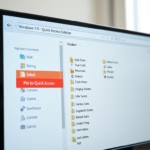
In Windows 11, the navigation pane, which is the list on the left side of File Explorer, can also show these Quick Access items if ‘Show all folders’ is turned off. This gives you quick access to your important directories.
Removing specific folders from the navigation pane won’t disable Quick Access completely. It declutters your view by hiding those chosen items from the left-hand panel.
This modification helps you create a cleaner File Explorer interface, focusing only on the folders you need readily available in that specific location.
To add or remove Quick Access folders from the File Explorer navigation pane, open Windows Terminal as an administrator. Paste the provided `reg add` command to add it back, or the `reg delete` command to remove it, then press Enter.
Here’s How:
⚠️ Admin Privileges Required: You need to be signed in as an administrator for this.
- Open the Windows Terminal app as administrator.
- Copy and paste the command you want to use below.
- Press Enter to run the command.
Add Quick Access Folders to Navigation Pane of File Explorer for All Users
This is the default setting.
reg add "HKEY_LOCAL_MACHINE\SOFTWARE\Microsoft\Windows\CurrentVersion\Explorer\Desktop\NameSpace\DelegateFolders{3936E9E4-D92C-4EEE-A85A-BC16D5EA0819}" /ve /d "CLSID_FrequentPlacesFolder" /fRemove Quick Access Folders from Navigation Pane of File Explorer for All Users
reg delete "HKEY_LOCAL_MACHINE\SOFTWARE\Microsoft\Windows\CurrentVersion\Explorer\Desktop\NameSpace\DelegateFolders{3936E9E4-D92C-4EEE-A85A-BC16D5EA0819}" /fThat should do it!
Summary
Quick Access in File Explorer lets you see your favorite folders fast, but if it’s cluttering up your screen, you can remove it using a command in Windows Terminal. This guide shows you how to add or remove Quick Access folders from the navigation pane, making File Explorer tidier.
Where is quick access in File Explorer?
Quick Access in File Explorer shows up in the Home view, which you can open by pressing the Windows key and E. You’ll also see it listed on the left side in the navigation pane.
Did 🪟 Windows 11 get rid of Quick Access?
No, Windows 11 still has Quick Access, it’s just moved a bit. You’ll find it mainly in the Home screen of File Explorer, where you can pin your favorite folders. While you can change how it looks or hide it from the side list, the main feature is still there.
How do I turn on quick access?
You can turn on Quick Access by opening File Explorer and clicking the three dots menu to find ‘Options’. Make sure ‘Open File Explorer to’ is set to ‘Home’ in the General tab to see it.
How do I get my Quick Access folder back?
If your Quick Access folder is missing from the navigation pane, you can get it back using a command in Windows Terminal. Open Terminal as an administrator and type the specific command to restore it.
Was this guide helpful?

About the Author
Richard
Tech Writer, IT Professional
Richard, a writer for Geek Rewind, is a tech enthusiast who loves breaking down complex IT topics into simple, easy-to-understand ideas. With years of hands-on experience in system administration and enterprise IT operations, he’s developed a knack for offering practical tips and solutions. Richard aims to make technology more accessible and actionable. He's deeply committed to the Geek Rewind community, always ready to answer questions and engage in discussions.


No comments yet — be the first to share your thoughts!