How to Organize Windows 11 Start Menu Apps into Folders

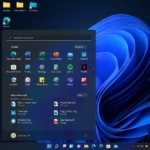
You organize Windows 11 Start menu apps into folders by dragging one app icon onto another within the Pinned section.
The Windows 11 Start menu helps you launch applications, and organizing your pinned apps into custom folders significantly reduces clutter. This makes finding your frequently used programs much faster, similar to how you’d organize icons on your smartphone.
By default, Windows 11 presents your pinned apps in a single, often lengthy list. Creating folders allows you to group related applications, such as all your productivity tools or your favorite games, into one manageable shortcut.
This simple reorganization improves your overall PC navigation efficiency. You can create these folders with just a few clicks and drag-and-drop actions directly within the Start menu interface.
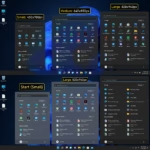
Group apps by dragging one icon on top of another in the Start menu. Windows automatically creates a folder. You can rename folders by clicking the folder name and typing a new title.
Advanced Start Menu Customization
Beyond folders, you can manage your Start menu layout to suit your work style. You can pin or unpin apps by right-clicking them and selecting Pin to Start or Unpin from Start. If you want to change the order, click and drag the icons to your preferred spot.
Troubleshooting and Management
If your Windows 11 Start menu isn’t working right, try checking your settings or restarting Windows Explorer. Restarting Explorer, the program that manages your desktop and taskbar, can often fix display problems with the Start menu.
Summary
- Grouping apps keeps your Start menu tidy and organized.
- You can create folders by dragging one app icon on top of another.
- You can rename folders to keep your digital space categorized.
- You can easily add, remove, or rearrange your apps within these folders at any time.
- Customizing your Start menu layout helps improve your daily productivity.
Organizing your Windows 11 Start menu apps into folders is a simple way to keep things tidy and easy to find.
Can I rename a folder in the 🪟 Windows 11 Start menu?
Yes. Open the folder by clicking it, then click the text box that says Folder. Type your new name and press Enter. This helps you categorize your apps by type, such as Work, Games, or Media, making your Start menu much easier to navigate.
How do I remove an app from a folder in the Start menu?
Open the folder, click and hold the app icon you want to remove, and drag it out of the folder area onto the main Pinned section of your Start menu. Release the mouse button to place the app back in your main list.
Is there a limit to how many apps I can put in a Start menu folder?
While there is no strict hard limit on the number of apps, it is best to keep folders manageable so you can see all your icons at a glance. If a folder gets too full, consider splitting your apps into two separate folders for better organization.
How do I move the Start menu back to the left side?
Right-click an empty space on your taskbar and select Taskbar settings. Click on Taskbar behaviors, then change the Taskbar alignment setting from Center to Left. This will move your Start button and pinned apps back to the left side of your screen.
Was this guide helpful?

About the Author
Richard
Tech Writer, IT Professional
Richard, a writer for Geek Rewind, is a tech enthusiast who loves breaking down complex IT topics into simple, easy-to-understand ideas. With years of hands-on experience in system administration and enterprise IT operations, he’s developed a knack for offering practical tips and solutions. Richard aims to make technology more accessible and actionable. He's deeply committed to the Geek Rewind community, always ready to answer questions and engage in discussions.

No comments yet — be the first to share your thoughts!