How to Rename App Folders in Windows 11 Start Menu

You rename app folders in the Windows 11 Start Menu by clicking the default folder name after creating it. This allows you to group related applications, making your most-used programs instantly accessible and improving your digital workspace organization.
For instance, you might create a “Work Essentials” folder for your productivity tools or a “Gaming Hub” for your favorite titles. This simple customization streamlines your Start Menu navigation, especially with numerous programs installed.
This method applies to Windows 11 versions, allowing you to personalize your PC’s entry point efficiently. You’ll spend less time searching and more time getting things done.
Click the “Edit name” button that appears when you open a created app folder. Then, type your desired name into the text box and press Enter to save. This allows you to easily organize your Start Menu by task or type.
Start Menu App Grouping vs. File System Folders
Start Menu app folders in Windows 11 are just for organizing shortcuts, not actual program files stored on your computer.
Why do this?
Organizing your apps into labeled folders keeps your computer workspace clean and helps you launch your favorite tools faster.
What happens when done?
Your Start menu will be neatly categorized, allowing you to group apps by task or type, making navigation much smoother.
How to Rename App Folders in 🪟 Windows 11 Start Menu
Renaming app folders in your Windows 11 Start Menu is simple. You can change the name of any folder you’ve made right from the Start menu itself.
- Open your Start menu.
- Create a folder by dragging one app icon on top of another.
- Click on the folder to open it.
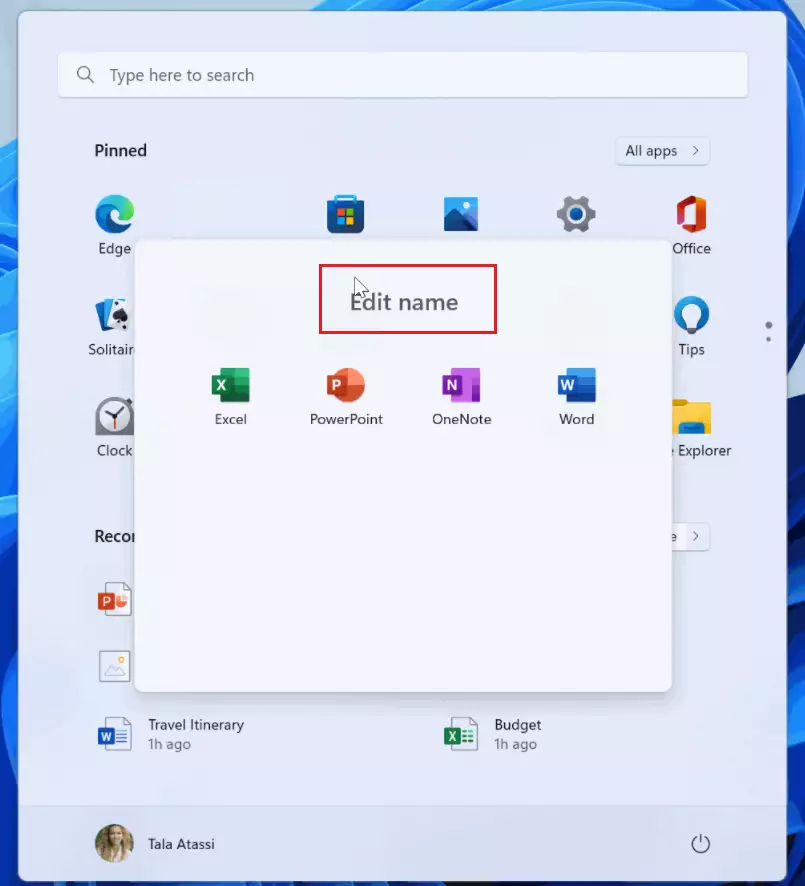
- Click the “Edit name” button.
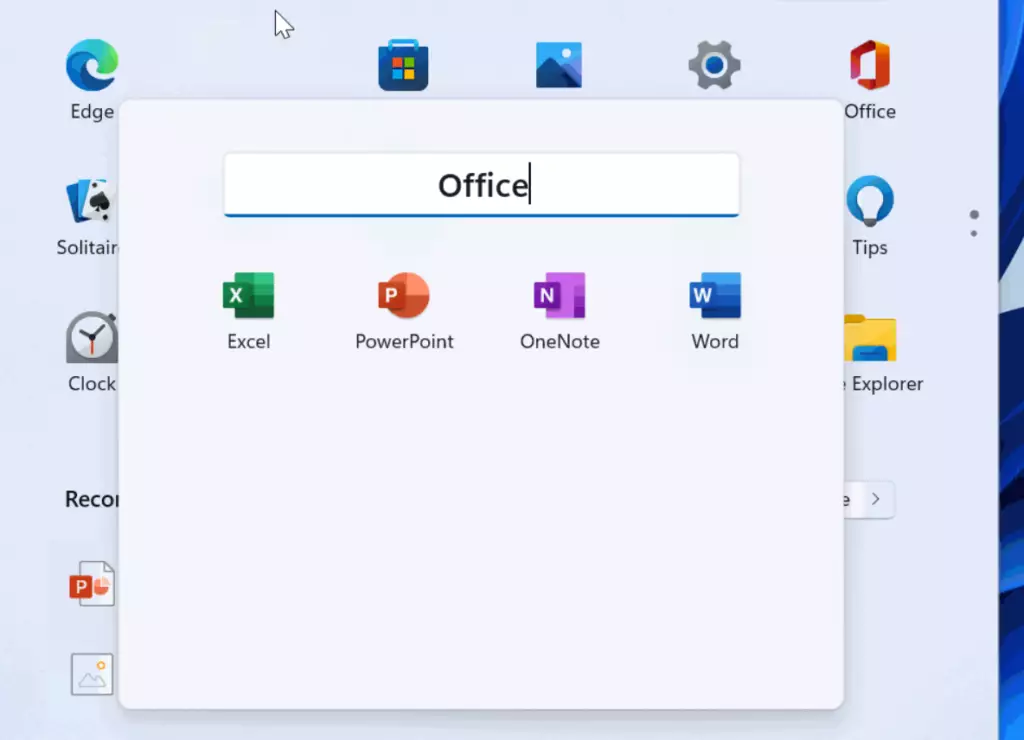
Once you click “Edit name,” a text box will appear at the top of the folder.
- Type your preferred name into the box.
- Press the Enter key on your keyboard to save the new name.
Advanced Management: Shell:AppsFolder
The Shell:AppsFolder command in Windows 11 shows all your installed application shortcuts in one place, offering a different way to manage them.
Troubleshooting and Permissions
If you can’t rename a Start Menu folder in Windows 11, it might be due to system protection or needing administrative rights, especially for folders in specific system locations.
Summary
Renaming app folders in your Windows 11 Start Menu helps you organize your apps by category, making it quicker to find what you need without affecting your computer’s files.
Can I rename pre-installed 🪟 Windows 11 app folders?
Yes, you can rename folders you create in the Pinned section of the Start Menu. However, you cannot rename system-level folders or core Windows app directories directly, as these are protected by the operating system to prevent accidental deletion or system instability.
Does renaming an app folder break the application shortcut?
No. Renaming a folder in the Start Menu only changes the display label. It does not affect the file path or the target of the shortcut. Your applications will continue to launch normally regardless of the name you give the folder.
Was this guide helpful?

About the Author
Richard
Tech Writer, IT Professional
Richard, a writer for Geek Rewind, is a tech enthusiast who loves breaking down complex IT topics into simple, easy-to-understand ideas. With years of hands-on experience in system administration and enterprise IT operations, he’s developed a knack for offering practical tips and solutions. Richard aims to make technology more accessible and actionable. He's deeply committed to the Geek Rewind community, always ready to answer questions and engage in discussions.
No comments yet — be the first to share your thoughts!