How to Rename Files and Folders in Windows 11

You rename files and folders in Windows 11 by right-clicking and choosing “Rename,” or by selecting the item and pressing the F2 key.
Renaming is a basic but essential PC skill. It helps you organize your digital life by making it easier to find specific documents, photos, or project files.
For instance, changing a file name from “IMG_001.jpg” to “Vacation_Hawaii_Day1.jpg” instantly clarifies its content without you needing to open it first.
This straightforward method works for both individual files and entire folders, keeping your computer tidy and efficient.
Rename files and folders in Windows 11 by right-clicking and selecting “Rename” or by pressing F2. You can also use the Rename icon in File Explorer’s top menu bar. For bulk renaming, select multiple files, press F2, type a new name, and press Enter.
What happens when you rename?
When you rename a file, you only change the label. The actual content inside remains exactly the same. Your computer simply updates its internal record of where that file is stored.
How to rename a folder in 🪟 Windows 11
Renaming a folder in Windows 11 is simple using File Explorer. Just click on the folder you want to change, then click the ‘Rename’ icon in the top menu bar. Type your new name and press Enter to save it.
- Open File Explorer.
- Click on the folder you want to change.
- Click the Rename icon in the top menu bar.
windows 11 rename file and folder - The name will be highlighted. Start typing the new name.
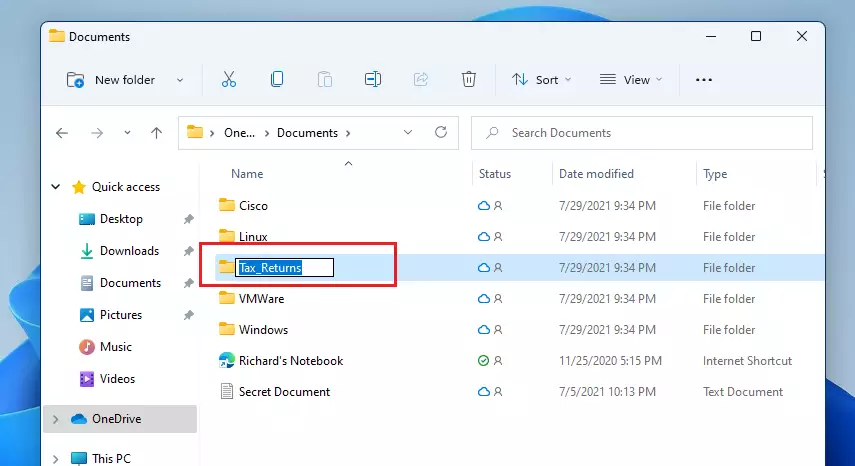
windows 11 rename folder - Press Enter on your keyboard to save the change.
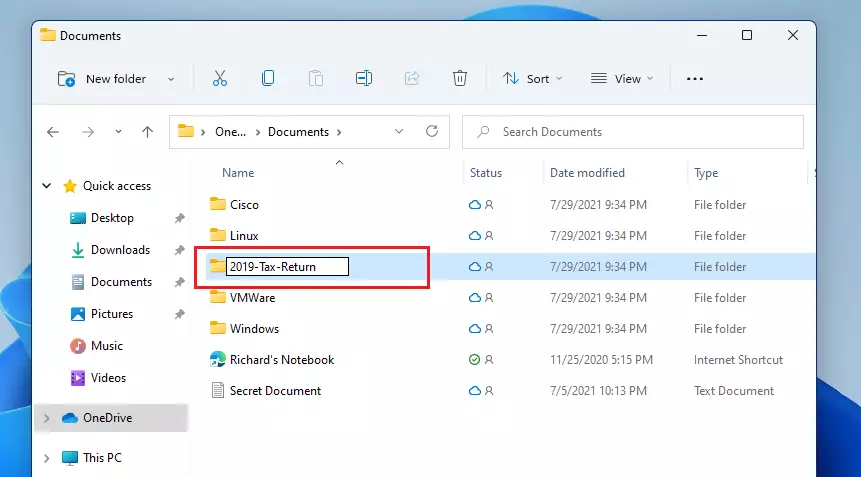
windows folder is renamed
Alternatively, you can right-click the folder and select the Rename icon. 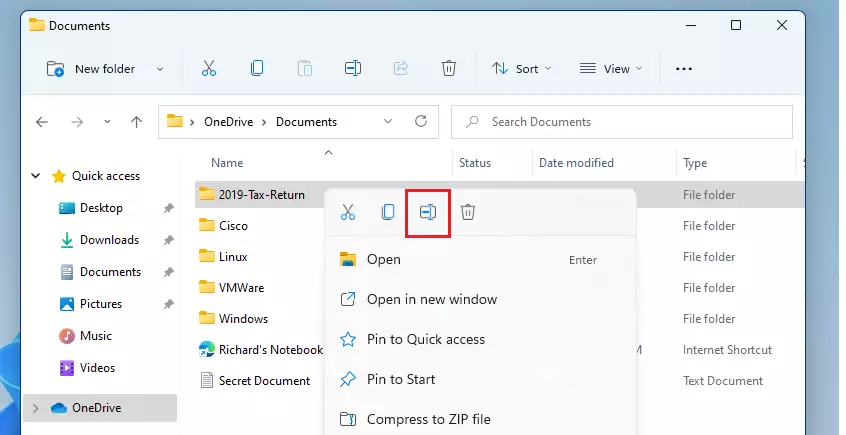
How to rename multiple files at once in 🪟 Windows 11
If you have many files, you can use the F2 shortcut. Select all files, press F2, type a name, and press Enter. Windows will name them sequentially, like “Photo (1),” “Photo (2),” and so on.
Advanced Bulk Renaming with PowerToys
For more control, use the Microsoft PowerToys PowerRename tool. It allows you to use regular expressions to find and replace text in hundreds of files at once.
How to rename files using Command Prompt
Advanced users can use the Command Prompt. Note: This does not require admin privileges unless the file is in a protected system folder like 📁C:\Windows\System32.
ren "oldname.txt" "newname.txt"
Troubleshooting Common Issues
If you’re having trouble renaming files or folders in Windows 11, it’s often due to a few common issues. Make sure the file isn’t open in another program, check that you aren’t using forbidden symbols like /?:, and ensure you have administrator permission if renaming system files.Summary
Keeping your files and folders named clearly in Windows 11 helps keep your digital space tidy. Remember you can use F2 for quick renaming or PowerRename for more complex jobs. Avoid forbidden characters and use Ctrl+Z to undo any mistakes easily.
Can I undo a file rename in 🪟 Windows 11?
Yes, you can easily undo a rename. If you just renamed a file or folder, simply press Ctrl+Z on your keyboard. This will revert the name to its previous state immediately. This works for single files and even groups of files you renamed in bulk.
What is the best free software for bulk renaming files?
For most Windows 11 users, the best free tool is Microsoft PowerToys. It integrates directly into the File Explorer context menu. For more complex needs, Bulk Rename Utility is a powerful free alternative that offers advanced features like date stamping and complex sequence numbering.
Was this guide helpful?

About the Author
Richard
Tech Writer, IT Professional
Richard, a writer for Geek Rewind, is a tech enthusiast who loves breaking down complex IT topics into simple, easy-to-understand ideas. With years of hands-on experience in system administration and enterprise IT operations, he’s developed a knack for offering practical tips and solutions. Richard aims to make technology more accessible and actionable. He's deeply committed to the Geek Rewind community, always ready to answer questions and engage in discussions.


No comments yet — be the first to share your thoughts!