How to Change Name of User Profile Folder in Windows 11

Want to make your user folder name match your Windows 11 account name? This guide shows you how.
Log in with a different administrator account. Open Command Prompt to find your account SID, then use Registry Editor to update the ProfileImagePath to your new desired folder name. Finally, rename the actual user folder in File Explorer to match.
Why This Matters
When you first set up your computer, Windows creates a folder for your files in C:\Users. This folder keeps its original name even if you change your account name later. Renaming it helps keep your computer organized and makes finding files much clearer.
What Happens When You Finish
After you rename your user profile folder in Windows 11, your computer will use the new name for all your files and settings, making it easier to manage your account.
Important: You cannot rename a folder while you are logged into that account. You must log in with a different administrator account to make these changes.
If you haven’t renamed your user account yet, make sure it has administrator privileges. If you need to enable Windows 11’s built-in administrator account for this task, follow our guide on how to do that.
Step 1Open Command Prompt
Log in with your administrator account. Click the Start button, type “Command Prompt,” and open the app.
Step 2Find the Account SID
To rename your user home folder, you first need to find your account’s unique Security Identifier, or SID, which tells Windows exactly which folder to change.
wmic useraccount get name,SIDYou will see a list that looks like this:Name SID
DefaultAccount S-1-5-21-2007855691-582224021-1368697043-503
defaultuser0 S-1-5-21-2007855691-582224021-1368697043-1000
LocalAdmin S-1-5-21-2007855691-582224021-1368697043-500
JaneDoe S-1-5-21-2007855691-582224021-1368697043-504
TestUser S-1-5-21-3044698505-590223214-3122486089-1001
Look for your account name in the list and jot down the SID string next to it.
Step 3Open Registry Editor
⚠️ You need admin privileges for this step.
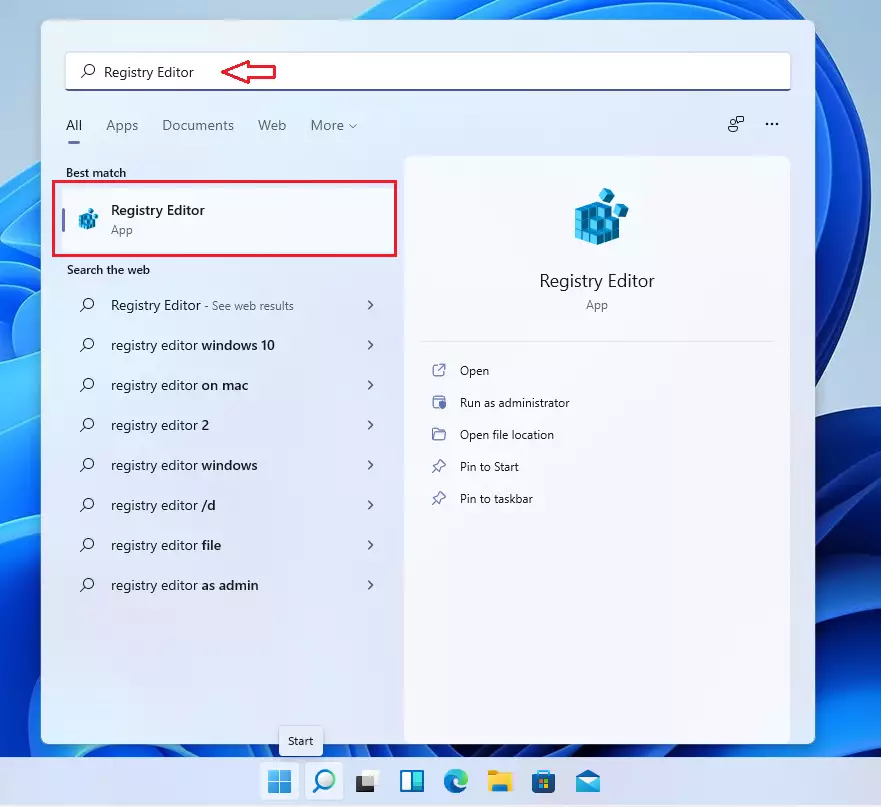
Click Start, type “Registry Editor,” and open it.
Step 4Navigate to the Profile Path
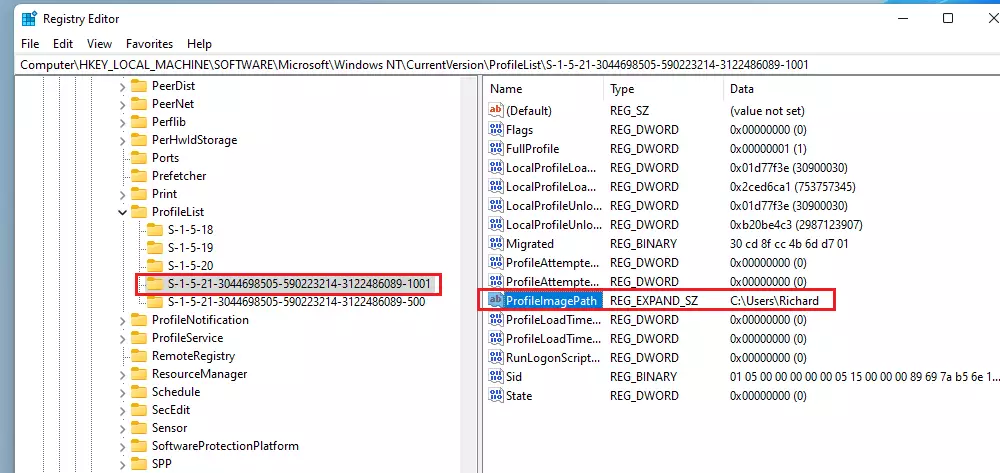
In the Registry Editor, navigate to this location using the left-hand menu:
HKEY_LOCAL_MACHINE\SOFTWARE\Microsoft\Windows NT\CurrentVersion\ProfileListLook for the folder that matches the SID you found in Step 2 and click on it.
Step 5Update the Profile Path
⚠️ You need admin privileges for this step.
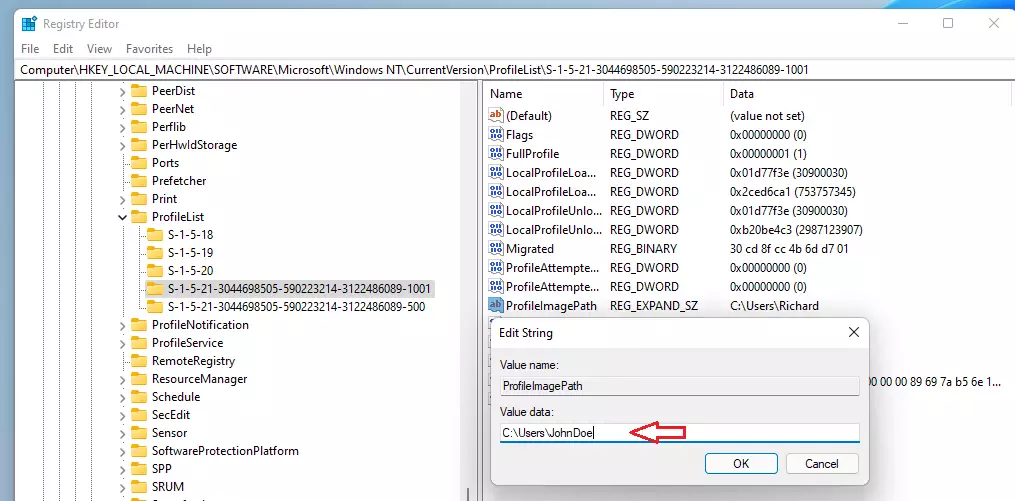
Find the file named “ProfileImagePath” on the right side. Right-click it and choose “Modify.” Change the path to your new desired folder name. For example, if it currently shows C:\Users\TestUser, change it to C:\Users\NewName. Click OK to save.
Step 6Rename the Folder in File Explorer
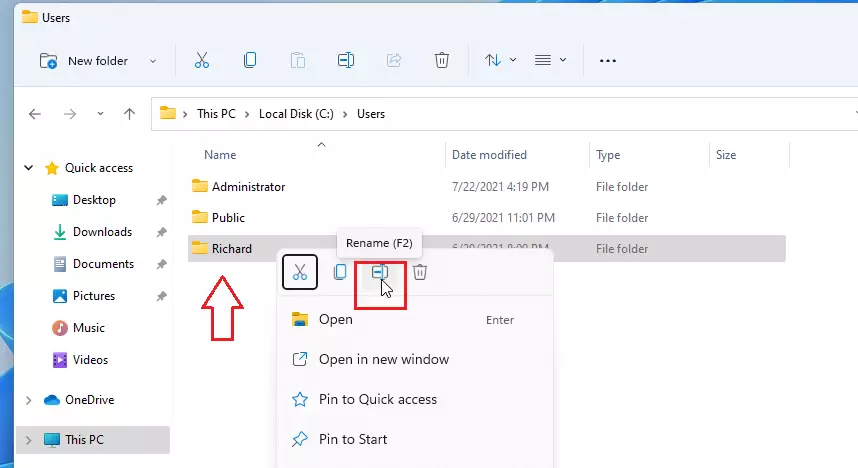
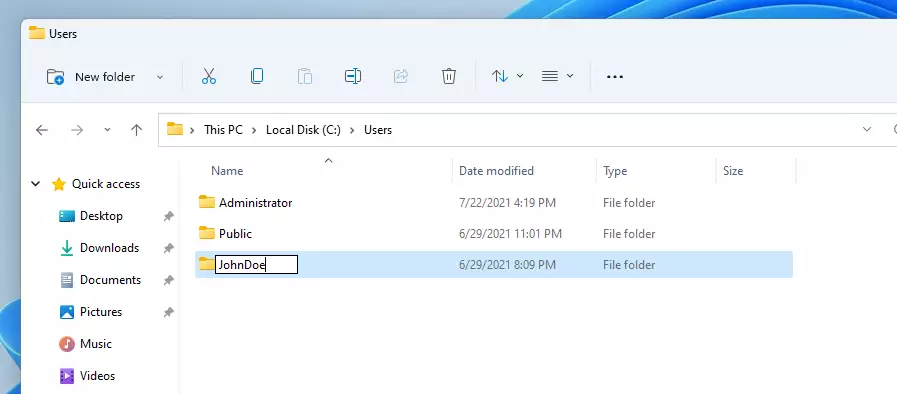
Open File Explorer and go to the C:\Users folder. Find your old home folder, right-click it, and select “Rename.” Type the new name to match the one you used in Step 5.
Step 7Check OneDrive and Other Services
If you use cloud storage like OneDrive, open its settings to make sure it is looking at the new folder location. This ensures your files continue to sync without errors.
Step 8Finish Up
Close all windows. Log out of the administrator account and sign back into your regular account. If you enabled the built-in administrator account just for this task, remember to log back in as administrator to disable it again.
Summary
This guide showed you how to rename your user home folder in Windows 11 by logging into another admin account, finding your account SID, updating the registry, and renaming the actual folder.
- Logged in with a separate administrator account.
- Used Command Prompt to identify your unique account SID.
- Updated the Windows Registry to point to the new folder name.
- Renamed the physical folder in File Explorer.
- Verified that your cloud services are synced to the new location.
Your system is now clean, consistent, and organized.
Was this guide helpful?

About the Author
Richard
Tech Writer, IT Professional
Richard, a writer for Geek Rewind, is a tech enthusiast who loves breaking down complex IT topics into simple, easy-to-understand ideas. With years of hands-on experience in system administration and enterprise IT operations, he’s developed a knack for offering practical tips and solutions. Richard aims to make technology more accessible and actionable. He's deeply committed to the Geek Rewind community, always ready to answer questions and engage in discussions.


Unable to open the folders on This PC. Getting an error saying that the location is not available. How should I proceed?
Won’t allow the folder name change, says it’s in use.
Hi Chris,
you need to use an different account than this one which you want to rename. Use netplwiz.exe to create a new user with admin rights, log off the account you want to change and use the created one instead. The folder of the account you logged in with is always in use and cannot be edited
Devi riavviare il pc e eseguire il login come amministratore e riprovare. A me ha funzionato. Poi se usi oneDrive una volta fatto il login come utente apri l’app onedrive e imposta la nuova path utente.
For some reason in Windows 11, following this, while it works there are two problems.
One drive brings an error in each login that it cannot find the old folder.
I cannot pin anything to taskbar
Tried it in Windows 11, but search in settings is no longer working, cannot search anything in windows settings
That is totally correct, yet all these posts fail to mention that and now you are stuck!! A lot of these so called guru-charlatan just copy from one site some info, yet don’t have clue or never test this themselves.
Thank you very much. It works.
As soon as I did this in same order my windows icon did not work. I tried to go back and lost windows .. I tried to restore and nothing is working.. even I created another admin user before I started this and its not working either .. this is crazy !!
don’t do this on windows 11 if you’re logged in with a Microsoft account!!
I second that! These instructions will likely make some of your programs not work.
did not do the make a new account and i did it all in the account i want the folder to rename and now its stuck at preparing windows
Thanks for a great and straightforward set of instructions. That Microsoft would make it so hard to make such a simple change is mind-boggling. I guess there must be some security reason, but obfuscation has never been a useful security strategy!
This broke my windows – cannot open start menu and the windows 11 context menu broke.
Don’t know if its related to the account being a Microsoft account – but no other way to restore but to reinstall windows.
Honestly, don’t fucking do this.
You went into safe made, so you can undo the steps to rename back to the original name it was and you will be back to the same condition.
This worked for me, but later on none of the already installed apps can be updated/uninstalled as it looks at the path with the old name and errors out.
Not working. Rename option not enabled.
I keep getting the error: Cannot edit ProfileImagePath: Error writing the value’s new contents.
I’m logged out of my main account, logged into a local account I created. I opened command prompt with administrator access. Not really sure what I’m doing wrong here.
This article caused more damage than the problem I was trying to solve.
Maybe it works for some people, but if like me, your PC was preinstalled with Windows 11, then chances are your desktop and environment are actually romaing, and pointing to OneDrive directories.
So after going through all the steps.. creating an admin user in order to rename original user, logging back in as original user, and then opening explorer it complained that the Desktop folder didnt exist, every single time I opened it.
Luckily you can fix this. Open regedit, and navigate to..
HKEY_CURRENT_USER\Software\Microsoft\Windows\CurrentVersion\Explorer\Shell Folders
Now modify each value to replace each key where the value contains user1, and replace that bit with your new username