How to Share Your Files with OneDrive in Windows 11

More OneDrive Sharing Options
Beyond basic sharing, OneDrive offers more options on its website, like setting links to expire or protecting them with a password for added security. OneDrive has even more settings on its website. Go to onedrive.live.com to manage your files there. You can:-
- Set Links to Expire: Make a shareable link stop working after a set number of days. This adds security.
-
- Protect Links with a Password: For private files, require a password to open the link.
-
- Control Downloads: Stop people from downloading a file. They can only view it online.
Summary
This guide explained how to share OneDrive files in Windows using general links or direct emails, plus advanced options like expiring links and passwords. This guide showed you how to share files using OneDrive in Windows. You learned two main methods: creating a general link anyone can use and emailing links directly to specific people. We also touched on advanced options like setting expiration dates and passwords available through the OneDrive website. Sharing files from your computer is now much more manageable, helping you send large files and collaborate effectively.How do I share a file with someone through OneDrive?
Why can’t I share a file from OneDrive?
How to setup OneDrive for file sharing?
Does 🪟 Windows 11 have file sharing?
Method 2Email a Link Directly (To Specific People)
You can email a OneDrive file link directly to specific people, which is a great way to share privately when you know exactly who you want to send it to. This is great when you know who you want to share with and want to send it directly by email. It’s more private and professional.-
- Select Your OneDrive Item Open File Explorer and go to your OneDrive files. Click the file or folder you want to share.
-
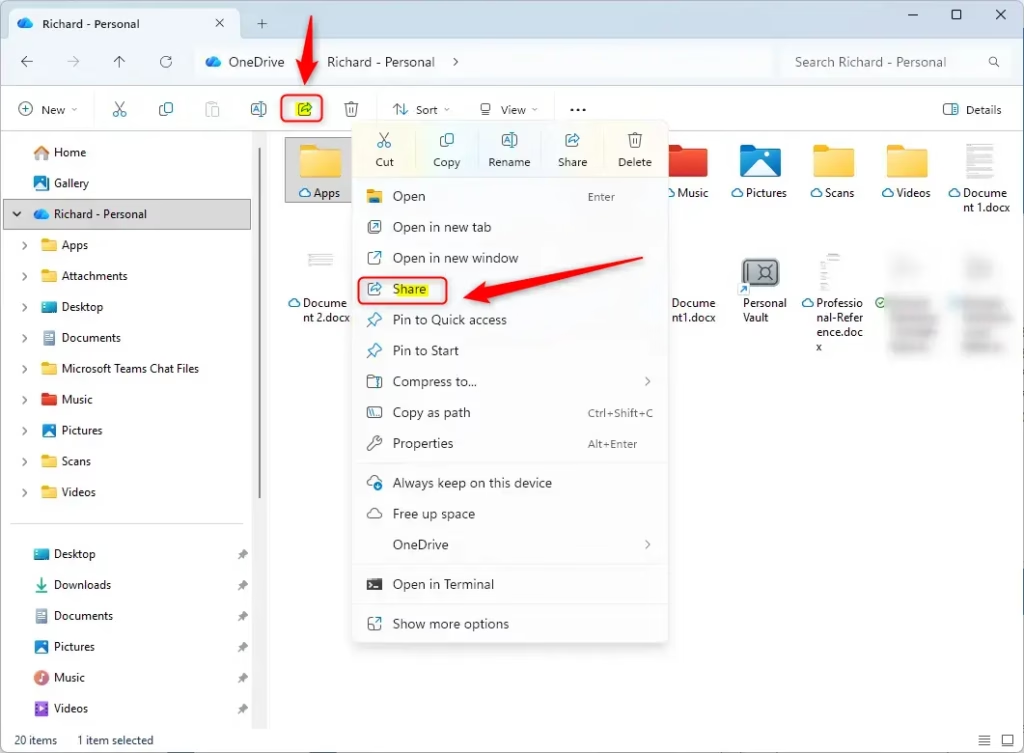
- Start Sharing Click the “Share” button at the top of File Explorer. The sharing window will appear.
-
- Choose Who Can Access and Apply In the sharing window, choose who can access the file. You might select “People you specify” for more control. Click “Apply.”
-
- Enter Who to Send To You’ll see a field, often labeled “To:”. Type the email addresses of the people you want to share with. Windows might suggest names if they are in your contacts. Helpful Tip: You can usually add many email addresses. Separate them with a semicolon (;) or a comma (,).
-
- Add a Message (Optional) Below the “To:” field, there’s a place to write a message. Explain what the file is or why you’re sending it. This makes it more personal.
-
- Send It! After adding people and your message, click the “Send” button. Windows will email the link to everyone you chose.
More OneDrive Sharing Options
Beyond basic sharing, OneDrive offers more options on its website, like setting links to expire or protecting them with a password for added security. OneDrive has even more settings on its website. Go to onedrive.live.com to manage your files there. You can:-
- Set Links to Expire: Make a shareable link stop working after a set number of days. This adds security.
-
- Protect Links with a Password: For private files, require a password to open the link.
-
- Control Downloads: Stop people from downloading a file. They can only view it online.
Summary
This guide explained how to share OneDrive files in Windows using general links or direct emails, plus advanced options like expiring links and passwords. This guide showed you how to share files using OneDrive in Windows. You learned two main methods: creating a general link anyone can use and emailing links directly to specific people. We also touched on advanced options like setting expiration dates and passwords available through the OneDrive website. Sharing files from your computer is now much more manageable, helping you send large files and collaborate effectively.How do I share a file with someone through OneDrive?
Why can’t I share a file from OneDrive?
How to setup OneDrive for file sharing?
Does 🪟 Windows 11 have file sharing?
Method 1Get a Shareable Link (For Anyone)
Sharing OneDrive files with anyone is easy using a shareable link, perfect for sending to many people or when you don’t have their email addresses. This is perfect when you want to share with lots of people or when you don’t know everyone’s email address. You create a link, and then you can pop that link into an email, chat message, or anywhere else.-
- Find Your File Open File Explorer. It’s the folder icon on your taskbar. Go to the folder with your OneDrive files. You’ll see a cloud icon next to them. This means they are saved to your OneDrive.
-
- Choose the File or Folder Click once on the file or folder you want to share. To share more than one, hold down the Ctrl key and click on each item.
-
- Click “Share” Look at the top of the File Explorer window. You should see a “Share” button. Click it. Tip: If you don’t see “Share,” click the file first. It might also be under a small arrow or a “…” icon if your screen is small.
-
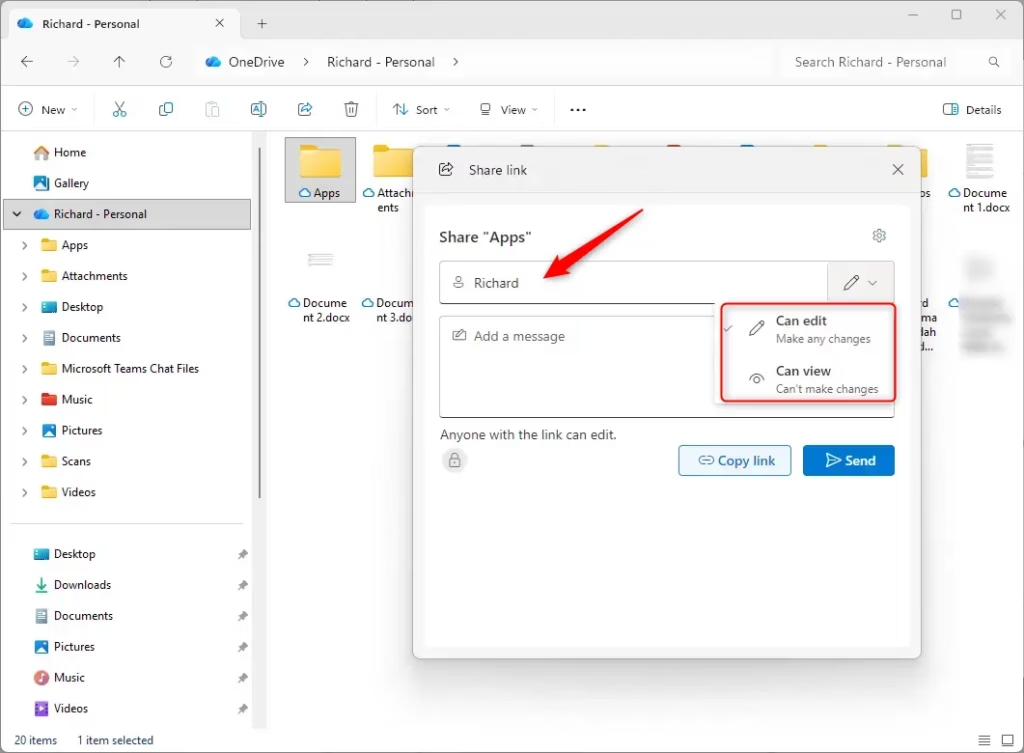
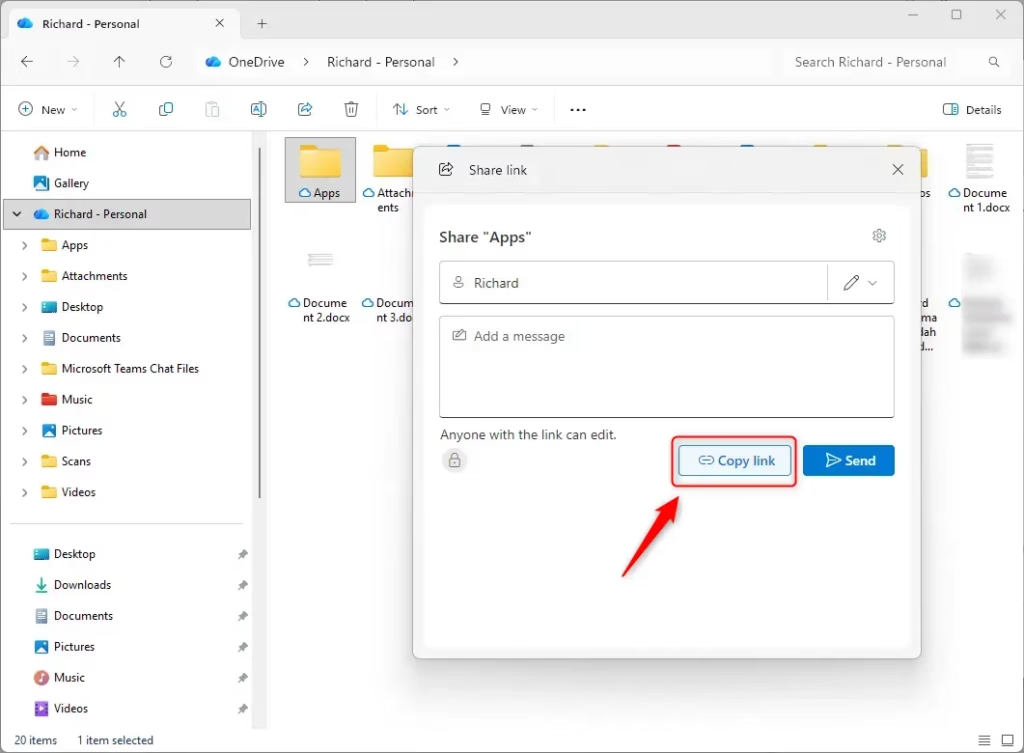
- Create and Copy Your Link A sharing window will open. Choose who the link should work for. For this method, pick “Anyone with the link.” Then click “Apply.” Now, click “Copy link.” Warning: Be careful with links set to “Anyone with the link.” Anyone who gets this link can see or even edit your file. Always check the permissions you set.
-
- Paste Your Link Anywhere! The link is now copied. Open your email, chat, or a document. Press Ctrl+V (or right-click and choose “Paste”) to add the link. You’re done!
Method 2Email a Link Directly (To Specific People)
You can email a OneDrive file link directly to specific people, which is a great way to share privately when you know exactly who you want to send it to. This is great when you know who you want to share with and want to send it directly by email. It’s more private and professional.-
- Select Your OneDrive Item Open File Explorer and go to your OneDrive files. Click the file or folder you want to share.
-
- Start Sharing Click the “Share” button at the top of File Explorer. The sharing window will appear.
-
- Choose Who Can Access and Apply In the sharing window, choose who can access the file. You might select “People you specify” for more control. Click “Apply.”
-
- Enter Who to Send To You’ll see a field, often labeled “To:”. Type the email addresses of the people you want to share with. Windows might suggest names if they are in your contacts. Helpful Tip: You can usually add many email addresses. Separate them with a semicolon (;) or a comma (,).
-
- Add a Message (Optional) Below the “To:” field, there’s a place to write a message. Explain what the file is or why you’re sending it. This makes it more personal.
-
- Send It! After adding people and your message, click the “Send” button. Windows will email the link to everyone you chose.
More OneDrive Sharing Options
Beyond basic sharing, OneDrive offers more options on its website, like setting links to expire or protecting them with a password for added security. OneDrive has even more settings on its website. Go to onedrive.live.com to manage your files there. You can:-
- Set Links to Expire: Make a shareable link stop working after a set number of days. This adds security.
-
- Protect Links with a Password: For private files, require a password to open the link.
-
- Control Downloads: Stop people from downloading a file. They can only view it online.
Summary
This guide explained how to share OneDrive files in Windows using general links or direct emails, plus advanced options like expiring links and passwords. This guide showed you how to share files using OneDrive in Windows. You learned two main methods: creating a general link anyone can use and emailing links directly to specific people. We also touched on advanced options like setting expiration dates and passwords available through the OneDrive website. Sharing files from your computer is now much more manageable, helping you send large files and collaborate effectively.How do I share a file with someone through OneDrive?
Why can’t I share a file from OneDrive?
How to setup OneDrive for file sharing?
Does 🪟 Windows 11 have file sharing?
Share files in Windows 11 by opening File Explorer, selecting your OneDrive file, clicking the Share button, and then choosing “Anyone with the link” or specific recipients via email. Copy and paste the generated link to send it.
What is OneDrive?
OneDrive is your personal cloud storage space from Microsoft, letting you save files and access them from any device, like a digital filing cabinet. Think of OneDrive as your online storage space, like a digital filing cabinet in the cloud, provided by Microsoft. You can save files here and access them from any device you use – your computer, phone, or tablet. It also acts as a backup, protecting your important files if your computer has a problem.Two Easy Ways to Share OneDrive Files
Using OneDrive with Windows gives you two main ways to share files from File Explorer. One way gives you a link anyone can use. The other way lets you email a link to specific people.Method 1Get a Shareable Link (For Anyone)
Sharing OneDrive files with anyone is easy using a shareable link, perfect for sending to many people or when you don’t have their email addresses. This is perfect when you want to share with lots of people or when you don’t know everyone’s email address. You create a link, and then you can pop that link into an email, chat message, or anywhere else.-
- Find Your File Open File Explorer. It’s the folder icon on your taskbar. Go to the folder with your OneDrive files. You’ll see a cloud icon next to them. This means they are saved to your OneDrive.
-
- Choose the File or Folder Click once on the file or folder you want to share. To share more than one, hold down the Ctrl key and click on each item.
-
- Click “Share” Look at the top of the File Explorer window. You should see a “Share” button. Click it. Tip: If you don’t see “Share,” click the file first. It might also be under a small arrow or a “…” icon if your screen is small.
-
- Create and Copy Your Link A sharing window will open. Choose who the link should work for. For this method, pick “Anyone with the link.” Then click “Apply.” Now, click “Copy link.” Warning: Be careful with links set to “Anyone with the link.” Anyone who gets this link can see or even edit your file. Always check the permissions you set.
-
- Paste Your Link Anywhere! The link is now copied. Open your email, chat, or a document. Press Ctrl+V (or right-click and choose “Paste”) to add the link. You’re done!
Method 2Email a Link Directly (To Specific People)
You can email a OneDrive file link directly to specific people, which is a great way to share privately when you know exactly who you want to send it to. This is great when you know who you want to share with and want to send it directly by email. It’s more private and professional.-
- Select Your OneDrive Item Open File Explorer and go to your OneDrive files. Click the file or folder you want to share.
-
- Start Sharing Click the “Share” button at the top of File Explorer. The sharing window will appear.
-
- Choose Who Can Access and Apply In the sharing window, choose who can access the file. You might select “People you specify” for more control. Click “Apply.”
-
- Enter Who to Send To You’ll see a field, often labeled “To:”. Type the email addresses of the people you want to share with. Windows might suggest names if they are in your contacts. Helpful Tip: You can usually add many email addresses. Separate them with a semicolon (;) or a comma (,).
-
- Add a Message (Optional) Below the “To:” field, there’s a place to write a message. Explain what the file is or why you’re sending it. This makes it more personal.
-
- Send It! After adding people and your message, click the “Send” button. Windows will email the link to everyone you chose.
More OneDrive Sharing Options
Beyond basic sharing, OneDrive offers more options on its website, like setting links to expire or protecting them with a password for added security. OneDrive has even more settings on its website. Go to onedrive.live.com to manage your files there. You can:-
- Set Links to Expire: Make a shareable link stop working after a set number of days. This adds security.
-
- Protect Links with a Password: For private files, require a password to open the link.
-
- Control Downloads: Stop people from downloading a file. They can only view it online.
Summary
This guide explained how to share OneDrive files in Windows using general links or direct emails, plus advanced options like expiring links and passwords. This guide showed you how to share files using OneDrive in Windows. You learned two main methods: creating a general link anyone can use and emailing links directly to specific people. We also touched on advanced options like setting expiration dates and passwords available through the OneDrive website. Sharing files from your computer is now much more manageable, helping you send large files and collaborate effectively.How do I share a file with someone through OneDrive?
Why can’t I share a file from OneDrive?
How to setup OneDrive for file sharing?
Does 🪟 Windows 11 have file sharing?
Was this guide helpful?

About the Author
Richard
Tech Writer, IT Professional
Richard, a writer for Geek Rewind, is a tech enthusiast who loves breaking down complex IT topics into simple, easy-to-understand ideas. With years of hands-on experience in system administration and enterprise IT operations, he’s developed a knack for offering practical tips and solutions. Richard aims to make technology more accessible and actionable. He's deeply committed to the Geek Rewind community, always ready to answer questions and engage in discussions.



No comments yet — be the first to share your thoughts!