How to Change User Account Name in Windows 11

This tutorial will show you how to change the name of a local account or Microsoft account in Windows 10 and Windows 11.
Go to Settings, click Accounts, then Other users. Expand the account you wish to rename, click Change account name, enter the new name, and click OK. This method works for both local and Microsoft accounts.
Why Change Your Account Name?
Changing your Windows 11 account name can be helpful for personalization or if you’re sharing your computer with others, giving each user a distinct identity.
You can add a local user account (an offline account) or a Microsoft account for a user to sign in to the PC with.
What’s the Difference Between User Name and Full Name?
Your Windows 11 user name is like a secret code the computer uses to know who you are, while your full name is what you see on the login screen and in menus.
The full name of an account is the display name used in Windows. The account’s display name will show in places like the Sign-in screen, Start Menu, and Settings.
When you create a Microsoft account, you specify a changeable full name. This name is used as the display name.
If a local account doesn’t have a full name specified, then its user name is used as the display name instead.
Important Things to Know
Before you change your Windows 11 account name, remember you need to be an administrator and that the folder with your name on it won’t change.
- You must be signed in as an administrator to change the user name of an account.
- Changing the name of an account will not change the name of its profile folder (ex:
C:\Users\Generic_User) used in paths. - User names can’t contain these characters: / \ [ ] ” : ; | < > + = , ? *
Option 1Change Name of Microsoft Account Online
Changing your Microsoft account name online is the easiest way to update it everywhere, including your Windows 11 computer, by visiting the ‘Your info’ page on Microsoft’s website.
- Go to the “Your info” page on the Microsoft account website, and sign in to your Microsoft account if not already.
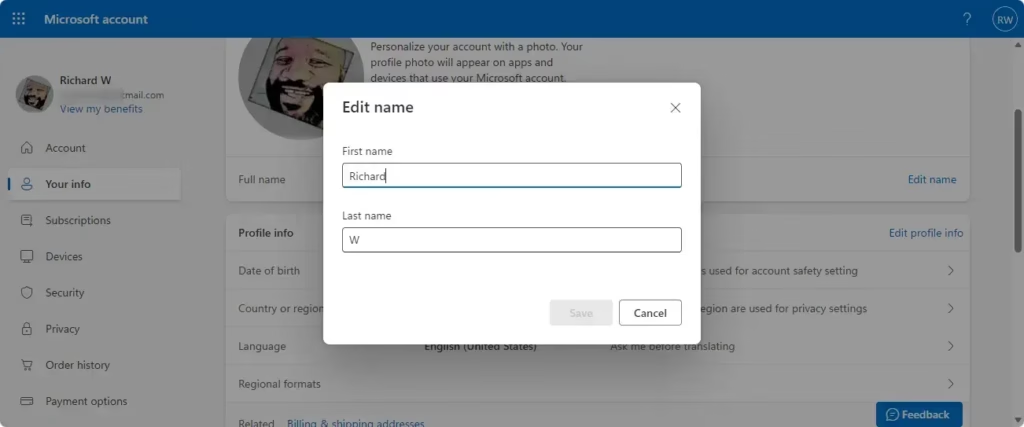
- Click/tap on the Edit name link.
- Type a new First name and Last name you want as the display name for your Microsoft account. Enter the Captcha characters you see to verify, and click/tap on Save.
- The First name and Last name you enter will be used as the full name of your Microsoft account shown on the lock screen and at sign in on your devices.
- While connected to the Internet, sign out and sign in to your Microsoft account on your Windows 11 PC to apply the changes.
Option 2Change Name in Settings
You can change your Windows 11 account name right in the Settings app, which works for both local and Microsoft accounts, though this option is still becoming available to everyone.
- Open Settings by pressing
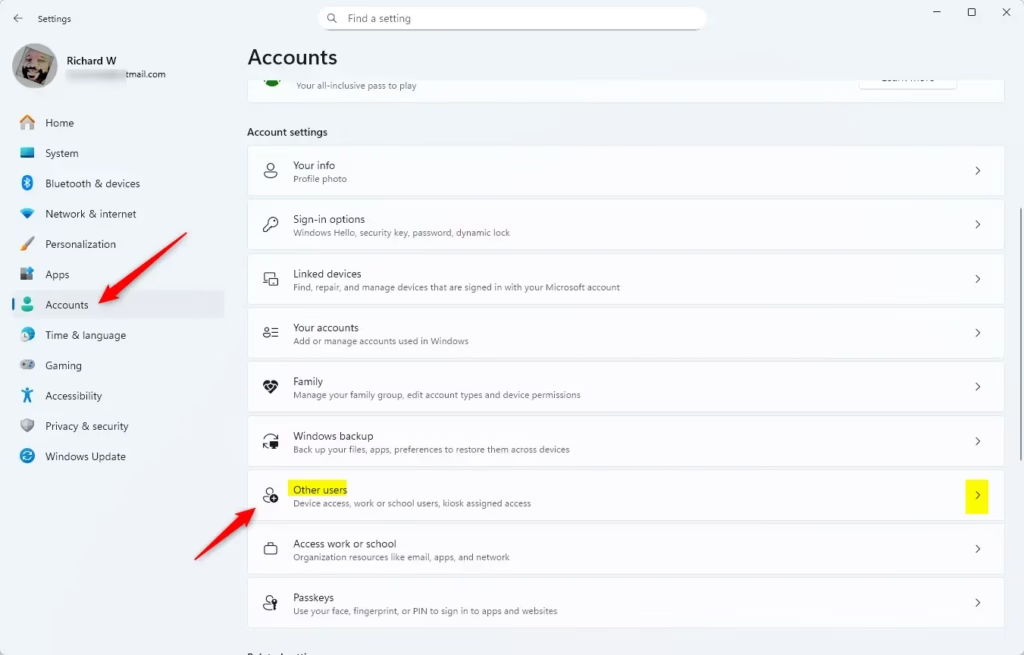
Win+I. - Click/tap on Accounts on the left side, and click/tap on Other users on the right side.
- Under Other users, click/tap on the account you want to change the name of to expand it open, and click/tap on Change account name.
- Type a new account name you want, and click/tap on OK.
- You can now close Settings if you like.
Option 3Change Name in Control Panel
To change the name of a local account in Windows 11, you can use the Control Panel by going to User Accounts and then choosing to manage another account.
- Open the Control Panel (icons view), and click/tap on the User Accounts icon.
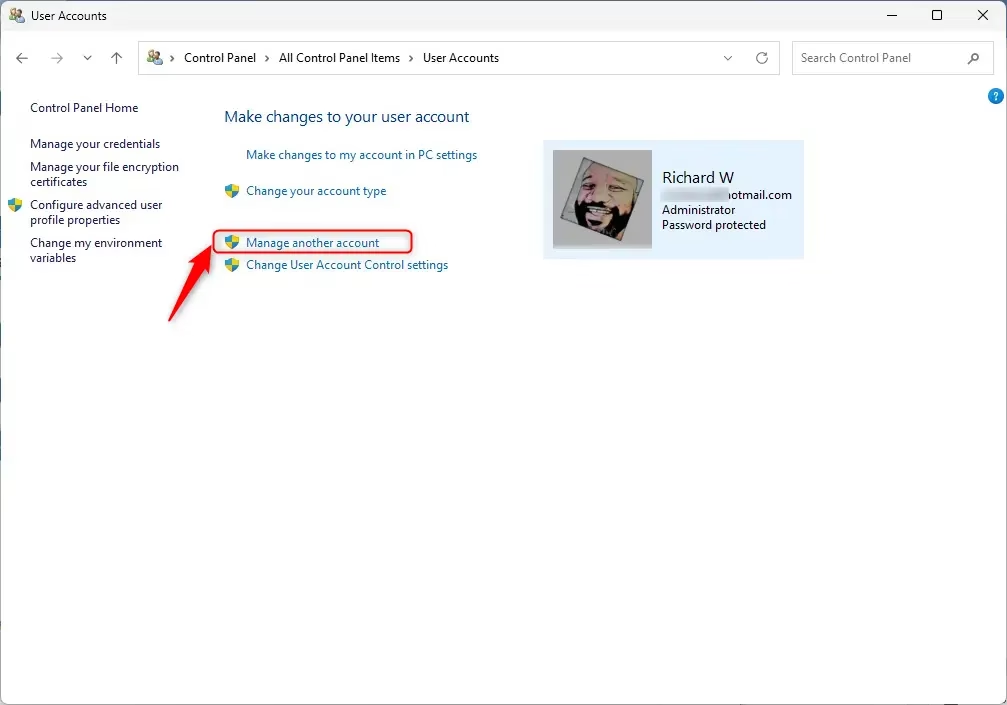
- Click/tap on the Manage another account link.
- Click/tap on a local account you want to change the name of.
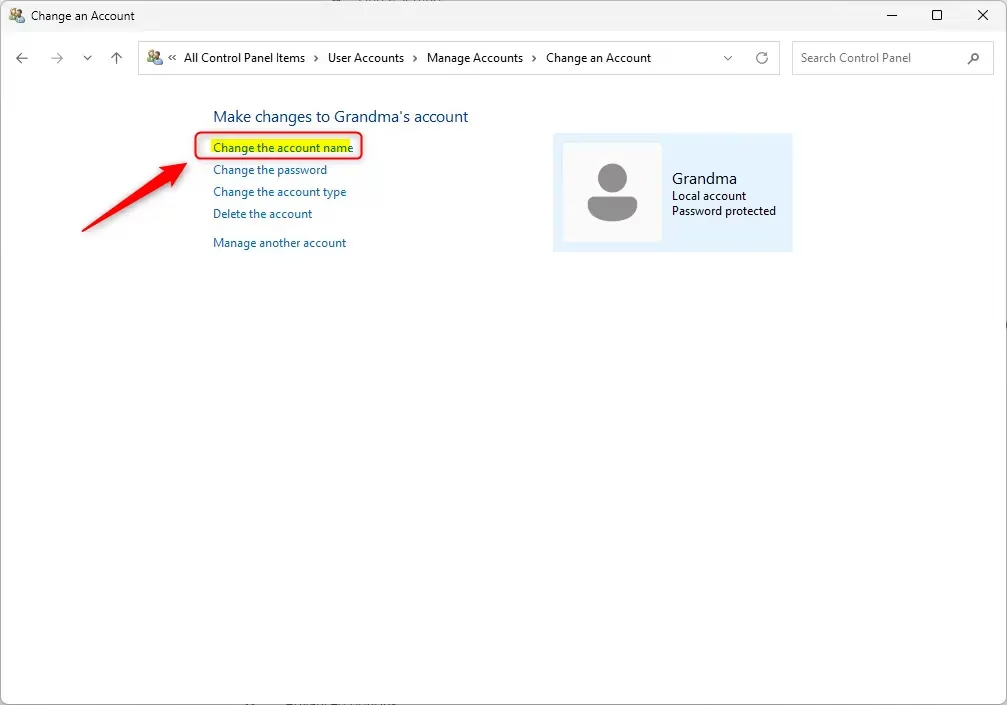
- Click/tap on the Change the account name link.
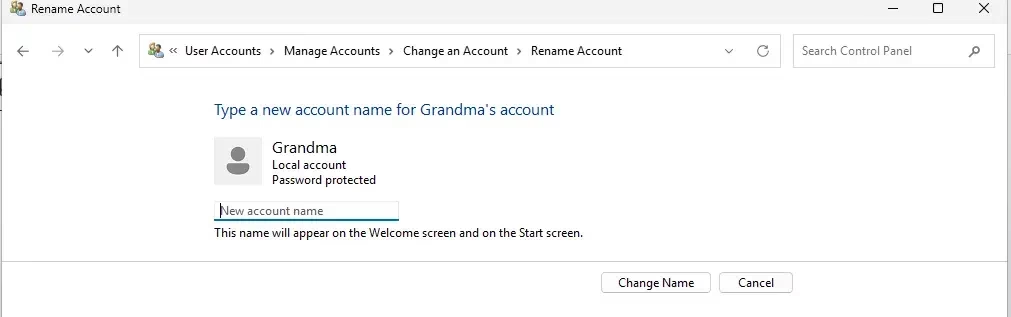
- Type a new account name you want, and click/tap on Change Name.
- You can now close the Control Panel if you like.
Option 4Change Name in netplwiz
You can also change a local account name in Windows 11 using the netplwiz tool, which you can open by typing ‘netplwiz’ into the Run box.
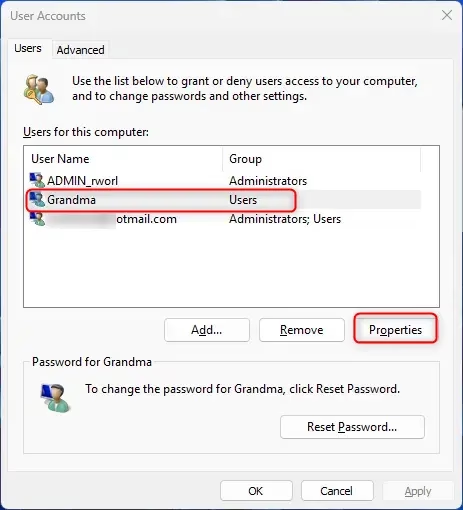
- Open netplwiz.
- Check the Users must enter a user name and password to use this computer box if available. Select the local account you want to change the name of, and click/tap on the Properties button.
- Note: If you turned on For improved security, only allow Windows Hello sign-in for Microsoft accounts on this device (aka: passwordless sign-in), you will not see the Users must enter a user name and password to use this computer check box until you turn off this setting. If your PC is currently joined to a domain, then the Users must enter a user name and password to use this computer box will not be available.
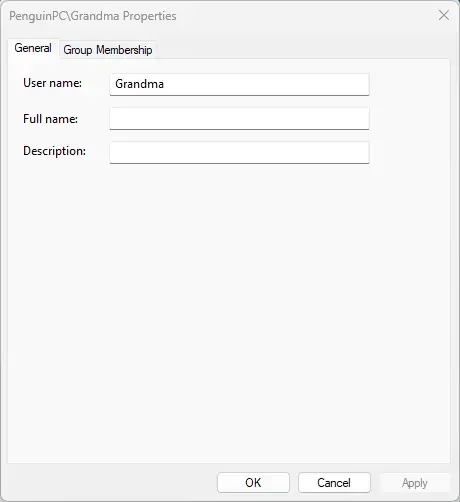
- In the General tab, type the new User name (ex:
"Generic_User3") you want for the local account, and click/tap on OK. - If you wanted to have Windows automatically sign in to an account at startup, then you will need to set this up again now.
- When finished, click/tap on OK.
- If you are currently signed in to this local account, click/tap on Yes when prompted to sign out and apply your changes.
Option 5Change Name in Command Prompt
If you’re comfortable with the Command Prompt, you can quickly change a local account name in Windows 11 by using a few specific commands.
⚠️ Admin Privileges Required
- Open Windows Terminal (Admin), and select Command Prompt.
- Copy and paste the command below into the elevated command prompt, and press Enter. Make note of the current name of the local account you want to change the name of.
wmic useraccount get fullname, name- Type the command below into the elevated command prompt, and press Enter.
wmic useraccount where name="Current Name" rename "New Name"- Substitute Current Name in the command above with the actual current name of the local account from step 2 above. Substitute New Name in the command above with the actual new name you want for the local account.
- For example:
wmic useraccount where name="Generic_User2" rename "Generic_User3" - You can now close Windows Terminal (Admin) if you like.
Option 6Change Name in PowerShell
For a more advanced method, you can change a local account name in Windows 11 using PowerShell, which gives you more control if you’re used to writing commands.
⚠️ Admin Privileges Required
- Open Windows Terminal (Admin), and select Windows PowerShell.
- Copy and paste the command below into the elevated PowerShell, and press Enter. Make note of the current name of the local account you want to change the name of.
Get-LocalUser- Type the command below into the elevated PowerShell, and press Enter. (see screenshot below)
Rename-LocalUser -Name "Current Name" -NewName "New Name"- Substitute Current Name in the command above with the actual current name of the local account from step 2 above. Substitute New Name in the command above with the actual new name you want for the local account.
- For example:
Rename-LocalUser -Name "Generic_User2" -NewName "Generic_User3" - You can now close Windows Terminal (Admin) if you like.
Option 7Change Name of Built-in Administrator Account
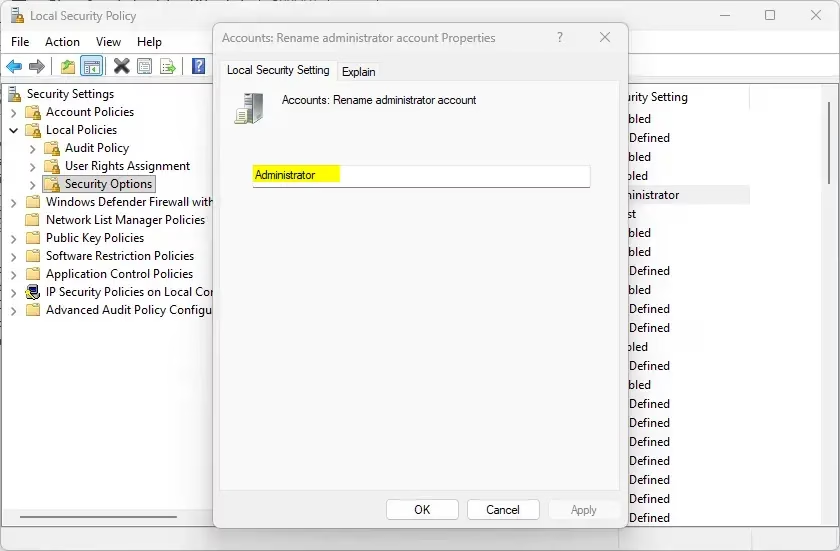
You can rename the built-in Administrator account in Windows 11 Pro, Enterprise, or Education using the Local Security Policy tool.
Note: This option is only available in the Windows 10/11 Pro, Enterprise, and Education editions.
⚠️ Admin Privileges Required
- Open Local Security Policy by typing
secpol.mscin the search box. - Expand open Local Policies in the left pane, and click/tap on Security Options.
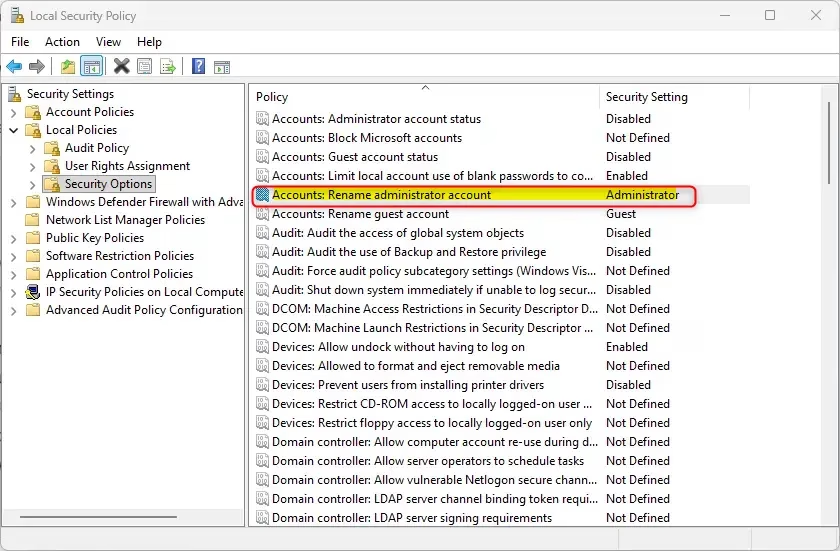
- In the right pane of Security Options, double click/tap on Accounts: Rename administrator account.
- Type a new name you want for the built-in Administrator account, and click/tap on OK.
- You can now close Local Security Policy if you like.
Summary
Changing your Windows 11 account name is simple, and you have many ways to do it, like changing it online for your Microsoft account, using Settings, Control Panel, or command tools.
Quick recap:
- Option One: Change your Microsoft account name online. This works on all your devices.
- Option Two: Use the Settings app to change a local or Microsoft account name. (New feature, rolling out gradually)
- Option Three: Use Control Panel to change a local account name. Works on most Windows versions.
- Option Four: Use netplwiz to change a local account name. Good if you need to manage multiple accounts.
- Option Five: Use Command Prompt to change a local account name. Fast if you know command-line tools.
- Option Six: Use PowerShell to change a local account name. More modern than Command Prompt.
- Option Seven: Change the built-in Administrator account name. Only works on Pro, Enterprise, and Education editions.
Remember: Changing your account name does not change your user profile folder name (like C:\Users\Generic_User). You need administrator privileges to make these changes. Choose the option that works best for you!
Was this guide helpful?

About the Author
Richard
Tech Writer, IT Professional
Richard, a writer for Geek Rewind, is a tech enthusiast who loves breaking down complex IT topics into simple, easy-to-understand ideas. With years of hands-on experience in system administration and enterprise IT operations, he’s developed a knack for offering practical tips and solutions. Richard aims to make technology more accessible and actionable. He's deeply committed to the Geek Rewind community, always ready to answer questions and engage in discussions.


No comments yet — be the first to share your thoughts!