How to Add Local Users in Windows 11

This guide walks you through adding new local users in Windows 11.
Open Settings, go to Accounts, then Other users, and click Add account. Skip signing in with a Microsoft account and choose to add a user without one, then enter a username and password to create the local account.
Why Add a Local User Account?
Adding a local user account in Windows 11 is a smart move for keeping your computer private and secure, especially if others use it.
Prerequisites
Note: You must have administrative privileges to add or remove users. If you’re using a standard account, you’ll need an administrator’s password to proceed.
How to Add New Users from System Settings
Windows 11 makes it quite manageable to handle accounts through the Settings menu.
Step 1Open System Settings
Press Windows key + I or click Start then Settings.
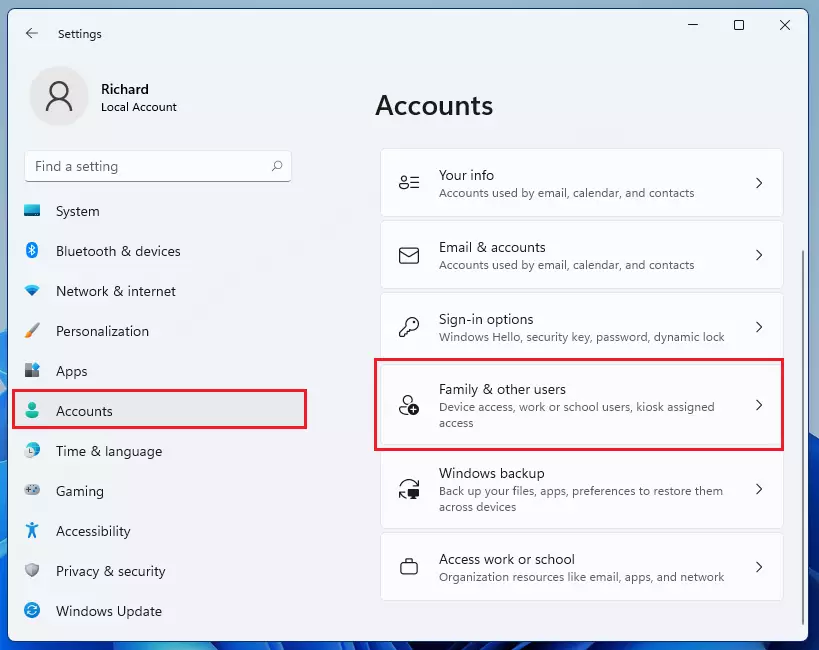
Step 2Go to Accounts
Click Accounts on the left sidebar, then select Other users.
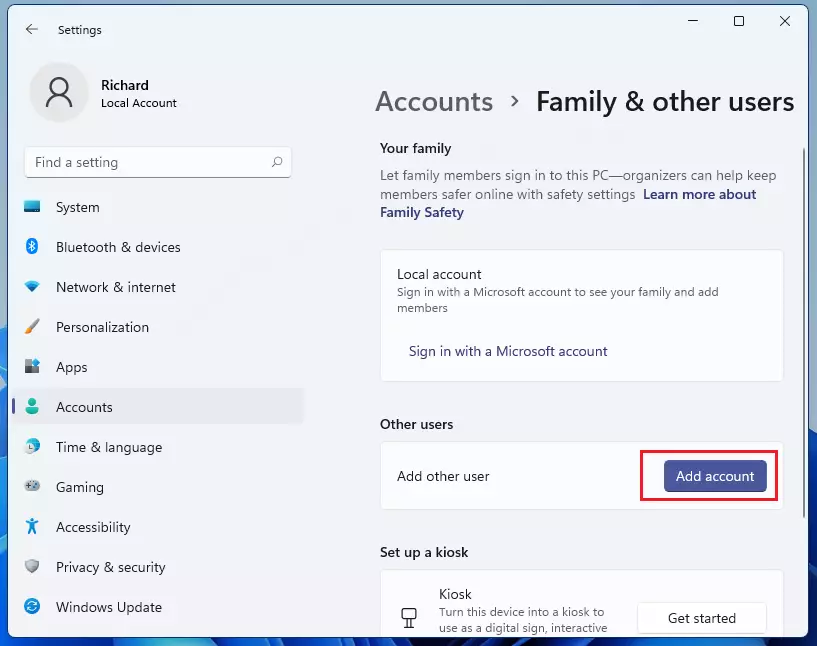
Step 3Click Add Account
Click the Add account button.
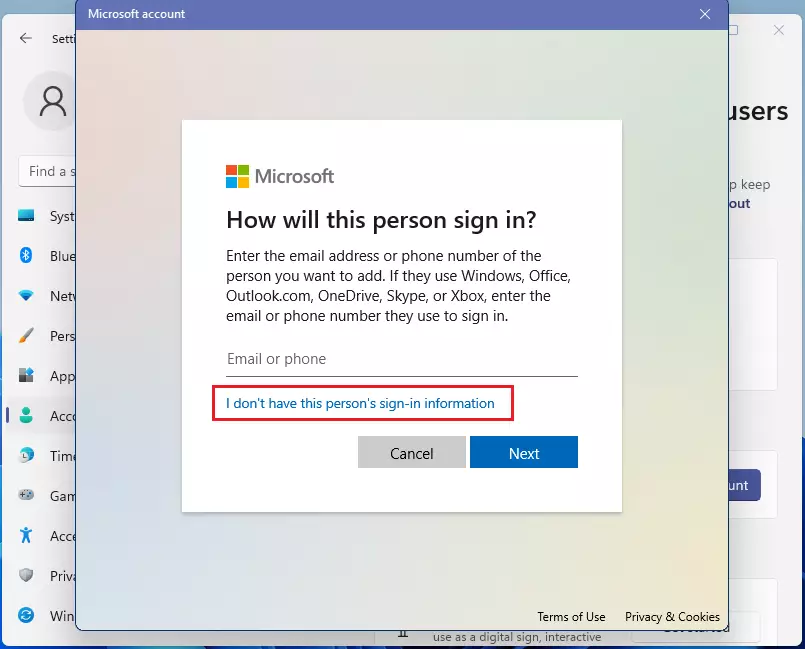
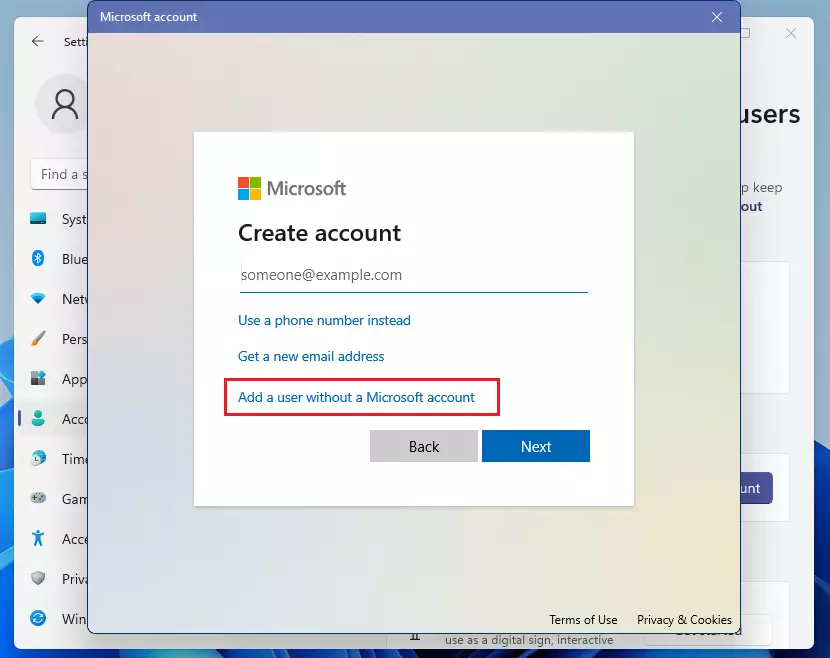
Step 4Skip the Microsoft Account
Click I don't have this person's sign-in information, then select Add a user without a Microsoft account.
Step 5Create the Local Account
Enter a username and password. You can add a password hint to help you remember it later.
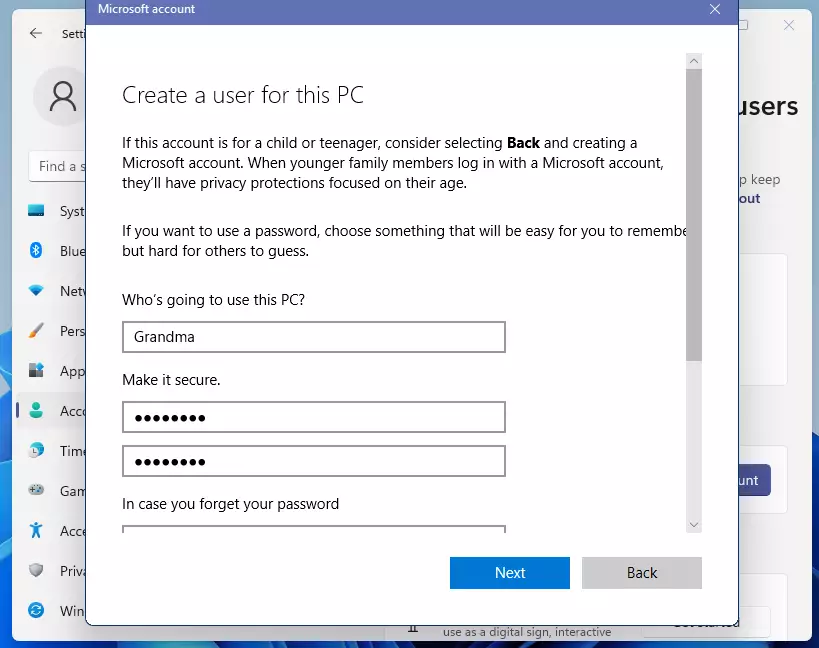
Step 6Finish and Complete
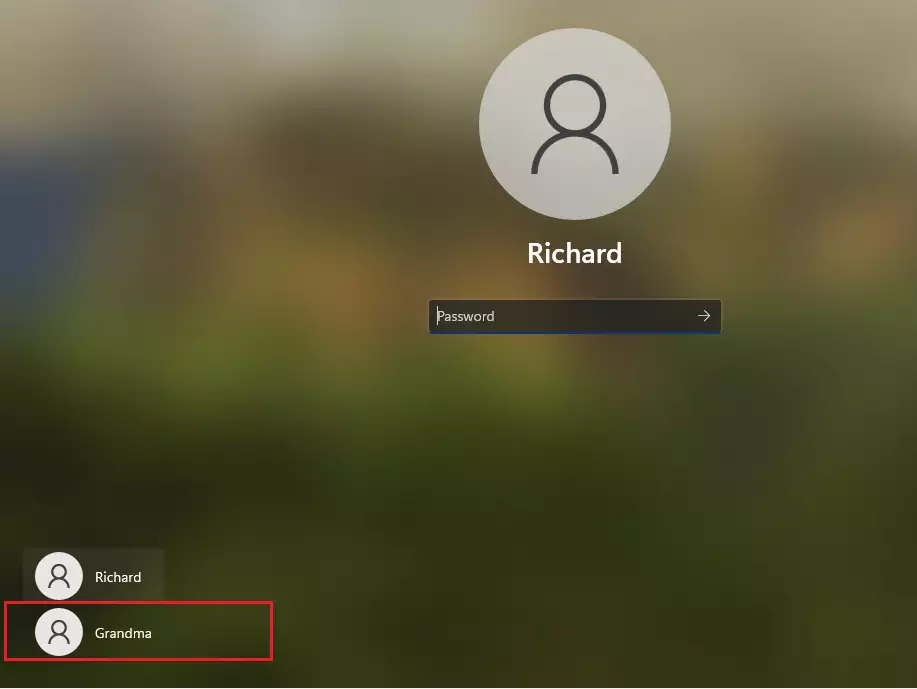
Click Next. The account is now ready for you to use.
Advanced Management: Command Line Methods
You can quickly add a local user in Windows 11 using the Command Prompt, which is handy for faster setup or scripting.
You can use the command line to create accounts quickly. Open Command Prompt and type:
net user username password /add
Replace <username> and <password> with your desired username and password. To make this user an administrator, use:
net localgroup administrators username /add
Using Local Users and Groups (🪟 Windows 11 Pro Only)
If you have Windows 11 Pro, you can use the advanced management tool. Press Win + R, type lusrmgr.msc, and hit Enter. This tool allows you to manage passwords, group memberships, and account status in a professional interface.
Account Removal and Management
To remove a user, navigate to Settings > Accounts > Other users. Select the user you want to remove and click Remove. Warning: This action deletes all files within that user’s folder. Back up important data first.
Summary
Adding a local user in Windows 11 is simple, whether you use the easy Settings menu or the powerful Command Prompt for more control.- Adding a local user account keeps files and settings private.
- Use Settings for a simple interface or Command Prompt for advanced control.
- Administrative privileges are required for all account management tasks.
- Windows 11 Pro users can use
lusrmgr.mscfor deeper control. - Always back up data before removing an account to prevent permanent file loss.
Can I create a local account during 🪟 Windows 11 setup?
Yes, during the initial setup, you can bypass the Microsoft account requirement by disconnecting from the internet or choosing offline account options. This ensures your primary account is a local account from the very start of your Windows 11 experience.
What is the difference between a Microsoft account and a local account?
A Microsoft account syncs settings and files across devices via the cloud. A local account exists only on your specific computer. Local accounts offer more privacy and do not require an internet connection or a linked email address to function on your machine.
How do I reset a forgotten local account password?
If you forget your password, you can use the password hint you created during setup. If that fails, you may need to use a password reset disk or an administrator account to change it. Learn more in our guide on how to reset a local account password.
Why can’t I see the ‘Add Account’ option?
If you can’t find the ‘Add Account’ option, you probably don’t have administrative privileges. Only accounts in the Administrator group can add or remove others. Make sure you’re logged in with an account that has full system access to see these options.
Was this guide helpful?

About the Author
Richard
Tech Writer, IT Professional
Richard, a writer for Geek Rewind, is a tech enthusiast who loves breaking down complex IT topics into simple, easy-to-understand ideas. With years of hands-on experience in system administration and enterprise IT operations, he’s developed a knack for offering practical tips and solutions. Richard aims to make technology more accessible and actionable. He's deeply committed to the Geek Rewind community, always ready to answer questions and engage in discussions.




[…] can create two system accounts: A local account or a Microsoft online account. The account you create will be of two types: Standard or […]
[…] are other ways one can change one’s account password in Windows. For example, if you have a local account, you can use PowerShell or Windows commands to reset your account password from Command Prompt or […]