How to Change Windows 11 Password via Command Prompt

You can change your Windows 11 password using the Command Prompt by following a specific set of commands.
The Command Prompt, often abbreviated as CMD, is a powerful command-line interpreter application used for executing commands in Windows. This method offers a quick alternative to the graphical Settings app for password management.
For instance, you can swiftly reset a forgotten password or enhance your security by using the `net user` command with the correct syntax within the Command Prompt window.
Updating your password is crucial if you suspect unauthorized access or simply want to strengthen your account’s security. Your new password immediately replaces the old one, securing your personal files and data.
Open Command Prompt as administrator, then type “net user USERNAME *” and press Enter. Replace USERNAME with your actual account name. You will be prompted to enter and confirm your new password.
Changing Your Password via Windows Settings
Changing your Windows 11 password through the Settings app is straightforward for both Microsoft and local accounts.
- Open the Start menu and click the Settings gear icon.
- Select Accounts from the left sidebar.
- Click on Sign-in options.
- Choose Password and click the Change button.
- Follow the on-screen prompts to verify your identity and set a new password.
Microsoft Account vs. Local Account
It’s important to know which account type you’re using. A Microsoft account connects to your email and syncs across your devices. A local account is unique to your specific computer. If you use a Microsoft account, you’ll need to change your password through the official Microsoft online portal.
Changing Password via Command Prompt (Admin Required)
You can change your Windows 11 password using the Command Prompt if you have administrator rights.
- Search for Command Prompt in the Start menu, right-click it, and select Run as administrator.
- Type the following command to see your user list:
net user
3. To change the password for a specific user, type this command and press Enter:
net user USERNAME *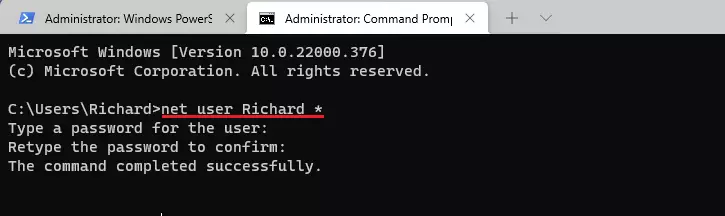
Changing Password via PowerShell (Admin Required)
You can also change your Windows 11 password using PowerShell, which is another command-line tool that requires administrator access.
- Open PowerShell as an administrator.
- View your local users with this command:
Get-LocalUser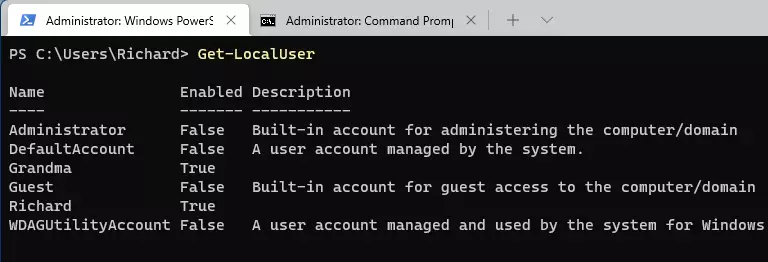
3. Create a secure password variable and apply it to your account:
$Password = Read-Host "Enter the new password" -AsSecureString4. Use these commands to finalize the change:
$UserAccount = Get-LocalUser -Name "USERNAME"
$UserAccount | Set-LocalUser -Password $Password
Summary
You can change your Windows 11 password using the Settings app for simplicity, or Command Prompt and PowerShell for faster administrative control.
Can I change my 🪟 Windows 11 password without knowing the old one?
If you’ve forgotten your Windows 11 password, you can’t change it directly; instead, you must use the ‘I forgot my password’ option on the sign-in screen to reset it.
Is it safer to use a PIN or a password in 🪟 Windows 11?
Using a PIN for your Windows 11 login is generally safer than a password because it’s tied to your device and stored securely, making it harder to steal remotely.
Was this guide helpful?

About the Author
Richard
Tech Writer, IT Professional
Richard, a writer for Geek Rewind, is a tech enthusiast who loves breaking down complex IT topics into simple, easy-to-understand ideas. With years of hands-on experience in system administration and enterprise IT operations, he’s developed a knack for offering practical tips and solutions. Richard aims to make technology more accessible and actionable. He's deeply committed to the Geek Rewind community, always ready to answer questions and engage in discussions.



No comments yet — be the first to share your thoughts!