How to View All User Accounts in Windows 11

You view all user accounts in Windows 11 using either the User Accounts control panel or the Command Prompt.
User accounts are distinct profiles on your PC, each with its own settings, files, and permissions. Understanding these accounts is vital for managing system access and security.
Discovering all accounts helps you identify dormant profiles or potential unauthorized access. For example, Windows 11 usually has a default Administrator account alongside your main user account.
This knowledge lets you actively manage permissions, delete unneeded accounts, or modify existing ones. You ensure your PC remains secure and well-organized.
Access the “Family & other users” section in Windows Settings for a basic list, or use Computer Management, Command Prompt (type “net user”), or PowerShell (type “Get-LocalUser”) for a complete list including hidden accounts. These methods show all profiles on your system.
View accounts using the Windows Settings app
You can view all user accounts on your Windows 11 PC using the Settings app, a simple tool for managing your computer. Just open Settings, click on Accounts, and then choose Family & other users to see who has an account.
Click the Start menu and select Settings. You can also press Windows key + I on your keyboard.
When the app opens, click the Account button on the left side.
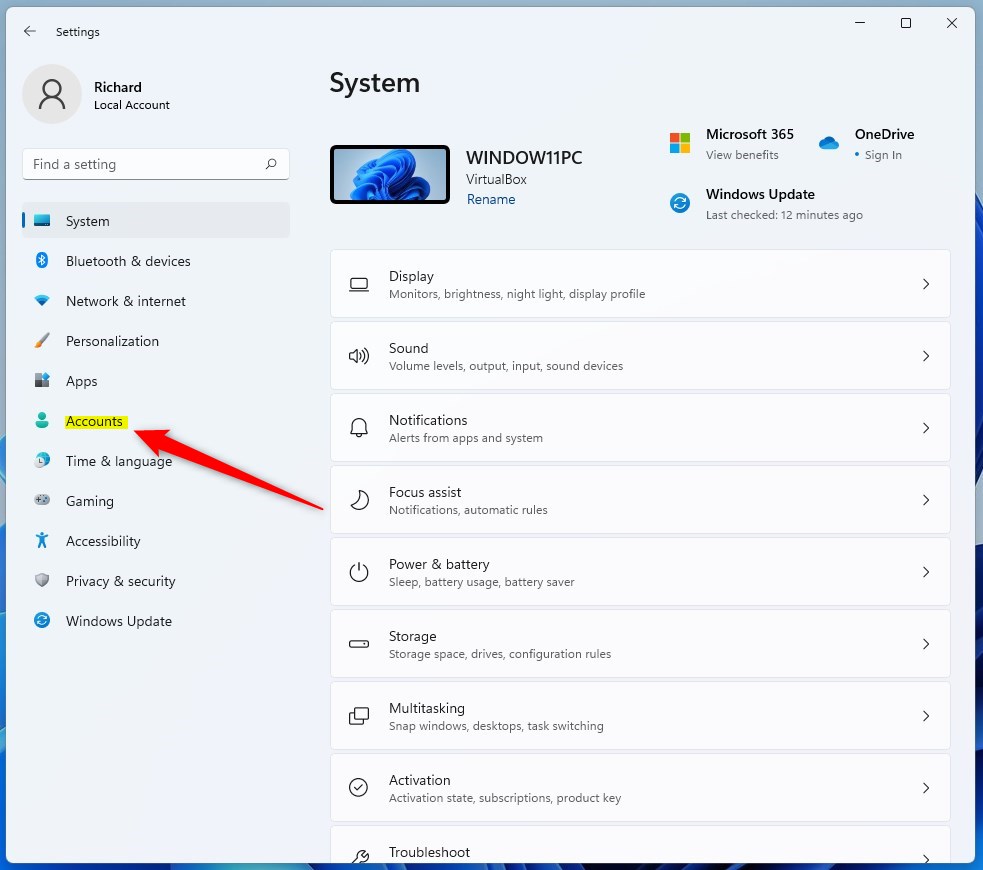
On the right side, select the Family & other users tile to see more options.
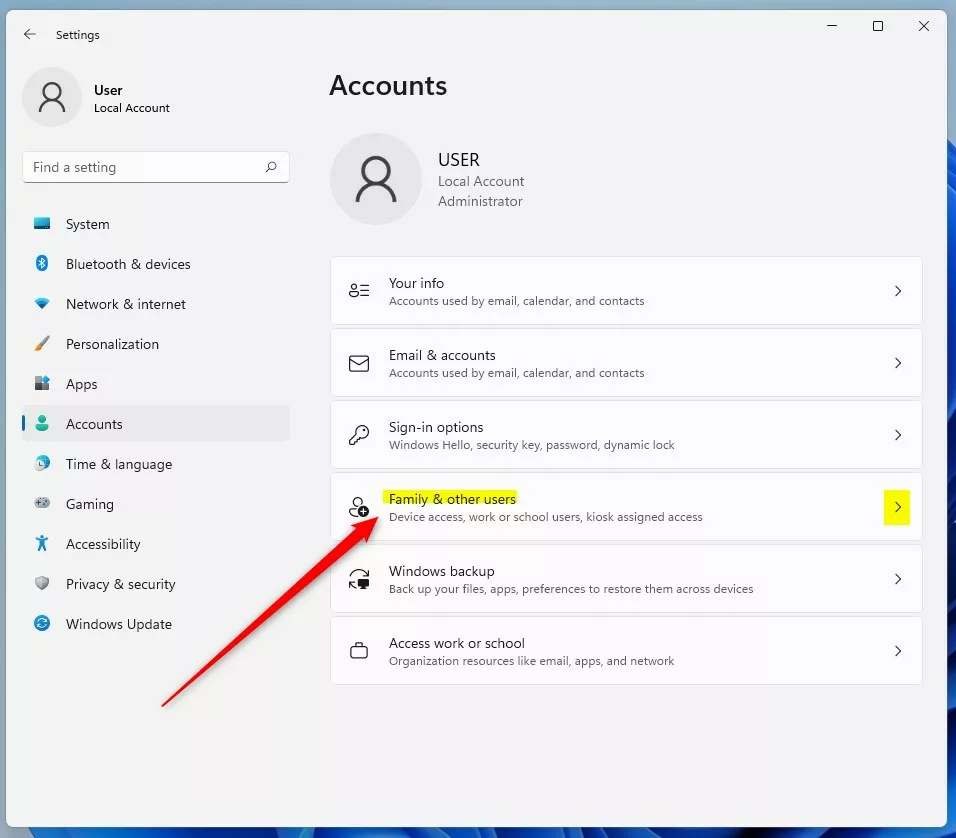
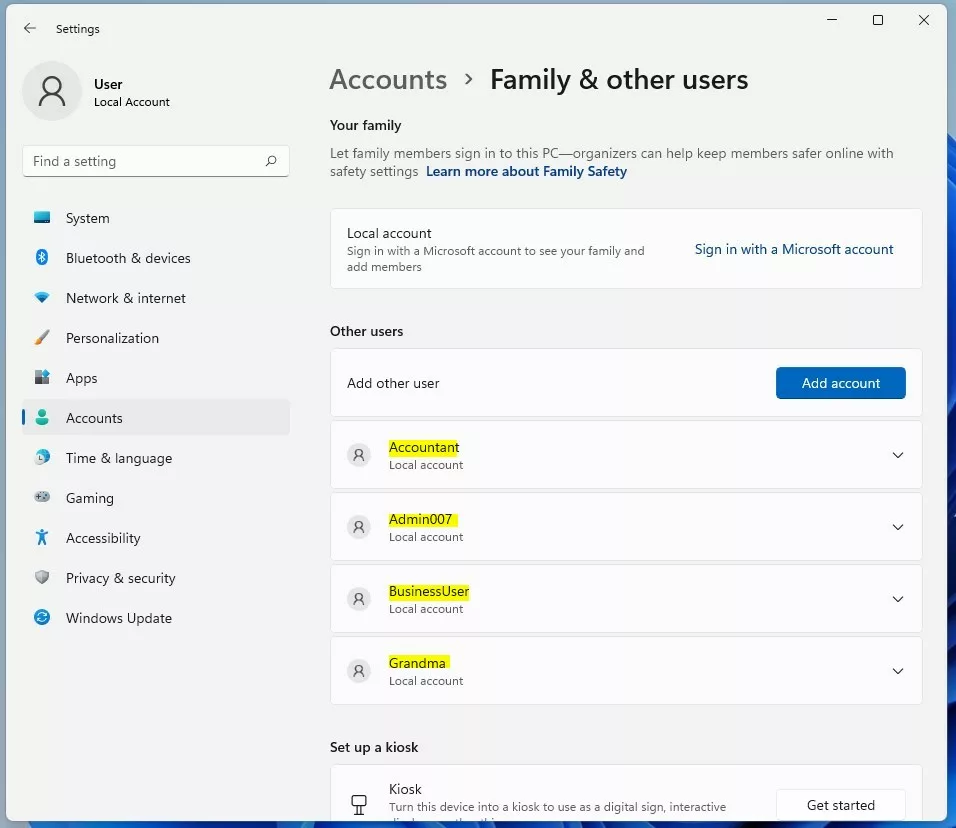
Look under the “Other users” section to see a list of accounts on your system. Accounts that use a Microsoft account appear under “Your family.” Note that this method does not show hidden system accounts.
See all user accounts using Computer Management
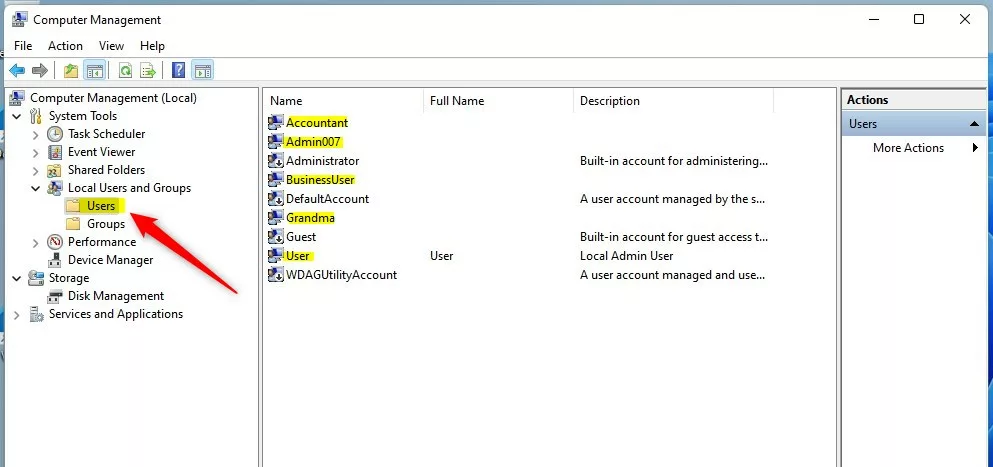
The Computer Management tool lets you see every user account on your Windows 11 computer, even hidden or disabled ones. Open Computer Management by searching for it, then click Local Users and Groups, followed by the Users folder to find the list.
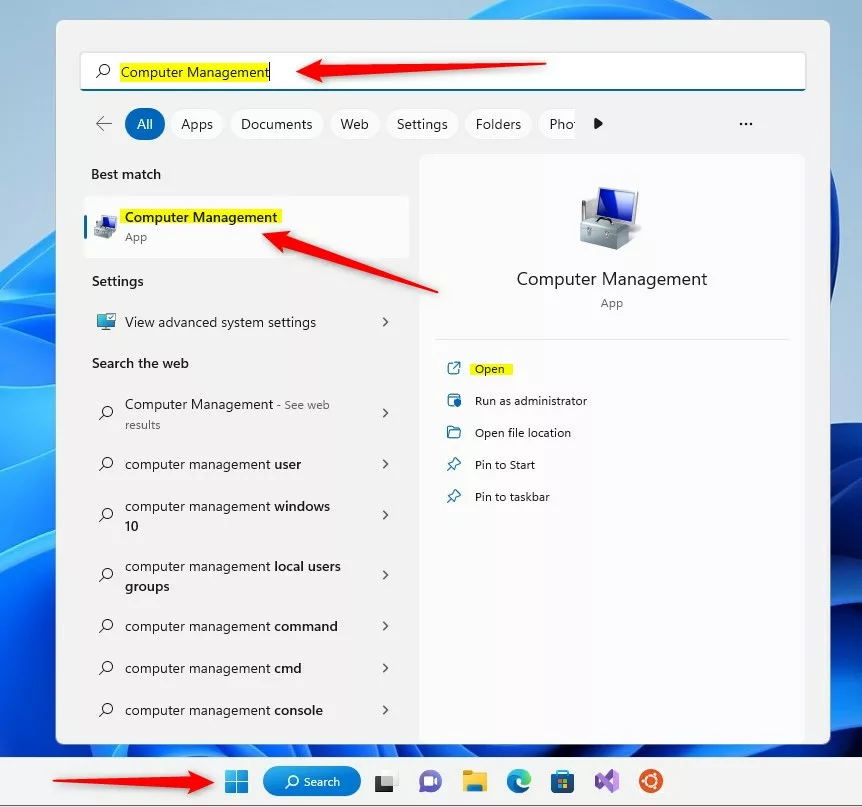
Click the Start menu and search for “Computer Management.” Open the app from the search results.
On the left sidebar, click the arrow next to “Local Users and Groups,” then select the “Users” folder. You will see every account currently on your computer listed on the right.
List all user accounts using Windows Command Prompt
You can quickly list all user accounts in Windows 11 using the Command Prompt with a simple command.
net user
This command shows you a list of all accounts on your system. Alternatively, you can use this command for a cleaner list:
wmic useraccount get name
View all user accounts using Windows PowerShell
Windows PowerShell offers a detailed look at all user accounts in Windows 11, showing their status like enabled or disabled. To use it, open PowerShell as an administrator and type the command Get-LocalUser to see a full list.
Get-LocalUser
This shows you a detailed table, including whether an account is enabled or disabled. You’ll need administrator privileges to do this. (This means you’ll need to be logged in as an administrator or have admin rights to make changes.)
Understanding Account Types and Troubleshooting
Understanding the difference between Windows 11 user account types, like Microsoft accounts and local accounts, helps you manage them better.
Summary
You can view user accounts through the Settings app for a basic overview or use Computer Management, Command Prompt, and PowerShell for a complete list that includes hidden or disabled profiles. These tools ensure you stay in control of who can access your Windows 11 device.
Why can’t I see all user accounts in 🪟 Windows 11 Settings?
You can’t see all user accounts in Windows 11 Settings because it’s designed for basic management and hides system or disabled accounts to prevent accidental changes.
How do I check if a user account is disabled?
You can check if a user account is disabled in Windows 11 using the PowerShell command Get-LocalUser, which shows the account’s status.
Was this guide helpful?

About the Author
Richard
Tech Writer, IT Professional
Richard, a writer for Geek Rewind, is a tech enthusiast who loves breaking down complex IT topics into simple, easy-to-understand ideas. With years of hands-on experience in system administration and enterprise IT operations, he’s developed a knack for offering practical tips and solutions. Richard aims to make technology more accessible and actionable. He's deeply committed to the Geek Rewind community, always ready to answer questions and engage in discussions.




No comments yet — be the first to share your thoughts!