Windows 11 is Getting a Smaller Start Menu – Here’s How to Change It!

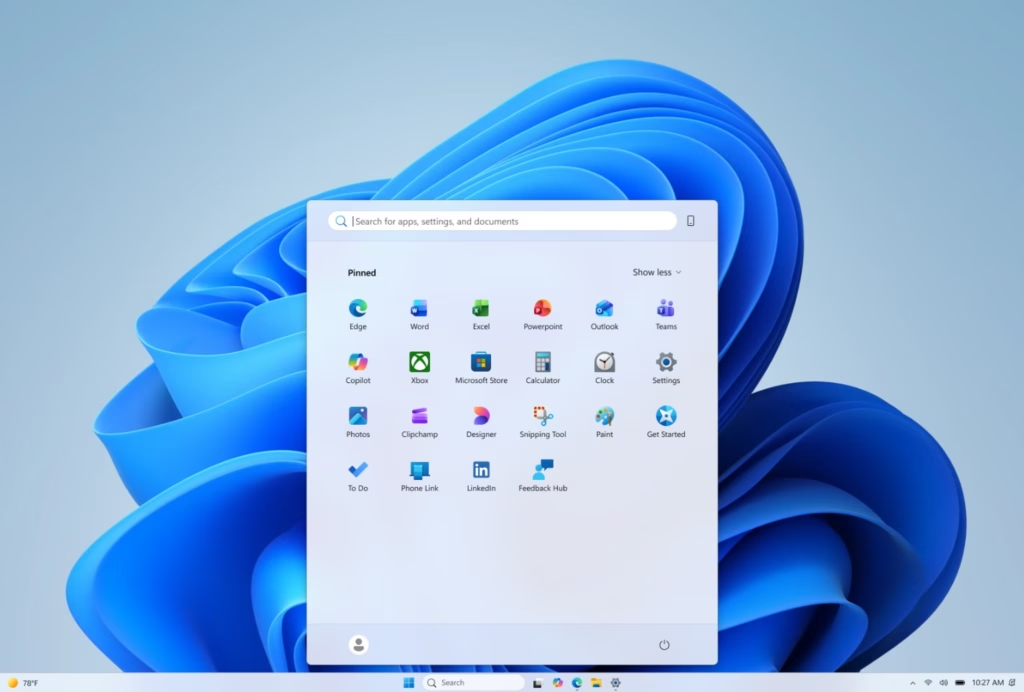
Windows 11 is getting a handy update: you can now adjust your Start menu’s size! If it feels like it’s hogging screen real estate or you want more space for apps, this guide is for you. Let’s learn how to change its size.
Change your Windows 11 Start menu size by going to Settings > Personalization > Taskbar > Taskbar behaviors. Here, you can choose between a smaller or larger Start menu size. These changes apply immediately.
How to Change Your 🪟 Windows 11 Start Menu Size
Why change the Start menu size?
Your Start menu is where you find your apps. Sometimes, it feels too big or too small for what you need. Changing its size helps you use your screen better and fit your style.
What happens when you change the size?
When you change the size, the Start menu will either take up less space on your screen (smaller) or show more items at once (larger). This can make it quicker to find what you need.
Step 1 Open Settings
First, you need to open your Windows Settings. This is where you can tweak how your computer looks and functions.
- Right-click on your Desktop.
- Click on Personalize from the menu that appears.
Tip: You can also press the Windows key + I on your keyboard to open Settings quickly.
Step 2Go to Taskbar Settings
Windows 11 taskbar settings are where you’ll find the option to change your Start menu size. First, open the main Personalization menu, then click on Taskbar. Scroll down until you see the ‘Taskbar behaviors’ section and click to expand it.
- In the Personalization window, click on Taskbar.
- Scroll down to find the section called Taskbar behaviors. Click it to open it.
Warning: Be careful in Taskbar settings. Some options change where the taskbar sits on your screen. Focus only on the size settings for now.
Step 3Find the Start Menu Size Setting
Within the Taskbar settings, the new option to adjust your Windows 11 Start menu size is located under ‘Taskbar behaviors.’ Look for a setting specifically mentioning Start menu size adjustments here. If you don’t see it yet, it might be a new feature still rolling out.
- In the Taskbar behaviors section, look for a new option related to the Start menu size.
Heads Up: This feature is being tested with Windows Insiders first. If you don’t see it yet, don’t worry! It will come to everyone soon. Make sure your Windows is updated.
Step 4Choose Your Start Menu Size
Choosing your preferred Windows 11 Start menu size is simple once you find the option. You’ll likely see choices like ‘Small’ for a more compact menu or ‘Large’ to display more items without scrolling. Select the option that best fits how you use your Start menu.
- You will see options for the Start menu size. You might see a dropdown menu or radio buttons.
- Choose between:
- Small: This makes the Start menu more compact. It’s good if you want more space on your screen.
- Large: This makes the Start menu bigger. It shows more apps and items without needing to scroll as much.
- Select the size that works best for you.
The change happens right away. You don’t need to restart your computer.
Practical Tip: Try both the Small and Large sizes for a few days each. See which one feels better when you use your computer.
Step 5Other Start Menu Tweaks (Bonus!)
Beyond changing the Windows 11 Start menu size, you can further customize its look. You can turn sections like ‘Pinned,’ ‘Recommended,’ and ‘All apps’ on or off to simplify the menu. You can also hide recommendations for recent files.
- Section Toggles: You can turn on or off sections like “Pinned,” “Recommended,” and “All apps.” This lets you make a very simple Start menu.
- File Recommendations: You can stop seeing recent files in the Start menu. This setting is separate from the File Explorer recommendations.
- Hide Name and Profile Picture: If you show your screen to others, you can hide your name and picture from the Start menu for privacy.
Remember: These extra features are also rolling out slowly. Keep checking for Windows Updates.
Reference:
Summary
You can now easily change your Windows 11 Start menu size to be smaller or larger for better screen use. Just go to Settings > Personalization > Taskbar > Taskbar behaviors and select your preferred size.
How to make 🪟 Windows 11 Start menu small again?
Want to make your Windows 11 Start menu smaller again? Head to Settings > Personalization > Taskbar. Under ‘Taskbar behaviors,’ look for ‘Taskbar alignment’ and choose ‘Left.’ This moves your Start button and icons to the left, giving you a more classic, compact feel.
How do I get the classic Start menu on 🪟 Windows 11?
While Windows 11 doesn’t offer a direct ‘classic’ Start menu button, you can get a similar look by changing the taskbar alignment. Go to Settings > Personalization > Taskbar, and under ‘Taskbar behaviors,’ switch the alignment to ‘Left.’
Can I revert to the old Start menu design?
Windows 11 does not have a built-in feature to revert to the exact old Start menu design from Windows 10. However, you can adjust the Taskbar alignment in Settings > Personalization > Taskbar to ‘Left’ to get a more familiar layout. Third-party software can provide a closer replication.
How do I return the old Start menu in 🪟 Windows 11?
To make your Windows 11 Start menu feel more like the old one, you can adjust the taskbar alignment. Navigate to Settings > Personalization > Taskbar, and under ‘Taskbar behaviors,’ set ‘Taskbar alignment’ to ‘Left’ to mimic the older layout.
Was this guide helpful?
0% of readers found this helpful (2 votes)

About the Author
Richard
Tech Writer, IT Professional
Richard, a writer for Geek Rewind, is a tech enthusiast who loves breaking down complex IT topics into simple, easy-to-understand ideas. With years of hands-on experience in system administration and enterprise IT operations, he’s developed a knack for offering practical tips and solutions. Richard aims to make technology more accessible and actionable. He's deeply committed to the Geek Rewind community, always ready to answer questions and engage in discussions.


No comments yet — be the first to share your thoughts!