How to Customize Windows 11 Taskbar Settings

You can customize your Windows 11 taskbar to suit your workflow and personalize your PC experience.
The taskbar is the essential strip on your screen that gives you quick access to apps, the Start menu, and system alerts.
You can easily change its alignment, like moving icons from the default Windows 11 center position back to the left, just like in Windows 10.
This tutorial shows you how to adjust settings such as auto-hiding the taskbar or choosing which icons appear.
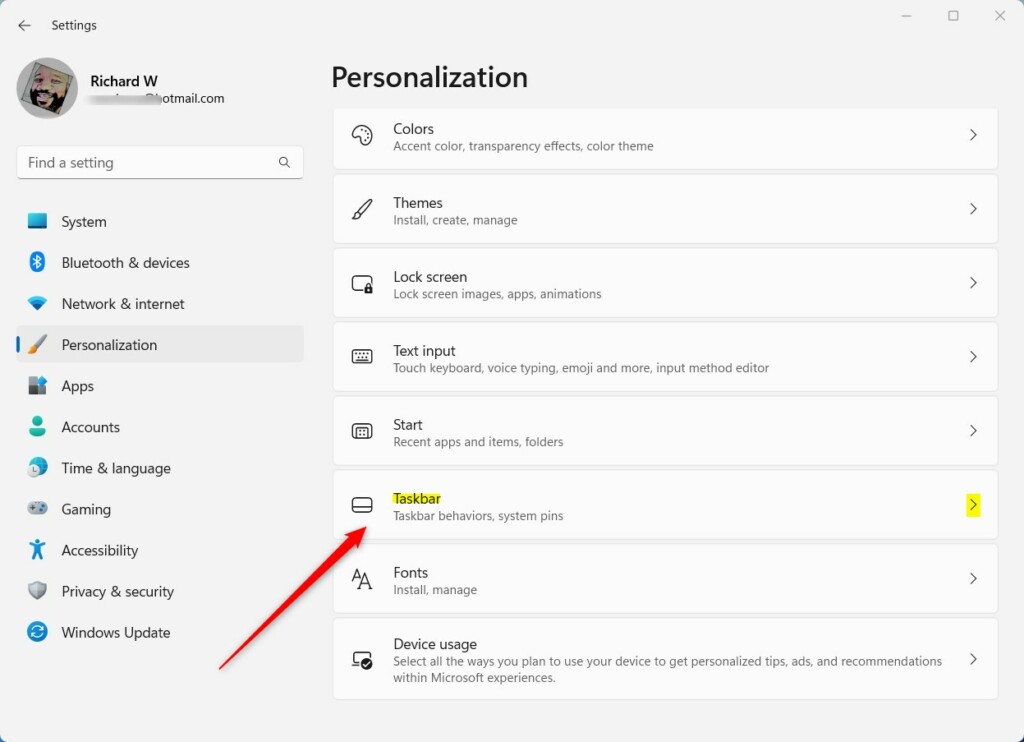
Adjust taskbar alignment by going to Settings > Personalization > Taskbar > Taskbar behaviors, then select Left or Center for Taskbar alignment. You can also hide or show taskbar items like Search and Widgets from this same menu.
Taskbar Alignment: Left vs. Center
By default, Windows 11 centers your taskbar icons. If you prefer the classic look, you can move them to the left.
- Open Settings.
- Go to Personalization > Taskbar.
- Click Taskbar behaviors.
- Find Taskbar alignment and choose Left or Center.
Managing Taskbar Behaviors and Buttons
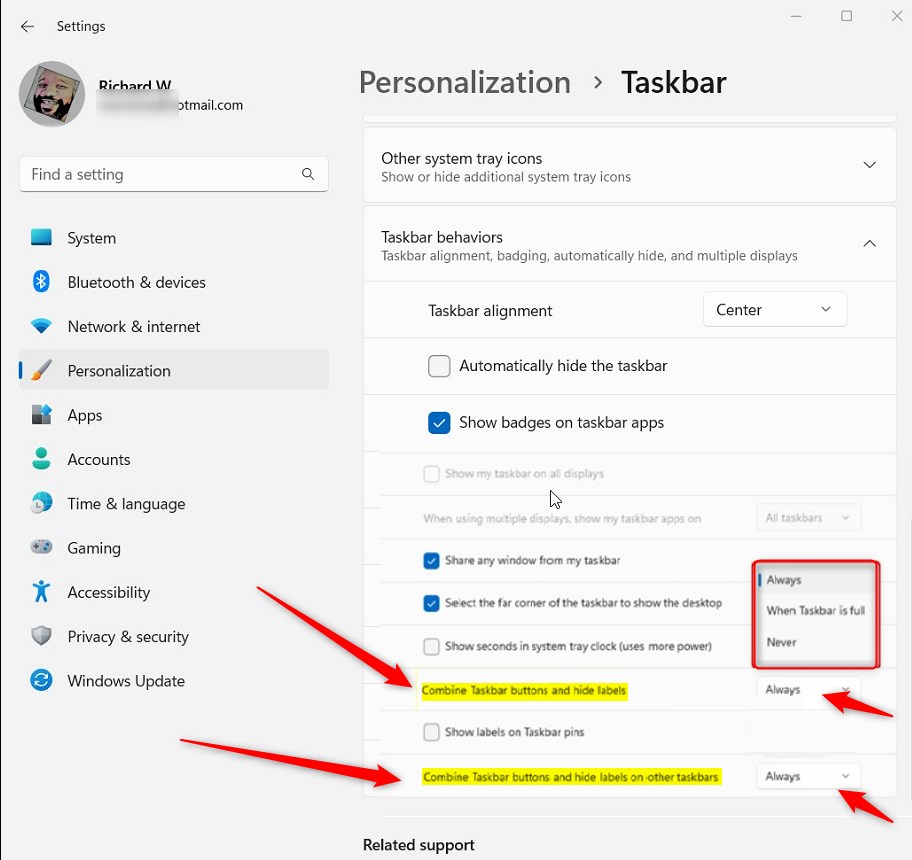
You can easily change how your Windows 11 taskbar buttons group together and if labels show up right from the main settings menu.
- Navigate to Settings > Personalization > Taskbar.
- Select Taskbar behaviors.
- Always: Icons are grouped together to save space.
- When taskbar is full: Icons group only when you have many apps open.
- Never: Each window shows its own label, making it easy to see every open app.
System Tray and Notification Area
The system tray in Windows 11, found on the bottom right, shows your clock and background apps.
- Go to Settings > Personalization > Taskbar.
- Click Other system tray icons to toggle specific apps on or off.
- Use the System tray icons menu to hide or show the volume, network, or input indicators.
Widgets and Search Customization
You can hide the Search, Widgets, or Chat buttons if you do not use them. This frees up space on your taskbar.
- Open Settings > Personalization > Taskbar.
- Under Taskbar items, toggle the switches for Search, Widgets, and Chat to Off.
Advanced Registry Tweaks
If you want to make deeper changes to your Windows 11 taskbar settings that aren’t available in the normal menus, you can use the Registry Editor, but you’ll need administrator permission and should be careful.
You can force specific behaviors using the Registry Editor. Press ⊞ Win+R on your keyboard, type ‘regedit’ (which opens the Registry Editor, a tool for making advanced system changes), and press Enter.
Navigate to: HKEY_CURRENT_USER\Software\Microsoft\Windows\CurrentVersion\Explorer\Advanced
Create a new value of type DWORD (32-bit) named TaskbarGlomLevel. Set its value to 0, 1, or 2 to control button grouping.

Summary
Customizing Windows 11 taskbar settings helps you make your computer feel like your own.
How do I move the taskbar to the top or sides in 🪟 Windows 11?
Unlike previous versions of Windows, Windows 11 does not natively support moving the taskbar to the top or sides of the screen. The taskbar is locked to the bottom position by design to ensure the stability of the new interface and the Start menu layout.
Can I change the size of the taskbar in 🪟 Windows 11?
Windows 11 does not have a simple slider to change taskbar height. However, you can change the overall system scaling in Settings under System > Display > Scale. Changing this percentage will adjust the size of the taskbar and all other UI elements on your screen.
Was this guide helpful?

About the Author
Richard
Tech Writer, IT Professional
Richard, a writer for Geek Rewind, is a tech enthusiast who loves breaking down complex IT topics into simple, easy-to-understand ideas. With years of hands-on experience in system administration and enterprise IT operations, he’s developed a knack for offering practical tips and solutions. Richard aims to make technology more accessible and actionable. He's deeply committed to the Geek Rewind community, always ready to answer questions and engage in discussions.


[…] than one monitor, you can show the Taskbar on all your monitors. You can also turn on or off “never combined mode” so your taskbar items do not group […]