How to Change Taskbar Position to Top or Side in Windows 11

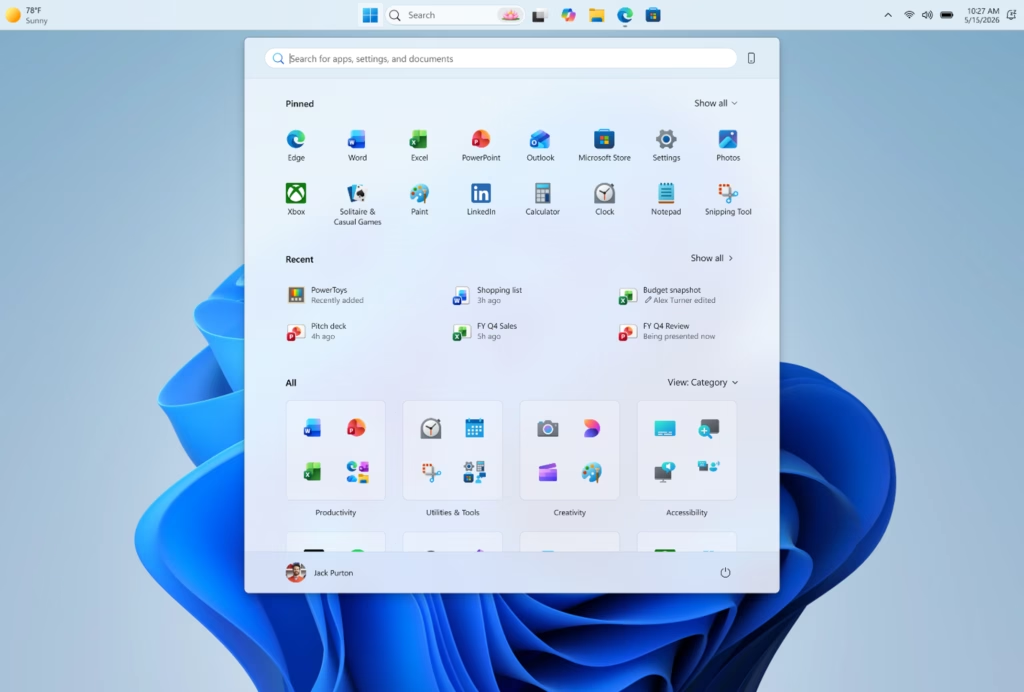
For years, Windows has kept that helpful bar at the bottom of your screen. It has worked well, but Microsoft is finally letting you move it! Get ready, because Windows 11 is getting a big update that lets you put your taskbar anywhere you want – the top, bottom, left, or right!
This isn’t just about how it looks. It’s about making your computer work better for *you*. Maybe you’re a coder who needs more space to see your work. Or perhaps you find it easier to reach the top of your screen. Or you just like a different layout. This update lets you decide.
Right-click the taskbar and select Taskbar settings. Navigate to Taskbar behaviors and use the Taskbar position dropdown menu to select Top, Left, or Right. Your taskbar will move immediately.
Finding the New Taskbar Settings
You can change your Windows 11 taskbar position by opening its settings right from the taskbar. Just right-click on any empty space on your taskbar, and a menu will appear. Select ‘Taskbar settings’ from this menu to open the correct section in Windows Settings.
- Right-click on an empty spot on your taskbar. This is where you usually go to change settings or open Task Manager.
- A menu will pop up. Click on Taskbar settings. This will open the Personalization section in your Windows Settings app, focusing on the taskbar.
- Once you are in Taskbar settings, look for a section called Taskbar behaviors. This is where all the new options are.
Pro Tip: If you don’t see these options yet, don’t worry! Microsoft is adding these features slowly. You might need to be part of the Windows Insider Program to get them early. Or, you can wait for a Windows Update. Make sure your system is updated!
Choosing Your Taskbar’s New Home
Changing your Windows 11 taskbar position is easy using the ‘Taskbar behaviors’ settings. Look for the ‘Taskbar position’ dropdown menu. Here, you can choose to keep it at the bottom (which is the default), or move it to the top, left, or right side of your screen.
- In the Taskbar behaviors section, find the option called Taskbar alignment or Taskbar position. (The exact words might change a little as it rolls out).
- Click the dropdown menu. You will see options like:
- Bottom (Default): This is the normal spot for the Windows taskbar.
- Top: Your taskbar will now be at the top of your screen.
- Left: The taskbar will be a vertical bar on the left side of your screen.
- Right: The taskbar will be a vertical bar on the right side of your screen.
- Pick the position you like. Your taskbar should move right away. You don’t need to restart your computer!
Practical Tip: If you have a very wide monitor, a vertical taskbar on the left or right can be very helpful. It frees up space on the sides, which is often more limited than top-to-bottom space on these screens. This lets you see more of your work without scrolling.
Aligning Your Icons (When Vertical)
When you move your Windows 11 taskbar to the side, you can adjust how your icons line up. Within the ‘Taskbar behaviors’ settings, find the ‘Taskbar icon alignment’ option. You can choose to align icons to the ‘Top’ or ‘Center’ when the taskbar is on the left or right.
- Still in the Taskbar behaviors settings, look for an option about Taskbar icon alignment.
- When your taskbar is on the left or right, you will likely see options to align icons to the Top or Center of the vertical taskbar.
- When your taskbar is at the top or bottom, you will have options for Left or Center alignment.
Try these options to see what feels best for how you work. For a vertical taskbar, aligning icons to the top often feels more natural, like the Start button in the bottom-left corner.
Warning: Some features might work a little differently depending on where your taskbar is. For example, when the taskbar is at the top, the Start menu will open from the top edge. This is meant to be understandable, but it’s good to know if you’re used to a certain way of doing things.
Seeing Every Window at a Glance
You can make it easier to see all your open windows by adjusting how taskbar buttons are shown. In the Taskbar settings, under ‘Taskbar behaviors’, you’ll find an option to ‘Combine taskbar buttons and hide labels’. Setting this to ‘Never’ shows each window separately.
- Go back to Settings > Personalization > Taskbar.
- Look for the setting called Taskbar behaviors.
- Find the option that says “Combine taskbar buttons and hide labels”. Make sure this is not checked (or set to “Never” if that’s what it says).
Now, when you use a vertical taskbar (left or right) and have many windows open for the same app, each window will show up as its own button with its name. This makes it much easier to find and switch between different documents or projects.
Why this is cool: People who code, write, or work with many files in the same program will find this very useful. It’s like having a clearer, always-visible list of your open tasks right on the edge of your screen.
What’s Still Being Worked On?
Even though you can move the Windows 11 taskbar position, some features might not work perfectly yet. The auto-hide feature, which makes the taskbar disappear until you need it, and how the taskbar behaves on tablets, may have issues when the taskbar isn’t at the bottom.
- Auto-hide and Tablet Mode: The feature that hides the taskbar automatically, and how the taskbar works on tablets, might not work perfectly yet when the taskbar is moved from the bottom.
- Touch Gestures: If you use specific touch actions, they might still be in progress for these new taskbar positions.
- Search Box: In some cases, the full search box might just show a search icon when the taskbar is in a different position. This is expected to get better.
- Per-Monitor Settings & Drag and Drop: Things like having different taskbar positions on different screens, or dragging and dropping files onto taskbar icons, are things Microsoft is still thinking about.
Important Note: Microsoft wants to make sure things work as expected and you don’t accidentally move your taskbar. So, while they are adding more choices, they also want to keep it a stable and reliable part of your Windows experience.
Reference:
Summary
You can easily change your Windows 11 taskbar position to the top, bottom, left, or right using the Taskbar settings for better customization and efficiency.
How do I get my taskbar back to the top?
To move your taskbar to the top in Windows 11, right-click an empty space on the taskbar, select ‘Taskbar settings,’ and then under ‘Taskbar behaviors,’ choose ‘Top’ from the ‘Taskbar alignment’ dropdown menu. This will reposition it instantly.
How do I switch the position of my taskbar?
Switching your taskbar position in Windows 11 is quite simple. Right-click on an empty taskbar area, choose ‘Taskbar settings.’ Navigate to ‘Taskbar behaviors’ and use the ‘Taskbar alignment’ dropdown to select your desired position: left, right, top, or bottom.
How to move taskbar to top in 🪟 Windows 11?
To move your taskbar to the top in Windows 11, right-click an empty taskbar area and select ‘Taskbar settings.’ In the ‘Taskbar behaviors’ section, click the ‘Taskbar alignment’ dropdown and choose ‘Top.’ Your taskbar will immediately relocate to the top of the screen.
How to make taskbar 🪟 Windows 11 on top?
To place your Windows 11 taskbar on top, right-click an empty spot on the taskbar and select ‘Taskbar settings.’ Under ‘Taskbar behaviors,’ find the ‘Taskbar alignment’ option and select ‘Top’ from the available choices. This instantly moves the taskbar.
Was this guide helpful?
0% of readers found this helpful (2 votes)

About the Author
Richard
Tech Writer, IT Professional
Richard, a writer for Geek Rewind, is a tech enthusiast who loves breaking down complex IT topics into simple, easy-to-understand ideas. With years of hands-on experience in system administration and enterprise IT operations, he’s developed a knack for offering practical tips and solutions. Richard aims to make technology more accessible and actionable. He's deeply committed to the Geek Rewind community, always ready to answer questions and engage in discussions.


You don’t mention that you need to be a Windows Insider to use this.